



How to Fix Windows Boot Drive Corruption on a Laptop
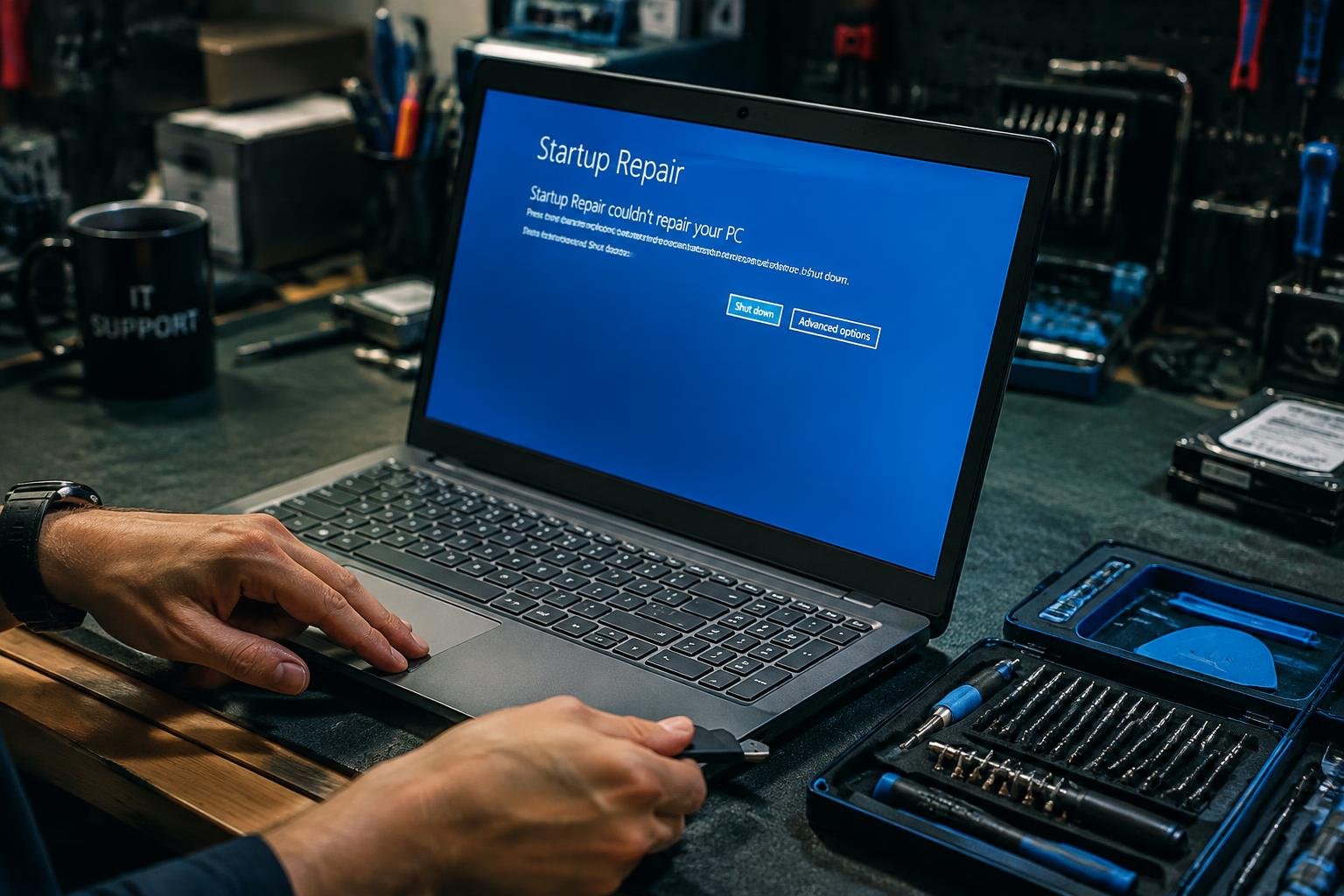
A laptop that freezes at the Windows logo or reports that no boot device is available may have corruption in its boot files, file system, or storage drive. You can use Windows Recovery Environment tools such as Startup Repair and Command Prompt to diagnose the fault, but protect important files before attempting repairs that write to the drive.
Key Takeaways:
- Boot drive corruption can result from file system errors, interrupted Windows updates, malware, or a failing SSD or hard drive; startup errors and repeated crashes are common warning signs.
- Back up accessible files before repairs. If Windows will not start, use Windows Recovery Environment or a bootable recovery drive to reach troubleshooting tools without loading the installed system.
- Run Startup Repair from Windows Recovery Environment first. For file system errors, Command Prompt tools such as
chkdskmay be appropriate, while boot configuration problems require separate repair steps. - Review drive health with the laptop manufacturer’s diagnostics or a suitable storage utility. Repeated read errors, disappearing drive detection, or failed diagnostics point to a possible hardware fault.
- Replace a failing drive before reinstalling Windows, then install Windows from official installation media and restore files from a verified backup.
Check for Signs and Causes of Boot Drive Corruption
Boot drive corruption often shows up as a pattern rather than a single failure. Note when symptoms began, whether they recur after a restart, and whether Windows or the laptop’s firmware displays an error. These details can distinguish damaged startup data from broader storage trouble: a missing boot device points toward drive detection, while repeated file errors suggest unreadable or inconsistent data on the system drive.
Look for startup errors, freezes, and missing files
Record the exact wording of startup messages, such as “Operating System Not Found” or a Windows stop error, because different messages indicate different failure points. A laptop that stalls at the manufacturer logo, loops through automatic repair, or freezes while loading Windows may have trouble reading startup files. Once Windows does open, missing folders, renamed files, or frequent app crashes can indicate file-system damage, especially when the affected items are stored on the boot drive.
Consider update failures, power loss, and drive wear
Interrupted Windows updates can leave startup components incomplete, particularly if the laptop loses power while applying changes or shuts down unexpectedly. A depleted battery, faulty charger, or forced power-off can also interrupt writes to the drive. Storage wear is another likely cause: an aging hard disk may click or slow down, while a solid-state drive can report errors without noise. Repeated boot failures after an update, or a firmware screen that intermittently fails to detect the drive, provides useful context.
| Observed sign | Possible indication |
|---|---|
| “Operating System Not Found” | Boot drive not detected or startup files unavailable |
| Automatic repair loop | Windows startup data or file-system damage |
| Missing files or app crashes | Unreadable or inconsistent data on the system drive |
| Failure after update or power loss | Interrupted writes or incomplete update components |
| Slow access or intermittent drive detection | Possible storage wear or connection trouble |
Back Up Data and Prepare for Repair
Before changing boot settings or removing the drive, protect files that are not stored elsewhere and assemble the tools needed to access the laptop. A separate computer, an external storage device with enough free capacity, and the laptop’s model or service information give you a practical starting point. Keep recovery media and backup storage distinct, and label each device so you can identify it during the repair.
Connect the laptop to recovery media
Use a Windows recovery USB created on a working computer, or installation media that matches the laptop’s Windows version and architecture. Connect the USB drive directly to the laptop rather than through a hub, then open the manufacturer’s boot menu using the key shown during startup, often F12, Esc, or a function key. Select the USB entry, and keep the laptop connected to its power adapter while the recovery environment loads.
Check drive connections and available storage
Before opening the case, shut down the laptop, unplug its charger, and follow the manufacturer’s service instructions; remove the battery only if the model permits it. On a removable M.2 or SATA drive, inspect for a loose connector or displaced retaining screw, and reseat it only if you are comfortable handling internal components. For a file backup, use an external drive with free space exceeding the files you plan to copy.
- Keep the BitLocker recovery key available if device encryption is enabled.
- Record the laptop’s exact model number from its label or firmware screen.
- Use a USB drive reserved for recovery media, not your only backup.
Repair Windows Boot Drive Corruption
Windows Recovery Environment (WinRE) provides tools for repairing startup files without loading the desktop. Open it from the automatic recovery screen after failed starts or from Windows installation media by selecting Repair your computer. Choose Troubleshoot to reach the repair options, and keep the laptop connected to power while operations run. The available tools address common startup problems, from damaged file-system metadata to missing boot configuration entries.
Run Startup Repair and Check Disk
Start with Startup Repair in WinRE under Troubleshoot and Advanced options. Select your Windows installation, enter your account credentials if prompted, and let the tool scan for startup faults and restore files it can repair. If Windows still will not start, open Command Prompt from Advanced options and run chkdsk C: /f, replacing C: with the Windows volume letter shown in recovery. The /f switch repairs detected file-system errors.
Use Command Prompt and boot configuration tools
From WinRE Command Prompt, identify the Windows volume before rebuilding startup entries, since its drive letter can differ from the one used in Windows. Run diskpart, then list volume, and note the volume containing the Windows folder. Exit DiskPart and use bcdboot C:\Windows, substituting the correct letter, to copy boot files and create a boot configuration store. On UEFI laptops, confirm the EFI System Partition is mounted before targeting it explicitly with BCDBoot.
| Tool | Where to find it | Primary purpose |
|---|---|---|
| Startup Repair | WinRE, Advanced options | Diagnoses and repairs common startup-file problems |
| CHKDSK | WinRE Command Prompt | Repairs file-system errors on the selected volume |
| DiskPart | WinRE Command Prompt | Identifies volumes and their recovery drive letters |
| BCDBoot | WinRE Command Prompt | Copies Windows boot files and rebuilds boot configuration |
Test the Drive and Replace It if Needed
After repairs, assess whether the laptop’s boot drive remains reliable under normal use. A successful startup is not enough if the system freezes, files become unreadable, or drive errors return. Review hardware diagnostics alongside Windows’ behavior, then decide whether the storage device is suitable for continued use. If tests indicate physical failure, limit further writes to the drive and move to replacement before another boot attempt risks access to your files.
Review drive health and diagnostic results
Run the laptop maker’s UEFI or BIOS storage test, then review the drive’s SMART status with a utility such as CrystalDiskInfo when Windows starts. A failing status, uncorrectable errors, or repeated read errors points to a hardware problem rather than a boot configuration fault. Listen for clicking from a hard disk, and note whether an SSD disappears from firmware. Record the model and diagnostic code, since support teams use those details to identify the failing component.
Replace a failing drive and restore backed-up data
Choose a compatible replacement by matching the laptop’s supported form factor and interface, such as M.2 NVMe or 2.5-inch SATA. Shut the laptop down, disconnect its charger, and follow the service manual before removing the old drive; battery access and mounting screws vary by model. Install the replacement securely, then restore personal files from your verified backup. Keep the failed drive disconnected until you have confirmed that the restored files open correctly on the new storage device.
- Check the laptop’s service manual for the drive’s screw size.
- Use an antistatic wrist strap while handling storage hardware.
- Store the removed drive in an antistatic bag.
Reinstall Windows and Prevent Future Corruption
A clean Windows installation replaces damaged system files and gives you a fresh starting point after the boot drive is stable. Choose the installation option that matches your recovery needs, then restore personal files selectively rather than copying old system folders. Before installing, confirm that you have your Windows activation details, network access, and any device-specific drivers needed to bring the laptop back online.
Reinstall Windows and install essential drivers
Use Microsoft’s Windows installation media to boot the laptop and install Windows on the intended drive, taking care to identify the correct disk before deleting partitions. After setup, install the laptop manufacturer’s chipset, storage controller, graphics, and network drivers, using the model’s support page or Windows Update. Confirm that Device Manager shows no unknown devices, then test Wi-Fi, audio, sleep, and external ports before restoring your applications.
Apply backup, update, and safe-shutdown tips
Set up File History or a trusted cloud backup to protect documents, and verify that a sample file can be restored. Keep Windows Update and the laptop manufacturer’s firmware and storage-driver updates current, while avoiding interruptions during installation. Shut down through the Windows menu rather than holding the power button, and connect the charger during updates. If the laptop freezes repeatedly, investigate the cause instead of forcing repeated shutdowns.
| Recovery task | What to do | What to verify |
|---|---|---|
| Windows installation | Install from Microsoft media on the intended drive | Windows starts normally |
| Drivers | Install manufacturer chipset, storage, graphics, and network drivers | Device Manager has no unknown devices |
| Backups and updates | Configure file backup and apply supported updates | A sample file restores successfully |
| Shutdown | Use the Windows shutdown command | The laptop powers off without interruption |
Final Words
Windows boot drive corruption does not always mean you have lost your files or need a new laptop. Start with a backup, then use Windows Recovery Environment tools such as Startup Repair or Command Prompt checks to address software and file system errors. If diagnostics report drive failure or corruption returns, replace the SSD or hard drive before reinstalling Windows. After recovery, keep current backups and shut down properly to reduce the risk of losing access to your data again.
FAQ
How much does it cost to fix Windows boot drive corruption on a laptop?
The cost ranges from nothing for built-in Windows repairs to the price of a replacement drive and professional labor. It depends on whether the problem is software-related, whether the drive has failed, and whether you can do the work yourself.
How long does it take to repair a corrupted Windows boot drive?
A repair can take under an hour, but reinstalling Windows or replacing a drive can take several hours. The time depends on the cause, the laptop’s speed, and how much data needs to be restored.
Can fixing boot drive corruption erase my files?
Some repair steps can put files at risk, especially drive replacement, formatting, or reinstalling Windows. Back up accessible data first, and avoid writing to a drive that may be failing because continued use can make data recovery harder.
What mistakes should I avoid when my laptop will not boot?
Avoid repeatedly forcing shutdowns, formatting the drive before backing up data, or running unfamiliar commands. If the drive is making unusual noises or is not detected, stop repair attempts and consider professional diagnosis before the damage worsens.
Can I fix a laptop that will not boot without reinstalling Windows?
Yes, Windows Recovery Environment tools such as Startup Repair may restore startup files without reinstalling Windows. This may not work if the drive is physically failing or Windows system files are too damaged, so back up data before trying more disruptive options.
Is it worth repairing Windows boot drive corruption on an old laptop?
Repair is often worthwhile if the drive is healthy and the laptop still meets your needs. If the drive has failed, compare replacement and repair costs with the laptop’s condition, performance, and expected remaining use.
When should I replace a laptop drive instead of trying more repairs?
Replace the drive if diagnostics report failure, it is not reliably detected, or boot problems return after software repairs. A drive that appears healthy may still have a software problem, so check its condition before buying a replacement.
 Previous Post
 Next Post