



Laptop Touchscreen Not Working – Causes and Fixes Guide Now
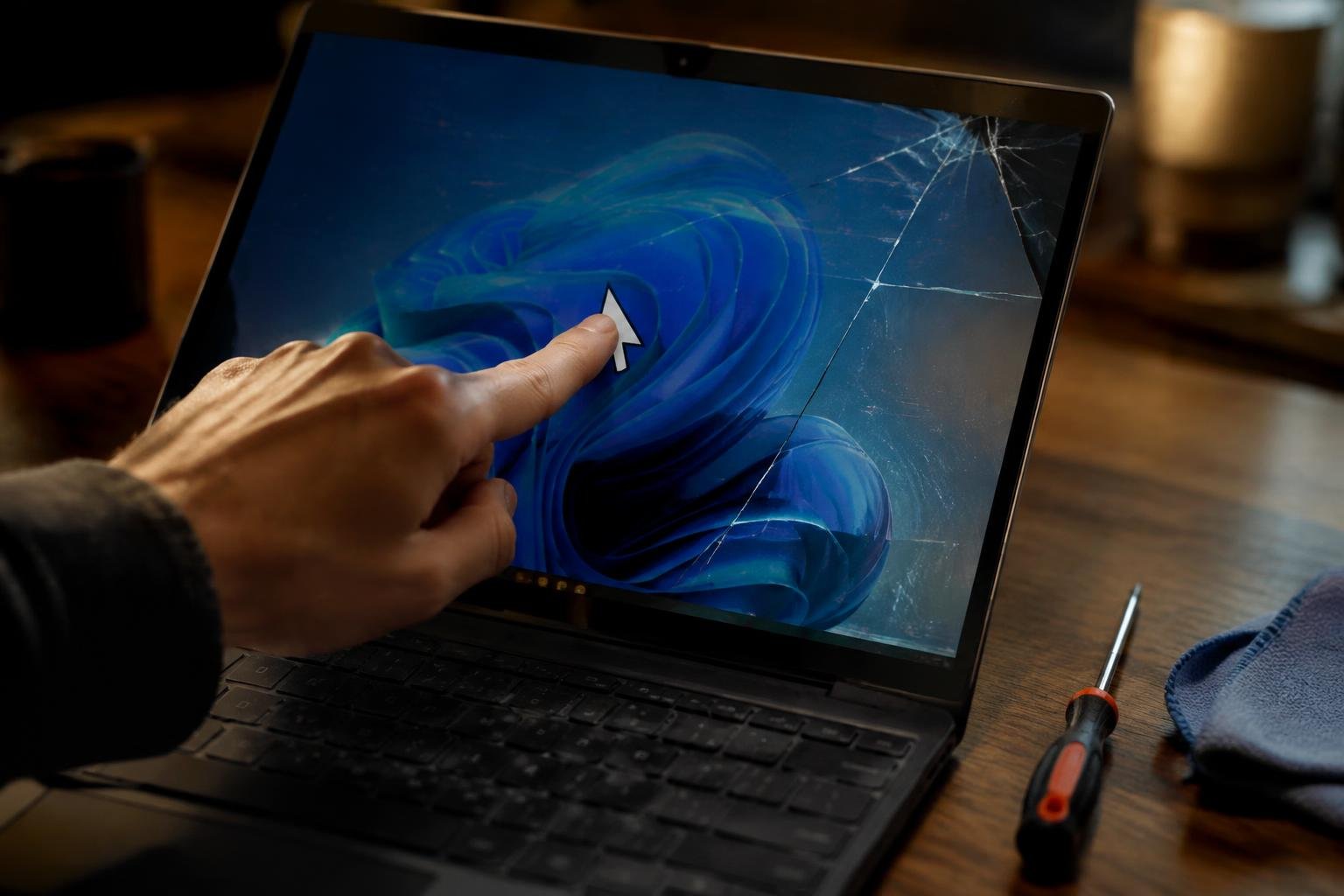
A laptop touchscreen that stops responding can turn a quick tap into a frustrating detour, especially when you rely on it for work or study. The fault may stem from a disabled touch device, an outdated driver, screen grime, or hardware damage. Your first useful clue is whether the display registers any touch at all.
Key Takeaways:
- A touchscreen that stops responding across the entire display often points to a disabled touch device, a driver problem, or a hardware fault; an isolated unresponsive area can indicate screen damage.
- Restart the laptop, clean and dry the display, and disconnect accessories before changing settings. A damp screen, thick glove, or faulty USB device can interfere with touch input.
- In Windows, check Device Manager for the HID-compliant touch screen entry, then enable the device or update, roll back, or reinstall its driver as appropriate.
- Install operating system updates and run the manufacturer’s touchscreen diagnostics when available. If touch stopped working after a drop, liquid spill, or screen replacement, software fixes are less likely to resolve it.
- Persistent failure after basic troubleshooting can require a technician to inspect the digitizer, display cable, or motherboard connection; back up important files before arranging service.
Types of Touchscreen Problems
Touch faults differ in coverage, consistency, and response, so the exact behavior gives you a clearer description than saying the screen does not work. An unresponsive display ignores contact, an inaccurate one registers your finger away from the point you touch, and an intermittent fault works only under certain conditions. These distinctions matter during ordinary tasks, such as selecting an icon, typing on the on-screen keyboard, or dragging a window across the desktop.
Full-screen and partial-screen failures
When the entire panel fails to register finger contact, you cannot tap icons, swipe between screens, or use touch controls anywhere on the display. A partial-screen failure is more localized: one strip, corner, or cluster of pixels stops responding while the rest remains usable. That boundary can become apparent as you draw across the screen or type, because a particular key row or navigation area repeatedly misses your input.
Delayed, erratic, or phantom touches
Some screens respond only after a pause, while others misplace a tap or register contact you did not make. Delayed input makes typing feel sluggish because letters appear after your finger lifts; erratic input can turn a short tap into a drag or select a neighboring icon. Phantom touches appear as unexplained cursor movement or commands, often while your hands are away from the display, such as an on-screen keyboard opening by itself.
| Touch behavior | What you experience | Typical example |
|---|---|---|
| Unresponsive | No input registers | Tapping any icon has no effect |
| Partial failure | A defined area ignores touch | The right edge will not select keys |
| Inaccurate | Input lands away from your finger | A tap opens the adjacent app |
| Intermittent or phantom | Input is delayed, inconsistent, or unprompted | The cursor moves without contact |
Factors That Cause Touchscreen Failure
Touch input depends on a chain of hardware, software, and surrounding conditions, so a fault in any part can interrupt taps, gestures, or pen input. Windows settings and drivers govern how the display reports contact, while the digitizer beneath the glass detects it. Physical wear, contamination, moisture, and electrical interference create different failure patterns, such as missed touches in one area or erratic input across the entire screen.
Driver, operating system, and settings issues
Outdated or corrupted HID-compliant touch screen drivers can prevent Windows from receiving digitizer input, even while the display continues to show an image. A recent operating system update, incompatible driver, or disabled device in Device Manager can also interrupt touch recognition. Settings such as touch calibration and tablet mode affect how input is interpreted, while a pending restart can leave an update incomplete. These software faults often appear without visible cracks or marks on the glass.
Screen damage, dirt, moisture, and connected devices
Cracks, pressure damage, or a failing digitizer can create dead zones or register touches that you did not make. Dust and oily residue interfere less often, but debris along the bezel can obstruct contact, and moisture on the glass can produce erratic input. A screen protector that is lifted or poorly fitted can also disrupt touch response. Connected devices, including a faulty USB accessory or charger, may introduce electrical interference that coincides with erratic taps.
- Heat buildup can affect digitizer performance.
- Battery swelling can place pressure on the display assembly.
- Magnetic covers may interfere with stylus detection.
Step-by-Step Troubleshooting
Work from simple checks toward software and hardware tests, changing one thing at a time so you can identify what affects touch response. Use the laptop’s built-in settings and diagnostic tools before altering drivers, and note whether the problem affects the whole screen or only a specific area. The sequence below applies to common Windows touchscreen controls; menu names and available tests vary by manufacturer and operating system.
Clean the screen and disconnect accessories
First, shut down the laptop and wipe the display with a clean, soft microfiber cloth. For stubborn marks, lightly dampen the cloth with water, never spray liquid directly onto the screen or use abrasive cleaners. Dry the panel before turning the computer back on, and remove gloves or anything covering your fingers. Disconnect USB devices, docks, and external monitors, then test the screen with the laptop on a stable surface and no accessories attached.
Restart the laptop and check touch settings
Next, restart from the operating system’s power menu rather than simply closing the lid, which may leave the session suspended. In Windows, open Device Manager, expand “Human Interface Devices,” and check whether “HID-compliant touch screen” is enabled. If it is disabled, right-click it and choose “Enable device.” On a convertible laptop, also confirm that tablet or tent mode has not changed how the display responds, then test touch input in a basic app such as Paint.
Update or reinstall touchscreen drivers
After checking settings, open Device Manager and select the HID-compliant touch screen entry. Choose “Update driver” and let Windows search for an available driver; also check Windows Update, including optional driver updates, and your laptop maker’s support page for model-specific packages. If the device remains unresponsive, use “Uninstall device,” restart the laptop, and allow Windows to detect it again. Avoid downloading drivers from unofficial sites, and record the laptop’s exact model before using a manufacturer installer.
Test touch input and run hardware diagnostics
Then test several points across the display, including the corners and edges, using Paint or another app that registers direct touch input. A response limited to one area suggests a localized problem, while no response anywhere calls for a system-level diagnostic. Run the manufacturer’s built-in hardware test, often available from its support app or startup menu, and follow its on-screen instructions. Record any error code and whether the diagnostic detects the touch device.
| Check | What to do | What to record |
|---|---|---|
| Screen and accessories | Clean the display and disconnect external devices | Whether touch returns with accessories removed |
| Windows settings | Restart and confirm the touch device is enabled | Device status in Device Manager |
| Driver | Update or reinstall through Windows or the manufacturer | Driver update result and laptop model |
| Hardware diagnostic | Test input across the screen and run the maker’s diagnostic | Unresponsive area or diagnostic error code |
Tips for Preventing Touchscreen Problems
Daily habits and routine software upkeep reduce avoidable touchscreen faults. Keep the display clean, prevent objects from pressing against it during transport, and install updates through your laptop’s operating system or manufacturer’s support utility. These steps also make it easier to spot changes in touch response before they interrupt work. A brief care routine, such as wiping the panel after handling it and reviewing update notifications, fits naturally into regular laptop use.
Protect the display from pressure and spills
Store your laptop in a padded compartment with no hard items resting against the screen, and avoid stacking books or chargers on its closed lid. Clean fingerprints with a dry microfiber cloth; for stubborn marks, lightly dampen the cloth with water rather than spraying liquid directly onto the panel. Keep drinks away from the keyboard, since spilled liquid can travel beneath the display assembly. Close the lid gently, without leaving a pen or cable between the screen and keyboard.
Keep drivers and system software updated
Install operating system updates and touchscreen or chipset drivers from your laptop maker’s support app or official download page. Updates can address compatibility problems between the touch controller and the operating system, while unofficial driver tools may install unsuitable files. Plug in the laptop before a major update, save open work, and restart when prompted so installation can finish. Afterward, use Device Manager on Windows or the relevant system settings to confirm the touch device remains enabled.
- Wash and dry your hands before using the touchscreen.
- Remove grit from the bezel with a soft, dry brush.
- Use a compatible capacitive stylus, not a sharp object.
Repair or Replace: Pros and Cons
Choosing between professional repair and a replacement display depends on the damage, the laptop’s age, and how the touchscreen is assembled. A technician can replace a loose digitizer connection or a damaged screen assembly, while a new laptop avoids spending on a device with other failing components. For models where the touch layer is bonded to the LCD, screen work often means replacing the complete panel assembly rather than a separate glass layer.
Repair costs, time, and warranty considerations
Repair costs vary by model, part availability, and whether the digitizer is sold separately or bonded to the LCD. Ask the service provider for an itemized estimate covering parts, labor, and any diagnostic fee, then confirm the expected turnaround and warranty on the repair. Manufacturer service can preserve parts compatibility, while an independent shop may offer a lower quote. Before authorizing work, check whether opening the laptop affects any remaining manufacturer coverage.
When replacement may be the better option
Replacement makes more sense when the display assembly is expensive, the laptop is older, or other major components already need attention. A cracked glass layer, damaged LCD, and failed digitizer can require a full assembly, making repair less attractive than purchasing a current model. Replacement also avoids investing in a device with limited battery life or an unsupported operating system. Compare the repair quote with the cost of a similarly equipped laptop.
| Decision point | Professional repair | Laptop replacement |
|---|---|---|
| Upfront expense | Depends on parts and labor | Higher purchase cost |
| Turnaround | Depends on parts availability | Setup and data transfer required |
| Best fit | Otherwise serviceable laptop | Older device with multiple concerns |
To wrap up
Restoring a laptop touchscreen starts with separating software faults from hardware damage. Restart the device, clean the display, confirm touch support and drivers in Windows, then test the panel after updates. If touches still fail across the screen, a damaged digitizer, loose display cable or failing controller may require professional diagnosis. Back up your files before repair, and give the technician your laptop model and the troubleshooting steps you completed.
FAQ
How much does it cost to fix a laptop touchscreen that stopped working?
The cost depends on whether the cause is a software setting, a loose connection, or a damaged display. Software troubleshooting may not require paid service, while screen replacement can be costly and varies by laptop model, parts availability, and labor; check warranty coverage before approving repairs.
How long does it take to repair a laptop touchscreen?
A software fix may take less than an hour, while a hardware repair can take longer. The total time depends on diagnosis, technician availability, and whether the correct replacement parts are in stock, so ask the repair provider for an estimate.
Can I fix a laptop touchscreen myself without damaging it?
You can safely try basic checks such as cleaning the screen, restarting the laptop, and checking touch settings. Avoid opening the display or pressing hard on it, since delicate cables and screen layers can be damaged; leave suspected hardware faults to a qualified technician.
What should I avoid doing when my laptop touch screen is not working?
Avoid using sharp objects, excessive pressure, or liquid sprayed directly onto the display. Also, do not install drivers from untrusted sources or repeatedly remove and reinstall software without checking the laptop maker’s instructions, since these steps can cause further damage or create new software problems.
Can I use a laptop with a broken touchscreen without replacing the screen?
Yes, most laptops can still be operated with a touchpad or an external mouse and keyboard if the display remains usable. This is a practical alternative when touch is the only failure, but a cracked screen, worsening damage, or other display problems may require repair.
Is it worth repairing a laptop touchscreen, or should I replace the laptop?
Repair is often worth considering when the laptop otherwise works well and the repair cost is reasonable for its age and value. Replacement may make more sense if the device has several problems, parts are difficult to obtain, or the repair quote approaches the cost of a suitable replacement.
Why is my laptop touchscreen not working after a Windows update?
A Windows update can sometimes affect touchscreen drivers or settings, so restarting and checking for a compatible driver may resolve the problem. If touch still fails, test whether it works outside Windows when your laptop supports a diagnostic test, since persistent failure may point to a hardware fault.
 Previous Post