



How to Fix a Laptop Screen That Suddenly Turns Pink Today
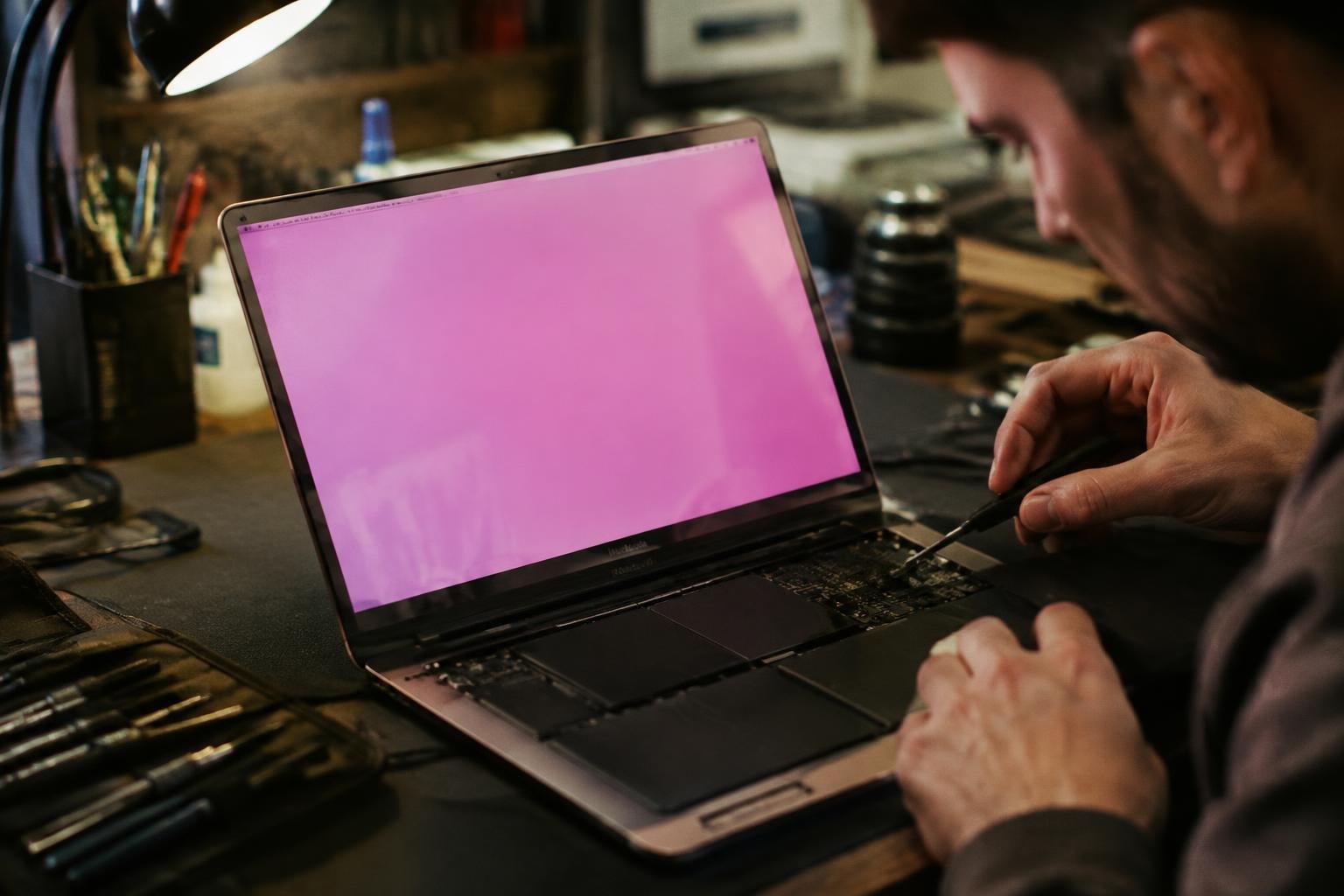
A pink laptop screen can point to a loose display cable, a graphics driver fault, or a failing panel, and the color shift may appear across the whole display or only in certain areas. You can narrow down the cause by connecting an external monitor and noting whether the pink tint appears there too.
Key Takeaways:
- A pink tint that appears across the display often points to a graphics driver, color setting, or display connection issue; a tint limited to the built-in screen can indicate a panel or display-cable fault.
- Connect an external monitor to separate laptop-screen problems from graphics-system problems. If the external display looks normal, the built-in panel or its cable is the likelier source.
- Restart the laptop, install the correct graphics driver from the laptop maker, and check color filters and night-light settings before opening the device.
- A pink screen visible in the BIOS or manufacturer startup logo is less likely to be caused by Windows color settings and warrants hardware testing.
- Flickering, pressure marks, a damaged hinge, or a tint that changes as the lid moves can point to a loose or damaged display cable; have a repair technician inspect it rather than forcing the connector.
Check the Pink Screen and Identify the Symptoms
Start by describing exactly what appears on the display. A uniform pink cast across menus, text, and images differs from narrow colored lines, flickering bands, or isolated patches. Note whether the cursor and screen edges share the same color change, and whether the image remains readable. These details give you a consistent way to describe the symptom, such as a full-screen tint or a pink stripe confined to one side.
| Display pattern | What to observe |
|---|---|
| Full-screen tint | Menus, text, and images all look pink |
| Lines or bands | Color appears in narrow streaks or across part of the screen |
| Isolated patches | Pink areas remain limited to specific regions |
Note when the pink tint appears
Record when the color shift begins and what is visible at that moment. A tint present from the manufacturer logo or BIOS screen appears before the operating system loads; a change that starts only after sign-in occurs later in startup. Note whether the display changes after you wake the laptop, adjust the lid angle, or open a particular app. A short timeline with the trigger and screen state is more useful than “pink sometimes.”
Check whether it affects an external monitor
Connect an external monitor or television with HDMI or USB-C, select the correct input, and display the same desktop on both screens. If the external image looks normal while the laptop panel remains pink, the symptom is limited to the built-in display path. If both screens show the same tint, the color change is reaching the external output too. Record whether the pink appears on the desktop, during startup, or in both locations.
Understand the Factors Behind a Pink Laptop Screen
A pink tint can originate in the display panel, the cable carrying video signals, or the software that renders them. The pattern offers useful clues: a uniform cast often points to color processing or panel behavior, while flickering or changes with lid movement suggest an unstable connection. A tint visible in a screenshot differs from one limited to the laptop display, because the screenshot captures the image before it reaches the physical panel.
Consider display panel and screen-cable problems
Panel faults often affect a fixed area or produce a steady pink cast across the screen. The eDP cable, which connects the motherboard to the display, can also loosen or wear where it passes through the hinge. A color shift that changes as you adjust the lid points toward that connection, while colored lines or intermittent flicker can indicate damaged conductors. External-monitor behavior provides another clue: a normal image there narrows the problem to the laptop’s panel or cable.
Check graphics drivers and display settings
Graphics software controls color output, so a corrupted driver or an unusual color profile can tint the whole image without any physical screen damage. Night light, color filters, and vendor utilities may also alter white balance or apply a warm cast. A tint that appears in screenshots and on an external monitor is more consistent with a software or graphics-processing issue than a fault confined to the built-in panel. Recent driver updates are relevant because display behavior can change after installation.
Look for overheating or recent damage
Excess heat can destabilize graphics components, particularly when the laptop’s vents are blocked or its cooling fan is failing. A pink tint that appears during demanding work and fades after the system cools suggests a temperature-related pattern, though it does not identify the failed part by itself. Recent drops, pressure on the lid, or liquid exposure raise concern for panel, cable, or connector damage. Note whether the discoloration began after a specific impact or overheating episode.
- Record whether the tint is uniform or limited to one region.
- Note any flicker, colored lines, or brief blackouts.
- Observe whether the symptom changes with screen angle.
How to Fix a Laptop Screen That Suddenly Turns Pink
Work from the simplest checks toward the components that require opening the laptop. Save your files before changing display settings or drivers, and connect the charger if a software update is needed. Note whether the pink tint appears across the entire screen, only in certain applications, or as the display changes position; those details help distinguish a settings issue from a connection or panel fault. Avoid pressing on the screen or opening the case while the laptop is under warranty.
Restart the laptop and check display settings
Restart your laptop first, since a temporary graphics or operating-system glitch can clear after a full shutdown. Once it starts, open the display settings and turn off color filters, night-light modes, and any custom color profile. On Windows, review Color filters and Night light; on macOS, inspect Color Filters and Night Shift under Accessibility and Displays. If the tint remains, reset the display profile to its default and note whether the pink cast appears before you sign in.
Update or reinstall the graphics driver
Check your graphics driver through Windows Update, Device Manager, or the laptop maker’s support page, using the exact model number to select a compatible package. Install the recommended driver, then restart and inspect the screen. If the pink tint began after a recent update, use Device Manager’s driver rollback option when available. For a clean reinstall, download the replacement first and follow the manufacturer’s instructions; avoid third-party driver utilities that do not identify your graphics hardware precisely.
Test with an external monitor
Connect an external monitor or television using HDMI, DisplayPort, or a compatible USB-C video connection, then select the correct input. If the external display shows normal colors while the built-in panel stays pink, the laptop’s LCD panel or display cable becomes a stronger suspect. A pink image on both screens points more toward the graphics hardware or software. Move the lid gently through its normal range; flickering that changes with its position can indicate a loose or damaged display cable.
Seek repair for suspected hardware faults
Arrange a repair assessment if the built-in screen remains pink after software checks, shows lines or flickering, or changes color when you move the lid. A technician can inspect the eDP display cable, panel connector, and LCD panel without risking damage to the bezel or hinges. Stop using the laptop if the screen is cracked, the case is swollen, or you notice unusual heat. Give the repair shop your model number and the results of the external-monitor test.
| Check | What to do | What the result suggests |
|---|---|---|
| Restart and settings | Disable color filters and custom profiles | A tint that clears points to a software setting or temporary glitch |
| Graphics driver | Update or roll back the compatible driver | A change after installation can indicate a driver-related issue |
| External monitor | Connect a separate display by HDMI or USB-C | Normal external colors point toward the built-in panel or cable |
| Hardware inspection | Have a technician inspect the cable and panel | Persistent tint or lid-position flicker warrants repair assessment |
Tips to Prevent the Pink Tint from Returning
Consistent care reduces the chance that a pink tint will recur after the display returns to normal. Keep your laptop’s operating system and graphics components current, and handle the computer in ways that limit stress on the screen and its connections. Simple habits, such as using a padded sleeve during transport and keeping vents clear on a desk, protect the display during everyday use.
Keep drivers and system software updated
Install operating system updates and graphics driver releases through your laptop manufacturer’s support app or official website. These updates can correct display compatibility problems and improve communication between the operating system, graphics processor, and screen. Before installing a driver, confirm that it matches your laptop’s exact model and operating system version. Restart the computer after installation so the updated graphics driver loads properly, and avoid driver packages from unofficial download sites.
Protect the laptop from drops, pressure, and heat
Carry your laptop in a padded sleeve, and avoid placing books or other heavy items on its closed lid, since pressure can stress the display panel and its connections. Open and close the screen by holding the center of the lid rather than one corner, which reduces twisting across the hinge area. Use the computer on a firm surface, keep air vents unobstructed, and never leave it in a hot car or direct sunlight.
- Keep liquids away from the keyboard and screen hinges.
- Disconnect cables by gripping their plugs, not pulling the cords.
- Store the charger separately so its connector cannot press against the display.
Decide When to Get Professional Repair
Arrange expert diagnosis when the pink image persists across restarts, spreads, or appears alongside flickering, lines, or a damaged display. A technician can test the laptop with an external monitor and inspect internal connections without risking further damage to the screen or motherboard. Seek service promptly if the computer has suffered a drop or liquid exposure, or if the display cuts out when you move the lid; those symptoms can point to a loose cable or physical damage.
Compare repair needs for a panel, cable, or graphics hardware
A technician can distinguish a failing LCD or OLED panel from a loose display cable by checking whether the pink tint changes as the lid moves and by testing an external monitor. A pink image limited to the built-in display often points to the panel or cable, while distortion on both displays can indicate graphics hardware or a driver issue. Ask for the diagnosis and affected part in writing before approving a panel replacement or motherboard repair.
Back up important files before service
Save important documents, photos, and work files to an external drive or a trusted cloud account before handing over the laptop. Display repair usually does not require erasing storage, but a graphics or motherboard diagnosis can involve component replacement or operating-system troubleshooting. Confirm whether the repair shop expects to access your account, remove the drive, or reset the system, and provide only the access needed for testing rather than sharing your primary password.
| Finding | Likely area to inspect | Useful service step |
|---|---|---|
| Pink tint only on the built-in display | Panel or display cable | Test with an external monitor |
| Pink tint on built-in and external displays | Graphics hardware or software | Run graphics diagnostics |
| Image changes as the lid moves | Display cable or connector | Inspect the hinge-area connection |
| Pink display after impact or liquid exposure | Panel, cable, or board damage | Request an internal inspection |
Final Words
A pink laptop screen often points to a loose display cable, a graphics driver fault, or a failing panel, so use the symptom and your tests to guide the repair. Restart the laptop, inspect the display settings, and connect an external monitor to distinguish a screen problem from a graphics issue. If the tint remains or the internal display flickers, shut down the laptop and have a technician inspect the eDP cable and LCD panel before further use.
FAQ
Why is my laptop screen suddenly pink?
A pink tint can result from a loose or damaged screen cable, a failing display panel, or a graphics driver or display setting problem. If the tint also appears on an external monitor, a graphics or software issue is more likely; if only the laptop screen is affected, the panel or cable may need inspection.
How can I tell if a pink laptop screen needs repair?
A pink screen that persists after restarting and checking display settings may need repair, especially if it comes with flickering, lines, or patches. If an external monitor displays normally, the laptop’s panel or screen cable is more suspect, but a technician can confirm the cause.
How much does it cost to fix a pink laptop screen?
Repair cost depends on whether the problem is a setting, driver, cable, display panel, or graphics hardware. Software troubleshooting may cost nothing, while parts and labor for hardware repairs vary by laptop model and location; get a diagnosis and quote before approving service.
How long does it take to repair a laptop screen?
A software fix can take minutes, while a hardware repair may take longer, depending on diagnosis, parts availability, and the repair shop’s workload. Ask the service provider for an estimate, since replacing a panel or cable may require ordering a model-specific part.
Can a pink laptop screen damage my computer?
A pink tint by itself usually indicates a display or graphics problem rather than damage spreading through the computer. However, if the laptop is unusually hot, has suffered a drop or spill, or is showing other faults, shut it down and seek professional advice instead of continuing to use it.
What should I avoid doing when my screen turns pink?
Avoid pressing or twisting the display, opening the laptop without the right repair skills, or installing graphics drivers from unofficial sources. These actions can worsen physical damage or create software problems; try safe checks first and back up important files before professional service.
Is it worth repairing a laptop with a pink screen?
Repair can be worthwhile if the laptop otherwise meets your needs and the diagnosis points to a reasonably priced fix. Compare the repair quote with the cost of a suitable replacement, and consider the laptop’s age, condition, warranty, and whether the problem involves costly graphics hardware.
 Previous Post
 Next Post