



Laptop Restart Loop Problem Fix Guide
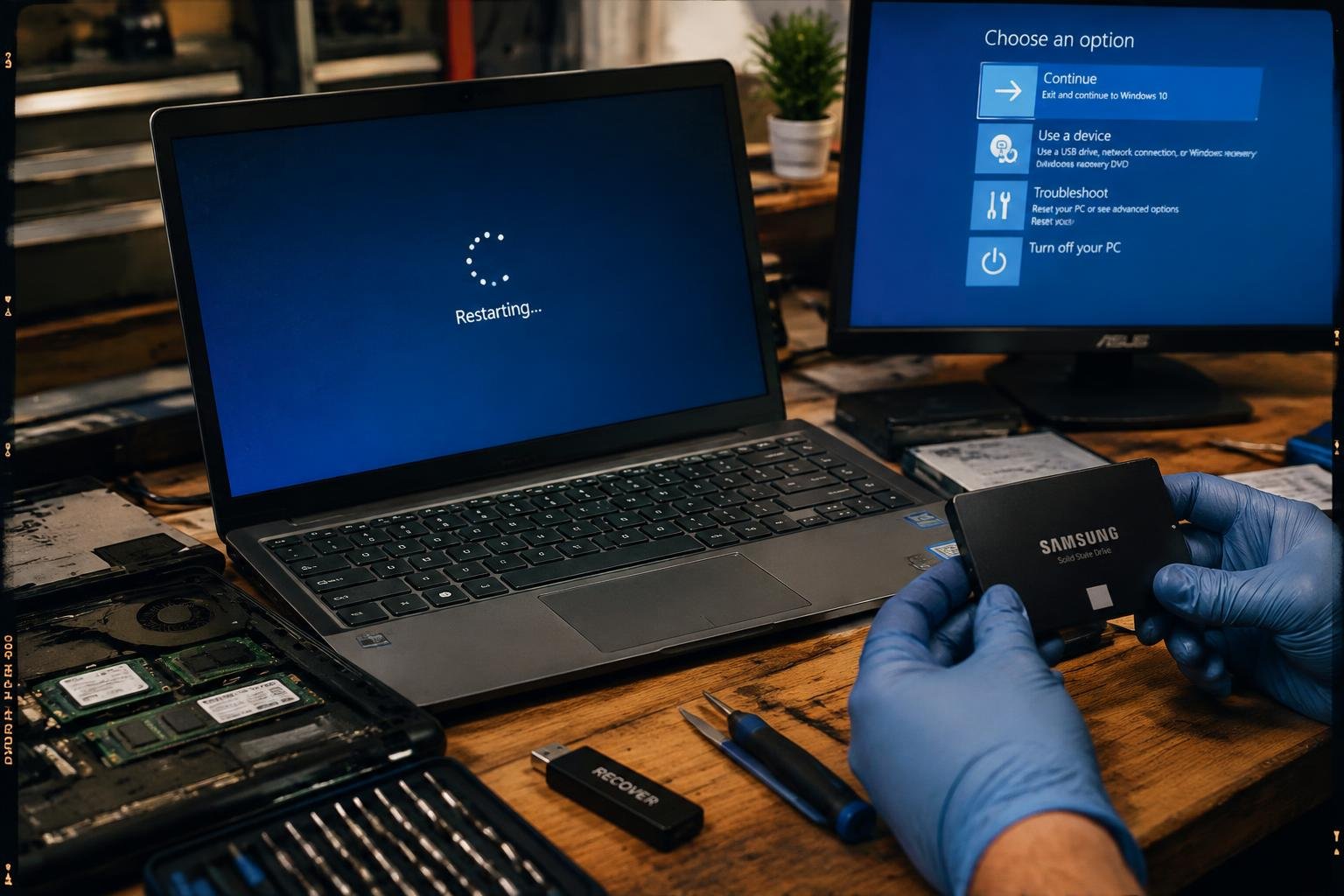
You’re stuck in a cycle-your laptop starts up, shows the logo or loading screen, then reboots again without reaching Windows. This restart loop breaks your workflow and puts your data at risk. You need clear, reliable solutions that address both software glitches and hardware triggers. This guide walks you through proven steps to diagnose and stop the loop, restore stability, and get your system running normally again.
Key Takeaways:
- A restart loop often stems from failed updates, corrupted system files, or driver conflicts-pinpointing the trigger is the first step toward resolution.
- Safe Mode access can interrupt the cycle, allowing users to uninstall recent software or roll back drivers that may have caused instability.
- System Restore offers a reliable fix if a restore point was created before the loop began, returning settings and configurations to a stable state.
- Hardware issues like faulty RAM or overheating components can mimic software-related loops, requiring diagnostic testing to rule out physical defects.
- Resetting the operating system as a last resort preserves personal files in most cases, but backing up data early minimizes potential loss during recovery.
Identifying Common Restart Loop Types
Differentiating between software-related restart cycles and hardware-based power failures helps streamline troubleshooting. A software-induced loop often presents with visible operating system activity-such as progress bars, login screens, or update prompts-before restarting unexpectedly. In contrast, hardware power issues may involve abrupt shutdowns without warning, failure to power on consistently, or repeated resets during the boot process. These distinctions guide accurate diagnosis before initiating repairs.
- Software loops show OS-level activity before rebooting
- Hardware failures often cause sudden power loss or no POST
- Inconsistent power delivery mimics software crashes
- Faulty RAM or motherboard can trigger repetitive restarts
- Overheating components force automatic shutdown cycles
| Indication | Possible Cause |
| Boots to Windows logo then restarts | Operating system corruption |
| Stuck on update screen for hours | Pending failed update installation |
| No display, fans spin erratically | Power supply or motherboard issue |
| Beep codes during startup | RAM or GPU malfunction |
Infinite Windows Update Loops
You might notice your laptop repeatedly rebooting while attempting to install updates, never progressing past the update screen. This behavior typically stems from a corrupted update file, incompatible driver, or interrupted download process. The system believes it must complete the update but fails each time, triggering another restart. Recovery requires accessing safe mode or using built-in recovery tools to halt the update cycle and remove problematic patches without altering hardware components.
Blue Screen of Death (BSOD) Cycles
A recurring crash with a blue screen indicates your system encounters a critical error it cannot recover from, forcing a restart. You’ll often see an error code like KERNEL_DATA_INPAGE_ERROR or IRQL_NOT_LESS_OR_EQUAL, pointing to faulty drivers, memory issues, or software conflicts. While some causes are software-based, such as a recently installed program, others stem from failing hardware that mimics software instability. Identifying the exact trigger requires observing patterns across multiple boots.
Critical Factors Affecting System Stability
Environmental and configuration issues often lie at the root of persistent restart loops, even when no hardware failure is apparent. Dust buildup inside cooling vents restricts airflow, causing internal components to exceed safe temperature thresholds. Running intensive applications on underpowered systems can overload resources, while mismatched firmware settings may disrupt boot sequences. Incorrect power management configurations or corrupted system files also contribute to instability. These factors combine in ways that trigger unexpected shutdowns and failed restart attempts.
- Poor ventilation or blocked air intake grilles
- Excessive ambient room temperature
- Misconfigured BIOS/UEFI settings
- Outdated or conflicting firmware versions
- Background processes consuming excessive CPU or memory
Thermal Throttling and Overheating
Your laptop’s performance drops and reboots occur when internal temperatures surpass operational limits. Prolonged use on soft surfaces like beds or couches blocks airflow, trapping heat near the processor and GPU. Dust accumulation in fans and heat sinks reduces cooling efficiency over time. Thermal throttling activates as a protective measure, but if temperatures remain high, the system forces a shutdown to prevent damage. Cleaning internal components and using a hard, flat surface improves heat dissipation significantly.
Incompatible Driver Installations
Installing a driver not designed for your specific laptop model or Windows version can destabilize the operating system. You might notice the restart loop begins immediately after a recent update or peripheral setup. Graphics and chipset drivers are especially sensitive-using generic versions instead of manufacturer-certified ones increases crash risks. The system may fail during initialization when it detects a conflict between hardware and software instructions. Reverting to a previously working driver version resolves many such cases.
Step-by-Step Software Recovery Procedures
Follow these structured methods to restore your operating system when trapped in a persistent restart loop. Each step targets specific software failures that prevent normal boot sequences. Accuracy and sequence matter-perform actions in the order presented to maximize recovery chances without escalating complications. Use built-in tools accessible through recovery environments to diagnose and correct critical system errors blocking startup.
| Method | Action & Purpose |
| Safe Mode Boot | Start with minimal drivers and services to isolate software conflicts. |
| System Restore | Revert system files to a previous stable state before corruption occurred. |
| Automatic Repair | Use Windows Recovery Environment to fix boot configuration issues. |
| CHKDSK Command | Scan and repair disk errors affecting system file integrity. |
Utilizing Safe Mode and System Restore
Boot your laptop into Safe Mode by interrupting the startup process three times during the restart loop. This triggers the Automatic Repair screen, where you can navigate to Troubleshoot > Advanced Options > Startup Settings. Enable Safe Mode, then log in with minimal drivers active. Once inside, open System Restore and select a restore point from a date when your system operated normally. Confirm the restoration to return critical system files and registry settings to that earlier state.
Running Automatic Repair and CHKDSK Commands
Access the Windows Recovery Environment by forcing shutdown during boot three times. Choose Troubleshoot > Advanced Options > Command Prompt from the menu. Run “sfc /scannow” to check for corrupted system files. Then execute “chkdsk C: /f /r” to scan the primary drive for logical and physical errors, scheduling repair on next restart. Finally, use “bootrec /rebuildbcd” to reconstruct the boot configuration data, allowing the system to locate Windows properly on reboot.
Pros and Cons of DIY vs. Professional Repair
Deciding whether to fix a laptop restart loop yourself or seek professional help often comes down to cost versus risk. While DIY methods can save money and deliver fast results for experienced users, they carry the danger of worsening the issue-especially if your device is still under warranty. Opening the machine or altering system settings may void coverage, leaving you responsible for future repairs. Consider your technical skill and warranty status carefully before proceeding.
| Aspect | DIY Repair | Professional Repair |
| Cost | Low to none if tools are available | Higher due to labor and parts |
| Time Investment | Varies; may take longer without experience | Typically faster with diagnostics |
| Warranty Impact | Risk of voiding manufacturer coverage | No impact if serviced through authorized channels |
| Skill Requirement | Moderate to high technical knowledge needed | No user expertise required |
| Error Risk | High if unfamiliar with procedures | Low due to trained technicians |
| Tools Needed | May require software tools or hardware kits | Handled by service center |
| Diagnosis Accuracy | Depends on user knowledge | High with specialized equipment |
| Component Handling | Potential for static or physical damage | Proper handling protocols followed |
| Fix Longevity | Variable based on root cause identification | Generally reliable and tested |
| Downtime Control | Full control over repair timeline | Dependent on service availability |
Benefits of Immediate Manual Troubleshooting
Taking action right away when your laptop enters a restart loop can prevent prolonged downtime and data loss. You’re in control of the process, able to test quick fixes like booting into safe mode or disconnecting peripherals without waiting for an appointment. Early intervention often resolves software-related triggers before they escalate. For minor issues, this hands-on approach delivers fast clarity and restores function with minimal cost or delay.
Risks of Internal Component Damage
Opening your laptop without proper tools or knowledge increases the chance of harming sensitive internal parts. Static discharge from your hands can fry circuitry, while improper handling may crack connectors or misalign components. Even slight pressure on the motherboard or display cables can lead to costly failures. If your device is sealed or uses proprietary screws, forced access risks permanent damage. Without experience, what starts as a simple fix could become a much more expensive problem.
Essential Tips for Future Loop Prevention
To maintain consistent system performance and avoid recurring restart loops, regular proactive maintenance is essential. Establishing a routine that includes software updates, disk cleanup, and startup program reviews helps minimize instability risks. You should also configure reliable power settings and ensure your laptop isn’t exposed to abrupt shutdowns during updates. Monitoring user behavior, such as avoiding forced reboots and managing application loads wisely, contributes significantly to long-term reliability. Consistent attention to these practices supports sustained uptime and reduces the likelihood of disruptive boot cycles.
- Schedule monthly system cleanups to remove temporary files and cache
- Limit the number of applications set to launch at startup
- Use trusted antivirus software with real-time protection enabled
- Apply firmware and driver updates only through official sources
- Enable automatic restore points before major software changes
Registry Backup and Update Management
You can protect your system from configuration-related crashes by routinely backing up the Windows registry. Before installing new software or applying major updates, create a restore point and export the current registry state using built-in tools like regedit. This allows you to revert to a stable configuration if an update causes instability. Avoid third-party registry cleaners, as they often introduce more issues than they solve. Instead, rely on controlled, manual changes and verified Microsoft update channels to keep your system secure and functional over time.
System Monitoring and Stress Testing Tools
Your laptop’s stability improves when you actively monitor its internal performance using diagnostic software. Tools like HWMonitor, Core Temp, and PassMark BurnInTest let you observe CPU temperature, memory usage, and disk health under load. Running periodic stress tests reveals weaknesses before they trigger boot failures. Schedule short sessions monthly to evaluate system response during peak operations. These insights help you identify failing components or thermal throttling early, allowing timely adjustments that prevent unexpected restart cycles and extend hardware longevity.
Hardware Replacement and Component Factors
Physical component failure can lock your laptop in a persistent restart loop, even after exhausting software remedies. If your system fails to progress past the initial boot phase or crashes consistently during hardware initialization, a faulty part may be to blame. Common culprits include degraded storage drives, failing RAM modules, or compromised power systems. Replacing defective hardware often resolves the instability, but accurate diagnosis is key before proceeding with any swap.
- Test individual components before committing to replacements
- Use manufacturer-provided diagnostic tools when available
- Ensure replacement parts match original specifications
- Consider age and wear when evaluating repair viability
Testing RAM and Storage Drive Integrity
Memory and storage issues frequently manifest as unexplained reboots. Run a built-in memory diagnostic tool to scan for RAM errors, noting any fault codes or repeated failures. For storage, check the drive’s health using S.M.A.R.T. data or vendor-specific utilities. If your laptop freezes during file access or fails to load the OS consistently, a failing SSD or HDD could be the cause. Replace the drive if reallocated sectors or read/write errors appear frequently.
Evaluating Power Supply and Battery Health
Power inconsistencies can mimic software faults but stem from deteriorating hardware. Monitor your laptop’s behavior when unplugged-sudden shutdowns or restarts may point to a worn battery. Inspect the AC adapter for frayed cables or fluctuating voltage output. A multimeter can confirm whether the charger delivers the correct power level. If the battery no longer holds a charge or the adapter fails under load, replace the component to eliminate power-related boot cycling.
Final Words
You now have a clear path to break free from the laptop restart loop and restore normal operation. By methodically addressing software conflicts, updating drivers, and verifying system integrity, you can resolve the majority of recurring boot issues. Applying preventive measures ensures longer-term stability, while recognizing when to seek hardware intervention protects your device’s longevity. Your ability to identify symptoms and apply targeted fixes strengthens both confidence and control over your system’s performance.
FAQ
how much does it cost to fix a laptop stuck in a restart loop?
Repair costs typically range from $50 to $200 for software fixes, depending on labor rates and the service provider. More complex issues involving hardware replacement, such as a failing motherboard or power unit, can increase the price significantly, sometimes exceeding $300.
how long does it take to fix a laptop that keeps restarting?
Most software-related restart loop fixes take 1 to 3 hours, including time for diagnostics and system restoration. If hardware components need testing or replacement, the process may extend to several days, especially if parts must be ordered.
what are common mistakes when trying to stop a restart loop?
A frequent error is interrupting Windows Update repeatedly, which can corrupt system files and worsen the issue. Another is using improper shutdown methods instead of allowing recovery tools to complete, leading to incomplete repairs.
is it worth repairing a laptop stuck in a boot loop?
Yes, it is often worth repairing if the device is less than three years old and has no major hardware damage. For older laptops with recurring issues, the cost and effort may outweigh the benefits, making replacement a better option.
can a restart loop be fixed without losing data?
Yes, data can usually be preserved by using Safe Mode or recovery tools that do not format the drive. However, if the underlying cause is severe disk corruption or hardware failure, data loss becomes more likely during repair attempts.
 Previous Post