



Laptop Charging IC Failure Symptoms
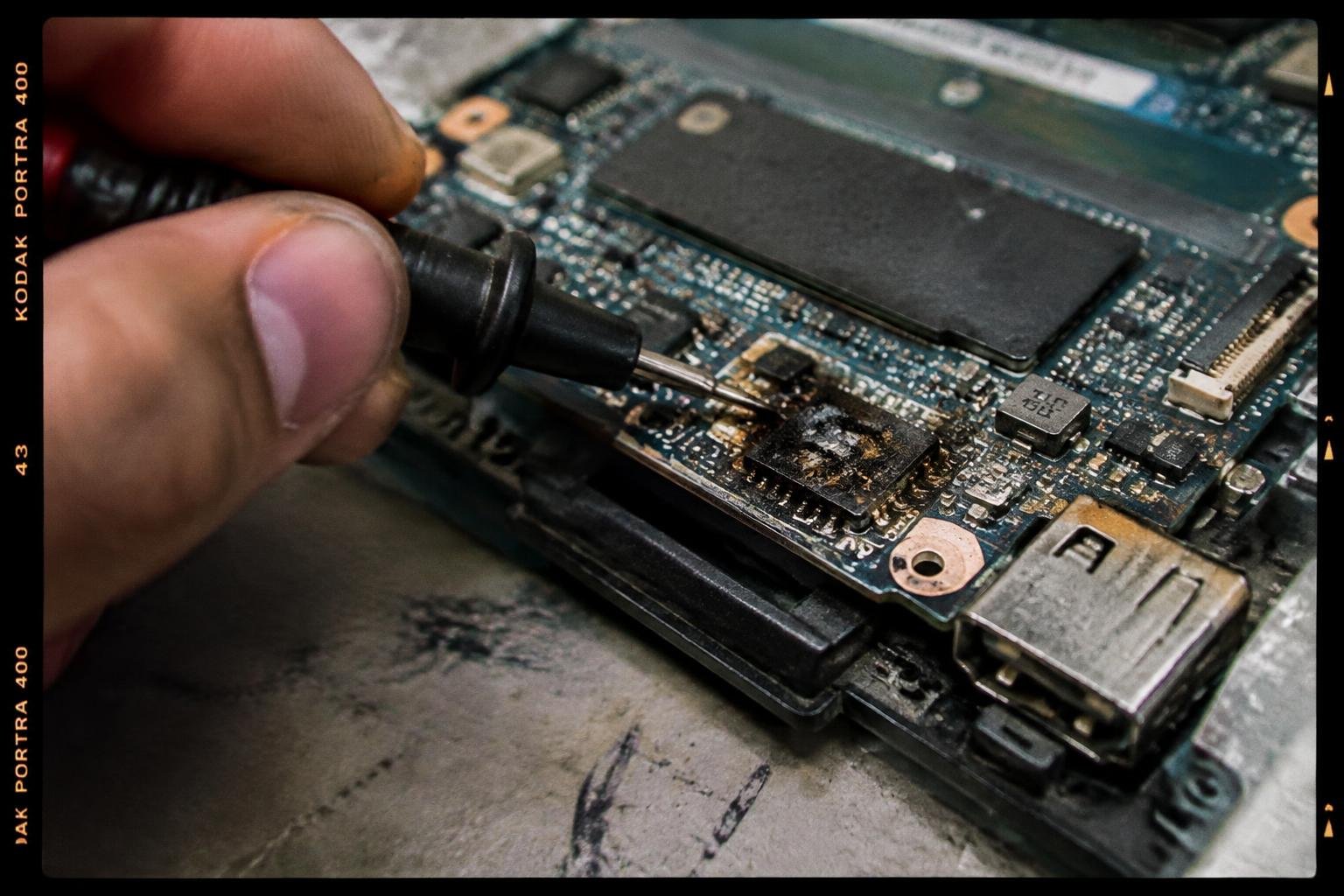
Your laptop’s charging light may flicker, the battery percentage may stall, or the device may run only while plugged in when its charging IC begins to fail. This controller regulates power from the adapter to the battery and system board, so a fault can resemble a bad charger or worn battery. Intermittent charging is a common early warning.
Key Takeaways:
- A failing charging IC can prevent a laptop battery from charging, interrupt power delivery, or stop the computer from detecting the AC adapter.
- Typical warning signs include charging that cuts in and out, a battery stuck at the same level, unexpected shutdowns, and an adapter that works normally with another compatible laptop.
- These symptoms also occur with a damaged DC-in jack, faulty adapter, worn battery, or motherboard fault, so they do not identify the charging IC on their own.
- A technician can test adapter voltage, inspect the charging circuit, and measure signals at the IC with a multimeter; board-level diagnosis distinguishes a failed chip from surrounding components.
- Charging IC repair usually requires motherboard-level work, such as replacing the chip or a damaged circuit component, rather than swapping the battery or adapter.
What the Charging IC Does
Inside your laptop, the charging integrated circuit (IC) manages the path from the adapter input to the battery and other power rails. It works with voltage-sensing components and control signals on the motherboard to keep incoming power within the limits set by the device’s design. The IC’s decisions depend on the adapter’s electrical characteristics, the battery’s charging requirements, and the system’s current demand, with charging voltage and current regulated as operating conditions change.
Power regulation and battery charging
During charging, the IC controls the voltage and current delivered to the battery according to its chemistry and charge state. A charge-control algorithm typically supplies a higher current during the initial stage, then reduces current as the battery approaches its target voltage. Temperature readings and battery-management data inform these adjustments, while protection limits restrict charging if conditions fall outside the laptop’s specifications. The IC also manages input current so the adapter can power the computer without exceeding its rated output.
How the IC works with the adapter, battery, and motherboard
At the adapter jack or USB-C input, the charging IC receives power after input circuitry identifies and conditions the source. It communicates with the battery-management system to read pack voltage, temperature, and charge limits, then coordinates power delivery with motherboard regulators serving the processor, memory, and other components. When system demand changes, the IC balances adapter input between operation and battery charging. In a USB-C laptop, negotiation with the port controller sets the supported input voltage and current.
- Current-sense resistors provide feedback about input and battery current.
- MOSFETs switch or isolate power paths under IC control.
- Thermistors supply temperature readings for charging limits.
Common Symptoms of a Failing Charging IC
Charging IC faults often appear as inconsistent power behavior rather than a single clear failure. You may notice the battery percentage stall, the adapter fail to keep the laptop running, or the charging light respond unpredictably. These symptoms can overlap with problems involving the battery, adapter, or charging port, so the pattern matters: a laptop that loses power when the plug shifts presents differently from one that stays on but never gains battery charge.
Battery does not charge or charges intermittently
When the charging IC fails to regulate power to the battery, the percentage may remain unchanged even though the adapter is connected. In other cases, charging starts and stops without any movement at the plug, and the operating system may alternate between “plugged in” and “not charging.” You might also see the battery gain charge only while the laptop is asleep, then stop once the processor and display draw power during normal use.
Laptop runs only on the adapter or shuts down unexpectedly
With a charging IC that cannot manage battery power correctly, your laptop may operate normally on its adapter but switch off as soon as you unplug it, even if the battery indicator shows remaining charge. A related symptom is an abrupt shutdown while the adapter is connected, particularly when the system draws more power during startup or demanding work. Unsaved files can be lost if power cuts out before the operating system completes a shutdown.
Charging indicator behaves unusually
Charging LEDs and on-screen battery icons can behave inconsistently when the charging circuit does not report power status correctly. You may see the indicator blink, remain off despite a connected adapter, or change color without a corresponding change in battery percentage. Some laptops also display a charging symbol briefly at startup, then revert to battery operation. The exact color and blink pattern depend on the manufacturer, so a repeated change at the same power connection is the useful observable detail.
| Observable symptom | Typical power behavior | What you may notice |
|---|---|---|
| No battery gain | Adapter connected, charge level remains flat | “Plugged in” without an increasing percentage |
| Intermittent charging | Charging state switches on and off | Battery status changes while the plug stays still |
| Adapter-only operation | Laptop loses power when unplugged | Shutdown despite a displayed charge level |
| Unusual indicator | Power status signal is inconsistent | Blinking or changing charging light |
How to Diagnose a Charging IC Problem
Start with external power components, then assess the battery and motherboard circuit before testing the charging controller itself. A failed adapter, damaged port, depleted battery, or shorted power rail can produce symptoms similar to an IC fault, so each test should isolate one part of the circuit. Record whether the laptop runs on AC power, recognizes the adapter, and reports battery status; those observations give a technician useful context alongside voltage readings.
Check the charger, cable, and charging port
Test the adapter with a compatible laptop or a known-good replacement that meets the device’s voltage and wattage requirements. Inspect the cable for fraying, bent connectors, or heat damage, then check whether the plug fits firmly in the port. With power disconnected, look for debris, corrosion, or a loose center pin. If charging changes when the connector moves, the port or its solder joints are more likely at fault than the charging IC.
Inspect battery status and motherboard power circuitry
Review the operating system’s battery report or firmware diagnostics for charge level, health, and adapter recognition. A battery that is not detected, reports an implausible capacity, or fails a manufacturer’s test may be the source of the problem. A technician can disconnect the battery and inspect the board for burnt components, cracked solder joints, or liquid residue near the input and charging circuit. Visible damage around a MOSFET or fuse points to a broader power-path fault.
Use voltage measurements and professional diagnostics
A multimeter lets a qualified technician verify adapter output at the input jack and trace voltage through the motherboard’s charging path. Readings at the input fuse, MOSFETs, and battery connector show where power stops; probing fine-pitch IC pins without suitable tools risks shorting adjacent contacts. Board-level diagnostics can also examine enable signals and current draw against the circuit design. A missing adapter-detect signal or an abnormal voltage at the controller narrows the fault to a specific stage.
- Use an ESD-safe work surface before opening the laptop.
- Disconnect AC power before removing internal connectors.
- Photograph cable routing before disconnecting components.
Charging IC Failure Versus Other Laptop Problems
Similar charging symptoms can come from components outside the motherboard, so the pattern matters more than a single battery icon or warning. A known-good, correctly rated adapter separates external power faults from faults inside the laptop; battery behavior and port movement provide further clues. No single symptom confirms a failed charging IC, but consistent results across these checks can point toward the affected part. The distinctions below focus on what you can observe without treating every charging interruption as a board fault.
Symptoms caused by a faulty charger or cable
Start with the adapter and cable, since a failing power supply can imitate an internal charging fault. Your laptop may charge only when the cable is held at a certain angle, stop charging under load, or display an adapter warning if the supply cannot provide its rated voltage or wattage. Test with a compatible, known-good adapter and inspect the cable for cuts, fraying, or a bent connector. A matching adapter that restores stable charging points away from the charging IC.
Symptoms caused by a degraded battery or damaged port
Battery wear often appears as short runtime, an inaccurate charge percentage, or shutdowns while the laptop still reports remaining power. A damaged DC-in port instead causes charging to cut in and out when the plug moves, and its jack may feel loose or show bent contacts. If the laptop runs normally from a verified adapter but the battery will not hold charge, the battery is the stronger suspect. Charging that changes with connector movement points to the port or its solder joints.
When motherboard-level failure is more likely
Motherboard-level trouble becomes more likely when a known-good adapter, a serviceable battery, and a stable charging port all produce the same failure. You may see no charging response, intermittent input detection without connector movement, or abnormal warmth near the charging circuitry. A technician can measure voltage at the DC-in path and inspect the board for shorts or damaged components; failure to pass power beyond the input stage supports an internal circuit fault, including the charging IC.
| Likely source | Common clue | Useful check |
|---|---|---|
| Adapter or cable | Charging changes with cable position or load | Test a compatible, known-good adapter |
| Battery | Short runtime or sudden shutdowns | Assess battery health and operation on adapter power |
| Charging port | Charging cuts out as the plug moves | Inspect connector fit and port contacts |
| Motherboard circuitry | Failure persists with verified external parts | Measure input voltage and inspect the charging path |
Repair and Replacement Options
Once testing confirms a charging IC fault, your repair choice depends on the board’s condition, the chip’s availability, and the repair shop’s equipment. A technician can replace the IC at component level or install a compatible motherboard when surrounding damage makes chip work impractical. Ask for a diagnosis that identifies the failed component and explains the proposed repair, warranty, and data-handling terms. Those details distinguish a targeted board repair from a full assembly replacement.
Component-level repair versus motherboard replacement
Component-level repair removes the faulty charging IC with a hot-air rework station, cleans the pads, and solders a compatible replacement under magnification. It usually preserves your original motherboard and avoids replacing unrelated components, but damaged pads, corrosion, or a multilayer-board fault can make the work unsuitable. A motherboard replacement swaps the entire assembly and is often more direct when board damage extends beyond the IC. Confirm the replacement board’s exact model and connector layout.
Choosing a qualified repair technician
Choose a technician who performs board-level diagnosis rather than treating every charging fault as a motherboard replacement. Ask whether they use a schematic or boardview, a microscope, and a current-limited bench power supply to verify the fault and test the repair. A capable shop should explain the failed IC, identify any damaged pads or nearby components, and state what its warranty covers. Request a written estimate that names the laptop model and proposed part.
Factors that affect repair cost and turnaround time
Repair cost reflects labor, IC availability, board condition, and whether the shop replaces a single component or the entire motherboard. A common IC with intact solder pads typically requires less sourcing and rework than a damaged board needing trace repair. Turnaround also depends on diagnostic queue, parts shipping, and any follow-up testing for charging stability. Ask whether the estimate includes the DC-in jack or battery checks, since those components can require separate labor and parts.
| Repair option | Typical scope | Cost and timing factors |
|---|---|---|
| Charging IC replacement | Remove and replace the failed chip | IC availability, pad condition, and rework labor |
| Board-level repair | Repair damaged pads or nearby circuitry | Extent of board damage and diagnostic time |
| Motherboard replacement | Replace the complete board assembly | Compatible board stock and installation labor |
Preventing Charging Circuit Damage
Charging circuit stress often builds through repeated electrical or physical strain rather than one dramatic event. Your daily habits matter most around adapter selection, cable handling, outlet conditions, and the laptop’s operating temperature. Keep the power connection stable and avoid forcing charging to continue through warning signs such as a hot plug or intermittent power. Simple safeguards, including using a surge-protected outlet and disconnecting equipment before cleaning, reduce avoidable stress on the motherboard’s charging components.
Use a compatible, reliable power adapter
Choose an adapter that matches the laptop manufacturer’s specified voltage and connector type, with an adequate wattage rating. For USB-C charging, use a reputable power supply that supports the laptop’s required USB Power Delivery profile; a phone charger may not supply enough power. Avoid damaged, unbranded, or poorly fitting adapters, since unstable output and loose connections place extra strain on the charging path. Keep the adapter’s label available so you can verify its electrical specifications before replacing it.
Protect the charging port and avoid power surges
Keep the charging connector aligned with the port, and unplug it by gripping the plug rather than pulling the cable. A laptop should not hang from its cord, since side pressure can loosen the port’s solder joints or damage its internal contacts. Connect the adapter to a surge-protected outlet, especially where storms or unreliable mains power are common. Before moving the laptop, disconnect the cord and place it where chair wheels, bags, and desk edges cannot crush it.
Watch for heat, liquid exposure, and recurring charging faults
Use the laptop on a firm surface with its vents unobstructed, and disconnect the adapter if the plug, port, or power brick becomes unusually hot. Keep drinks away from the keyboard and charging side; liquid residue can corrode contacts even after the surface appears dry. If charging repeatedly cuts out, stop wiggling the connector and arrange inspection, since continued use can worsen port or board damage. A technician can examine the port and charging circuitry before further power is applied.
- Route cables away from walkways and chair wheels.
- Keep spare adapters labeled with their matching laptop models.
- Unplug the power supply before cleaning the laptop exterior.
To wrap up
Recognizing laptop charging IC failure symptoms, such as intermittent charging, a battery that stays at the same level, or power loss when the adapter is disconnected, gives you a clearer starting point for repair. These signs do not prove the IC is defective, since a damaged DC jack, adapter, battery, or board connection can cause similar behavior. A technician can test the charging circuit with a multimeter and inspect the motherboard before replacing components, helping pinpoint whether the fault lies in the charging IC or another part.
FAQ
How much does it cost to repair a laptop charging IC?
The cost depends on the laptop model, the extent of motherboard damage, and whether the repair shop can replace the IC or recommends a motherboard replacement. Ask for a diagnosis and an itemized quote, since labor, parts availability, and local pricing can change the total.
How long does it take to fix a charging IC problem?
A charging IC repair can take from a few hours to several days, depending on the diagnostic process, parts availability, and the repair shop’s workload. Motherboard replacement or additional damage can extend the turnaround time, so confirm the estimate with the technician.
Can a faulty charging IC damage my laptop battery?
A faulty charging circuit can interfere with charging and may affect battery operation, but charging symptoms alone do not prove the battery is being damaged. Stop using the laptop if it becomes unusually hot, smells burnt, or shows signs of battery swelling, and have it inspected.
Can I fix a laptop charging problem by replacing the charger?
Replacing the charger can solve the problem if the adapter or cable is faulty, but it will not repair a damaged port, battery, or motherboard circuit. Use a compatible charger and check the port and battery before concluding that the charging IC needs repair.
Is it safe to keep using a laptop with a suspected charging IC failure?
It may continue to run, but intermittent power can cause unexpected shutdowns and interrupt work. Avoid continued use if the laptop overheats, the port or adapter is damaged, or the battery is swollen, and arrange a professional diagnosis before relying on it.
Is it worth repairing a laptop charging IC instead of replacing the laptop?
Repair may be worthwhile if the laptop otherwise meets your needs and the quoted repair cost is reasonable compared with replacing it. The decision depends on the device’s age, condition, parts availability, and whether diagnosis finds additional motherboard damage.
Can a laptop charging IC fail even if the charger and battery seem fine?
Yes, a charging IC can fail while the charger and battery appear to work normally, because the fault may be in the motherboard’s power circuitry. A technician can distinguish these possibilities with appropriate electrical measurements, since symptoms by themselves are not enough to confirm an IC fault.
 Previous Post
 Next Post