



Laptop Not Turning On After Charging Overnight Fix
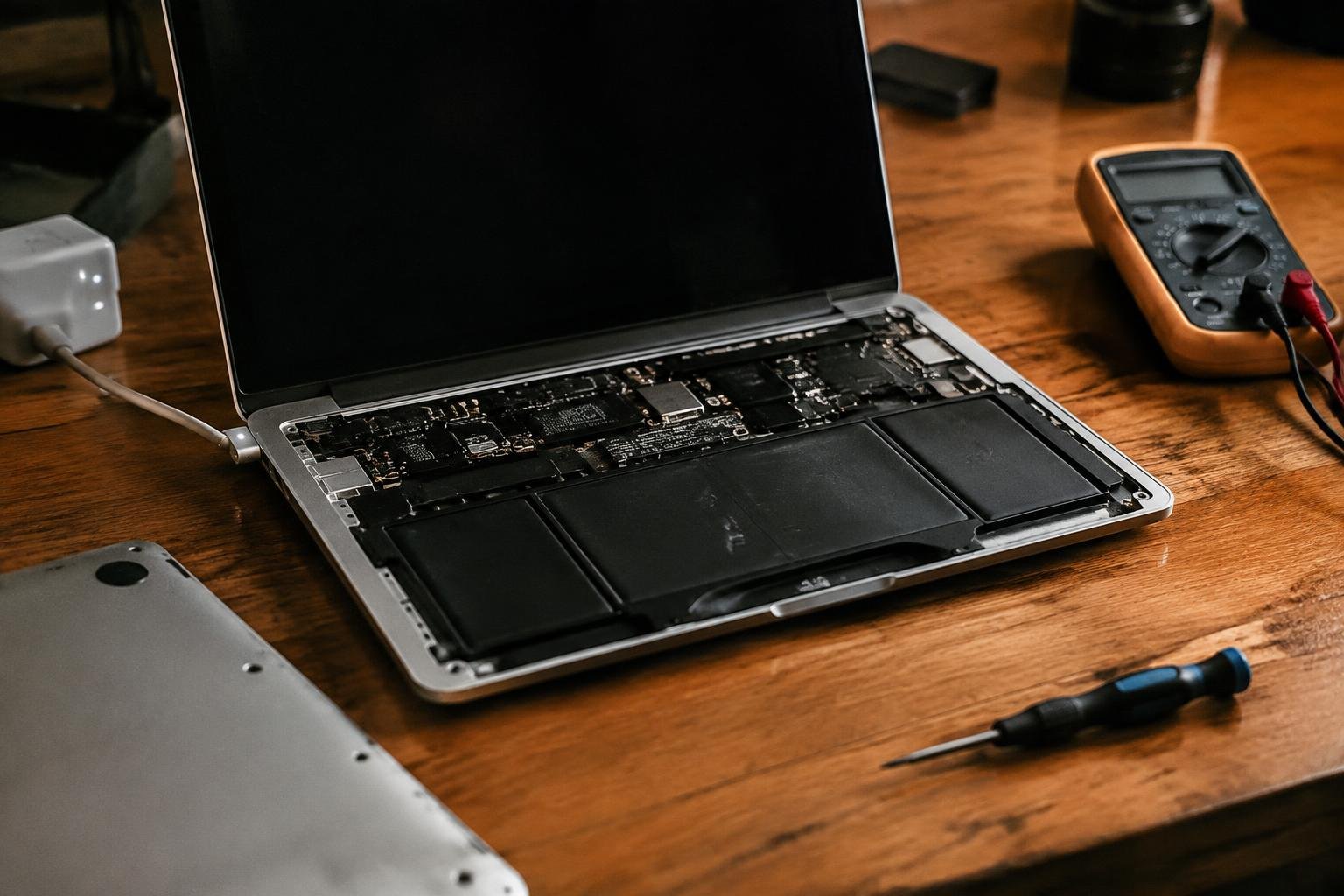
You charged your laptop overnight and expected a powered-up system ready to go, but nothing happens when you press the power button. No lights, no fan noise, no sign of life. This fix guide walks you through proven steps to diagnose why your laptop won’t turn on after charging and how to restore functionality without unnecessary repairs or replacements.
Key Takeaways:
- A laptop not turning on after charging overnight might still have a faulty power adapter-test the charger with another device or try a known-working one.
- Drained batteries can sometimes lock up the system even when plugged in; holding the power button for 30 seconds may reset internal circuitry.
- Dust and debris in the charging port can block proper connection-inspect the port carefully and clean it gently with compressed air or a soft tool.
- A black screen doesn’t always mean the laptop is dead-listen for fan noise or hard drive activity to check if the system is running silently.
- If none of the basic fixes work, internal hardware like the motherboard or battery could be damaged-seek help from a certified technician.
The Static Struggle
Unplug your laptop from the charger and power it down completely, if it’s currently on. Hold the power button for 15 to 20 seconds to discharge any residual static electricity that may be interfering with startup. This simple reset clears built-up charge in the system and often resolves boot issues caused by electrical interference. After waiting another 30 seconds, try powering it on again without reconnecting the charger. If the laptop responds, the problem was likely a temporary static lock rather than a hardware failure.
The Cord and the Wall
Check your charger cable carefully for any frays, bends, or exposed wires-physical damage often interrupts power delivery even if the plug appears secure. Plug the charger into a different wall outlet to rule out a faulty circuit, and avoid using power strips or extension cords during testing since they can reduce voltage. If your laptop uses a detachable power brick, ensure both ends of the cable are fully connected. Try a known-working charger if possible, as power adapters fail over time without obvious signs.
If your laptop still refuses to power on, it’s time to examine internal components. Power issues sometimes stem from a disconnected battery or a faulty internal cable, especially if the device was recently moved or handled roughly. Carefully open the back panel only if you’re comfortable doing so-consult your manufacturer’s guide for instructions. Look for any loose connections, especially around the battery and power board. A small jolt or shift inside can unseat these parts, cutting off power even when the charger appears functional. If you spot anything out of place, reseating it may restore operation.
The Signal of the Screen
You may see no image on the display, but that doesn’t always mean the laptop is dead. Look closely for subtle signs-a glowing power LED, a faint backlight glow under the screen, or even a brief flicker when pressing the power button. These small signals indicate the device is receiving some power, and the issue might lie with the display or graphics rather than the main system. If you notice any of these hints, try connecting an external monitor to confirm whether the GPU is functioning.
The Professional End
When home remedies fail, professional repair services become your next step. You’ve already tested the charger, reset internal components, and checked for display signals-yet nothing works. At this point, internal hardware issues like a failed motherboard, damaged charging circuit, or corrupted BIOS are likely culprits. Authorized technicians have diagnostic tools and replacement parts not available to most consumers. They can pinpoint faults with precision and often provide warranties on repairs. For laptops still under manufacturer coverage, attempting fixes on your own may have voided the warranty, so professional service restores both function and protection.
To wrap up
You’ve checked the charger, tested the outlet, listened for internal sounds, and even tried a reset with the battery disconnected. If your laptop still won’t power on, the issue may lie within components like the motherboard or power management system. At this stage, continuing with DIY fixes risks further damage. You need hands-on diagnostics that only certified technicians can provide. Contacting the manufacturer or visiting a trusted repair service gives you the best chance of recovery. Some models have known recall programs-check online before paying for repairs.
FAQ
how much does it cost to fix a laptop that won’t turn on after charging?
Repair costs typically range from $50 to $200 depending on the issue. If the problem is the charger or battery, replacement is usually on the lower end, while motherboard or screen repairs can push costs higher and may require professional diagnostics.
how long does it take to fix a laptop that won’t turn on after charging overnight?
Most basic fixes take 1 to 3 hours if parts are available. Charging issues or simple resets may resolve in minutes, but internal hardware problems often require longer diagnosis and repair time, especially if components need to be ordered.
is it worth repairing a laptop that doesn’t turn on after charging?
It depends on the age and value of the laptop compared to repair costs. If the device is relatively new or high-end, repairs are often justified, but older models may not be cost-effective to fix.
what are common mistakes people make when their laptop won’t power on?
People often overlook checking the power outlet or assume the battery is charged without verifying the adapter’s function. Another frequent error is forcing startup attempts without discharging residual power, which can prevent proper rebooting even after charging.
are there alternatives to fixing a laptop that won’t turn on after charging?
Yes, you can use an external monitor to check if the display is the only issue, or try booting from a USB drive to assess system functionality. If hardware failure is confirmed, repurposing usable parts or upgrading to a new device are practical alternatives.
 Previous Post