


Laptop Battery Charging Very Slowly Fix
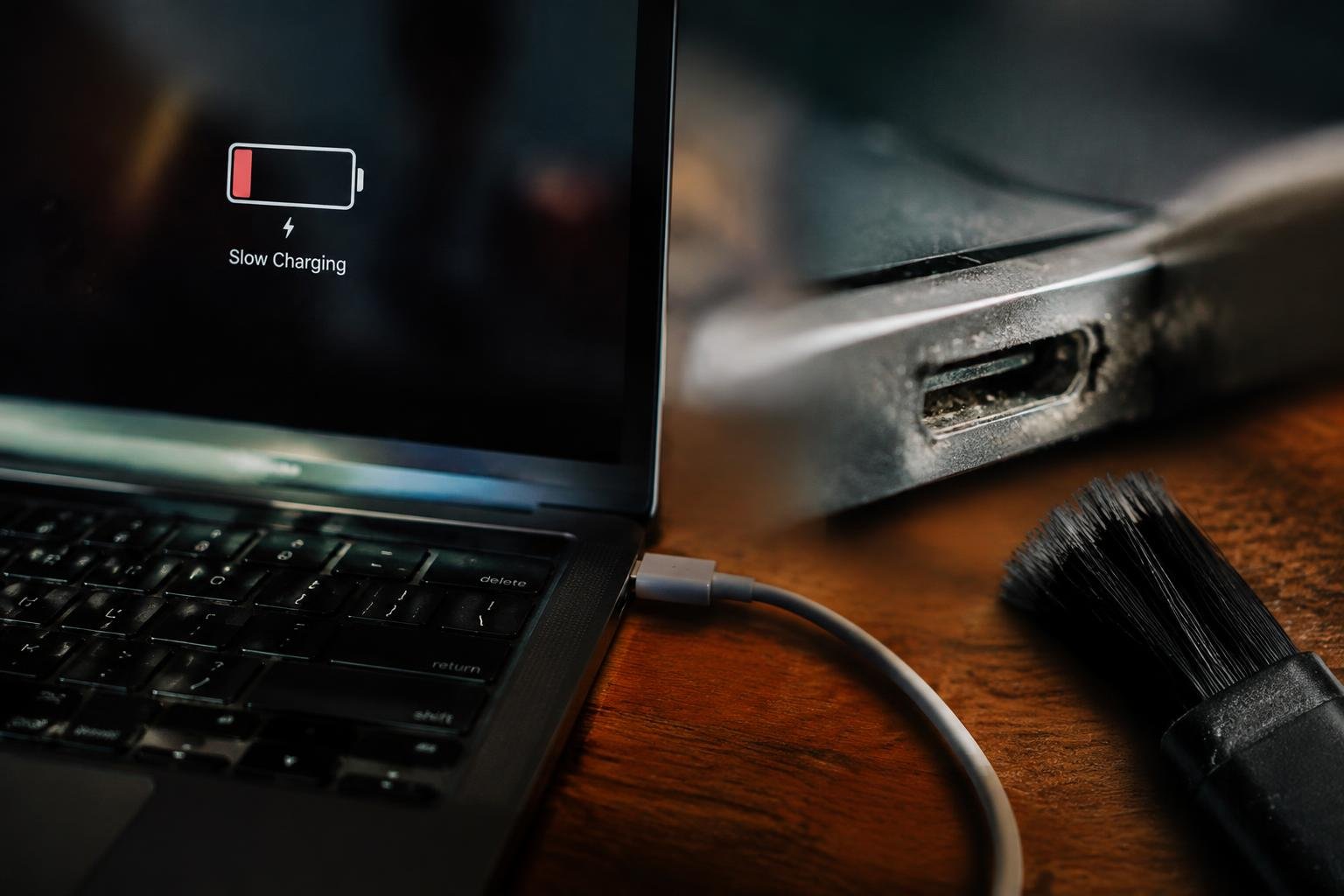
A laptop that gains only a few percentage points during an hour on the charger can disrupt work and signal a problem with its power supply, settings, battery, or charging port. You can narrow down the cause by noting whether charging slows while the laptop is in use, whether the adapter feels unusually warm, and whether the battery percentage changes when the device is shut down.
Key Takeaways:
- A laptop’s original-wattage AC adapter and a compatible charging cable provide the power its battery expects; an underpowered USB-C charger often charges slowly, especially while the laptop is running.
- Dust, lint, or a loose fit in the charging port can interrupt power delivery. Disconnect the charger before inspecting the port, and avoid inserting metal tools.
- Battery charge limits, conservation modes, and heavy workloads affect charging speed. Review the manufacturer’s power-management utility and close demanding applications while charging.
- Battery health reports and built-in diagnostics can distinguish normal battery wear from a charging fault. On Windows, generate a battery report with the
powercfg /batteryreportcommand. - If a known-good compatible charger does not resolve the problem, a damaged port, adapter, or battery may require professional service; stop using equipment that becomes unusually hot or shows physical damage.
Check the Charger, Cable, and Power Outlet
Start at the wall socket and work toward the laptop, isolating each part of the power path before changing anything on the computer. A loose plug, damaged lead, or underpowered adapter can reduce the energy reaching the battery even while the charging indicator is on. Test one component at a time, keeping the laptop connected long enough to see whether the charging status changes.
Inspect the charger and cable for damage
Examine the adapter casing, AC plug, and cable from end to end for cracks, exposed wire, bent prongs, or scorch marks. Feel the adapter during use; excessive heat, a buzzing sound, or an intermittent charging light can signal a failing unit. Check that the cable seats firmly in both the power brick and laptop. Stop using any charger with exposed conductors or a burning smell, and replace it with a model rated for your laptop.
Test another compatible outlet and charger
Plug the adapter directly into a known-working wall outlet, bypassing power strips, docking stations, and extension cords. If charging remains slow, test with a manufacturer-approved or otherwise compatible adapter that matches the laptop’s required voltage and provides equal or greater wattage. A phone charger or low-wattage USB-C adapter may connect without supplying enough power for normal charging. Note whether the charging indicator changes with the alternate outlet or adapter.
- Unplug the adapter before inspecting its connectors.
- Keep the power brick uncovered while it is operating.
- Use a grounded outlet where the charger’s plug requires one.
Check the Charging Port and Connection
Charging depends on uninterrupted contact between the adapter plug and the laptop’s port. A slightly loose fit, dust packed inside the opening, or a damaged connector can restrict power even when the charger itself is working. Inspect the port in good light, then note whether the charging indicator changes as the plug settles into place. Avoid forcing a connector or moving it sharply, since pressure can worsen damage to the port or its internal mounting.
| Observation | Likely connection issue | Safe response |
|---|---|---|
| Visible lint or dust | Debris obstructing contact | Remove carefully with the laptop powered off |
| Plug sits at an angle | Port or connector damage | Stop applying pressure |
| Charging indicator flickers | Intermittent contact | Inspect the fit and cable end |
Look for debris or damage in the charging port
Shine a flashlight into the port and look for lint, grit, bent contacts, or a cracked housing. Power the laptop off and disconnect the charger before cleaning; use a dry, nonmetallic tool, such as a plastic pick, to lift loose debris gently. Never insert a pin, paper clip, or wet swab, which can scratch contacts or cause an electrical short. If a contact looks bent or the port shifts inside the case, leave it untouched.
Confirm the connector fits securely
Seat the charger plug straight into the port and note whether it remains stable without pressure. A properly matched connector fits snugly, while a plug that slips out, rocks noticeably, or charges only at a particular angle points to a poor connection. Inspect the plug tip for wear and verify that it is the correct type for the laptop. If charging cuts out during normal desk use, avoid holding the cable in position, which can strain the port.
Review Battery Health and Charging Settings
Battery condition and manufacturer settings both affect how quickly your laptop accepts power. A worn battery can take longer to charge or struggle to reach full capacity, while built-in charge controls may intentionally pause charging below 100 percent. Check the battery’s reported capacity alongside the controls in your laptop maker’s utility or firmware menu. These details help you distinguish normal battery protection from a setting or battery condition that is limiting charge intake.
Check battery health and charging limits
Start with your laptop’s built-in battery report or the diagnostics app supplied by its manufacturer. Compare the battery’s full-charge capacity with its design capacity, and look for a health status such as “replace” or “service.” A large gap indicates wear, even if the battery still runs normally. Then inspect the battery utility or UEFI settings for a maximum charge threshold, such as a setting that stops charging at 80 percent.
- Record the full-charge capacity shown in the battery report.
- Look for swelling, case separation, or a raised trackpad.
- Note any battery-health warning displayed at startup.
Turn off charge-limiting modes temporarily
Battery-care modes, conservation modes, and adaptive charging features can cap charging or delay it based on your usage pattern. Open the manufacturer’s power-management utility and temporarily disable the charge limit, then reconnect the charger and observe whether the reported percentage rises past its usual stopping point. Some laptops expose the same control in UEFI setup rather than in Windows or macOS. Restore the limit after testing if you usually keep the laptop plugged in.
Apply Software and System Fixes
Software faults and heavy processor activity can slow charging even when the power connection is stable. Use system tools to clear temporary glitches, install current updates, and keep power-management components working correctly. Then review active programs for tasks that keep the processor busy while the laptop is plugged in. These steps focus on software and background load, such as a video export running alongside several browser tabs.
Restart the laptop and install system updates
Restarting clears stuck processes and resets temporary power-management errors that can interfere with charging. After the laptop boots, open Windows Update or your operating system’s software update settings and install pending system updates. Keep the laptop connected to power during installation, since some updates require a restart or firmware-related changes. On Windows, review update status in Settings under Windows Update; on macOS, use System Settings and Software Update.
Update power-management and battery drivers
Outdated chipset or power-management drivers can prevent the operating system from reading battery status correctly or applying the intended charging profile. On Windows, open Device Manager and review the Batteries and System devices categories, then install recommended drivers through Windows Update or the laptop maker’s support utility. Avoid third-party driver download sites. If a battery entry is missing or reports an error, scan for hardware changes in Device Manager after restarting.
Close demanding apps and processes
High CPU or graphics usage consumes power while the adapter charges the battery, reducing the net energy available for charging. Open Task Manager on Windows or Activity Monitor on macOS, sort processes by energy or processor use, and close nonessential workloads such as video rendering, game launchers, or large file compression. Save your work before ending an application, and leave security scans or system updates running until they finish.
- On Windows, use Task Manager’s Startup apps tab to disable unnecessary launch-at-login programs.
- On macOS, check the Energy tab in Activity Monitor for apps with high energy impact.
- Pause cloud syncing during large uploads or downloads.
Identify Hardware Faults and Repair Options
Hardware faults become more likely when charging remains slow with a known-good, manufacturer-compatible adapter and cable, or when the laptop disconnects from power despite a secure connection. Separate battery symptoms from charging-circuit problems by noting whether the laptop runs normally on AC power and whether its charge level changes while shut down. A technician can test battery output and the DC-in jack before recommending a part, narrowing the repair to a battery, port, adapter, or system-board component.
| Observed sign | Possible component | Typical next step |
|---|---|---|
| Case or trackpad lifting | Swollen battery | Stop using the laptop and arrange service |
| Charging cuts in and out when plugged in | DC-in jack or port connection | Request port inspection |
| No charge with a compatible adapter | Battery or charging circuitry | Ask for battery and board-level testing |
| Routine check | Safe practice | What to watch for |
|---|---|---|
| Charger and cable | Use a model-compatible, correctly rated adapter | Fraying, crushed sections, loose plugs |
| USB-C power | Match the laptop’s required Power Delivery output | Low-wattage adapters or hubs |
| Charging port | Clean gently with the laptop powered off | Lint, debris, weak connector contact |
| Cooling vents | Keep vents clear on a hard surface | Dust buildup or blocked airflow |
Conclusion
Slow laptop charging usually traces to a weak or incompatible adapter, a poor port connection, battery wear, or a setting that limits charging. Match the charger’s wattage and connector to your laptop, inspect the port for debris or damage, and review battery health in the manufacturer’s utility or operating system. If charging stays slow with a known-good charger and a direct wall outlet, arrange a diagnostic for the battery, charging port, or motherboard power circuit before replacing parts.
FAQ
Why is my laptop battery charging very slowly even with the lid closed?
A weak or incompatible charger, a worn battery, or a charging limit can make a laptop charge slowly even when it is idle. If the charger is correctly rated and the battery is healthy, check whether a charge limit is enabled or the charging port connection is loose.
How long should it take to charge a laptop battery?
A laptop may take a few hours to charge, but the time depends on battery capacity, charger output, laptop use, and battery condition. Charging can take longer while the laptop is running demanding apps, and some models deliberately slow charging near full capacity to protect the battery.
Can I keep using my laptop if it charges very slowly?
You can usually use a laptop that charges slowly if it shows no signs of battery or charger damage. Stop using it and unplug it if the battery is swollen, unusually hot, leaking, or giving off an unusual smell, then arrange professional service.
Is it safe to use a higher wattage charger for my laptop?
A higher wattage charger is generally safe if it is compatible with the laptop and meets its voltage and charging standards. The laptop draws only the power it can accept, but an incompatible charger or poor-quality cable can cause charging problems or damage.
Should I replace my laptop battery if it takes hours to charge?
Replace the battery if diagnostics show it is failing, it no longer holds a useful charge, or it is swollen. Slow charging alone does not prove the battery needs replacement, so first rule out the charger, cable, port, settings, and software.
How much does it cost to fix a laptop that charges slowly?
The cost depends on whether the cause is a charger, battery, charging port, or internal charging component. A replacement charger is often less involved than a repair requiring laptop disassembly, so get a diagnosis and estimate before approving hardware work.
What is the fastest way to make my laptop charge faster?
Use a compatible charger with the correct power rating, connect it directly to a working outlet, and close demanding apps while charging. Charging speed may still be limited by battery health, laptop temperature, or a built-in charge limit, so avoid unsafe chargers or settings changes.
 Previous Post
 Next Post