



Laptop Motherboard Repair vs Replacement Guide
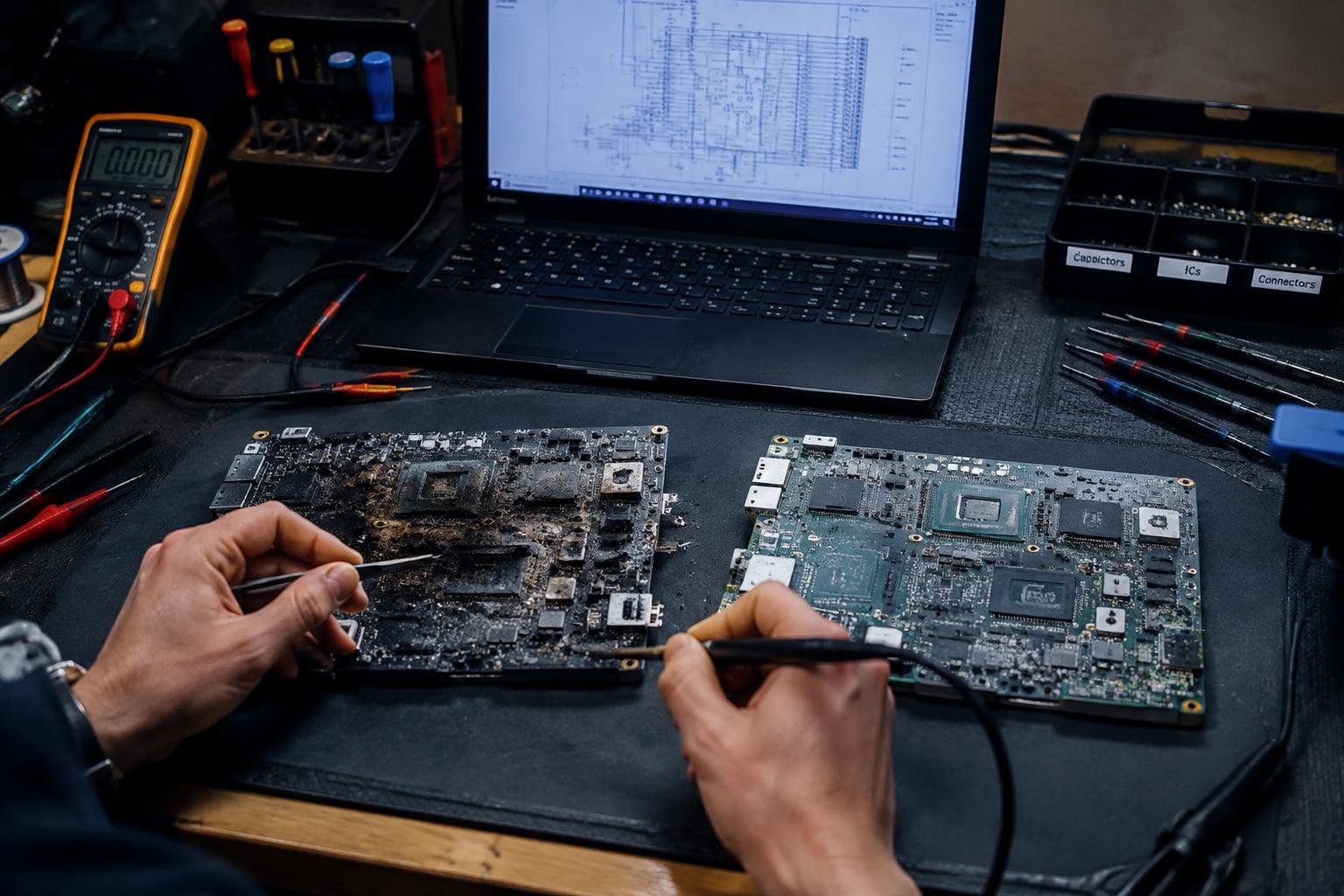
You’re facing a malfunctioning laptop, and the diagnosis points to the motherboard. This failure can bring your work to a halt, but you have options. Understanding whether to repair or replace the motherboard directly impacts cost, downtime, and long-term reliability. This guide walks you through the technical and financial realities of each path, helping you make an informed decision based on your device’s condition and your needs.
Key Takeaways:
- A failed laptop motherboard doesn’t automatically mean the device is beyond repair; some issues can be resolved through targeted component fixes like replacing capacitors or voltage regulators.
- Repairing a motherboard often costs less than replacing it, but availability of spare parts and technician expertise can limit repair feasibility, especially for older or rare models.
- Replacement becomes the better option when multiple critical circuits are damaged or when the cost and time of repair approach or exceed the price of a new motherboard.
- DIY repairs carry high risks, including permanent damage from static discharge or soldering errors, making professional assessment advisable for most users.
- Preventive maintenance, such as regular cooling system cleaning and using surge protection, significantly reduces the likelihood of future motherboard failures.
Identifying Common Motherboard Failure Types
You can detect motherboard problems early by recognizing specific hardware symptoms tied to distinct failure types. Unusual behavior such as random shutdowns, failure to power on, or unrecognized peripherals often signals deeper issues. Visual inspection may reveal burn marks, bulging capacitors, or corrosion. Each symptom correlates to a particular type of damage, helping you assess severity before considering financial implications.
- Failure to power on despite connected power supply
- Intermittent shutdowns or freezing during operation
- Burnt smell or visible scorch marks on the board
- Peripheral devices not being detected
- BIOS errors or failure to display POST screen
| Symptom | Potential Failure Type |
| No power response | Power regulation circuit failure |
| Random reboots | RAM or VRM instability |
| Visible capacitor bulging | Electrolytic capacitor degradation |
| Burnt odor or charring | Electrical short or component burnout |
| USB or SATA ports non-functional | Southbridge or I/O controller failure |
Electrical Short Circuits and Liquid Damage
Spilling liquid on your laptop often leads to immediate power loss or erratic behavior due to conductive residue bridging circuits. Corrosion develops quickly, especially if the device isn’t powered down promptly. You may notice darkened areas around connectors or a white, crusty residue on the board. Even after drying, latent damage can disrupt voltage regulation. A short circuit might blow fuses or destroy MOSFETs, making precise diagnosis essential before any repair attempt.
Integrated Circuit and Chipset Failures
When critical chips like the southbridge, northbridge, or power management unit fail, your laptop may not boot or recognize essential components. These issues often stem from prolonged heat exposure or voltage spikes. You might see diagnostic codes indicating PCIe or memory controller faults. Unlike discrete component failures, chipset problems require advanced tools to isolate. Symptoms include missing drives, non-functional USB ports, or complete failure to initialize the CPU.
Decision Factors: When to Repair vs. Replace
Your choice between repairing or replacing a laptop motherboard hinges on three core considerations: the device’s age, repair expenses, and part availability. If your laptop is more than four years old, replacement often makes more financial sense. A newer model with a costly but functional chassis might justify a repair. Weigh the price of labor and components against the value of the machine itself. Some failures, especially those involving proprietary chips or welded parts, may not be practical to fix.
- Age of the laptop (older than 4-5 years leans toward replacement)
- Cost comparison: repair estimate versus new device or used replacement
- Availability of compatible parts and technical expertise
- Impact on performance and future reliability after repair
- Warranty status and potential for recurring issues
Assessing the Total Cost of Ownership
You need to look beyond the initial repair quote when evaluating whether to fix your motherboard. Consider how much you’ve already invested in the device, including upgrades like extra RAM or storage. Factor in expected lifespan post-repair-will it last another two years or fail again within months? A $150 repair on a five-year-old laptop with declining battery and outdated ports may not deliver long-term value. Compare this total cost to what you’d spend on a comparable replacement system.
Component Availability and Parts Sourcing
Some motherboards are simply not worth repairing because key components are no longer manufactured or sold. You might find that a specific power management IC or BIOS chip has been discontinued, making sourcing difficult or impossible. Third-party suppliers may offer generic replacements, but these can introduce compatibility risks. OEM parts for older models often come from salvaged units, limiting supply and driving up prices. If essential pieces can’t be reliably obtained, replacement becomes the only viable path forward.
Analyzing the Pros and Cons of Component Repair
Choosing between repairing individual components and replacing the entire motherboard often comes down to balancing cost and reliability. Micro-soldering can restore functionality at a fraction of the price of a new board, making it appealing for budget-conscious users. However, repaired boards may not deliver the same long-term stability as factory-fresh units. Your decision hinges on the specific failure, availability of replacement parts, and the technician’s expertise in surface-mount technology.
| Factor | Consideration |
|---|---|
| Cost | Micro-soldering is typically cheaper than a full board replacement |
| Labor Intensity | Repairs demand skilled technicians and specialized tools |
| Time Investment | Can take several hours depending on component complexity |
| Component Availability | Sourcing exact ICs or capacitors may delay repair |
| Success Rate | Varies by fault type; power delivery issues have higher success |
| Longevity | Repaired boards may fail again under stress or heat |
| Warranty | Most repairs come with limited or no warranty coverage |
| Board Age | Older motherboards may have degraded traces or pads |
| Failure Scope | Isolated faults are better candidates than widespread damage |
| Environmental Impact | Repair reduces e-waste compared to full replacement |
Advantages of Specialized Micro-Soldering
You save significantly when a skilled technician replaces a damaged MOSFET or capacitor instead of swapping the entire motherboard. This precision work targets only the faulty component, preserving the original circuitry and avoiding unnecessary expenditures. Many common failures-like power delivery issues or USB port malfunctions-are well within the scope of micro-soldering. If your laptop is out of warranty and the rest of the board remains functional, this approach restores performance without the cost of new hardware.
Potential Risks and Failure Rates
Your repaired board might not last as long as a new one, especially if the solder joint is exposed to thermal cycling or physical stress. Even expertly executed micro-soldering carries a risk of cold joints, lifted pads, or nearby component damage due to heat transfer. Some chip-level repairs show recurrence rates above 20%, particularly with BGA components like southbridges or PMICs. You’re also dependent on the technician’s skill level-minor misalignments can cause intermittent issues that are difficult to diagnose later.
Step-by-Step Motherboard Replacement Guide
Replacing a laptop motherboard requires precision, patience, and a methodical approach. Follow these steps carefully to ensure a successful swap while minimizing the risk of damage to sensitive components. Work in a static-free environment with proper tools, and document each phase with notes or photos to simplify reassembly.
| Task | Action |
| Power Down | Shut down the laptop completely and disconnect the power adapter. |
| Battery Removal | Remove the main battery if accessible; for sealed units, disconnect the internal battery cable first. |
| Screw Management | Keep screws organized by location using a labeled tray or magnetic mat. |
| Cable Handling | Use a plastic spudger to release ribbon cables-never pull by the wire. |
Preparation and Internal Component Disassembly
Begin by powering off your laptop and unplugging all external connections. Remove the bottom panel screws and set them aside in a labeled container. Identify and disconnect peripherals such as the battery, display cables, and wireless card. Carefully detach any heatsinks or cooling assemblies obstructing access. Note the routing of each cable and bracket to ensure accurate reinstallation later. Keep screws and small parts separated by location to avoid confusion during reassembly.
Installing the New Board and Reconnecting Peripherals
Align the replacement motherboard precisely with the chassis standoffs and mounting points. Gently press it into place, ensuring no cables are pinched or misrouted. Reconnect each peripheral in the reverse order of disassembly-start with display, battery, and Wi-Fi cables-using light, even pressure. Secure the board with the appropriate screws, double-checking that all connectors are seated fully. Power on the laptop to verify functionality before closing the case.
Expert Tips for Hardware Longevity and Safety
Protecting your laptop’s internal components begins with disciplined handling and awareness of environmental factors. Always power down and unplug the device before any inspection or work, and handle parts by their edges to minimize contact with sensitive circuitry. Work on non-conductive surfaces and keep liquids far from your workspace. Store spare components in anti-static bags and avoid high-humidity areas, which can encourage corrosion. These habits reduce the risk of accidental shorts and extend the functional life of your hardware.
- Always ground yourself before touching internal components
- Use anti-static wrist straps when working on open hardware
- Avoid carpeted areas during repair or maintenance tasks
- Keep tools and workspace clean and organized
- Maintain stable ambient temperatures during operation and storage
Static Discharge Protection and Thermal Management
Your body can carry enough static electricity to damage delicate motherboard traces or chips without ever feeling a shock. Before touching any internal part, discharge static by touching a grounded metal object or wearing a properly fitted anti-static wrist strap connected to a grounded surface. Never slide components across synthetic fabrics or plastic surfaces. Pair this with effective thermal management by ensuring heat sinks are properly seated and thermal paste is correctly applied during reassembly. Consistent attention here prevents both immediate failure and gradual degradation.
Routine Maintenance to Prevent Overheating
Heat remains one of the leading causes of premature motherboard wear. Dust buildup in vents and cooling fans restricts airflow, forcing components to operate at higher temperatures. You should inspect and clean internal ventilation paths every few months, especially if you use your laptop in dusty or high-use environments. Use compressed air to remove debris from fans and heatsinks without making physical contact. Replacing dried-out thermal paste on the CPU every 12 to 18 months also maintains efficient heat transfer and system stability over time.
To wrap up
You now have a clear understanding of when to repair versus replace a laptop motherboard. Assessing the nature of the damage, your technical skill level, and the age of the device plays a direct role in making a cost-effective decision. Minor issues like faulty capacitors or broken ports can often be repaired successfully, while widespread damage or obsolete models typically justify replacement. Choosing the right path helps extend your laptop’s life without unnecessary expense. You’re equipped to make a confident, informed choice.
FAQ
How much does it cost to repair a laptop motherboard?
Repair costs typically range from $100 to $300 depending on the fault and labor rates. More complex issues like BGA rework or trace damage can push prices higher, especially for rare models where expertise is limited.
Is replacing a laptop motherboard worth it?
Replacing a motherboard can be worth it if the laptop is relatively new and the replacement cost is significantly lower than buying a new device. However, compatibility with existing components and BIOS restrictions may limit success, especially with OEM-specific firmware.
How long does it take to replace a laptop motherboard?
A motherboard replacement usually takes 1 to 3 hours depending on the laptop model and technician experience. Compact or proprietary designs, such as those in ultrabooks, often require extra time due to complex disassembly and delicate connectors.
What are the risks of repairing a motherboard instead of replacing it?
Repairs carry the risk of recurring failure if underlying issues like power surges or heat damage aren’t addressed. Micro-soldering fixes may work temporarily but lack the reliability of a full replacement, particularly for aging systems.
Can I upgrade components when replacing the motherboard?
Yes, a new motherboard may allow RAM, storage, or Wi-Fi upgrades if the form factor and chipset support them. However, most laptop motherboards are model-specific, so changes are often limited to what the chassis and power system can accommodate.
 Previous Post
 Next Post