



Laptop File Corruption – Common Causes and How to Fix It
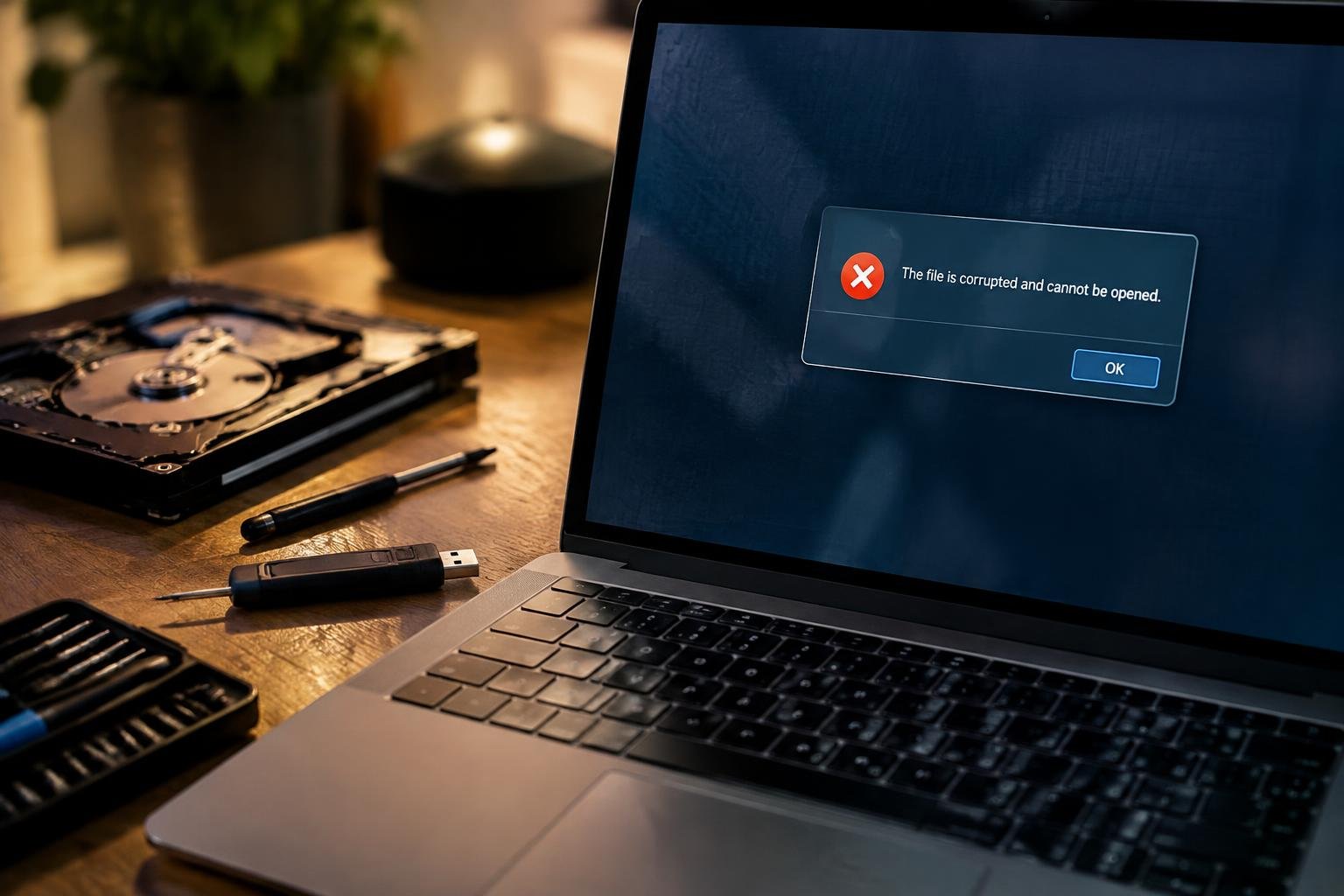
A document that suddenly refuses to open can signal damaged data, not just a faulty app. Laptop files often become corrupted after an interrupted save, an unsafe drive removal, or storage errors. Knowing what happened to a file helps you choose an appropriate repair, such as restoring an earlier version or using the application’s built-in recovery tool.
Key Takeaways:
- File corruption often shows up as error messages, missing content, or documents that will not open, while the laptop’s operating system and other files continue working normally.
- Common causes include interrupted file transfers, unexpected shutdowns, failing SSDs or hard drives, malware, and damaged storage file systems.
- Back up important files before attempting repairs; running repair tools on a failing drive can put remaining data at risk.
- Windows users can use the built-in Error Checking utility and System File Checker for disk and system-file issues. macOS users can run First Aid in Disk Utility on the affected volume.
- Restore an intact copy from File History, Time Machine, or another backup when a specific document is damaged; replace the storage drive if diagnostic tools report hardware failure.
How to Identify Laptop File Corruption
File corruption is more likely when a specific document behaves incorrectly across repeated attempts, while other files and laptop functions remain normal. Look for damaged content, incomplete loading, or errors that persist after you confirm the file’s location and permissions. A single failed open does not prove corruption; a disconnected drive or an incompatible program can produce similar symptoms. Note which files are affected and whether the problem follows one file type, such as photos or spreadsheets.
Check error messages and file behavior
Read the exact message shown by the application, since warnings such as “file format or extension is not valid” point to a different issue than “access denied.” A corrupted file may open with missing sections, garbled characters, blank pages, or an unexpected end of content. Reopening it should reproduce the same defect, while a permissions problem often blocks access without altering what appears on screen. Record the filename, extension, and application error code.
Test files with another app or device
Open a copy in a compatible alternative, such as a PDF reader for a PDF or a different spreadsheet editor for an XLSX file. You can also transfer the file to another laptop or phone using a trusted method. If the same content is missing or unreadable in multiple programs, corruption is more likely than an app-specific glitch. If it opens normally elsewhere, note the original app version and any format compatibility warning.
- Compare the file size with an earlier copy.
- Check whether its extension matches the file type.
- Look for a recent autosaved or temporary version.
Common Causes and Risk Factors
File corruption often follows a break in the normal read-and-write process, whether that break comes from unstable power, failing storage, malicious code, or an interrupted user action. Your risk depends on how your laptop handles open files and whether the drive can complete writes reliably. Documents, databases, and system files are especially exposed while being saved or updated, because even a brief interruption can leave their contents incomplete.
Sudden shutdowns and power interruptions
When your laptop loses power during a save, the operating system may stop before all buffered data reaches the drive. A depleted battery, loose charging connection, forced shutdown, or overheating can interrupt writes to a document, application settings, or file-system metadata. Sleep and hibernation problems create similar risks if the laptop powers off while preparing its session state. Unsaved edits and files being written at that moment face the greatest exposure.
Drive errors, malware, and unsafe removal
Bad sectors, worn storage cells, and controller faults can prevent reliable reads or writes, sometimes affecting files stored near damaged areas. Malware may alter, encrypt, or delete data, while a failing drive can produce repeated read errors and unexplained file changes. Removing a USB drive or memory card before write activity finishes can also interrupt transfers. A file copied to external storage is particularly vulnerable while its progress indicator is still active.
| Risk source | Typical trigger | File exposure |
|---|---|---|
| Power interruption | Battery loss or forced shutdown during saving | Open files and file-system metadata |
| Drive fault | Bad sectors, worn cells, or controller errors | Files stored in affected areas |
| Malware | Unauthorized alteration, encryption, or deletion | Files accessed or targeted by malicious code |
| Unsafe removal | Unplugging storage during an active transfer | Files being copied to the device |
How to Fix Corrupted Files
Choose a repair method based on whether the problem affects one document or several files, and keep the original copy unchanged while you work. Start with operating-system utilities for storage errors, then use an application’s repair function or a dedicated recovery tool for damaged data. If the files are business-critical, stop writing to the affected drive and seek professional recovery before repeated repair attempts overwrite recoverable content.
Restart the laptop and run disk checks
Restarting clears temporary system problems that can interrupt file access. After the laptop boots, run Windows Error Checking from File Explorer by opening the drive’s Properties, selecting Tools, and choosing Check; on macOS, open Disk Utility, select the volume, and run First Aid. These utilities scan file-system structures and attempt repairs. If a disk check reports unreadable sectors or repeated errors, avoid saving recovered files to that same drive.
Restore files from backups or recovery tools
For a missing or damaged file, restore a clean copy from File History, OneDrive version history, Time Machine, or another backup that predates the problem. If no backup exists, use a reputable recovery utility to scan the affected drive, then save recovered files to a separate external drive. Stop using the source drive before scanning, since new downloads or installations can overwrite deleted file data.
- Close the application that cannot open the damaged file.
- Try the application’s built-in Open and Repair option.
- For a corrupted Office document, open it from the relevant Office app rather than File Explorer.
- Keep recovered files separate from the original damaged copy.
Tips to Prevent Future Corruption
Consistent file-handling habits reduce the chance that everyday interruptions will damage your data. Keep laptops on a stable power source during large transfers, leave external drives connected until copying finishes, and avoid editing a document simultaneously across several apps or devices. For work stored locally, close the application before moving or renaming its files. These routines are especially useful when handling large video projects, databases, or folders being synchronized to cloud storage.
| Habit | Practical step | When to use it |
|---|---|---|
| Scheduled backups | Copy files to a separate drive or cloud service | For active work and personal records |
| Safe ejection | Use the operating system’s eject command | Before disconnecting USB storage |
| Stable power | Connect the charger during lengthy file operations | During large transfers or updates |
Back up important files regularly
Choose a backup schedule that matches how often your files change, then use File History on Windows or Time Machine on macOS for automated copies. Keep at least one backup separate from your laptop, such as on an external drive that you disconnect after the backup completes. Cloud storage adds off-site protection, but confirm that synchronization has finished before closing the lid or shutting down, especially for large project folders.
Keep software updated and shut down safely
Install operating system and application updates through their built-in update tools, since patches address storage and file-system issues as well as security flaws. Save your work and close open documents before choosing Shut down or Restart; avoid holding the power button unless the laptop is unresponsive. During updates, keep the charger connected and allow the installation to finish, and eject USB drives through the system menu before unplugging them.
Final Words
File corruption often traces to interrupted writes, failing storage, malware, or software errors, and the right fix depends on the cause. You can start with a backup, then use your operating system’s repair tools or restore an earlier version before attempting more advanced recovery. If corruption recurs, inspect the drive’s health and replace failing hardware rather than trusting it with more data. Regular backups and safe shutdowns give you a practical defense against losing access to important files.
FAQ
How much does it cost to recover a corrupted laptop file?
Recovering a corrupted file may cost nothing if a backup or built-in repair tool works. Professional recovery can cost more, especially if the laptop has physical drive damage, and the price depends on the problem and the service provider.
How long does it take to repair a corrupted file on a laptop?
A simple repair or restore may take only a few minutes, while scanning a large or failing drive can take hours. Recovery time depends on the drive’s size and condition, the file type, and whether a usable backup exists.
Can trying to repair a corrupted file make it worse?
Yes, repeated repairs or continued use of a failing drive can reduce the chance of recovering the original data. If the file is valuable, make a copy of the drive or file before trying repairs, and stop using a drive that shows signs of physical failure.
What should I avoid doing when a laptop file will not open?
Avoid overwriting the file, saving changes over the only copy, or installing recovery software onto the drive where it is stored. These actions can replace data that might otherwise be recoverable; first check for another copy in backups or cloud storage.
Can I recover a corrupted file without professional help?
Often, yes, if the damage is limited and a backup, previous version, or application repair feature is available. If the drive is making unusual noises, disappearing, or producing repeated errors, stop DIY attempts and consider professional recovery.
Is it worth trying to recover a corrupted laptop file?
Recovery is usually worth trying when the file is difficult to replace and a safe copy or backup is available. If the file is easily recreated, extensive repair may not be worthwhile; the decision also depends on the file’s value and the risk to other data.
Can a corrupted file be fixed if I do not have a backup?
Sometimes, a file can be repaired using the app that created it or recovered from temporary files, but success is not guaranteed. Stop saving new data to the affected drive, because new files can overwrite recoverable information.
 Previous Post
 Next Post