



Laptop Fan Always Running Loudly Causes
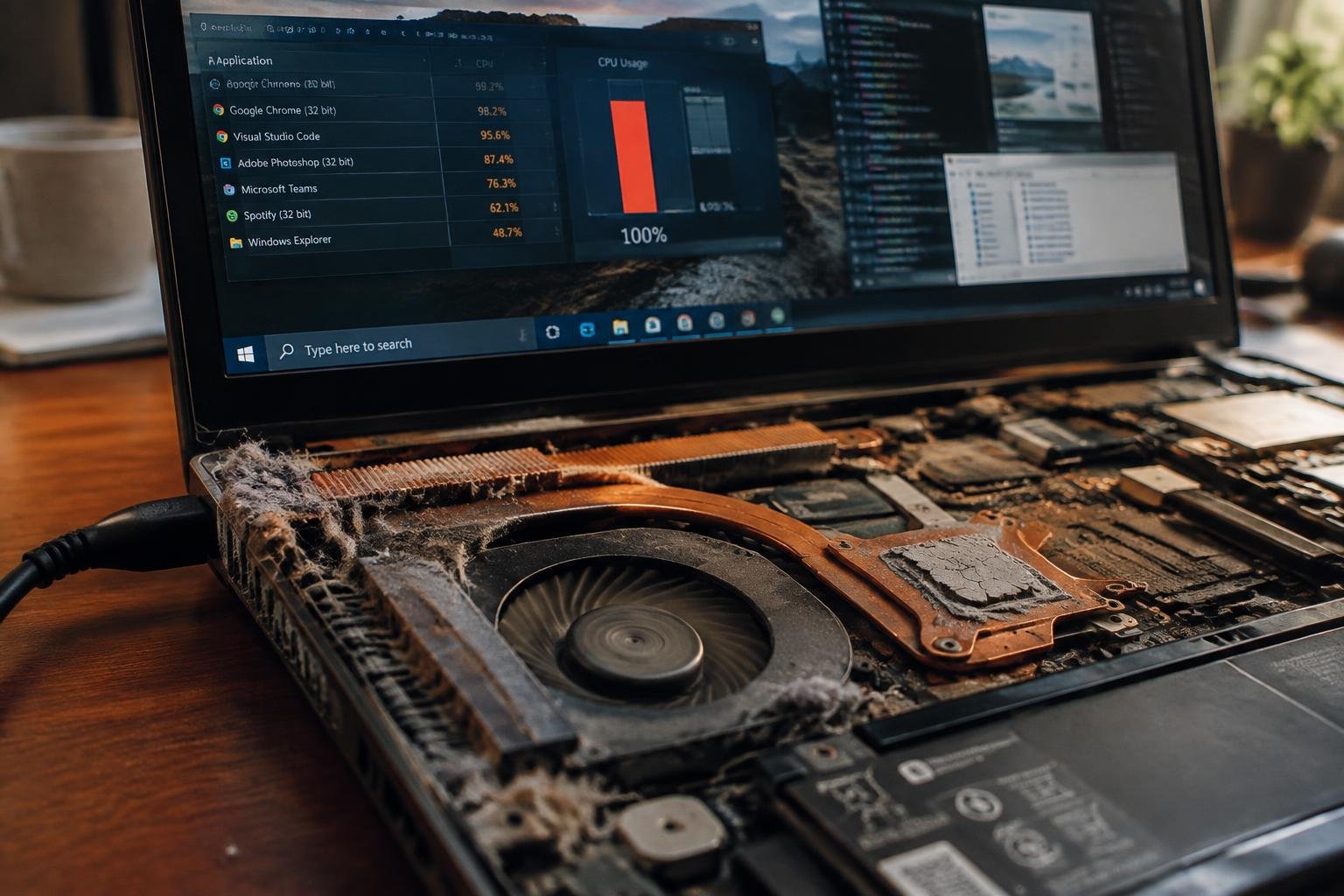
You’ve noticed your laptop fan running loudly, even when you’re not doing anything intensive. That constant whir isn’t normal and points to specific underlying issues. Whether it’s dust buildup, processor strain, or failing hardware, each cause affects performance and longevity. Understanding what’s driving the noise helps you take timely, effective action.
Key Takeaways:
- Loud and constant fan noise often points to dust buildup inside the laptop, blocking airflow and forcing the cooling system to work harder.
- A processor under heavy load from background apps or demanding software can overheat, triggering continuous fan operation.
- Using a laptop on soft surfaces like beds or couches restricts ventilation, increasing internal temperatures and fan activity.
- Over time, thermal paste between the CPU and heatsink dries out, reducing heat transfer efficiency and causing the fan to run more often.
- Outdated BIOS or fan control software may fail to regulate speed properly, leading to excessive noise even during light usage.
The Dust in the Machine
You’ve likely noticed your laptop fan roaring after months of regular use, and dust is almost certainly part of the problem. Over time, tiny particles accumulate inside the vents and around the cooling fins, acting like insulation for heat. This buildup forces your fan to work harder just to maintain basic airflow. Even a thin layer of grime can obstruct proper ventilation, causing temperatures to rise during everyday tasks. Cleaning these components regularly with compressed air can restore quieter operation and protect internal hardware from long-term damage.
The Strain of the Processor
Your laptop’s processor ramps up speed whenever you run demanding applications like video editors, games, or virtual machines. This spike in activity generates significant heat, prompting the cooling system to respond aggressively. If your CPU is consistently under heavy load, the fan will run loudly and continuously to prevent overheating. Background processes you aren’t actively using-like software updates or malware-can also push the processor harder than necessary. Monitoring task usage through system tools reveals what’s taxing the CPU and allows you to close unnecessary programs, reducing thermal output and fan noise over time.
The Physical Environment
Your laptop’s surroundings play a direct role in how hard its cooling system must work. Placing it on soft surfaces like beds or couches blocks airflow vents, forcing the fan to run louder and longer. Even ambient room temperature affects performance-working in a hot environment reduces heat dissipation efficiency. You may not realize how much surface material matters until the fan ramps up during simple tasks. A solid, flat desk provides proper ventilation and helps maintain consistent internal temperatures.
The Aging Thermal Paste
Over time, the thermal paste between your laptop’s processor and heatsink degrades, losing its ability to transfer heat efficiently. You may not notice this decline immediately, but as the compound dries out or cracks, temperatures climb without warning. Your cooling system compensates by ramping up fan speed, leading to constant loud operation. This is especially common in laptops three or more years old that have never had maintenance on their internal components. Reapplying high-quality thermal paste can restore proper heat conduction and significantly reduce fan noise.
Outdated System Control
Your laptop’s system control software governs how components like the fan respond to temperature changes. When this firmware or driver set hasn’t been updated in a long time, it may misread sensor data or fail to regulate fan speed efficiently. You might notice the fan running at full power even during light tasks because the system defaults to aggressive cooling as a safety measure. Manufacturers regularly release updates to improve thermal management logic, and skipping these leaves your device operating on flawed assumptions. Installing the latest BIOS and chipset drivers from your laptop maker’s support site often resolves erratic fan behavior caused by outdated control protocols.
Mechanical Failure
Over time, the internal components of your laptop can degrade, and one of the most common points of failure is the cooling fan itself. You may notice unusual grinding or whirring sounds accompanying the constant noise, signaling worn bearings or misaligned blades. These physical defects prevent the fan from spinning efficiently, forcing it to run at higher speeds just to maintain minimal cooling. When mechanical issues arise, cleaning or software adjustments won’t help-only inspection or replacement resolves the problem. Ignoring these signs often leads to overheating and potential damage to other components.
To wrap up
You now understand the common reasons your laptop fan runs loudly and constantly. Dust buildup, processor overload, poor ventilation, degraded thermal paste, outdated firmware, or failing hardware can all contribute. Each factor directly impacts cooling efficiency and system performance. Addressing these issues promptly improves both comfort and longevity. Simple steps like cleaning vents or adjusting power settings often yield immediate results. Persistent noise may require professional servicing, especially if mechanical failure is present. Your awareness and maintenance play a direct role in how well your device manages heat and operates quietly over time.
FAQ
how much does it cost to fix a loud laptop fan?
Repair costs typically range from $50 to $150 depending on labor rates and the extent of cleaning or part replacement needed. Costs may increase if the fan must be replaced or if internal components require servicing due to overheating damage.
can cleaning my laptop fan myself cause damage?
Yes, improper handling during cleaning can damage delicate internal components or dislodge connections. Always power off and unplug the laptop, use compressed air gently, and avoid touching circuitry with tools or fingers.
how long does it take to clean a laptop fan properly?
A thorough cleaning usually takes 30 to 60 minutes including disassembly, dust removal, and reassembly. The time varies based on laptop model complexity and user experience with hardware maintenance.
is it worth fixing a noisy fan on an old laptop?
It can be worth fixing if the laptop otherwise performs well and the issue stems from dust or worn thermal paste. However, if the device is several years old and shows other signs of failure, replacement may be more cost-effective.
what are alternatives to fixing a constantly running laptop fan?
Using a cooling pad or elevating the laptop can help reduce heat and fan strain temporarily. However, these don’t address internal issues like dust buildup or failing hardware, which will likely worsen over time.
 Previous Post