



Laptop Extremely Slow After Windows Update Fix
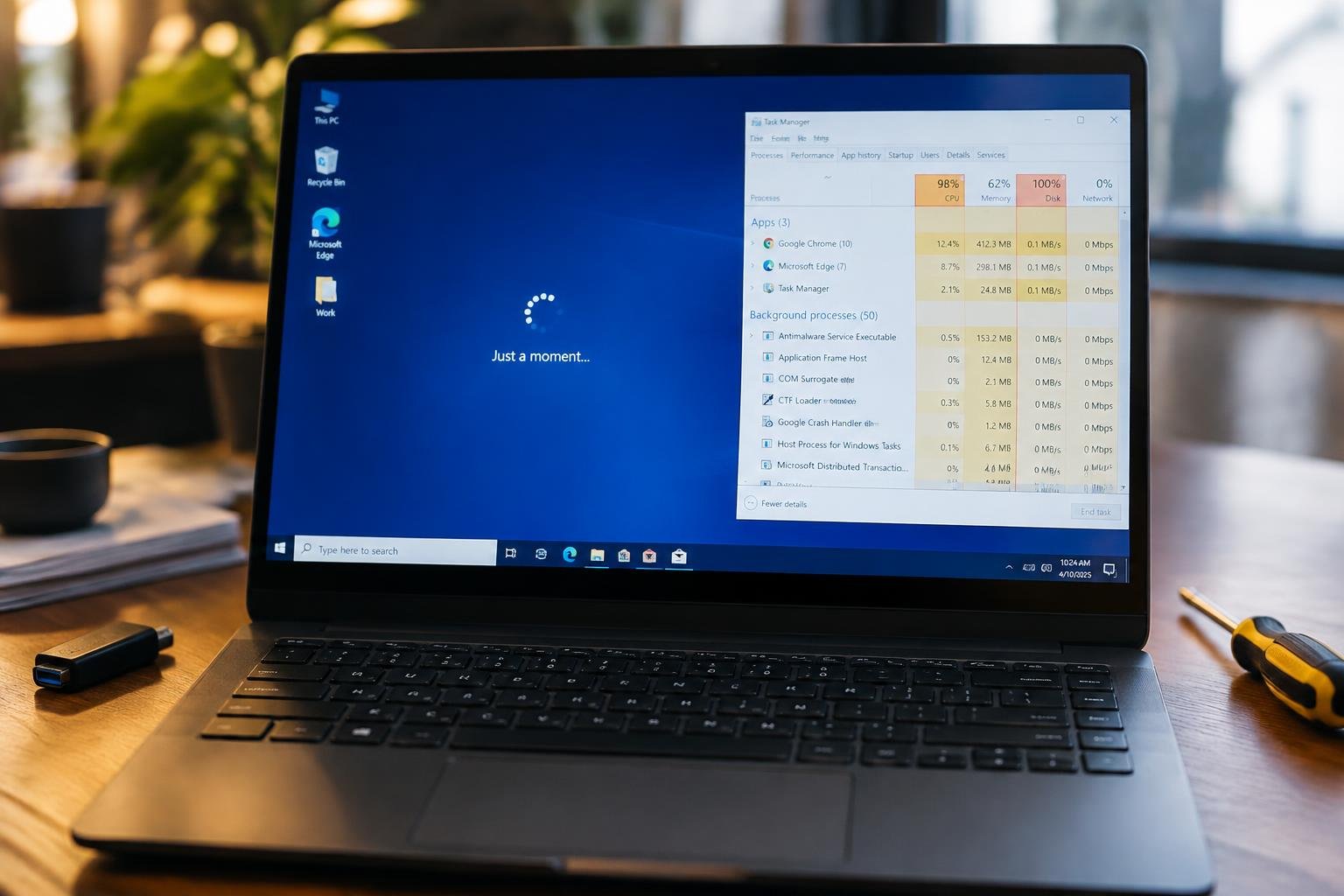
You turned on your laptop after a Windows update and found it barely responsive. Programs stall, files take forever to open, and even basic tasks feel like a struggle. This slowdown is more common than you think, especially when new system changes strain older hardware or clash with existing software. You need clear, actionable steps to restore performance-and you need them now.
Key Takeaways:
- Windows updates sometimes introduce bloated background processes that consume system resources, leading to noticeable slowdowns on older or low-spec laptops.
- A clean boot can isolate problematic startup programs aggravated by an update, helping identify services that drag down performance.
- Rolling back the specific update through Windows Settings or using System Restore may reverse performance issues if done soon after the update.
- Outdated drivers, especially for storage and graphics, often clash with new Windows versions and updating them can restore lost speed.
- Trimming unnecessary software and adjusting visual effects for performance can free up memory and processing power on affected machines.
The Heavy Weight of New Code
Every Windows update carries a fresh layer of code, and sometimes that code brings more than just improvements-it brings load. Your laptop now runs additional background tasks that weren’t there before, quietly consuming CPU cycles and memory. These processes, often tied to updated system services or reactivated telemetry features, run without warning and rarely ask for permission. Over time, they pile up, turning a once-responsive machine into a sluggish performer, especially on older or low-spec hardware.
Background Processes
You may notice your laptop fan running constantly, even when you’re not doing much. That’s because the latest update has likely activated multiple background tasks-some visible in Task Manager, others hidden deep in system services. These processes perform diagnostics, sync settings, or prepare features you might never use. Each one takes a small slice of resources, but together they form a significant drain on both performance and battery life, leaving your system feeling overstretched and unresponsive.
Disk Usage
Your storage drive is working harder than before, showing frequent 100% usage in monitoring tools even during idle moments. This spike often comes from system interrupts or update-related services writing and rewriting temporary data. The new code may trigger constant indexing, logging, or patching routines that keep the disk busy. As a result, launching apps takes longer, files open slowly, and overall responsiveness drops, making everyday tasks feel like a struggle against the machine itself.
The Way Back to the Old Peace
Rolling back to your previous Windows version can restore your laptop’s responsiveness almost immediately. You likely noticed the slowdown right after the latest update, and Microsoft does allow a window of time to undo it. This built-in rollback feature is designed for situations like yours-when an update disrupts normal function. Your files and settings will return to how they were before the update, often eliminating the lag you’ve been struggling with.
Recovery Settings
Your system keeps a restore point from before the update, accessible through Recovery Settings. Open Start, go to Settings, then System > Recovery. Look for the “Go back” option under Recent Updates. Click it, and follow the prompts to revert your OS. This process doesn’t affect personal files but undoes system changes made by the update. It usually takes 15 to 30 minutes, depending on your machine’s speed and configuration.
Uninstalling Updates
You can remove specific updates that triggered the slowdown through Windows Update settings. Navigate to Settings > Windows Update > Update history > Uninstall updates. A list of recent patches appears-select the one installed just before performance dropped. Confirm the removal, and let your PC reboot. This method targets only problematic updates instead of rolling back the entire system version, giving you more control over what gets removed.
Cleaning the Dust from the Gears
Over time, your system accumulates digital clutter that can drag performance to a crawl, especially after a major Windows update. Temporary files from browsers, installers, and system processes fill up valuable space on your physical drive, slowing read and write speeds. These unnecessary files may seem harmless, but when piled up, they interfere with efficient operation. Clearing them out reduces strain on your storage and helps restore responsiveness. Your machine doesn’t need to carry this excess weight-removing it brings immediate relief.
Temporary Files
Your laptop stores countless temporary files while running applications, browsing the web, or updating software. These fragments remain long after they’re needed, consuming space and slowing system performance. Open Settings, navigate to System > Storage, and select Temporary Files to view what’s taking up room. From there, check the boxes for items like Downloads, Recycle Bin, and Windows Update Cleanup, then click Remove Files. This simple cleanup reclaims drive capacity and helps your laptop breathe easier.
Startup Items
Too many programs launching at startup can cripple boot times and reduce available memory. Each application that runs automatically takes a slice of your system’s resources before you even begin working. Press Ctrl+Shift+Esc to open Task Manager, go to the Startup tab, and review the list of enabled apps. Disable anything nonessential-like old updaters, chat tools, or peripheral software you don’t need immediately. You’ll notice faster boot times and smoother initial performance each time you restart.
The Final Mend of the System
Your system’s underlying software structure often bears unseen damage after a disruptive Windows update, silently affecting performance. Running automated repair commands reaches into these hidden layers, correcting corrupted elements that standard troubleshooting misses. These tools operate at the core level, restoring integrity to essential components without requiring technical expertise. When executed properly, they align fragmented processes and reset misconfigured settings, effectively closing the gap between hardware capability and software behavior. The result is a smoother, more stable experience rooted in structural restoration.
System File Check
You can initiate the System File Checker (SFC) through an administrative Command Prompt to detect and replace damaged or missing system files. This built-in utility scans every protected component, comparing them against a cached database of original versions. If discrepancies are found, the tool automatically retrieves correct data from the cache and reinstalls it. Running sfc /scannow may take 15 to 30 minutes depending on system load, but requires no manual intervention. Once complete, it reports whether repairs were made, often resolving stability issues tied to file corruption.
Deployment Image Tool
The Deployment Imaging and Servicing Management (DISM) tool addresses deeper image-level corruption that SFC cannot fix alone. By executing DISM /Online /Cleanup-Image /RestoreHealth, your system connects to Windows Update servers to validate and repair the core operating system image. This process replaces compromised system resources with clean versions directly from Microsoft’s repository. It typically runs longer than SFC but lays the foundation for a fully functional repair. Completing this step often restores responsiveness lost after a problematic update cycle.
Final Words
You now have the tools to restore your laptop’s speed after a disruptive Windows update. You’ve seen how changes in system demands can slow performance and learned practical steps to reverse the effects. Whether rolling back updates, adjusting settings, or cleaning background processes, your actions directly influence performance. You don’t need to accept sluggish behavior as permanent. With regular maintenance and informed choices, you maintain control over your device’s responsiveness and reliability, ensuring it supports your work without unnecessary delays.
FAQ
how long does it take to fix a slow laptop after a windows update?
Fixing a slow laptop after a Windows update typically takes 30 minutes to a few hours, depending on the methods used. Running system scans or reinstalling updates can extend the time, especially if files are heavily fragmented or corrupted.
is it safe to uninstall recent windows updates?
Uninstalling recent Windows updates is generally safe if done through the proper recovery settings. However, removing security updates may expose your system to vulnerabilities until you install newer patches.
what are common mistakes when trying to speed up a slow computer?
A common mistake is disabling essential startup services or background processes that Windows needs to run smoothly. This can cause system instability or prevent apps and drivers from functioning correctly.
can cleaning temporary files improve laptop performance significantly?
Yes, cleaning temporary files can noticeably improve performance, especially on systems with low disk space. The benefit is greater on machines with traditional hard drives rather than SSDs.
are there alternatives to rolling back windows updates for a slow laptop?
Yes, alternatives include performing a system file check, managing startup programs, or resetting Windows without losing files. These options can resolve slowdowns without reverting to a previous version.
 Previous Post