



Laptop Charging Port Loose Problem Fix
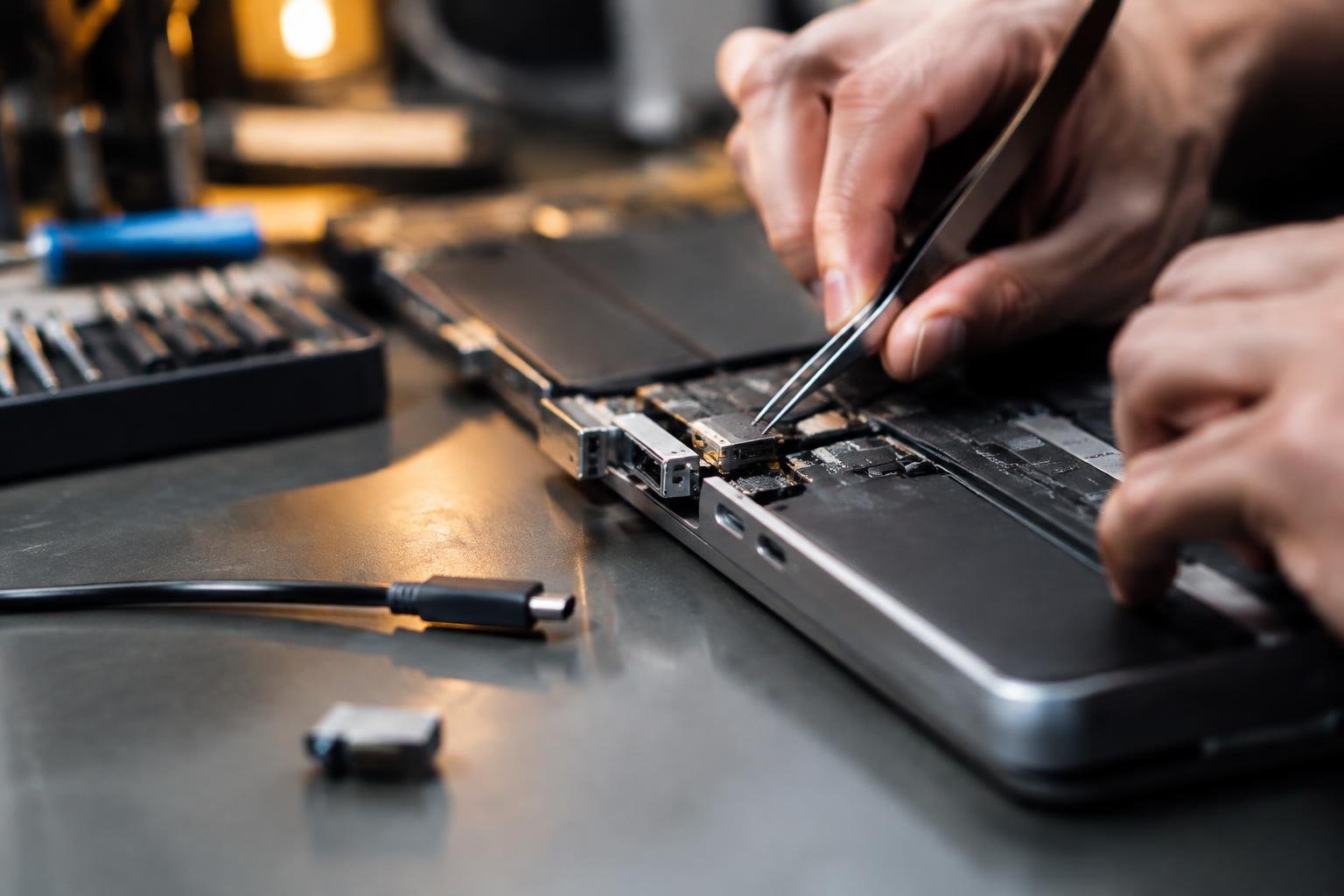
A charging cable that works only at a certain angle often points to a loose laptop charging port, not a faulty battery. Continued movement can worsen the port’s connection to the motherboard or damage the cable’s plug. Before you adjust anything, shut down the laptop and unplug the adapter, especially if the connector feels hot or visibly shifts inside the socket.
Key Takeaways:
- A charging plug that moves in the laptop’s socket, or loses power when the cable shifts, often points to a loose port or damaged solder joints.
- Stop using a port that feels loose, sparks, smells burnt, or becomes unusually hot; continued charging can damage the motherboard or power adapter.
- Inspect the charger plug and cable before opening the laptop, since a bent connector or frayed wire can mimic a faulty charging port.
- Port repairs depend on the laptop design: some models use a replaceable DC-in jack, while others have the port soldered directly to the motherboard.
- Disconnect the charger before inspection, and leave board-level soldering to a qualified repair technician if the port is attached to the motherboard.
Symptoms of a Loose Laptop Charging Port
Port looseness is most apparent when charging changes in response to slight movement at the laptop’s power inlet, rather than a change in the adapter’s position at the wall. Look for a connector that feels unusually free in the socket, sits at an angle, or fails to stay firmly seated. A charging indicator that flickers as the plug shifts points toward an unstable connection at the laptop, though visible symptoms alone do not confirm the cause.
Common signs and charging interruptions
Watch the charging icon or indicator while the laptop rests on a stable surface. If it switches between charging and battery power when the plug moves gently at the port, the inlet connection is suspect. A loose socket may also let the connector wobble, require a particular angle, or disconnect when the laptop is nudged. Avoid repeatedly rocking the plug, since movement can worsen wear; note whether the interruption follows movement at the laptop end or along the cable.
How to rule out a faulty adapter or cable
Start with a compatible, known-good adapter that matches the laptop’s required connector and power rating. Inspect the cable near both strain-relief points for cuts, kinks, or exposed conductors, then test the original adapter with another compatible laptop if available. If charging remains steady with the replacement adapter, the original unit or cable is likely at fault. If multiple working adapters disconnect only at the laptop inlet, port looseness becomes more likely.
| Observation | Likely source | What to note |
|---|---|---|
| Charging changes when the plug moves at the laptop | Port or inlet connection | Whether the socket or connector feels loose |
| Charging changes when the cable bends | Cable fault | Damage near either strain-relief point |
| Several compatible adapters disconnect at the same inlet | Possible loose port | Whether each adapter seats firmly |
| Another compatible laptop also fails with the adapter | Adapter or cable fault | Whether the fault follows the power supply |
Causes of Charging Port Looseness
Charging ports are fixed to the laptop’s chassis or motherboard, so repeated movement at the socket transfers force to a small connection point. Cable tension, knocks, and everyday insertion wear can weaken that mounting or deform the port’s contacts. Damage depends on the connector design and how the laptop is handled, but even a sturdy socket is not intended to bear the weight of a dangling cable or repeated sideways pressure.
Repeated cable strain and accidental pulls
Repeatedly charging with the cable stretched across a desk puts leverage on the plug and port, especially when the connector is bent sharply near the laptop. An accidental pull from a chair, bag, or passing hand can shift the socket or stress its anchor points. Charging while the laptop rests on the cable also presses the plug sideways, transferring force directly to the port’s housing.
Internal connector or solder-joint damage
Inside the laptop, the charging socket is attached either to a separate power-input board or directly to the motherboard. A forceful impact or persistent cable movement can crack solder joints, loosen mounting tabs, or bend the connector’s internal contacts. The port may then move relative to the case, while intermittent electrical contact develops at the joint between the socket pins and circuit board.
Debris, corrosion, and physical wear
Dust, lint, or compacted debris inside a charging socket can prevent the plug from seating fully, making the connection feel loose even when the port is firmly mounted. Moisture exposure can corrode metal contacts and interfere with electrical contact. Frequent plugging and unplugging also wears the connector surfaces; with barrel plugs, a worn center pin or socket can reduce the firm fit that a new connector provides.
- USB-C ports rely on a reversible, closely fitted plug.
- Barrel connectors use a central pin and outer sleeve.
- Some laptops route charging through a replaceable DC-in board.
Diagnosing the Problem Safely
Before testing a loose charging connection, shut down the laptop, unplug the adapter from the wall, and let the port cool. A flashlight and a visual check are safer than inserting tools or repeatedly rocking the plug. Once the exterior looks clear, reconnect the charger gently and observe whether the charging indicator responds while the laptop rests on a stable surface. Note any flickering, unusual resistance, or movement at the port without forcing the connector.
Safe visual inspection and connection tests
Use a flashlight to inspect the port for lint, bent contacts, cracks, or a connector that sits visibly off-center. Keep metal tools, fingers, and compressed air away from the contacts. With the laptop powered off, insert the correct charger straight, without twisting; a properly matched plug should seat without force. After connecting power, watch the indicator while the laptop remains still. A charging light that changes only when the plug shifts points to an unstable connection.
When to stop using the laptop
Stop charging immediately if you notice a burning smell, smoke, crackling, unusual heat around the port, or visible sparking. Disconnect the adapter from the wall before handling the plug, provided you can do so safely. Do not keep the laptop running on a charger that repeatedly cuts in and out, since intermittent contact can generate heat at the connector. A swollen case near the port or a charger plug with melted plastic also warrants leaving the device unplugged.
When professional diagnosis is needed
Arrange an in-person assessment if the port is loose inside the case, its contacts appear bent, or the laptop charges only when the connector is held at an angle. A technician can distinguish port damage from a faulty adapter or a problem on the motherboard using a known-good compatible charger and electrical testing equipment. Seek diagnosis promptly if the charging behavior changes after a drop, liquid exposure, or visible impact near the power socket.
| Observation | Safe check | What it suggests |
|---|---|---|
| Debris or damage visible at the port | Inspect with a flashlight; do not probe contacts | Possible obstruction or physical damage |
| Charging indicator flickers while laptop is still | Reconnect the correct charger straight and gently | Possible unstable connection or adapter fault |
| Heat, smoke, or burning smell | Stop charging and disconnect power safely | Potential electrical or battery hazard |
| Charging works only at an angle | Stop moving the plug and arrange assessment | Possible internal port or board damage |
Fixing a Loose Laptop Charging Port
Start with the least invasive repair that fits the fault: remove accessible debris, test the laptop with a compatible charger, then assess whether the socket itself moves inside the case. A loose-feeling connection does not always mean the port has failed; a damaged plug or obstruction can produce similar symptoms. Avoid forcing the connector or repeatedly angling it to maintain power, since that can worsen a cracked solder joint or damage the motherboard.
Cleaning debris from the port
Lint and dust packed into a charging socket can stop the plug from seating fully. Shut down the laptop, disconnect its charger, and inspect the port with a flashlight. Use a clean, dry, non-metallic tool, such as a plastic pick, to lift loose debris gently; avoid pins, paper clips, liquids, and compressed air held close to the contacts. Stop if you encounter resistance or see bent components, since the socket’s center pin and contact surfaces are easy to damage.
Replacing a damaged charger or cable
Test with a known-good charger that matches the laptop’s required voltage, connector type, and power rating. A frayed cable, bent plug, or intermittent connection near the power brick can mimic a loose port. For USB-C models, use a charger with adequate USB Power Delivery output and a cable rated for the required wattage. Replace a damaged adapter or cable rather than taping exposed wiring, and discontinue use if the charger becomes unusually hot or smells burnt.
Repairing or replacing the charging port
A port that shifts inside the chassis, has visibly damaged contacts, or loses power when the laptop moves often needs internal repair. Depending on the model, the socket may be mounted on a small replaceable board or soldered directly to the motherboard. Board-mounted ports are typically replaced as an assembly, while soldered sockets require suitable rework equipment and precise contact alignment. Continued use with a moving port can tear solder pads from the board, turning a socket repair into motherboard-level work.
Choosing between DIY repair and a technician
Choose a DIY repair only when the manufacturer’s service manual provides a clear disassembly procedure and you have the correct tools, such as a precision screwdriver set and plastic spudger. Disconnect the battery before touching internal components, and keep screws organized by their original locations. If the port is soldered to the motherboard, the laptop is under warranty, or disassembly risks damaging a fragile ribbon cable, a qualified repair technician is the safer choice; ask whether the quote covers board-level diagnosis.
- Photograph cable routing before removing internal assemblies.
- Keep liquids and conductive debris away from an open chassis.
- Use an ESD-safe work surface when handling the motherboard.
Preventing Future Port Damage
Careful daily use limits the repeated pulling, twisting, and side pressure that gradually loosens a laptop’s charging socket. Treat the cable and connector as a matched pair, and keep the laptop stationary while power is connected. A charging habit that avoids sudden movement protects both the port’s solder joints and the cable plug, especially when you work at a desk, use the laptop on a couch, or charge it in a shared space.
Reduce strain on the connector
Route the charging cable so it reaches the laptop without tension, and leave a gentle curve near the plug rather than bending it sharply at the port. Keep the connector clear of chair legs, desk edges, and areas where someone could catch a foot or hand on it. Before moving the laptop, unplug the charger by gripping its plug, not by pulling the wire; this avoids levering the connector against the socket.
Use compatible chargers and accessories
Choose a charger that meets your laptop manufacturer’s voltage, wattage, and connector requirements. A plug that feels unusually tight, loose, or misaligned should not be forced into the port, since poor fit can wear the socket’s inner contacts. For USB-C models, use a cable and power adapter rated for the laptop’s charging needs, and replace any accessory with a bent plug, split insulation, or exposed wiring.
Store and transport the laptop safely
Unplug the charger before placing the laptop in a bag, and coil the cable loosely without wrapping it tightly around the adapter or connector. Store the power brick separately from the laptop when its weight could press against the charging port. A padded compartment keeps the computer from shifting, while a small cable pouch prevents the plug from striking keys, ports, or other hard objects during transport.
| Situation | Safer practice | Port stress reduced |
|---|---|---|
| Charging at a desk | Leave slack and route the cable away from walkways | Pulling and side pressure |
| Connecting the charger | Use a correctly rated adapter and aligned plug | Contact wear and forced insertion |
| Packing the laptop | Unplug first and store the cable in a pouch | Impact and pressure on the socket |
To wrap up
A loose laptop charging port often points to a worn connector, damaged solder joints, or a plug that no longer fits securely. Start with a compatible charger and inspect the port without inserting tools or forcing the plug; stop charging if you notice heat, a burning smell, or visible damage. A technician can determine whether your model uses a replaceable DC-in jack or requires motherboard repair. After service, route the cable so its weight does not pull against the port.
FAQ
How much does it cost to fix a loose laptop charging port?
The cost depends on the laptop model, port design, and whether the repair requires soldering or a replacement part. A simple cable or debris issue may cost little to resolve, while board-level work can cost more; request a diagnosis and quote before authorizing repair.
How long does it take to repair a laptop charging port?
A repair can take from under an hour to several days, depending on the fault and parts availability. A technician may finish a straightforward port replacement quickly, but diagnosis, soldering, or waiting for a model-specific part can extend the turnaround.
Is it safe to keep using a laptop with a loose charging port?
It is safer to stop charging if the connection is intermittent, the port feels hot, or you notice sparks, a burning smell, or visible damage. Continued use can worsen the fault, so unplug the charger and have the laptop inspected if these signs occur.
What mistakes should I avoid when trying to fix a laptop charging port?
Avoid forcing the plug, scraping inside the port with metal tools, or opening the laptop without the right skills and precautions. These actions can damage the connector or internal components; disconnect power before any inspection, and leave soldering or port replacement to a qualified repairer if unsure.
Can I charge my laptop another way if the charging port is loose?
A compatible USB-C port or manufacturer-approved dock may provide an alternative if the laptop supports charging through that connection. Check the laptop’s specifications and use a charger that meets its power requirements, since a USB-C data port may not accept power.
Is a loose laptop charging port worth repairing?
Repair is often worthwhile if the laptop otherwise works well and the repair quote is reasonable compared with replacement. The decision depends on the laptop’s age, condition, and repair cost; ask whether the fault is limited to the port or involves the motherboard.
Can a loose laptop charging port fix itself?
No, a physically loose connector or damaged solder joint will not reliably repair itself. Stop wiggling or bending the charger to maintain contact, because repeated movement can worsen the damage; debris may be removable, but inspect and clean the port only with the laptop unplugged.
 Previous Post