



Laptop USB Ports Suddenly Stop Working Fix
You’re in the middle of transferring files or connecting a peripheral when your laptop’s USB ports stop responding. No warning, no error message-just silence. This issue can stem from simple glitches to deeper hardware faults. You don’t need technical expertise to begin troubleshooting. Start with straightforward checks before moving to advanced solutions.
Key Takeaways:
- USB ports can stop working due to power management settings that turn off the port to save energy, often fixed by adjusting settings in Device Manager.
- Physical damage or debris in the USB port can block proper connection, so inspecting for visible issues like bent pins or dirt is a necessary first step.
- Outdated or corrupted drivers may cause USB ports to fail, and updating or reinstalling them through Device Manager can restore functionality.
- BIOS settings sometimes disable USB ports at the system level, so checking and resetting BIOS configurations can resolve unexpected outages.
- If software fixes don’t work, the issue might be broken hardware, such as a damaged motherboard circuit, requiring professional repair or replacement.
The Physical Inspection
Start by turning off your laptop and unplugging it from any power source. Examine each USB port carefully for visible signs of damage, debris, or corrosion. Use a flashlight to peer inside the ports-dust, lint, or pocket lint buildup can block proper connections. If you spot any foreign material, gently remove it with a plastic tool or compressed air. Avoid metal objects that could short the internal contacts. Test each port by inserting a known working device to see if it’s recognized. Uneven wear or bent pins indicate physical damage that may require professional repair.
The Power Management
Your laptop’s USB ports may stop working due to aggressive power-saving settings that cut power to prevent drain during sleep or low usage. Windows, by default, allows the system to turn off USB root hubs to conserve energy, but this feature sometimes triggers unexpectedly, disabling ports even when the laptop is active. You can adjust this behavior by accessing the Power Options in Control Panel, selecting your current plan, and editing the USB selective suspend setting. Disable it completely to test if the ports resume function. After making the change, restart your laptop and check each port with a known-working device.
The Device Manager
You can often resolve unresponsive USB ports by checking the Device Manager, where Windows organizes all connected hardware. Press Windows + X and select Device Manager from the menu, then expand the “Universal Serial Bus controllers” section. Look for any devices marked with a yellow triangle or showing errors. Right-click each USB-related entry and choose “Uninstall device,” then restart your computer to let Windows reinstall the drivers automatically. This reset frequently restores functionality without further steps.
The System BIOS
Your laptop’s USB ports may stop working if the BIOS settings have disabled them or applied incorrect configurations. Accessing the BIOS lets you verify whether USB functionality is active at the hardware level. Restart your machine and press the designated key-often F2, Delete, or Esc-during boot to enter the BIOS interface. Look for options related to USB legacy support or xHCI hand-off and ensure they’re enabled. Changes here take effect immediately upon saving, so reboot normally afterward to test port performance.
The Software Conflict
You might not realize it, but recently installed programs or driver updates can interfere with USB functionality. Some applications install background services that take control of USB ports, blocking standard operations. If your ports stopped working after a software update or new installation, a conflict is likely. Uninstalling the suspect software through Control Panel or using System Restore to revert your PC to an earlier state often resolves the issue. Check running processes in Task Manager to identify any unusual activity tied to USB devices.
The Broken Hardware
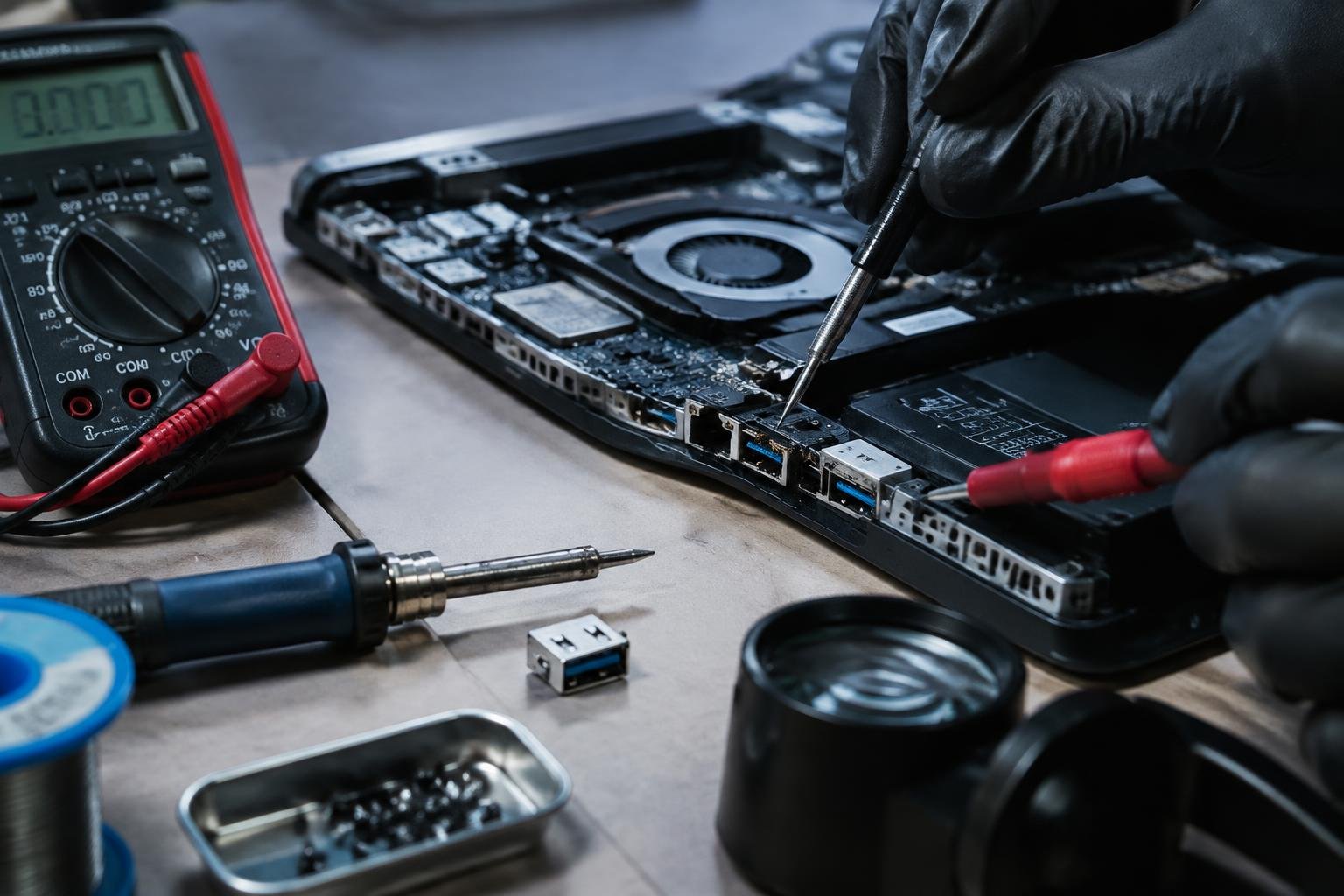
If your USB ports fail to respond even after troubleshooting software and settings, physical hardware damage may be the cause. You might notice visible signs like bent pins, scorch marks, or a loose port that wiggles when touched. Internal damage, such as a severed connection on the motherboard or a failed USB controller chip, can also disable ports without obvious external clues. In some cases, a recent drop or liquid spill could have compromised the circuitry. When the hardware itself is at fault, no amount of driver updates or BIOS changes will restore function. Replacing the affected components or consulting a qualified technician becomes the only viable path forward.
Conclusion
You now have a clear path to diagnose and resolve sudden USB port failures on your laptop. By systematically checking physical connections, adjusting power settings, updating drivers through Device Manager, reviewing BIOS configurations, and ruling out software conflicts, you address the most common causes. If all steps fail, the issue likely points to damaged hardware requiring professional service. You don’t need to replace the entire device-targeted fixes often restore full functionality without unnecessary expense.
FAQ
how much does it cost to fix a laptop usb port?
Repairing a laptop USB port typically costs between $50 and $150, depending on labor rates and the extent of damage. Costs rise if the motherboard needs replacement or if multiple ports are affected, making full repair sometimes close to the price of a new laptop.
can i fix my usb ports not working without opening the laptop?
Yes, you can resolve non-working USB ports without opening the laptop by updating drivers, adjusting power management settings, or reinstalling the OS. However, if the issue stems from physical damage or a failed internal component, software fixes will not be enough.
how long does it take to repair a usb port on a laptop?
A USB port repair usually takes 1 to 3 hours, depending on the cause and technician experience. More time is needed if the motherboard must be replaced or if troubleshooting reveals deeper hardware issues.
is it worth fixing usb ports if only one still works?
Fixing USB ports is worth it if you rely on peripherals like mice, drives, or docking stations. However, if the laptop is old or has other failing components, investing in a new device may be more practical.
what causes all usb ports on a laptop to stop working at once?
All USB ports failing simultaneously often points to a system-wide issue like a BIOS setting, driver corruption, or power management fault. In rare cases, it may result from a damaged controller chip on the motherboard, requiring professional repair.
 Previous Post