



Laptop Charger Cable Damage Symptoms
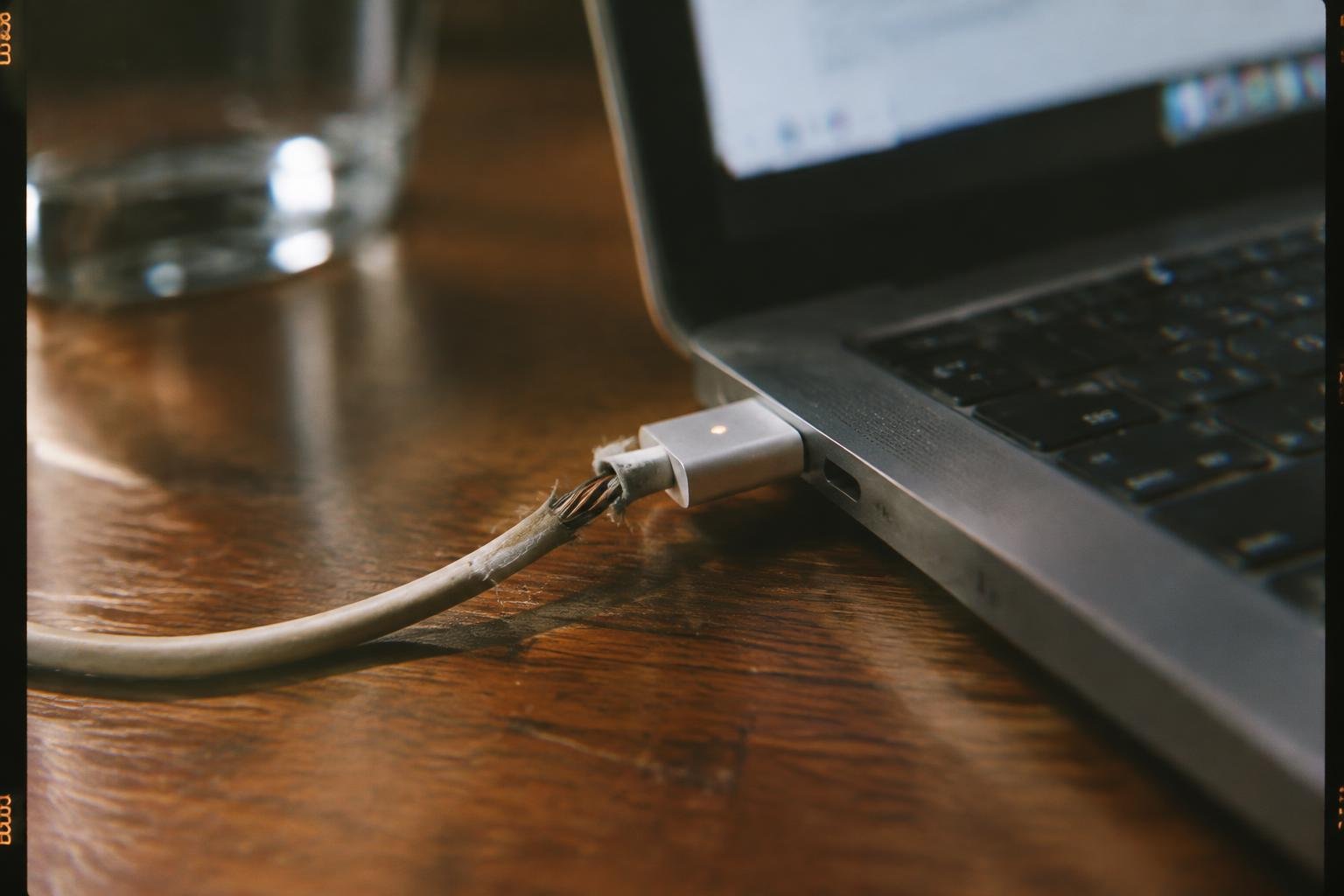
A frayed laptop charger cable can interrupt power delivery, overheat, or expose its internal wires. You might notice charging that stops when the cord moves, a split outer jacket near the connector, or unusual warmth along the cable. These symptoms often appear where the cord bends repeatedly, especially beside the power adapter or laptop plug.
Key Takeaways:
- Visible splits, fraying, exposed wire, or a flattened section indicate physical damage to the charger cable.
- Charging that stops when the cable moves, or works only at a particular angle, often points to a break inside the cable or a damaged connector.
- A loose plug, bent connector, or discoloration near the connector can signal damage at the cable end or laptop charging port.
- Unusual heat, a burning smell, sparks, or crackling sounds are electrical warning signs; unplug the charger and stop using it.
- Tape does not restore damaged insulation or wiring. Replace a cable with exposed conductors or recurring charging faults using a compatible charger part.
Common Laptop Charger Cable Damage Symptoms
Changes along the cable often provide the first clear evidence of wear. Inspect the full length, including the sections near the power brick and laptop connector, where repeated bending places extra strain on the insulation and internal conductors. Compare charging behavior with the cable resting in a neutral position, then note whether movement changes the power indicator or battery status. Recording where a symptom appears, such as beside a strain relief, gives you a useful description of the damage.
Fraying, cuts, and exposed wires
Inspect the outer insulation for split seams, flattened spots, and fibers that have begun to unravel. Repeated flexing near the connector often creates a short crease that widens over time, while a sharp edge in a bag can leave a distinct cut. If you can see the inner shielding or colored conductor insulation, the cable has lost its protective outer layer. Note the damaged section’s position and length, particularly where the cord bends as it leaves the adapter.
Intermittent charging or power loss
Charging that starts and stops as you move the cable often points to a conductor damaged inside the insulation. Watch the laptop’s charging icon while gently repositioning the cord without forcing it; a status change at one bend can help locate the fault. Power loss may also occur after the cable has warmed during ordinary use, then return when it cools or rests. Record whether the interruption follows movement near the brick, along the cord, or beside the laptop plug.
Loose connectors and bent plugs
Check whether the plug sits firmly in the laptop’s charging socket and whether its metal barrel or USB-C shell appears misshapen. A connector that rocks easily, needs an unusual angle, or slips out during normal desk use can indicate wear at the cable end. Look closely at the molded strain relief for gaps or a bend that no longer springs back. Note whether the plug fits differently from a known-compatible charger, without pushing or twisting it.
- Mark the affected cable location with a removable label.
- Photograph visible damage in clear, even light.
- Keep the cord straight while inspecting its full length.
Symptoms at the Charging Port and Power Adapter
Charging trouble near the laptop’s power input does not identify the faulty part by itself. A damaged cable can interrupt current in ways that resemble a loose DC-in jack, a failing adapter, or a problem with the laptop’s charging circuitry. The connector’s fit, the adapter’s indicator light, and the laptop’s response provide useful clues, but symptoms often overlap. For instance, a laptop that stops charging while plugged in could have a broken conductor inside the cable or a worn port contact.
Charging that changes when the cable moves
Charging that starts or stops as you reposition the lead often points to an intermittent connection, but the fault may be in the cable, adapter connector, or laptop port. Watch the charging icon while the cable rests naturally; avoid bending it sharply or repeatedly, since movement can worsen internal wire damage. A loose plug that shifts inside the port suggests worn or damaged port contacts, while a change near the cable’s strain relief can indicate a conductor break beneath the insulation.
Unusual heat, buzzing, or sparks
Excessive warmth at a cable joint, a buzzing adapter, or a spark at the plug indicates an electrical fault, not a routine charging variation. Heat concentrated at a kink or strain relief can come from damaged conductors, while warmth at the laptop socket may involve the port or its contacts. A brief spark during connection can occur under some conditions, but repeated arcing, a burning smell, melted plastic, or crackling calls for immediate disconnection and stopping use of the charger.
Differences between adapter, cable, and port problems
Adapter faults often affect charging across the entire lead and may coincide with an unlit status indicator, where one is fitted. Cable damage more often produces changes when a particular section moves, although a failed connector can mimic a port fault. Port problems commonly involve a plug that feels loose or charging that changes with slight pressure at the socket. These clues are not definitive, since a damaged cable plug and worn port contacts can produce the same intermittent charging icon.
| Observed symptom | Possible source | Useful clue |
|---|---|---|
| Charging changes as the lead moves | Cable, connector, or port | Note where movement coincides with interruption |
| Adapter indicator stays off | Adapter or power supply | Check whether the indicator is designed to light |
| Plug feels loose in the socket | Laptop charging port or plug | Look for movement at the socket itself |
| Heat, repeated sparks, or burning smell | Electrical fault in the charging path | Disconnect and stop using the charger |
Electrical and Safety Warning Signs
Electrical warning signs deserve immediate attention because a damaged charger cable can expose you to live conductors or create enough heat to damage nearby surfaces. Stop using the charger if you see physical damage, smell burning, or feel unusual warmth along the cable or connector. Keep the adapter unplugged from the wall before handling a damaged area, and avoid touching exposed metal while power is connected.
Exposed wire or damaged insulation
Visible copper strands, cracked insulation, or a split cable jacket mean the conductors no longer have reliable protection. Unplug the charger from the wall outlet before moving the cable, and do not wrap damaged sections with tape or continue using them temporarily. Bending the exposed area can bring conductors into contact, causing a short circuit or shock. Keep the damaged cable away from metal objects and discard or replace it.
Burning smell, discoloration, or melted sections
A sharp burning odor, brown or black marks, or softened plastic indicates that part of the cable or connector has overheated. Disconnect the adapter at the outlet if you can do so without touching the affected section; otherwise, switch off power at the outlet first. Do not reconnect a cable with melted insulation, even if the laptop still charges. Heat-damaged plastic can expose conductors near the connector housing.
Shock, sparks, or extreme heat
A tingling sensation, visible spark, or cable that becomes too hot to hold signals an immediate electrical hazard. Stop charging, switch off the outlet if accessible, and unplug the adapter only when you can avoid the damaged cable and connector. Keep children and pets away, and do not test the charger on another device. If smoke or flames appear, move clear and contact emergency services rather than handling the adapter.
- Keep the unplugged adapter off carpets and bedding.
- Do not coil a hot cable around the power brick.
- Keep liquids away from the outlet and damaged charger.
How to Check a Suspect Charger Cable
Use a visual inspection first, then test the cable in a controlled setup with a compatible power adapter and laptop. Keep the cable still during testing so movement does not create misleading changes in charging status. Note where visible wear appears and whether the laptop recognizes power consistently. These observations distinguish damage along the cable from a fault at the connector, adapter, or laptop port without requiring you to open any component.
Inspect the full cable and both connectors
Unplug the charger from the wall and laptop, then examine the cable from end to end under good lighting. Look for splits, flattened sections, exposed shielding, unusual kinks, or discoloration, paying close attention to points where the cable meets each connector. Check connector housings for looseness, bent contacts, or debris. A phone flashlight can reveal cracks near strain reliefs that are easy to miss during a quick glance.
Test with a compatible charger and device
Use a charger that matches the laptop’s required connector and power specifications, or a manufacturer-approved equivalent. Connect it to the laptop with the suspect cable laid flat, then watch for the charging indicator and operating-system power status. Avoid bending or twisting the cable to provoke a fault. If a known-good charger works steadily while the suspect cable interrupts charging under the same conditions, the cable is a more likely cause.
Stop testing if the cable shows safety warning signs
Do not plug in a cable with exposed conductors, melted insulation, burn marks, or a sharp electrical smell. Unplug it by holding the adapter or connector housing, not by pulling the damaged section, and keep the cable away from flammable materials. If the cable becomes unusually hot, crackles, or produces sparks during a test, disconnect power at the wall outlet if you can do so safely; do not handle the damaged area.
| Check | What to examine | What the result indicates |
|---|---|---|
| Visual inspection | Insulation, strain reliefs, connector housings | Visible wear identifies areas of physical damage |
| Controlled connection | Charging indicator and power status | Interruption with the suspect cable points to a possible cable fault |
| Safety screening | Heat, sparks, odor, exposed conductors | Any warning sign means testing should stop |
When to Repair or Replace the Cable
Choose replacement over continued use when a cable behaves unpredictably or shows damage that could expose its conductors. A damaged laptop charger is not a good candidate for improvised fixes, even if charging still works intermittently. Repair is appropriate only when the manufacturer or an authorized service provider can restore the cable using approved parts and procedures. For a replacement, match the charger’s electrical output and connector requirements to your laptop’s exact model.
Damage that requires immediate replacement
Stop using the charger if you see exposed wires, split insulation, melted areas, or burn marks, or if the cable becomes unusually hot. A sharp bend near the adapter or laptop connector that causes intermittent charging is also a sign to retire the cable, not tape it or keep repositioning it. Unplug it from the wall and laptop before handling visible damage. Replace the complete charger assembly when the cable is permanently attached to its power adapter.
When manufacturer-approved repair may be appropriate
Repair may be suitable when the cable is detachable and the manufacturer offers an approved replacement lead, or when an authorized service center confirms the damage is confined to a serviceable part. Ask the provider to identify the required part number and whether the repair preserves the charger’s electrical rating and safety certification. Do not splice conductors, solder a damaged section, or substitute a generic connector; those fixes can leave insulation and strain relief unreliable.
Choosing a compatible replacement charger
Match the replacement to your laptop’s specified voltage, connector type, and required power, using the model label or manufacturer’s support page. For USB-C charging, select a charger that supports the laptop’s required USB Power Delivery profile and adequate wattage, along with a cable rated for that output. A barrel connector must fit correctly and meet the device’s polarity and electrical specifications. Avoid chargers with unclear labeling or no identifiable manufacturer.
- Keep the laptop’s model number available when ordering.
- Check whether the original adapter uses USB-C or a barrel connector.
- Confirm the replacement’s output details on its label.
Preventing Future Cable Damage
Routine handling, storage, and cable routing determine how much strain reaches the charger’s insulation and internal conductors. Keep the adapter, connector, and cable together as a set, and avoid using the cord as a handle when moving your laptop. At a desk, leave enough slack for normal movement without letting the cable hang where a chair or foot can catch it. Small adjustments to your charging setup reduce repeated stress at connection points.
Unplug by gripping the connector
Grip the charger plug’s molded housing when disconnecting it from the laptop or wall outlet, rather than pulling the cable. Pulling on the cord transfers force to the connector’s strain relief, where repeated tension can weaken the cable near its end. Keep your fingers close to the plug body and withdraw it straight from the port. For a tight outlet, steady the adapter with your other hand instead of yanking the attached lead.
Avoid tight bends, pulling, and heavy objects
Keep the cable in a broad curve as it leaves the adapter and laptop, since sharp bends concentrate pressure on a small section of insulation. Do not stretch the lead across a walkway or pull it around a desk corner to reach an outlet. Laptops, books, and chair legs should not rest on the cord; even brief crushing can deform its protective jacket. Leave enough slack for the laptop to move without tugging the plug.
Store and route the cable safely
Before storage, loosely coil the cable in wide loops, following its natural curve rather than winding it tightly around the power adapter. Secure the coil with a reusable hook-and-loop strap, not a hard twist tie that pinches the insulation. In daily use, route the lead behind a desk or along a wall, away from chair wheels, foot traffic, and warm surfaces. Store the charger in a dry compartment, separate from sharp objects.
| Situation | Safer practice | Wear reduced |
|---|---|---|
| Disconnecting the charger | Grip the molded plug housing | Strain near the connector |
| Charging at a desk | Leave slack and avoid sharp corners | Tension and tight bends |
| Putting the charger away | Coil loosely and use a soft strap | Pinching and compression |
To wrap up
Recognizing laptop charger cable damage early protects both your computer and your workspace. Look for frayed insulation, exposed conductors, intermittent charging, unusual heat, or a burning smell; stop using the charger immediately if you notice sparks or damaged wiring. A cable with visible wear or unreliable power delivery should be replaced with a compatible charger rather than taped or bent into position. Check the connector and adapter too, since damage at either end can produce similar symptoms.
FAQ
How much does it cost to replace a laptop charger cable?
The cost depends on whether the cable is detachable or part of the power adapter, as well as the laptop brand and charger specifications. A compatible replacement adapter may cost more than a cable alone, and manufacturer-approved parts can cost more than third-party options.
How long does it take to replace a damaged laptop charging cable?
Replacing a detachable cable usually takes only a few minutes, while replacing the full charger takes longer if you need to find a compatible model. If the cable is permanently attached to the adapter, replacement or repair may require professional service.
Can a damaged laptop charger cable damage my laptop?
Yes, a damaged cable can interrupt power and may create a risk of overheating, sparks, or electrical shock. Stop using it if insulation is split, wires are exposed, or the cable becomes unusually hot, and replace the charger or cable with a compatible option.
Can I tape a frayed laptop charging cable and keep using it?
Tape is not a safe repair for a frayed cable because it may not restore reliable insulation or prevent overheating. Stop using a cable with exposed conductors or other signs of electrical damage, and choose a compatible replacement unless the manufacturer approves a repair.
How can I tell if my laptop charger cable or charging port is faulty?
Inspect the cable and connectors for cuts, exposed wires, bent parts, or looseness, then test with a known-compatible charger if there are no safety warning signs. If the problem continues with another charger, the laptop port or another charging component may be at fault.
Is it worth repairing a laptop charger cable?
Repair is worth considering only when the manufacturer or a qualified technician approves a safe repair for that charger. For fraying, exposed wires, burning smells, sparks, or excessive heat, replacing the damaged cable or full adapter is generally the safer choice.
Can I use a universal charger if my laptop cable is damaged?
A universal charger can work if it matches the laptop’s required voltage, connector, and power needs, and is designed for that device. Check the laptop or charger specifications before buying, because an unsuitable charger may fail to charge properly or cause damage.
 Previous Post