



Laptop Battery Not Charging Above 60 Percent Fix
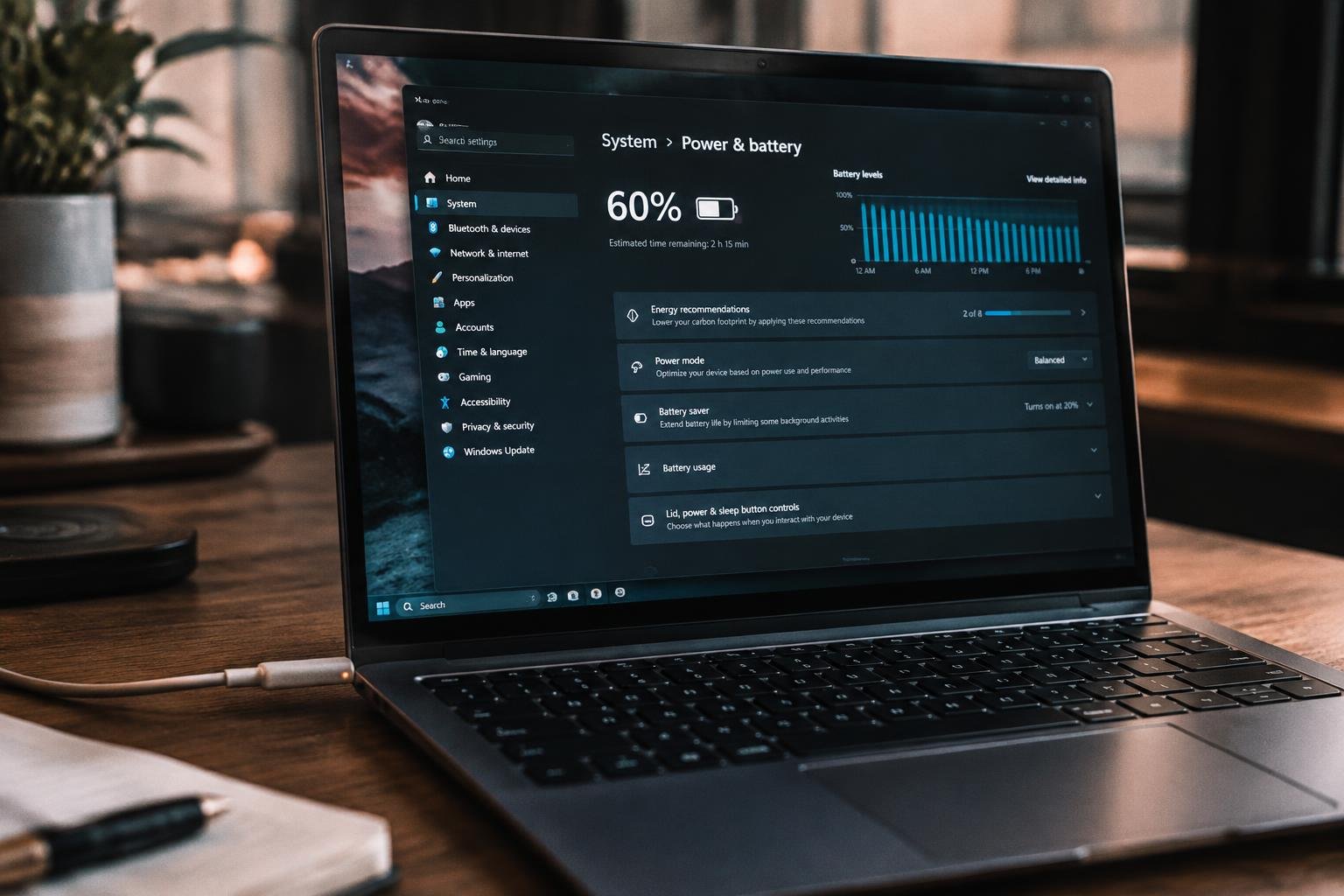
A laptop that stops charging at 60 percent is not always showing a failing battery. Your manufacturer’s battery care utility or a BIOS charge limit may intentionally cap charging to reduce wear, especially when you keep the computer plugged in. Before treating the behavior as a hardware fault, identify whether a charge threshold is enabled for your laptop model.
Key Takeaways:
- A battery that stops at 60 percent may be following a manufacturer’s charge limit, such as a battery conservation mode or a charging threshold in the laptop’s BIOS or control software.
- Test the laptop with its recommended AC adapter and a known-working wall outlet; an underpowered USB-C charger or damaged cable can prevent normal charging.
- On Windows, inspect the battery device in Device Manager and review power or battery settings before uninstalling drivers or changing system configurations.
- Use the manufacturer’s battery health diagnostic to distinguish a charge limit from reduced capacity, an aging battery, or a charging hardware fault.
- If the limit is disabled and the battery still will not charge, stop using a swollen battery and arrange service through the laptop manufacturer or a qualified repair technician.
Check Whether the 60 Percent Limit Is Intentional
A charge ceiling often explains why a laptop stops at 60 percent, even when its battery and power adapter are operating normally. Manufacturers add this feature to reduce time spent at a full charge, which can limit battery wear when you keep the computer plugged in at a desk. Before treating the cap as a fault, identify whether a setting is active, who controls it, and whether it applies only under a particular power profile.
Review Battery Health, Conservation, or Charging Settings
Open your operating system’s battery settings and look for options labeled battery conservation, charge threshold, battery health, or optimized charging. A configured upper limit commonly appears as a percentage, while some systems use a mode such as “primarily plugged in.” Check whether the selected profile is enabled for your current use, especially if you recently changed how you use the laptop. Note the exact setting name and displayed limit before making a change.
Check Manufacturer Utilities and BIOS or UEFI Options
Manufacturer software can apply a charge limit independently of the operating system. Open the laptop maker’s utility, such as Lenovo Vantage, MyASUS, or Dell Power Manager, and inspect its battery or power menu for a conservation mode or charging threshold. If the utility shows no active cap, enter BIOS or UEFI setup and review any battery care option there. Record the original setting before changing it, since firmware menus differ by model.
- Look for settings named “Conservation Mode” or “Battery Care.”
- Check whether the limit is tied to a selected power profile.
- Note the current threshold before changing it.
Verify the Charger, Cable, and Power Source
Start with the external power path, since an undersized adapter, damaged cable, or unreliable outlet can interrupt charging before power reaches the battery. Inspect each connection from the wall socket to the laptop, looking for loose plugs, frayed insulation, bent contacts, or unusual heat. For USB-C charging, confirm that the cable and adapter both support laptop charging rather than phone-only power delivery. These checks isolate supply problems without changing the laptop’s settings.
Confirm the Adapter’s Wattage and Connection
Read the wattage printed on the adapter label and compare it with the laptop manufacturer’s specified requirement, usually listed on the device label or in its hardware documentation. A lower-wattage adapter can struggle to provide enough power while the laptop is in use. Seat the connector firmly at both ends, and inspect the charging port for debris or a loose fit. If the adapter has an indicator light, note whether it stays lit when connected.
Test Another Outlet, Compatible Charger, or USB-C Port
Plug the adapter directly into a different wall outlet, bypassing a power strip or docking station that could be faulty. If charging remains unchanged, test with a known-good charger that matches the laptop’s required voltage, connector, and wattage. For a USB-C laptop, try another port that supports power input, since some ports handle data only. Avoid forcing a connector or using a charger with an incompatible rating.
| Test | What to check | What the result indicates |
|---|---|---|
| Adapter rating | Wattage and manufacturer compatibility | A low rating can limit power delivery |
| Wall outlet | Direct connection to another outlet | A change points to the original outlet or strip |
| Replacement charger | Matching voltage, connector, and wattage | Charging with it implicates the original adapter or cable |
| USB-C port | Use a port specified for charging | Charging from another port identifies a port-specific issue |
Troubleshoot Windows Battery Drivers and Power Settings
Windows communicates with your laptop’s battery through system drivers, while firmware and manufacturer software can apply charging rules. A setting or software fault can leave the operating system reporting a 60 percent ceiling even when the laptop is plugged in. Review these controls in order, noting any change in the battery percentage after each step. Keep the laptop connected to its usual power adapter while you inspect Device Manager, Windows Update, and the manufacturer’s support tools.
Reinstall the Battery Drivers
Open Device Manager, expand Batteries, and locate Microsoft ACPI-Compliant Control Method Battery. Right-click the entry and select Uninstall device, then restart Windows with the adapter connected. Windows normally redetects the battery interface and reinstalls its built-in driver during startup. If Device Manager lists Microsoft AC Adapter separately, leave it installed unless the adapter itself is missing or showing an error. After the restart, open Settings and see whether the charge percentage moves beyond 60 percent.
Update Windows, BIOS, and Manufacturer Utilities
Install pending Windows updates, then use your laptop maker’s support app or model-specific support page to find BIOS and chipset updates. Read the release notes and follow the manufacturer’s installation instructions, since a BIOS update interrupted by shutdown can prevent startup. Open the maker’s power utility and inspect settings such as Lenovo Conservation Mode, ASUS Battery Health Charging, or Dell Power Manager charge modes; these controls can impose a software charging limit. Keep the laptop connected to AC power during firmware installation.
- Keep the laptop lid open during a BIOS update.
- Save open files before restarting Windows.
- Use the exact laptop model when locating firmware.
Check Battery Health and Charging Behavior
Battery wear and a charging threshold can produce the same 60 percent ceiling, but their behavior differs. A worn battery often shows reduced capacity or an inaccurate charge reading, while a firmware or manufacturer utility limit holds charging at a chosen level even when the battery is healthy. Observe whether the percentage stays fixed during ordinary use and whether the operating system reports battery condition separately from charge level.
Review Battery Reports and Diagnostic Results
Windows battery reports show the battery’s design capacity beside its current full charge capacity, giving you a direct way to spot lost capacity. Generate a report with the powercfg /batteryreport command in an elevated Command Prompt, then open the saved HTML file and review the installed battery details and recent usage. Manufacturer diagnostics can add a condition label or error code; a reported charge limit alone does not establish battery wear.
Perform a Safe Power Reset and Recheck Charging
Before reassessing the percentage, shut down the laptop and disconnect its charger and peripherals. If the manufacturer documents an embedded-controller reset for your model, follow that procedure exactly; removable-battery instructions do not apply to sealed models. Reconnect the adapter, start the laptop, and observe the charge reading through a normal charging period. A persistent 60 percent ceiling with normal battery-health results points to a configured threshold rather than a capacity reading.
| Evidence | What it indicates | Where to check |
|---|---|---|
| Reduced full charge capacity | Battery capacity has declined from its design value | Windows battery report |
| Stable ceiling near 60 percent | A charge threshold may be active | Charging behavior and manufacturer utility |
| Diagnostic warning or error code | The battery test detected a reported condition | Manufacturer diagnostics |
Decide When to Seek Service or Replace the Battery
Service is warranted when the charging limit persists after basic checks, battery diagnostics report a fault, or the laptop shuts down unexpectedly while indicating charge. A technician can test the battery, charging circuit, and power adapter separately, which distinguishes a failed cell from a motherboard fault. If your device is under warranty, contact the manufacturer before opening the case or buying parts, since unauthorized repairs can affect coverage.
Identify Swelling, Overheating, or Other Safety Risks
Stop using and charging the laptop if its case bulges, the touchpad or keyboard lifts, or the battery gives off an unusual chemical odor. A swollen lithium-ion battery can press against internal components, so do not squeeze, puncture, or remove it yourself. Disconnect the charger if you can do so safely, shut the laptop down, and arrange service with the manufacturer or an authorized repair provider. Keep a damaged device away from heat and combustible materials.
Compare Repair, Warranty, and Replacement Options
Before paying for repair, check the warranty status using the laptop’s serial number and ask whether battery coverage remains active. Request a written diagnosis that separates battery replacement from charging-port or system-board repair, since those faults require different parts and labor. For an out-of-warranty laptop, compare the repair quote with the cost of a compatible manufacturer-approved battery and the device’s remaining service life. Choose a qualified technician who can safely handle and recycle the removed battery.
- Back up important files before handing over the laptop.
- Record the model number and battery part number.
- Ask whether the replacement includes a parts warranty.
Prevent Charging Problems from Returning
Once charging has returned to normal, keep the laptop in a stable operating routine. Heat from blocked vents, soft surfaces, or prolonged heavy workloads can put extra strain on the battery during charging, so use a hard, level surface and keep airflow clear. Review the manufacturer’s battery-care guidance after firmware or operating-system updates, since power-management settings can change. A brief monthly look at the charging status and adapter connection can reveal a recurring issue before it interrupts your work.
Use Compatible Charging Equipment
Choose an adapter approved for your laptop model, with the connector type and power rating specified by the manufacturer. For USB-C charging, use a cable and power adapter that support the laptop’s required USB Power Delivery profile; a phone charger may provide too little power even if its plug fits. Replace frayed cables and adapters with loose connectors, and avoid daisy-chaining through unpowered hubs. Keep the adapter’s label and model number available when ordering a replacement.
Set a Charge Limit That Fits Your Usage
Set the battery charge threshold through the laptop maker’s utility or firmware controls, if your model provides that feature. A lower cap suits a laptop that stays plugged in at a desk, while a higher target is practical before travel or a long day away from an outlet. Some manufacturers call this setting Battery Conservation, Smart Charging, or Battery Health Charging. Change the threshold before a portable workday, then restore your preferred limit when the laptop returns to its usual desk setup.
| Usage pattern | Charge-limit approach | Equipment practice |
|---|---|---|
| Mostly desk-based | Use the manufacturer’s lower battery-care threshold | Keep the approved adapter connected directly |
| Frequent travel | Raise the threshold before leaving | Pack a compatible adapter and rated cable |
| Mixed use | Adjust the limit to match the next workday | Inspect cable jackets and connectors regularly |
Summing up
A laptop that stops charging at 60 percent is often following a battery conservation setting, not showing a fault. Review the manufacturer’s battery utility and Windows power settings, then test the original charger and inspect battery health if the limit remains unexplained. Disabling a charge threshold is appropriate when you need more unplugged runtime, while a persistent limit after settings checks can point to a driver, battery, or charging-system issue. A service technician can test the battery and charging circuit.
FAQ
Why is my laptop battery not charging above 60 percent?
A charge limit or battery conservation setting is often the reason a laptop stops charging at 60 percent. If no limit is enabled, the cause may be a power delivery issue, a software problem, or a worn battery, so check those before changing settings.
How do I make my laptop charge past 60 percent?
Turn off any battery charge limit in the manufacturer’s utility or BIOS/UEFI settings, then reconnect the charger and check whether charging resumes. The setting’s name and location vary by laptop, and some models require restarting before a BIOS change takes effect.
How long does it take to fix a laptop battery that stops at 60 percent?
Checking charge-limit settings usually takes only a few minutes, while driver updates or battery diagnostics can take longer. If the cause is a failing battery or charger, diagnosis and repair time depends on the device, available parts, and service provider.
Can I keep using my laptop if it will not charge above 60 percent?
You can generally use a laptop that stops at 60 percent if it charges normally to that limit and shows no signs of damage. Stop using and charging it if the battery is swollen, unusually hot, leaking, or producing an unusual smell, and seek professional service.
Can a Windows update fix a laptop battery stuck at 60 percent?
A Windows or manufacturer utility update can fix charging behavior caused by a software or driver problem. It will not remove a charge limit that is intentionally enabled or repair a physically worn battery, so check settings and battery health as well.
Is it bad to keep my laptop battery limited to 60 percent?
A 60 percent charge limit is generally suitable when the laptop stays plugged in for long periods, because it avoids keeping the battery fully charged. If you need longer unplugged use, raise or disable the limit, then restore it when your routine changes.
When should I replace a laptop battery that will not charge fully?
Consider replacement when battery diagnostics indicate failure, runtime has become inadequate, or charging remains unreliable after settings and power equipment are checked. Do not replace it based on a 60 percent limit alone, since that may be intentional; have a swollen or overheating battery assessed promptly.
 Previous Post