



Laptop Battery Swollen What To Do Guide
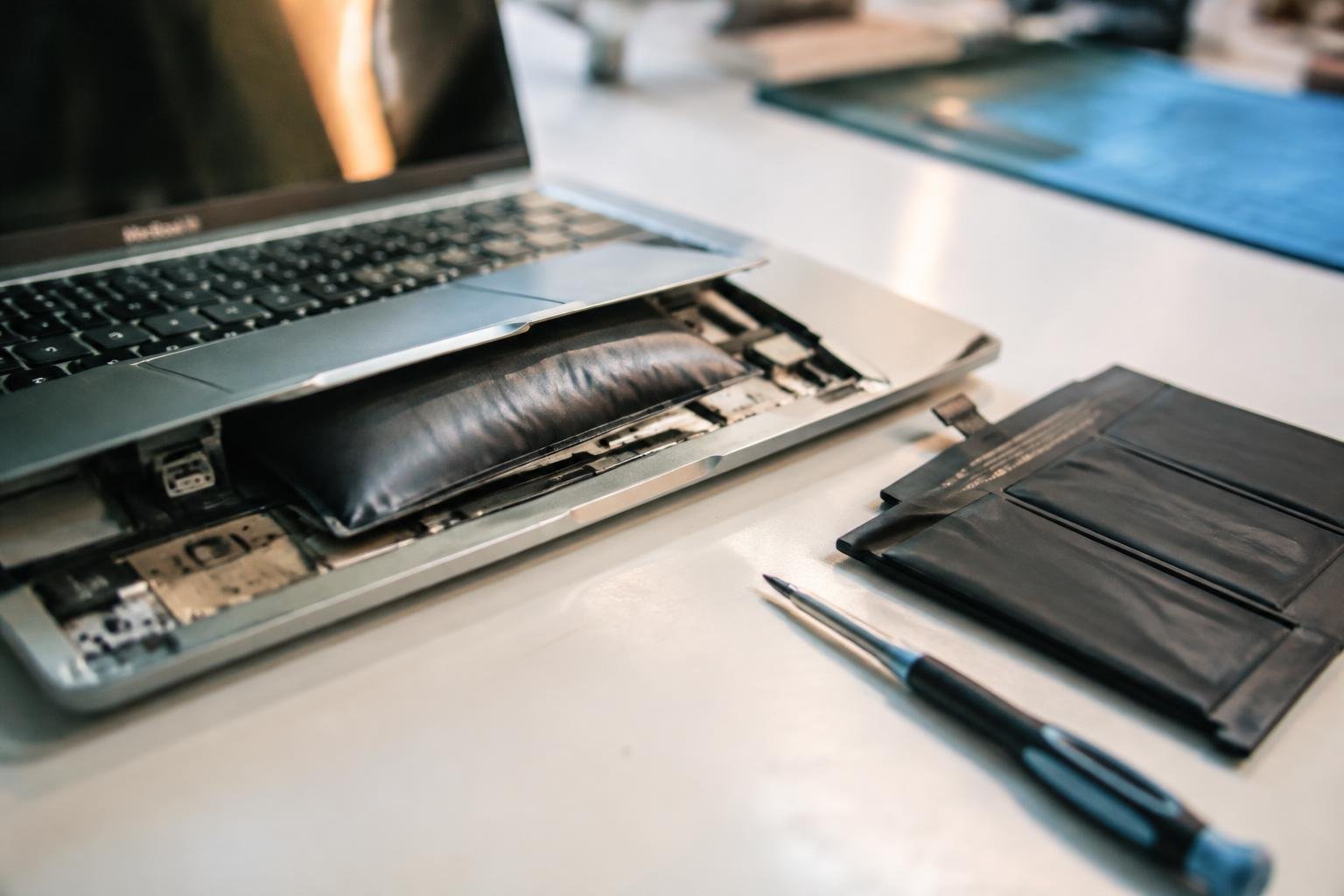
A swollen laptop battery can push the trackpad out of place, separate the case, or make the computer wobble on a flat desk. If you spot these changes, stop using and charging the laptop; pressure or heat can damage the battery further. A bulging case is a physical warning sign, not a cosmetic defect.
Key Takeaways:
- A swollen laptop battery is a damaged lithium-ion battery. Stop using the laptop and disconnect its charger as soon as you notice a bulging case, raised trackpad, or separated seam.
- Do not press, puncture, bend, or attempt to remove a swollen battery unless you are trained to handle damaged lithium-ion cells. Keep the laptop away from heat, flames, and flammable materials.
- Arrange service through the laptop manufacturer or a qualified repair technician. A swollen battery can put pressure on the keyboard, trackpad, display, and internal cables.
- Do not put the battery or laptop in household rubbish or standard recycling bins. Ask the repair provider or local hazardous-waste facility how to handle damaged lithium-ion batteries.
- Back up data only if the laptop can be used without charging or disturbing the swollen battery; otherwise, leave it powered off and tell the technician whether important files need recovery.
Why Laptop Batteries Swell
Lithium-ion cells produce gas when chemical reactions inside the battery generate more pressure than the cell casing can safely contain. Age, heat, electrical stress, and physical damage can affect those reactions, though swelling does not always have one identifiable cause. The process can occur inside a sealed battery pack, so you may first notice changes in the laptop’s shape rather than a problem with charging or performance.
Factors that contribute to battery swelling
Repeated charge and discharge cycles gradually wear down the battery’s internal materials, while high temperatures can accelerate chemical breakdown. Leaving a laptop in a hot car, blocking its cooling vents, or running demanding software on a soft surface can raise battery temperature. Manufacturing defects and damage from impact are other possible causes. Charging faults or an incompatible power adapter can also place electrical stress on cells, especially in an aging pack.
Signs of a swollen battery
Physical changes are often the clearest warning: a raised trackpad, a bulging keyboard, separated case seams, or a laptop that rocks on a flat desk. You might also find that the touchpad clicks poorly or that the bottom panel no longer sits flush. These symptoms point to pressure from inside the enclosure, although a damaged hinge or loose casing can look similar. Swelling is not reliably identified by battery-life changes alone.
| Factor or sign | What you may observe | Why it matters |
|---|---|---|
| Battery age and cycling | Wear after repeated use and charging | Internal materials degrade over time |
| Excessive heat | High temperatures during use or storage | Heat can speed chemical breakdown |
| Case deformation | Bulging panels or widened seams | Pressure may be building inside the battery |
| Trackpad or keyboard changes | Raised surface or impaired clicks | Expanding cells can press against nearby parts |
What to Do Immediately
A swollen battery can press against the touchpad, keyboard, or display, and pressure can damage nearby components. Treat any bulging case, lifted trackpad, or separated seam as a safety concern, even if the laptop still runs normally. Keep people and pets away from the device, and avoid moving it more than necessary. Your first priority is to stop use and prevent the laptop from being exposed to heat, impact, or additional pressure.
Step-by-step actions to take
First, stop working and shut the laptop down using its operating-system controls if the keyboard and trackpad remain undisturbed. Disconnect the AC adapter at the wall, then unplug it from the laptop without pushing on the bulging case. Place the device on a dry, noncombustible surface such as bare tile or concrete, away from paper, fabric, and direct sunlight. Keep the lid in its current position, and do not carry the laptop in a bag.
What not to do
Never press the swollen area, squeeze the chassis closed, or force the lid shut; pressure can puncture the battery pouch. Do not charge the laptop, continue using it, or try to remove the battery with household tools. Avoid placing the device near a heater, in a hot car, or on bedding. If you notice smoke, a hissing sound, unusual heat, or a sharp chemical odor, move away and contact emergency services.
- Keep the charging cable disconnected.
- Do not place objects on the laptop.
- Keep liquids away from the device.
- Prevent children and pets from approaching it.
Types of Swollen Battery Situations
Battery swelling presents differently depending on whether your laptop still operates normally and whether heat or physical damage is present. A raised trackpad, separated case seam, or distorted keyboard deck can signal pressure from an expanding cell, even before performance changes. The visible condition and any accompanying symptoms define the situation: an intact, cool laptop differs from one that is unusually hot, smells abnormal, or has a cracked enclosure.
Swelling with a functioning laptop
Your laptop may still start, hold a charge, and run applications while a swollen battery pushes against its enclosure. Look for a trackpad that sits higher than usual, a bottom panel that no longer lies flat, or a widening seam near the palm rest. Normal operation does not mean the battery is undamaged; the internal pouch cell can continue expanding while the display and keyboard appear unaffected.
Swelling with damage or overheating
Visible cracks, a sharply bowed case, unusual warmth, or a chemical odor indicate a more severe condition than swelling alone. If the laptop grows hot while idle or the enclosure is splitting, the battery may be under pressure or experiencing an electrical fault. Smoke, hissing, or a sharp solvent-like smell are urgent warning signs, while a scorched area near the battery compartment points to heat-related damage.
| Condition | Typical signs | Severity indicator |
|---|---|---|
| Functioning, intact laptop | Raised trackpad or uneven case seam | No unusual heat or visible breakage |
| Swelling with enclosure damage | Cracked panel or sharply bowed case | Battery pressure has distorted or split the housing |
| Swelling with overheating | Unusual warmth, odor, smoke, or hissing | Possible electrical fault or active heat event |
Repair and Disposal Options
Once a swollen battery has made the laptop unsafe to use, your options depend on whether the manufacturer or a qualified repair shop can service the device and source a compatible pack. Keep the laptop powered off while you arrange assessment, and tell the technician that the battery is swollen before transport or drop-off. Battery handling and recycling rules vary by location, so use an authorized service provider or a designated battery collection point rather than ordinary household waste.
Pros and cons of repair versus replacement
A qualified technician can inspect the laptop, remove the swollen pack, and determine whether the chassis, trackpad, or internal connectors were damaged. Repair may preserve a device with a replaceable battery, but labor, parts availability, and collateral damage affect its practicality. Replacing the battery is often the direct option when a compatible manufacturer-approved part is available; on models with glued or integrated packs, professional service reduces the risk of puncturing the cell or damaging nearby components.
Safe battery removal and disposal
Leave a swollen battery installed unless the manufacturer’s service instructions specifically support user removal and you have the required tools and experience. Do not press, bend, puncture, or place it in regular rubbish. Arrange removal through the laptop manufacturer or a qualified repair shop, then use a battery recycler or local hazardous-waste facility that accepts lithium-ion batteries. Before transport, follow the facility’s instructions, including any requirements for insulating exposed terminals or placing the pack in a separate container.
| Option | Suitable situation | Key consideration |
|---|---|---|
| Professional repair | Removal or internal inspection is needed | Ask about damage to the chassis and connectors |
| Battery replacement | A compatible replacement pack is available | Confirm the part is approved for the laptop model |
| Battery recycling | The removed pack is no longer usable | Use a lithium-ion collection point, not household rubbish |
Tips to Help Prevent Battery Swelling
Battery care depends on consistent charging and storage conditions rather than complicated routines. Your laptop’s manufacturer sets the operating range for its battery, so use its guidance for charging limits, temperature, and long-term storage. Built-in battery health features can manage charging thresholds on many models, while sensible handling protects the cells from unnecessary heat and physical stress. A few habits, such as keeping vents clear and using a compatible power adapter, fit easily into regular laptop use.
Charging and usage habits
Use the laptop’s original adapter or a replacement that meets the manufacturer’s voltage and wattage specifications. Keep air vents unobstructed while charging, and avoid leaving the computer on a blanket or cushion, where heat can collect around the chassis. If your model offers a battery conservation mode or charge limit, enable it when the laptop stays plugged in at a desk. Disconnect peripherals that draw power when they are not in use, such as external drives.
Storage and maintenance tips
For extended storage, shut the laptop down, keep it in a cool, dry place, and follow the manufacturer’s recommended battery charge level rather than storing it fully charged or completely depleted. Avoid hot cars, direct sunlight, and damp rooms, which expose battery cells to damaging conditions. Clean dust from external vents with the laptop powered off, using a soft brush or compressed air according to the maker’s instructions. Store the device in a padded sleeve, away from heavy objects.
- Install firmware updates that include battery or power-management fixes.
- Keep liquids and conductive metal objects away from charging ports.
- Use a stable desk surface instead of placing the laptop on soft bedding.
Conclusion
A swollen laptop battery is a damaged lithium-ion cell, not a routine performance issue. Shut the laptop down, disconnect its charger, and stop using or pressing on the device. Keep it away from heat and combustible materials, and arrange assessment by a qualified repair technician or an authorized service provider. Do not puncture, compress, or place the battery in household rubbish. For transport and disposal, follow the provider’s instructions for damaged lithium-ion batteries.
FAQ
How much does it cost to fix a laptop with a swollen battery?
The cost depends on the laptop model, battery availability, and whether the case or other components were damaged. A battery replacement is generally less expensive than replacing the laptop, but request a repair quote that includes parts and labor before authorizing work.
How long does it take to replace a swollen laptop battery?
A replacement may take from a short service visit to several days, depending on the repair shop and whether the correct battery is in stock. Models that require extensive disassembly can take longer, and shipping or parts delays may extend the wait.
Is it safe to keep using a laptop with a swollen battery?
No, stop using and charging a laptop with a swollen battery, and arrange professional service. Swelling can put pressure on the case and nearby parts, while a damaged or overheating battery may present a fire risk; do not press, puncture, or try to flatten it.
Can I remove a swollen laptop battery myself?
It is safest to have a qualified repair technician remove a swollen battery, especially if it is glued in, hard to reach, hot, or visibly damaged. Do not force open the case or bend the battery, since physical damage can increase the risk of fire or injury.
What should I do if my laptop battery is swollen and the laptop still works?
Shut the laptop down, unplug it, and stop using it until the battery has been assessed. A working laptop does not mean the swollen battery is safe; keep it away from heat and arrange professional repair or replacement without trying to charge it again.
Is a swollen laptop battery worth replacing, or should I replace the laptop?
Replacing the battery is often worthwhile if the laptop otherwise works well and a compatible replacement is available. Consider replacing the laptop if the repair cost is high relative to its value, other parts are damaged, or a safe replacement battery cannot be obtained.
Where can I take a swollen laptop battery for disposal?
Take the battery to a repair provider or a local battery recycling or hazardous-waste program that accepts damaged lithium-ion batteries. Do not put it in household trash or a standard recycling bin, and check the receiving location’s instructions before transporting it.
 Previous Post