



How to Fix a Laptop That Shuts Down From Excessive Heat
A laptop that powers off during a video call or demanding task may be shutting down to protect its processor from excessive heat. You can often trace the problem to blocked vents, dust-clogged fans, or heavy workloads that keep the cooling system under strain. The first useful clue is where the chassis feels hottest, such as near the exhaust vent.
Key Takeaways:
- Heat-related shutdowns often point to blocked vents, dust-clogged fans, or a cooling system that cannot transfer heat from the processor effectively.
- Place the laptop on a hard, flat surface and keep its intake and exhaust vents clear; bedding and soft furniture can restrict airflow.
- Power the laptop off and unplug it before cleaning. Use short bursts of compressed air at the vents, following the manufacturer’s guidance for fan cleaning.
- Watch for warning signs such as a fan that does not spin, grinding noises, or shutdowns during light use. These can indicate a failed fan or another cooling-system fault.
- Persistent overheating after airflow and dust are addressed calls for professional service, especially when the laptop needs internal disassembly or thermal-paste replacement.
Identify Why the Laptop Is Overheating
Heat-related shutdowns tend to follow a recognizable pattern: the laptop grows unusually hot during use, performance slows, then power cuts off without a normal shutdown message. The cause is often tied to demanding workloads, restricted airflow, a failing fan, or dust inside the cooling system. Note what you were doing and where the laptop was resting when the shutdown occurred. A repeatable pattern, such as shutdowns during video rendering, is useful evidence.
Check ventilation, fan noise, and temperature symptoms
Inspect the exhaust vents along the sides or rear while the laptop is running. Weak airflow, a fan that stays silent under load, or loud grinding and rattling can point to a cooling problem. A hot underside alone is not proof of overheating, but heat concentrated near the exhaust alongside sudden shutdowns is more telling. Watch for heat warnings or thermal readings in the manufacturer’s utility, and note whether the fan speeds up during demanding tasks.
Distinguish overheating from battery or software problems
Heat-related shutdowns often occur after sustained processor or graphics use, while battery faults more commonly cause abrupt power loss at varying charge levels. A battery warning, swelling, or a laptop that shuts down when unplugged points toward a power issue. Software crashes may display an error screen or restart message rather than cut power, though system logs can provide clues. In Windows, review Reliability Monitor for critical events recorded at the time of shutdown.
- Record whether the charger was connected.
- Note the battery percentage before power loss.
- Check whether the laptop was asleep or actively working.
Improve Airflow and Reduce Heat
Airflow around the chassis and a lighter processor workload reduce the heat your laptop must dissipate during routine use. Keep intake vents uncovered, avoid running several demanding tasks at once, and choose power settings that suit what you are doing. These adjustments are especially useful when you work on a laptop for long stretches or use it on soft furnishings, where blocked vents and sustained processing can make the case noticeably warm.
Place the laptop on a hard, flat surface
Set your laptop on a desk or sturdy table so its underside vents can draw in air without obstruction. Beds, couches, blankets, and your lap can press against intake openings or trap warm air beneath the chassis. Keep the rear edge clear of walls and papers, and avoid placing the computer on a cushion even briefly during demanding work. A rigid surface also keeps the laptop stable while its fan exhausts warm air.
Close demanding apps and adjust power settings
Task Manager on Windows or Activity Monitor on macOS shows which applications are keeping the processor busy. Close unused video editors, games, browser tabs, and background downloads when the laptop is heating up. For routine browsing or document work, select a balanced or power-saving mode in your operating system’s power settings; reserve performance modes for tasks that need them. Lowering screen brightness also reduces power draw, particularly on laptops with bright displays.
| Situation | Practical adjustment | What to avoid |
|---|---|---|
| Working at a desk | Use a hard, flat surface with vents clear | Placing papers beside or behind exhaust vents |
| Using the laptop on a bed | Move it to a desk or rigid lap desk | Resting it directly on blankets or cushions |
| Running several heavy applications | Close tasks you are not using | Leaving games or video editors active in the background |
| Doing everyday work | Choose balanced or power-saving mode | Using performance mode when it is unnecessary |
Clean the Cooling System Safely
Dust buildup around the intake vents, exhaust openings, and fan blades can restrict airflow and trap heat inside the chassis. Clean the cooling path with the laptop powered off, using tools that loosen dust without introducing moisture or forcing debris deeper into the case. Work on a stable, well-lit surface, and follow the manufacturer’s service instructions if they specify a particular cleaning method for your model.
Shut down and unplug the laptop before cleaning
Before you open or clean any vent, shut the laptop down completely rather than leaving it in sleep mode. Disconnect the charger, USB devices, and other cables, then let the machine cool on a hard surface. If the battery is removable, take it out; for an internal battery, follow the manufacturer’s instructions before opening the case. Ground yourself by touching an unpainted metal surface, and keep liquids away from the work area.
Clear vents with appropriate tools and care
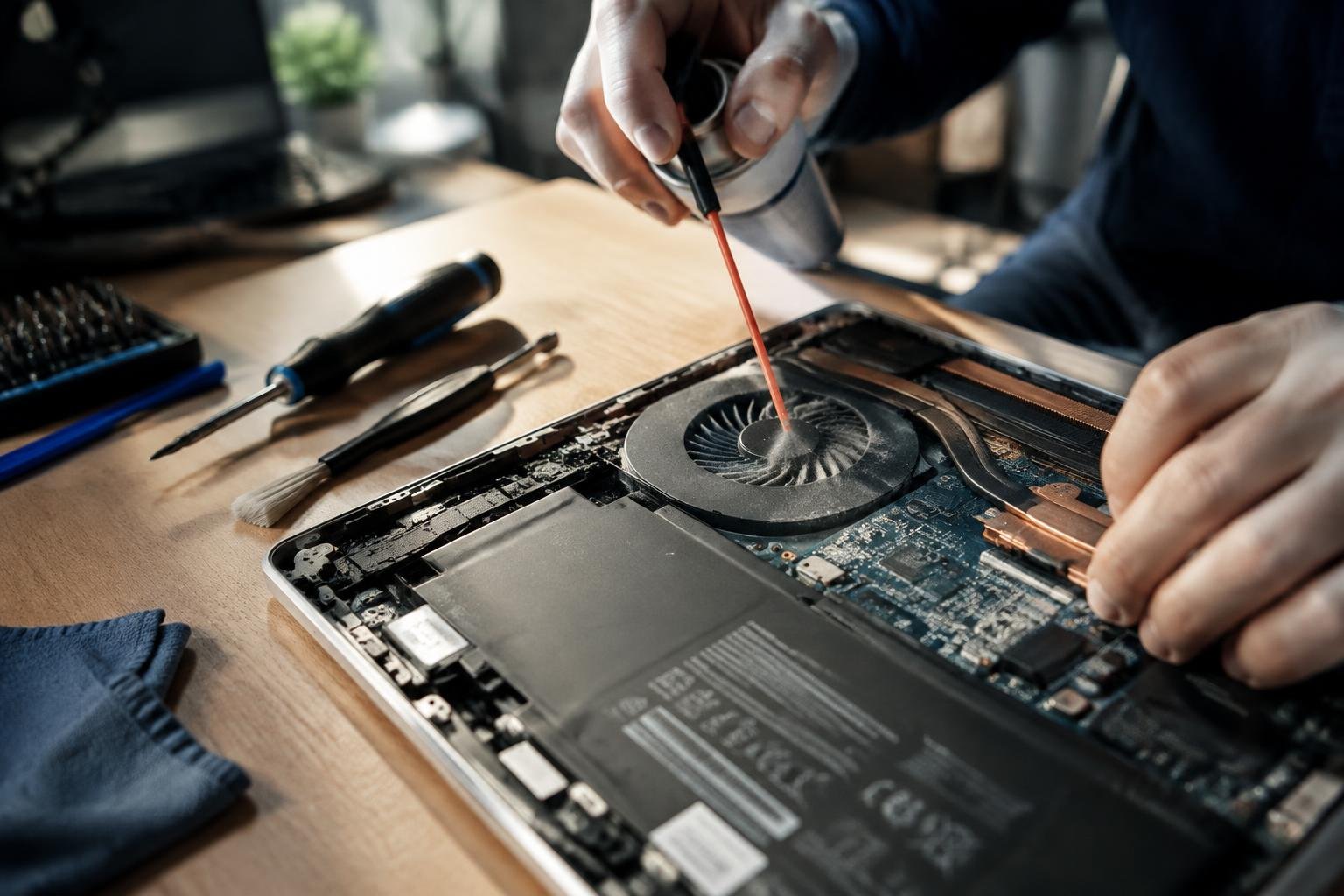
Use a can of compressed air or an electric electronics duster, holding the nozzle several inches from the vent and applying short bursts. Keep the can upright to prevent liquid propellant from escaping. If you can access the fan safely, hold its blades still with a nonconductive tool while cleaning, since spinning it with air can damage the fan. Avoid household vacuums, which can produce static electricity, and remove loosened dust with a soft brush.
- Choose a nozzle narrow enough to direct airflow at the vent.
- Keep the laptop’s exhaust side clear while cleaning.
- Use a flashlight to spot dust packed behind vent grilles.
Check Fans and Thermal Components
Cooling hardware moves heat from the processor and graphics chip to the laptop’s exhaust vents, so faults in any part of that path can trigger shutdowns. Listen for changes in fan noise, inspect vent airflow, and note whether the chassis becomes unusually hot during ordinary tasks. A fan that rattles, stops intermittently, or runs without producing a steady stream of warm air points to a mechanical or airflow problem, while dried thermal paste can impair heat transfer.
Look for fan failure or blocked heat sinks
With the laptop powered on, listen for the fan starting under load and feel for airflow at the exhaust vent without placing fingers inside it. A grinding or clicking sound, a fan that never spins, or weak airflow despite rising heat can indicate a failed fan or dust-packed heat-sink fins. Shine a flashlight through the vent to look for compacted debris. Avoid probing the fins with metal tools, which can damage them or the fan blades.
Consider whether thermal paste may need replacement
Thermal paste fills microscopic gaps between the processor or graphics chip and its heat sink. If the fan spins and the vents are clear but temperatures climb rapidly under modest workloads, dried or poorly seated paste is one possible cause. Replacing it requires removing the cooling assembly, cleaning both contact surfaces with high-purity isopropyl alcohol, and applying a small amount of fresh paste. Laptop layouts and paste requirements vary, so consult the model’s service documentation before disassembly.
| Observation | Possible hardware issue | What to inspect |
|---|---|---|
| Grinding or clicking fan noise | Worn or damaged fan | Fan movement and blade condition |
| Weak exhaust airflow | Blocked heat-sink fins | Vent and fin openings for compacted dust |
| Rapid heat rise with clear vents | Poor heat transfer | Thermal paste and heat-sink contact |
Decide When to Seek Professional Repair
Choose professional service when diagnosing the fault requires opening the chassis, testing live electrical components, or replacing parts you cannot safely identify. A qualified technician can inspect the cooling assembly, battery, power circuitry, and motherboard with appropriate tools, then distinguish a failed component from a symptom. Before handing over your laptop, note when shutdowns occur, any warning messages, and whether the casing or charger shows visible damage.
Stop using a laptop that repeatedly shuts down or smells burnt
Repeated thermal shutdowns, a burnt odor, smoke, or a swollen battery indicate a fault that continued operation can worsen. Turn the laptop off, unplug the charger, and do not restart it to recover files or test whether the smell returns. Keep it on a nonflammable surface and contact a repair professional; if the battery is bulging, avoid pressing the case or attempting to remove it.
Get help for persistent overheating or damaged components
Book a technician if the laptop overheats after basic checks, a fan grinds or fails to spin, or the charging port, fan connector, or cooling assembly appears damaged. Internal repairs can involve fragile ribbon cables, heat pipes, and thermal paste, while incorrect handling can damage the motherboard. Share the model number and the conditions that trigger shutdowns so the technician can test the relevant components.
- Back up important files before service if the laptop remains safe to operate.
- Record the charger’s model and wattage for the repair intake.
- Remove external storage devices before handing over the laptop.
Prevent Future Overheating
Consistent care reduces the chance that heat will build up during everyday use. Set a routine for keeping the laptop’s surroundings clean, and pay attention to temperature patterns during demanding tasks such as video calls, gaming, or large file exports. Small changes, such as moving the computer off a blanket or closing an unnecessary background app, can limit sustained heat without interrupting your work.
Keep vents clear and maintain a suitable workspace
Place your laptop on a hard, level surface so its intake and exhaust vents remain unobstructed. Beds, cushions, and fabric-covered laps can block airflow or draw lint into the cooling system. Leave space around side and rear vents, and keep the area free of papers and dust. If you use a stand, choose one that does not cover the underside intake, and avoid storing the laptop in a closed sleeve while it is running.
Monitor temperatures and update system software
Use a reputable temperature-monitoring utility to watch CPU and GPU readings during workloads you regularly perform, such as gaming or video editing. Compare readings over time under similar conditions, since a rising trend can signal a change in cooling performance. Install operating-system and manufacturer updates, including BIOS or firmware releases intended for your model, through official support tools. Updated power-management settings can also prevent unnecessary processor activity when your laptop is idle.
| Habit | Practical check | When to apply it |
|---|---|---|
| Clear workspace | Keep vents free of fabric, paper, and dust | Before each work session |
| Use a suitable surface | Set the laptop on a hard, level desk or vented stand | Whenever the laptop is running |
| Track temperatures | Record readings during a familiar demanding task | Periodically and after changes |
| Update software | Use official operating-system and manufacturer tools | When supported updates are available |
To wrap up
To stop heat-related shutdowns, clear the laptop’s intake and exhaust vents, use it on a firm surface, and close demanding apps when temperatures rise. Clean the cooling system with short bursts of compressed air, and listen for fan noise that is irregular or absent under load. Persistent overheating after cleaning can point to a worn fan, dried thermal paste, or a damaged heat pipe. A qualified repair technician can test those components before heat causes further hardware damage.
FAQ
How much does it cost to fix a laptop that shuts down from excessive heat?
The cost depends on whether the cause is dust, a failed fan, or another damaged component. Cleaning may be inexpensive if you do it yourself, while professional service or replacement parts can cost more; ask for a diagnosis and estimate before approving repairs.
How long does it take to fix an overheating laptop?
A basic cleaning can take less than an hour, while diagnosis or parts replacement may take longer. The total time depends on how accessible the cooling system is and whether a replacement fan or other component needs to be ordered.
Can a laptop be damaged by repeatedly shutting down from heat?
Repeated heat-related shutdowns can indicate a cooling problem that may worsen if the laptop keeps being used. Shut it down and unplug it if it overheats again, and seek professional help if you notice a burning smell, unusual noise, or persistent shutdowns.
What is the most common mistake when cleaning a laptop fan?
A common mistake is letting the fan spin freely while blowing air into the vents. Hold the fan still if it is accessible, use short bursts of compressed air, and avoid opening the laptop unless you know how to do so safely.
Can changing power settings stop a laptop from overheating?
Reducing processor demand with a lower-performance power setting can help control heat during demanding tasks. It may not solve the problem if vents are blocked, the fan has failed, or the cooling system needs repair.
Is it worth repairing a laptop that keeps overheating?
Repair is often worth considering when the laptop otherwise meets your needs and the fault is limited to cleaning or a replaceable cooling component. Compare the repair estimate with the laptop’s age, condition, and replacement cost before deciding.
Can I keep using my laptop if it shuts down from overheating?
Avoid continuing to use a laptop that repeatedly shuts down from heat, because the cause may require repair. Let it cool and check that vents are unobstructed; if shutdowns continue or you smell burning, stop using it and arrange professional diagnosis.
 Previous Post
 Next Post