



Laptop Hard Disk Failure – Warning Signs and Symptoms Guide
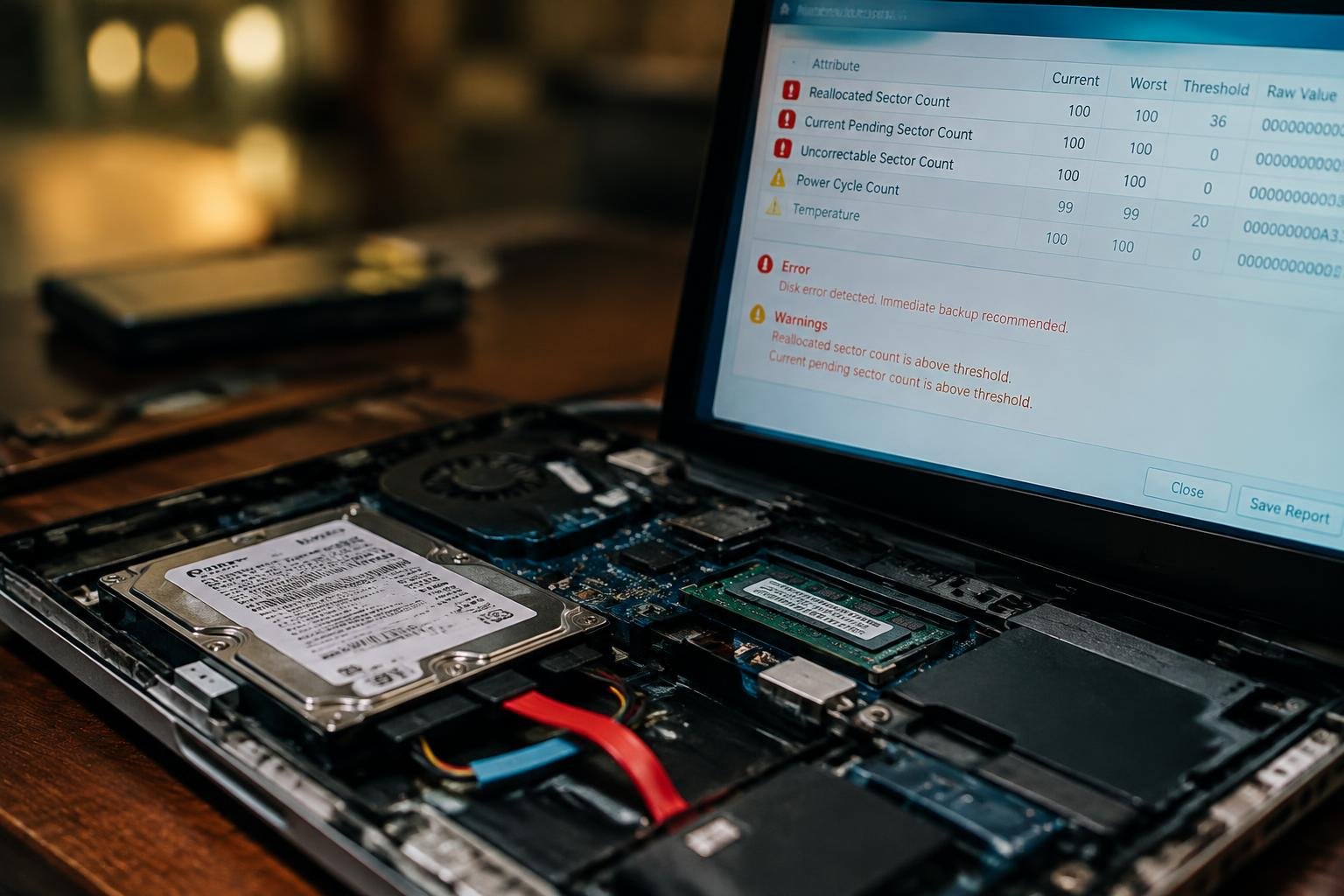
A failing laptop hard disk can turn routine tasks into a struggle, while putting saved files at risk. You might notice slow file access, repeated error messages, unusual clicking from a mechanical drive, or trouble starting the operating system. These symptoms differ between hard disk drives and solid-state drives, but either can signal storage trouble.
Key Takeaways:
- Clicking, grinding, or repeated spin-up sounds often point to mechanical trouble in a hard disk drive (HDD). Solid-state drives (SSDs) have no spinning parts, so their warning signs are more often slow reads, errors, or unexpected disconnections.
- Repeated freezes, unusually slow file access, corrupted files, and startup errors can indicate drive failure, although software faults and other hardware problems can cause similar symptoms.
- Back up accessible files to a separate drive or trusted cloud service as soon as warning signs appear. Avoid repeated restarts and intensive scans if an HDD is making unusual noises, since continued operation can worsen physical damage.
- Windows users can review drive health with SMART monitoring tools, while macOS users can check Disk Utility. A clean diagnostic result does not rule out every developing fault, particularly intermittent drive problems.
- Replace a failing drive rather than relying on repair for long-term use. If the data is irreplaceable or the drive has physical damage, stop using it and consult a professional data recovery service.
Types of Laptop Hard Disk Failure
Hard disk failures fall into mechanical, electronic, and logical categories, based on which part of the storage system has stopped working. A laptop with a spinning hard disk drive (HDD) depends on moving components, while both HDDs and solid-state drives (SSDs) rely on electronic circuits and controller firmware. Logical damage affects how data is organized rather than the drive’s physical parts. Identifying the category matters because each failure involves different components and requires a different repair approach.
Mechanical and Electronic Failures
Mechanical failure affects the moving parts inside an HDD, including its spindle motor, read/write heads, and platters. A head crash can scratch a platter, while a stalled motor can prevent the drive from spinning up. Electronic failure instead involves components such as the drive’s printed circuit board, power regulation circuitry, or controller. An SSD has no moving parts, so its failures are generally electronic or firmware-related rather than mechanical.
Logical Errors and File-System Damage
Logical failure occurs when the drive’s hardware remains functional but the data structures needed to locate files become damaged. A corrupted partition table, interrupted write, or file-system error can make a volume unreadable even though the drive still responds to the operating system. Malware or an improperly handled shutdown can also alter directory records. In these cases, the damaged element is the organization of the stored data, not necessarily the drive’s components.
| Failure type | Component affected | Typical cause |
|---|---|---|
| Mechanical | HDD heads, platters, or spindle motor | Wear, impact, or internal damage |
| Electronic | Drive circuitry or controller | Power fault or component failure |
| Logical | Partitions, file system, or directory records | Interrupted writes or data corruption |
Warning Signs and Symptoms
Drive trouble often appears as a pattern rather than a single failure: unusual sounds, declining responsiveness, operating-system errors, or files that no longer open. A hard disk can deteriorate while your laptop still starts, so ordinary use does not rule out damage. Note which symptoms occur and whether they recur during specific tasks, such as opening a large folder or saving a document. Those details help distinguish drive-related behavior from an isolated software glitch.
Unusual Sounds, Heat, and Slow Performance
Clicking, grinding, or repeated spin-up sounds from a mechanical hard disk are abnormal, particularly when they coincide with freezes. A faint, steady hum is typical, but sharp clicks can indicate trouble with the drive’s moving parts. You may also notice longer boot times, delayed file searches, or pauses while applications load. Heat alone does not confirm disk failure, yet a laptop that runs unusually hot while storage activity remains high warrants attention.
Crashes, Read Errors, and Missing Files
Repeated crashes during file access, messages reporting read errors, and documents that disappear or become unreadable can point to damaged sectors or a failing drive. Windows may show “file or directory is corrupted and unreadable,” while other systems can report an input/output error. When the same folder repeatedly triggers an error, the problem is less likely to be a one-time application fault. Newly saved files that return corrupted are another clear warning sign.
- Files opening with garbled contents
- Folders showing incorrect names or sizes
- Disk activity remaining high while the laptop is idle
Step-by-Step Checks and Diagnosis
Begin with the laptop’s observable symptoms, then change one variable at a time so you can separate storage faults from power, memory, or operating-system problems. Note whether the drive appears in BIOS or UEFI, whether startup errors recur, and whether unusual sounds come from a mechanical disk. Record the exact message and when it appears; a boot failure alongside an undetected drive points to a different issue than a single application crash.
Back Up Important Data First
Before running diagnostics, copy accessible files to an external drive or a trusted cloud account, starting with documents, photos, and work files you cannot replace. If the laptop freezes during copying or the disk clicks repeatedly, stop repeated attempts, since continued activity can worsen a failing mechanical drive. For a stable system, copy in small batches and open a few files from the destination to verify they are readable, such as a recent document and image.
Check Drive Health and Error Messages
Open BIOS or UEFI to see whether the storage device is detected, then use the operating system’s built-in drive tools or the manufacturer’s diagnostic utility to review its reported health. On Windows, inspect SMART status and Event Viewer entries for recurring disk or controller errors; macOS users can check Disk Utility’s SMART status where supported. Record the drive model, any diagnostic code, and the full error wording, such as “No bootable device.”
| Check | What to inspect | Diagnostic clue |
|---|---|---|
| BIOS or UEFI | Drive detection and model | An absent drive suggests a connection or device fault |
| SMART status | Reported health and warnings | A failing status points to drive trouble |
| Event Viewer | Repeated disk or controller errors | Recurring entries indicate a persistent storage issue |
Data Recovery and Repair Tips
Choose a recovery method based on the symptoms and the drive’s physical condition. A disk that remains quiet and appears stable presents a different risk from one that clicks, grinds, disappears from the system, or repeatedly disconnects. For a stable drive, limit activity and prioritize copying essential files to separate storage. Mechanical noises or worsening symptoms call for stopping use, since continued operation can damage the platters and reduce the chance of recovering readable data.
When to Use Software or Professional Recovery
Use recovery software only when the drive is detected consistently, makes no unusual sounds, and appears to have a logical problem, such as deleted files or a damaged file system. Save recovered files to a separate drive, never back to the affected disk. If the drive clicks, fails to spin up, drops offline, or contains irreplaceable data, shut it down and contact a data recovery specialist. Physical recovery requires controlled equipment, including a cleanroom for opening a hard disk.
Actions to Avoid When a Drive Is Failing
Repeated power cycling, running intensive scans, or attempting to open the drive can worsen mechanical damage. Avoid freezing the disk, tapping it, or using utilities that write changes to its file system, including repair commands such as CHKDSK. Do not install recovery software on the failing drive, either. If you hear clicking or grinding, disconnect power without waiting for another boot attempt, and keep the disk in a dry, antistatic bag for transport.
- Record any error messages before shutting down.
- Note the drive model and serial number from its label.
- Keep cables and the power adapter with the laptop.
Replacement Factors, Pros, and Cons
Choosing a replacement depends on how you use the laptop, what its storage interface supports, and what you can spend. A drive used for large media files calls for a different balance of capacity and speed than one holding mainly documents and applications. Before settling on a model, identify the failed drive’s form factor and connection type, then weigh storage needs against the cost of the drive and any installation work.
HDD Versus SSD: Advantages and Trade-Offs
HDDs generally offer more capacity for the price, which suits you if you store extensive video, photo, or project archives. SSDs have no moving platters, so you get faster startup and file access, with less noise and better resistance to bumps during everyday use. Their cost per unit of storage is typically higher, so a large SSD may exceed your budget. Choose based on whether capacity or speed matters more for your workload.
Compatibility, Capacity, and Replacement Cost
Before buying, match the replacement to your laptop’s supported interface, physical size, and thickness. Many models accept a 2.5-inch SATA drive, while newer systems often use an M.2 NVMe SSD, and the connectors are not interchangeable. Check the service manual or inspect the existing drive, then select enough capacity for your operating system, applications, and files. Include installation labor and any required mounting bracket in the total cost.
- Confirm whether the laptop has an accessible drive bay.
- Check BIOS support for the intended drive type.
- Verify that an M.2 slot supports NVMe or SATA, as required.
Prevention and Maintenance Tips
Routine care reduces avoidable stress on your laptop’s storage, while a separate, current backup limits the damage if a drive stops working. Build these habits into ordinary use rather than waiting for a warning: schedule automatic copies, review drive health periodically, and protect the computer from heat, dust, and physical impact. Your backup location, monitoring tool, and handling routine should fit how you use the laptop and where its files are stored.
Set Up Regular Backups
Choose a backup schedule that matches how often your files change, then automate it with Windows File History, macOS Time Machine, or a reputable cloud backup service. Keep at least one copy separate from the laptop, such as an external drive disconnected after the backup completes, so a device fault or malware does not affect both copies. Check that important folders are included, and periodically open a backed-up file to confirm it is readable.
Monitor Drive Health and Handle the Laptop Carefully
Use the drive manufacturer’s diagnostic utility or a SMART monitoring tool to review reported health and run its recommended tests. Treat new clicking, repeated freezes, or a sudden change in drive status as a reason to secure your files promptly, not as a reason to run repeated stress tests. Keep vents clear, use the laptop on a firm surface, and shut it down before moving it if it has a mechanical hard disk.
| Routine | Practical step | What to verify |
|---|---|---|
| Automatic backup | Schedule File History, Time Machine, or cloud backup | Recent files are included |
| Separate copy | Disconnect an external backup drive after copying | A test file opens correctly |
| Drive monitoring | Run the manufacturer’s diagnostic utility | Health status and test results |
| Physical care | Keep vents clear and power down before moving an HDD laptop | Stable placement and careful transport |
Conclusion
Recognizing hard disk failure early gives you a better chance of protecting your files and avoiding an unexpected laptop outage. Clicking or grinding sounds, repeated read errors, disappearing files, and unusually slow startup all warrant attention, especially when they occur together. Stop using a drive that is making mechanical noises, and avoid running repeated repair attempts on important data. Back up accessible files to a separate storage device, then use a qualified recovery service if the disk is unreadable or contains irreplaceable information.
FAQ
How much does it cost to fix a laptop hard disk failure?
The cost depends on whether the problem is a repairable software issue, a drive replacement, or data recovery. Replacing a drive usually costs more if you also need a technician’s labor or a Windows installation, while professional recovery can be substantially more expensive and depends on the damage and recovery needs.
How long does it take to replace a failed laptop hard drive?
A straightforward drive replacement can often be completed in a few hours, but the full process may take longer if the operating system and files need to be restored. Timing depends on the laptop design, data volume, and whether a backup is available.
Can I keep using my laptop if the hard drive is failing?
It is safer to stop using the laptop for nonessential tasks and back up important files as soon as possible. Continued use can worsen some failures, and unusual clicking or repeated read errors are reasons to shut down and seek professional advice rather than run repeated tests.
What mistakes should I avoid when a laptop drive starts making clicking noises?
Avoid repeatedly restarting the laptop, running intensive repair tools, or opening the drive, since these actions can worsen damage or reduce recovery options. If the files matter, power down the laptop and consult a data recovery specialist before attempting recovery.
Can I recover files from a laptop hard disk failure without replacing the drive?
Sometimes files can be copied from a drive with logical errors or limited damage without replacing it. If the drive is making unusual noises, disappearing from the system, or failing repeatedly, software recovery attempts may make matters worse, so professional assessment is safer.
Is it worth replacing a failed laptop hard drive with an SSD?
An SSD is often a worthwhile replacement because it has no moving parts and can make a laptop feel more responsive. Check that the SSD’s connection type and physical size are compatible with the laptop, and compare its capacity with the space you need.
How can I tell whether slow performance is caused by a failing drive or something else?
Slow performance alone does not confirm a failing drive, since low memory, software problems, or overheating can also slow a laptop. Repeated read errors, missing files, or unusual drive noises make disk trouble more likely, so back up data and check the drive’s health.
 Previous Post