



How to Fix Laptop CPU Temperature Running Too High Today
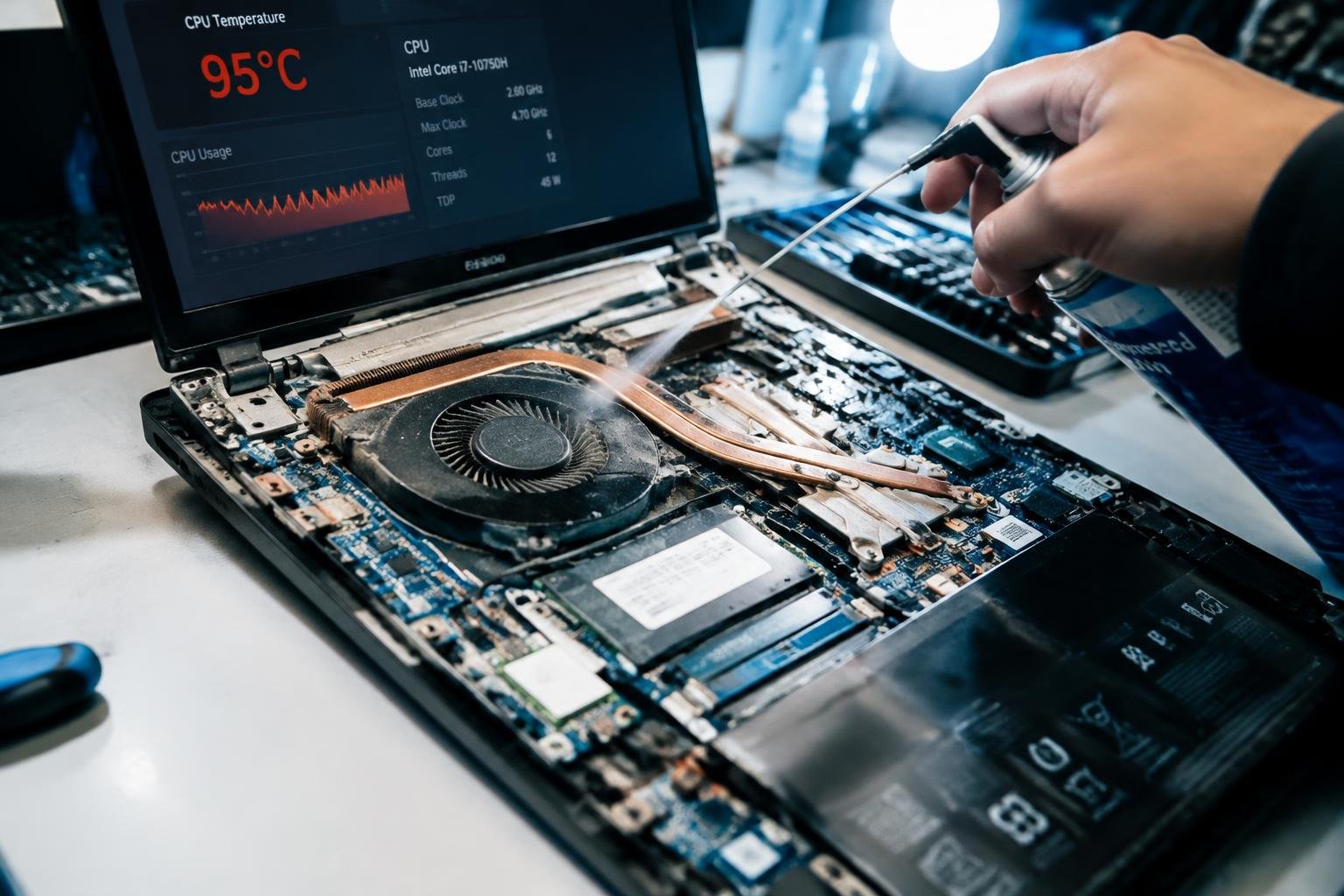
A laptop CPU that runs too hot can throttle performance, trigger sudden shutdowns, and strain internal components. You can often trace the cause to blocked cooling vents, demanding background processes, or dust around the fan and heatsink. Start by checking the processor temperature under a typical workload, then connect the reading to symptoms such as loud fan noise or sluggish performance.
Key Takeaways:
- Use a trusted temperature-monitoring utility, such as HWiNFO or your laptop maker’s diagnostic app, to read CPU temperatures and identify whether heat rises at idle or under load.
- Reduce unnecessary CPU load by closing resource-heavy apps, limiting startup programs, and checking Task Manager or Activity Monitor for processes consuming sustained CPU time.
- Clear dust from the air vents with compressed air while the laptop is powered off, and place it on a hard, flat surface so the intake vents remain unobstructed.
- Set the laptop to a balanced or quiet power mode and install BIOS, chipset, and thermal-management updates from the manufacturer’s support page.
- If overheating continues after cleaning and reducing load, have a technician inspect the cooling fan, heatsink, and thermal paste for faults or deterioration.
Check CPU Temperature and Identify the Cause
Read Temperatures Under Load
Use a hardware monitor such as HWiNFO or your laptop maker’s utility to read CPU temperature, then note the value at idle and during a familiar workload. Brief spikes during startup or demanding tasks are different from sustained high temperatures. Watch for thermal-throttling indicators, unexpected fan noise, sluggish performance, or shutdowns, and record when each symptom occurs.
- Check whether the laptop is plugged in or running on battery.
- Note the room temperature and whether the vents are obstructed.
- Record the app or task running when temperatures rise.
How to Fix a Laptop CPU Running Too Hot Today
Cool the Laptop and Clear the Vents
Save your work, shut down the laptop, and unplug its charger before cleaning. Place it on a hard, flat surface, then use short bursts of compressed air to clear dust from the exhaust vents; keep the can upright and avoid forcing debris deeper into the chassis. Once the laptop has cooled, restart it with the vents unobstructed and close demanding apps that are driving sustained CPU use.
| Step | Action | Key detail |
|---|---|---|
| Power down | Shut down and unplug | Let the chassis cool |
| Clear vents | Use compressed air | Apply short bursts |
| Improve airflow | Set laptop on a hard surface | Keep exhaust openings clear |
| Reduce CPU load | Close resource-heavy apps | Check active tasks after restart |
Tips for Preventing Laptop CPU Overheating
Build Cooler Daily Habits
Keep your laptop on a hard, flat surface so its intake vents stay clear during work sessions. Close CPU-heavy apps you are not using, and pause demanding tasks such as video exports when you do not need them running. Set your operating system’s power mode to balanced for routine browsing and document work, then use a lower screen brightness when practical.
- Restart your laptop after long sessions with many open apps.
- Install operating system and app updates outside demanding work periods.
- Use sleep mode during breaks instead of leaving active workloads running.
Factors That Affect Laptop CPU Temperature
Restricted airflow raises CPU temperature because laptop cooling systems need clear intake and exhaust vents to move heat away from the processor. A soft bed, dust buildup, or a blocked side vent can impede that airflow, while a hard, flat desk leaves vents unobstructed. Workload also matters: video rendering or sustained gaming keeps CPU cores active longer than light browsing, so heat output remains higher.
| Factor | Typical effect | Specific example |
|---|---|---|
| Airflow | Restricted vents reduce heat removal | Using the laptop on a blanket |
| Workload | Sustained processing produces more heat | Rendering a video |
| Cooling hardware | Fan or heatsink condition affects heat transfer | Dust coating the fan intake |
| Ambient temperature | Warmer surroundings leave less room to dissipate heat | Using the laptop in a hot room |
Final Words
To bring a hot laptop CPU under control, identify whether the cause is heavy processor use, blocked airflow, accumulated dust, or a cooling system fault. Close unnecessary workloads, place the laptop on a hard surface, and clean its vents with the manufacturer’s recommended method. Use temperature monitoring to confirm whether those steps reduce heat under the same workload. If temperatures remain excessive, the fan makes unusual noises, or the laptop shuts down, arrange professional inspection before continued overheating damages internal components.
FAQ
How much does it cost to fix a laptop CPU temperature running too high?
Basic fixes such as cleaning accessible vents or changing usage habits can cost nothing, while professional cleaning or repairs may cost more. The price depends on the laptop design, the cause of overheating, and whether parts such as a fan need replacement.
How long does it take to cool down an overheating laptop?
A laptop may cool down within several minutes after heavy tasks stop and airflow improves. The time depends on the room temperature, the laptop’s cooling system, and whether a blocked vent or failing fan is preventing heat from escaping.
Can overheating damage my laptop if I keep using it?
Repeated overheating can cause performance slowdowns and may shorten the life of laptop components. If the laptop shuts down unexpectedly, smells burnt, or becomes unusually hot, turn it off and have it inspected rather than continuing to use it.
What is the most common mistake when trying to cool a laptop?
Using a laptop on a bed, blanket, or other soft surface can block its air vents and make cooling worse. Place it on a hard, flat surface instead, and avoid opening the case unless you know how to do so safely.
Can a cooling pad fix a laptop that gets too hot?
A cooling pad can help improve airflow for some laptops, but it cannot repair a blocked fan or other hardware fault. Check that the laptop’s own vents are clear, since a pad may make little difference if the internal cooling system is not working properly.
Is it worth replacing thermal paste to lower laptop CPU temperature?
Replacing thermal paste may help if the existing paste has degraded or the heatsink is not making good contact. It requires opening the laptop, which can damage components or affect warranty coverage, so consider professional service if you are unsure.
Why does my laptop CPU temperature rise during simple tasks?
High temperatures during light use can result from blocked vents, a fan problem, background processes, or a warm room. If the laptop stays hot after unnecessary processes stop and its vents are clear, a hardware inspection may be needed.
 Previous Post