



Laptop WiFi Disconnects Frequently Fix Guide
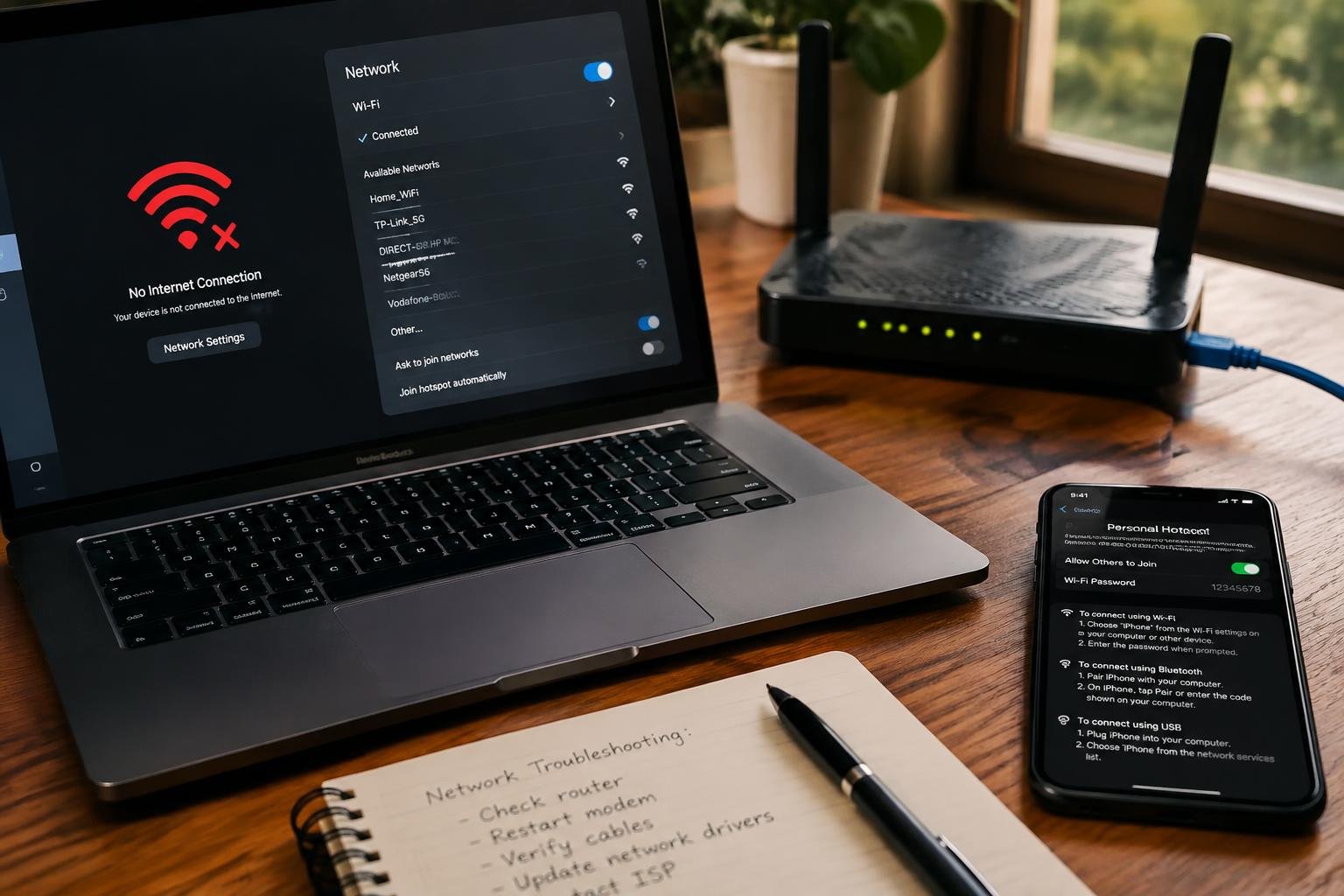
You’re in the middle of an important task when your laptop suddenly loses WiFi. These frequent disconnects disrupt work, streaming, and video calls. This guide walks you through proven fixes to stabilize your connection. You’ll learn how software settings, hardware limitations, and network conditions contribute to dropouts-and exactly what to do about them.
Key Takeaways:
- Laptop WiFi disconnections are often caused by outdated or conflicting drivers, and updating or reinstalling them can resolve many persistent issues.
- Interference from nearby electronic devices or competing WiFi networks on the same channel can destabilize connections, especially in densely populated areas.
- Power management settings may force the WiFi adapter to turn off automatically to save energy, leading to unexpected dropouts.
- Older WiFi standards like 802.11n struggle with modern network demands, so ensuring your laptop and router support at least 802.11ac or WiFi 5 improves reliability.
- Running built-in network troubleshooters and resetting the network stack through command-line tools like ipconfig and netsh often restore stable connectivity without third-party software.
Common Factors Behind Connection Drops
Signal instability often stems from a mix of environmental interference and software-related issues that disrupt your laptop’s ability to maintain a consistent WiFi connection. You may not always notice these triggers, but they play a significant role in frequent disconnections. Identifying them helps you take targeted corrective actions without unnecessary hardware upgrades or complex configurations.
Environmental Interference Factors
Physical and electromagnetic obstacles in your surroundings can severely impact WiFi reliability. Walls, metal structures, and large appliances like microwaves or refrigerators absorb or reflect wireless signals, weakening connectivity. Other wireless devices operating on the same 2.4 GHz band-such as cordless phones or baby monitors-can also cause interference. Consider these common sources:
- Dense building materials like concrete or brick walls
- Proximity to Bluetooth devices or wireless speakers
- Overlapping networks from neighboring routers
- Microwave ovens disrupting 2.4 GHz signals during use
Software and Driver Conflicts
Your laptop’s internal processes might be undermining network stability without obvious warning signs. Outdated, corrupted, or mismatched WiFi drivers often fail to manage handshakes with routers properly, leading to sudden drops. Background applications, especially those managing network connections or security, can override default settings or force reauthentication loops. Common culprits include:
- VPN clients modifying routing tables unexpectedly
- Antivirus suites with aggressive firewall rules
- Power management settings that turn off the network adapter
- Operating system updates introducing compatibility issues
Hardware Types and Connection Standards
Your laptop’s ability to maintain a stable WiFi connection often hinges on the compatibility between its internal hardware and your router’s transmission standards. Not all wireless cards support the latest protocols, and mismatched technology can lead to frequent disconnections. Internal failures may stem from aging components or physical damage, while router incompatibility usually involves outdated or conflicting frequency support. Identifying which side of the connection is at fault requires assessing both the laptop’s network card specifications and the router’s broadcast settings.
- 802.11ac supports 5GHz only and offers faster speeds
- 802.11n works on both 2.4GHz and 5GHz bands
- Older 802.11b/g cards only handle 2.4GHz and are prone to interference
- WiFi 6 (802.11ax) improves efficiency but requires compatible hardware
- MIMO and beamforming features enhance signal stability when supported
| Feature | Impact on Connectivity |
|---|---|
| WiFi Standard (e.g., 802.11ac) | Determines maximum speed and frequency band availability |
| Antenna Configuration | Affects signal reception strength and range |
| Broadcom vs Intel vs Realtek | Varies in driver reliability and performance consistency |
| PCIe vs USB Interface | Influences data throughput and latency for internal vs external adapters |
| Firmware Update Support | Enables fixes for known connectivity bugs and security patches |
Internal Network Card Limitations
Over time, your laptop’s built-in WiFi card may struggle to keep pace with modern networking demands due to inherent design constraints. Many older models use mini-PCIe cards with limited antenna space, reducing signal capture efficiency. Cards like the Intel Dual Band Wireless-AC 3165 offer basic functionality but lack advanced features such as MU-MIMO. If your laptop consistently drops connections in areas where other devices work fine, the internal card’s age or chipset limitations could be the root cause, especially if it only supports legacy standards.
Frequency Band Distinctions (2.4GHz vs 5GHz)
You experience different connection behaviors depending on whether your laptop connects via 2.4GHz or 5GHz. The 2.4GHz band travels farther and penetrates walls better but suffers from congestion due to overlapping channels and interference from microwaves or Bluetooth devices. In contrast, 5GHz delivers faster speeds and less interference but has a shorter range and weaker wall penetration. If your laptop frequently disconnects when moving away from the router, it may be switching poorly between these bands or lacks reliable 5GHz support.
Step-by-Step Troubleshooting for Software
System software and driver integrity directly influence your laptop’s ability to maintain a stable WiFi connection. Outdated or corrupted components can interrupt network communication even when hardware appears functional. Addressing these issues methodically helps isolate whether the root cause lies within the operating system or wireless adapter drivers.
| Issue | Solution |
|---|---|
| Intermittent connectivity after OS updates | Reset network stack via command-line tools |
| Persistent disconnections despite signal strength | Update or reinstall wireless network driver |
Resetting Network Adapters and TCP/IP Stack
Your laptop may retain corrupted network configurations that interfere with WiFi stability. Open Command Prompt as administrator and run “netsh winsock reset” followed by “netsh int ip reset” to clear configuration errors. Afterward, restart the device to allow Windows to rebuild the network stack. This process often resolves silent conflicts introduced through failed updates or abrupt shutdowns, restoring reliable handshake protocols between your system and the router without requiring hardware changes.
Updating and Reinstalling Wireless Drivers
Outdated or incompatible wireless drivers are a leading cause of frequent disconnects. Access Device Manager, locate your wireless adapter under Network adapters, and select “Update driver.” Choose the option to search automatically or download the latest version directly from the manufacturer’s website for better accuracy. If problems persist, uninstall the current driver, reboot your laptop, and let Windows reinstall it fresh. This ensures full compatibility with your operating system’s current build.
Advanced Optimization Tips for Stability
To achieve long-term network reliability, fine-tuning your system’s internal settings can make a measurable difference in maintaining a steady WiFi connection. Adjusting how your laptop interacts with wireless networks at the configuration level allows for more consistent performance, especially in environments with multiple devices or signal interference. These optimizations focus on maximizing efficiency without requiring immediate hardware changes.
- Update your router’s firmware to ensure compatibility and security improvements.
- Set Quality of Service (QoS) rules to prioritize bandwidth for critical applications.
- Switch to a less congested wireless channel using your router’s admin interface.
- Limit background applications that consume bandwidth during active use.
- Enable 802.11r or fast transition features if supported by your network.
| Setting | Recommended Value |
|---|---|
| Wireless Mode | 802.11ax (Wi-Fi 6) or mixed mode if unavailable |
| Transmit Power | High (or Maximum, if adjustable) |
| Roaming Aggressiveness | Medium-High |
| Preferred Band | 5 GHz over 2.4 GHz |
Power Management Settings Optimization
Your laptop may disconnect from WiFi when it shifts into low-power states designed to extend battery life. You have control over whether the system is allowed to turn off the wireless adapter to save energy. Navigate to Device Manager, locate your WiFi adapter under Network Devices, then disable the option “Allow the computer to turn off this device to save power.” Keeping this setting inactive ensures the radio stays online during periods of inactivity, reducing unexpected dropouts caused by delayed wake-up responses from the hardware.
Router Configuration for Peak Performance
You can significantly improve connection stability by adjusting your router’s broadcast settings to match your usage environment. Set your router to use a fixed channel instead of auto-selection, particularly choosing channel 1, 6, or 11 on 2.4 GHz to avoid overlap, or opt for less crowded channels like 36-48 on the 5 GHz band. Enable beamforming if your hardware supports it, as this focuses the signal toward your device. Reducing interference and increasing signal precision leads to fewer interruptions and smoother data flow over time.
Pros and Cons of External WiFi Adapters
External USB WiFi adapters offer a practical way to improve your laptop’s wireless connectivity, especially when internal hardware falls short. You can easily install one without opening your device, and many support newer standards like Wi-Fi 6 for faster speeds. However, relying on external hardware introduces new variables-such as port availability, physical vulnerability, and driver compatibility-that may affect long-term reliability. Weighing these factors helps determine whether an adapter suits your setup.
| Pros | Cons |
| Simple plug-and-play installation | Takes up a USB port |
| Supports modern Wi-Fi standards (e.g., 802.11ax) | Potential driver issues with older OS versions |
| Often outperforms built-in laptop antennas | Can be easily damaged or lost |
| Upgradable without replacing the entire laptop | May require external power or hub for stability |
| Works across multiple devices | Signal interference from nearby electronics |
Advantages of Plug-and-Play Solutions
Many USB WiFi adapters work right after plugging them in, requiring no complex setup. You’ll often see immediate improvements in signal strength and speed, especially if your laptop’s original wireless card is outdated. These adapters let you access dual-band networks and benefit from beamforming technology without technical expertise. Since they’re portable, you can move them between devices effortlessly, making them ideal for users who value convenience and quick results without system modifications or firmware tinkering.
Disadvantages of External Hardware Dependencies
Your connection becomes dependent on a small piece of hardware that protrudes from your laptop, increasing the risk of physical damage when moving the device. A loose or poorly seated adapter can cause intermittent drops, mimicking network issues when the problem is mechanical. You also rely on consistent driver support, which some brands fail to maintain over time. Frequent plugging and unplugging wears out USB ports, and using an extension cable or hub adds clutter, reducing the overall elegance of your workspace.
Conclusion
You now have a clear path to resolving frequent WiFi disconnections on your laptop. By systematically checking drivers, adjusting power settings, identifying interference sources, and considering hardware limitations, you can achieve a more stable connection. Whether the issue lies in outdated software, signal congestion, or aging network adapters, each step you take builds toward consistent performance. Applying these solutions gives you control over your connectivity, ensuring fewer disruptions during work or streaming.
FAQ
how much does it cost to fix a laptop wifi disconnect issue?
Most fixes cost nothing if they involve software updates or settings adjustments. External USB WiFi adapters, which can bypass internal hardware issues, typically cost between $10 and $30 depending on speed and compatibility.
how long does it take to troubleshoot frequent wifi disconnections on a laptop?
Basic troubleshooting usually takes 10 to 30 minutes, including driver updates and network resets. More involved steps like router configuration or resolving interference may extend the process depending on your setup.
can updating wifi drivers cause problems?
Yes, updating WiFi drivers can sometimes cause connectivity issues if the new version is incompatible with your operating system. Always download drivers from the official manufacturer’s site to reduce the risk of instability.
what are common mistakes when fixing wifi connection drops?
A common mistake is disabling power-saving features without checking other settings, which can lead to overheating or reduced battery life. Another is overlooking simple causes like signal interference from nearby electronics.
is it worth buying an external wifi adapter for a laptop?
An external WiFi adapter is worth it if your internal card is outdated or faulty and you need a quick, reliable fix. Performance depends on your router’s capabilities and the adapter’s supported standards.
 Previous Post