



Laptop Battery Suddenly Drains Fast Causes
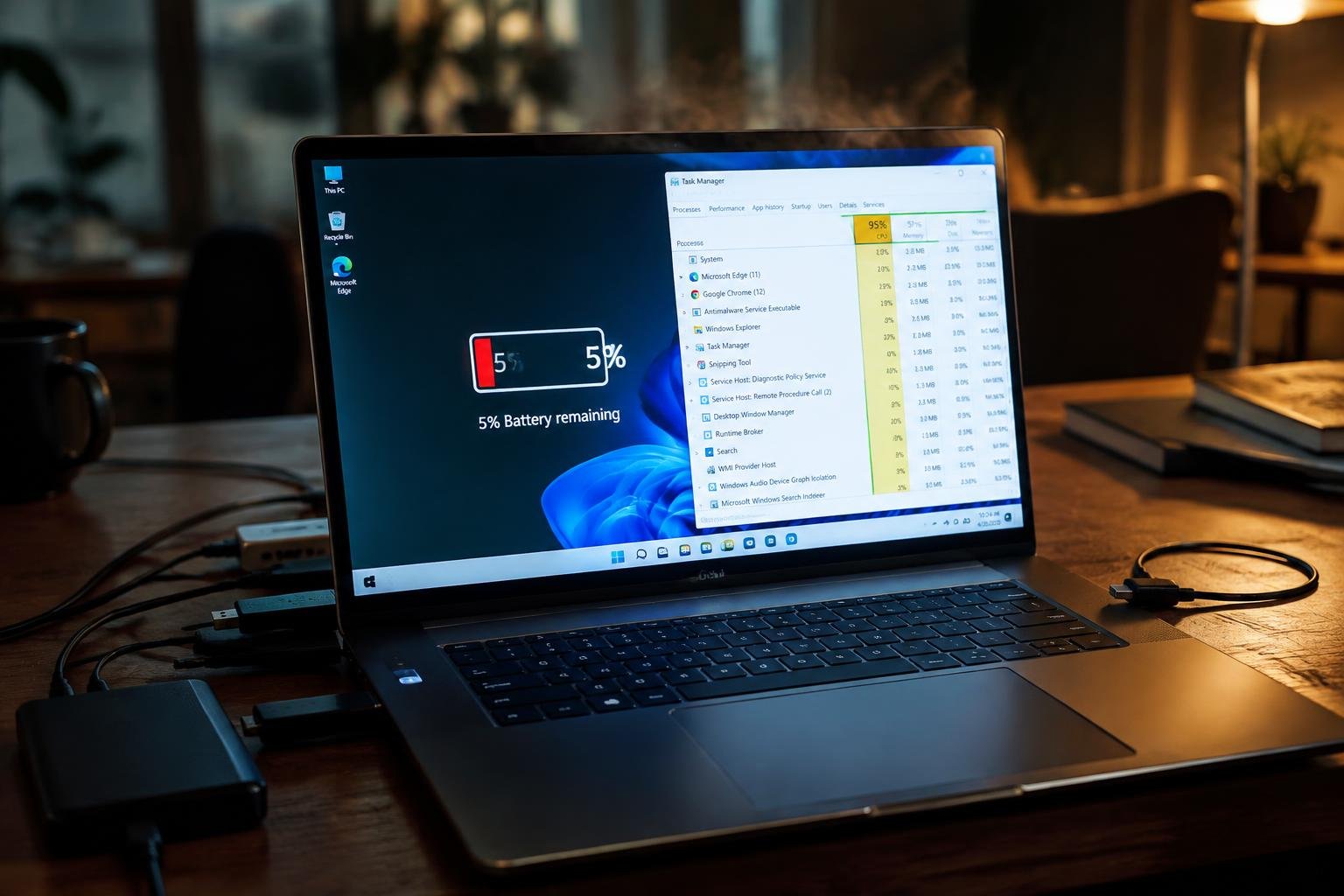
You notice your laptop dying much faster than it did a few months ago. What once lasted all day now struggles to make it through a single meeting. Something has changed. This guide shows you the real reasons behind sudden battery drain, from aging cells to hidden software demands, so you can find the source and take back control of your device’s power life.
Key Takeaways:
- Laptop batteries degrade over time due to chemical aging, losing their ability to hold a full charge regardless of usage habits.
- Background applications and system processes can consume significant power without user awareness, accelerating battery drain.
- High temperatures from prolonged use or poor ventilation damage battery cells and reduce overall lifespan.
- Screen brightness and display settings directly impact power consumption, with higher levels draining the battery faster.
- Power reporting tools in operating systems sometimes misrepresent battery health, leading users to believe there’s a sudden issue when the decline has been gradual.
The Wear of the Years
Every laptop battery begins a slow decline from the moment it leaves the factory, regardless of how carefully you use it. This aging process is silent and steady, driven by internal chemical changes that reduce the amount of charge your battery can hold. Over months and years, even regular use takes its toll, and you’ll notice your device lasting shorter periods on a full charge. It’s not a flaw or failure-it’s simply how batteries are built.
The chemical exhaustion
Your battery degrades at the molecular level every time it charges and discharges. Lithium-ion cells lose active lithium ions during these reactions, slowly diminishing their ability to store energy. Even if you rarely use your laptop, this chemical decay continues in the background. Storage conditions like heat or keeping the battery fully charged for long periods accelerate the process. Eventually, the battery simply cannot deliver the performance it once did, no matter how well you’ve maintained it.
The limit of the cycles
Each charge cycle chips away at your battery’s total capacity, and most laptop batteries are designed to last only a few hundred full cycles before showing significant wear. A cycle counts each time you use 100% of the battery’s power, whether all at once or over multiple sessions. Once you reach the rated cycle limit, the drop in runtime becomes more obvious. Your battery may still function, but it will never perform like it did when new.
The Hidden Hunger of Software
Hidden processes silently consume your laptop’s battery, often without any visible sign. You might see a near-empty charge after just a few hours, even when you’re not actively using demanding apps. These background programs run constantly, syncing data, checking for messages, or updating content while you focus on other tasks. Their combined drain adds up quickly, especially if multiple apps behave this way. What feels like normal use can actually be a steady power leak orchestrated by software you didn’t even know was active.
Background tasks that never rest
Every time you launch an app, it may leave behind a helper process that keeps running. Cloud storage tools, messaging clients, and even browsers can maintain persistent background tasks that refresh content, monitor activity, or preload features. You don’t see them, but they’re always working-checking for new files, scanning for updates, or tracking login states. These silent operations draw consistent power, and over time, they can slash your battery life by keeping the CPU and network active long after you’ve closed the main window.
Updates that demand the fire
Automatic updates often install without your direct approval, kicking off intensive processes behind the scenes. Your laptop might appear idle, but it could be downloading patches, reconfiguring system files, or optimizing performance in the background. These operations push the processor to full capacity, burning through energy even when you’re not actively using the machine. The next time your battery vanishes during a short work session, check whether an update quietly hijacked your system’s resources and drained its reserves.
The Fever of the Machine
Heat is your laptop’s silent killer. When internal temperatures climb, components strain and battery efficiency plummets. You may notice the bottom warming during everyday tasks, a sign the system is working harder than it should. Prolonged exposure to high heat degrades the lithium-ion cells in your battery, reducing their ability to hold a charge over time. Keeping your machine cool isn’t just about comfort-it directly affects longevity and performance. A cooler laptop operates more efficiently, preserving both power and hardware.
Dust within the vents
Dust clogging your laptop’s vents restricts airflow and traps heat inside the chassis. Over weeks and months, lint and debris accumulate silently, especially if you use your device on beds, sofas, or dusty surfaces. This blockage forces the system to retain more thermal energy, making the fan work harder and the battery drain faster. You might not see the grime, but its effects are measurable. Cleaning the vents regularly with compressed air can restore proper cooling and extend battery life significantly.
The struggle of the cooling fan
Your laptop’s cooling fan works constantly to expel hot air and regulate temperature. When it begins to slow due to wear, lubrication failure, or obstruction, heat builds up rapidly inside the unit. You might hear unusual whirring, grinding, or even silence where there should be noise. That lack of sound could mean the fan has failed entirely. Without active cooling, processor throttling kicks in and battery consumption spikes. Addressing fan issues early prevents irreversible thermal damage and preserves system stability.
The Weight of the Light
The hunger of the high brightness
Your screen’s brightness level directly impacts how quickly your battery depletes. Running at full brightness may seem harmless, but it forces the display subsystem to draw significantly more power, especially in well-lit environments where the extra intensity isn’t necessary. Modern LED-backlit displays are efficient, yet they still consume disproportionate energy when pushed to maximum. Lowering brightness by just 20% can yield noticeable improvements in endurance, proving that even small adjustments carry real weight in daily usage.
Power plans that promise too much
Power plans labeled “High Performance” or “Best Performance” prioritize speed and responsiveness over efficiency, keeping your CPU and display components active longer and at higher states. These settings override natural throttling, forcing continuous energy draw even during idle tasks like web browsing or document editing. What feels like a boost in speed often comes at the cost of battery life, sometimes cutting it in half compared to balanced or power-saving modes. You’re not gaining more value-you’re paying for milliseconds with minutes.
The Invisible Search
Signals constantly pulse through the air around you, and your laptop works silently to catch them. Even when you’re not actively using Wi-Fi or Bluetooth, background scanning for networks and devices persists, drawing power with every attempt. These invisible searches may seem harmless, but over hours they accumulate into meaningful battery loss. The wireless adapters never truly rest, especially in areas with weak or fluctuating signals, forcing your machine to strain just to stay connected.
Radios that seek a signal
Your laptop’s built-in radios-Wi-Fi, Bluetooth, even cellular if equipped-don’t wait for commands to act. They continuously probe for available networks, pairing opportunities, and signal stability, even when idle. Each search cycle demands energy, and in environments with poor connectivity, these attempts grow more frequent and intense. You might not notice the activity, but the battery feels the burden, especially when the signal is distant or obstructed by walls and interference.
The drain of the USB ports
Plugged-in peripherals, even those appearing inactive, draw power from your laptop’s USB ports. A mouse, external drive, or charging phone pulls current whether you’re actively using it or not. Some devices negotiate power efficiently, but many default to higher draw modes, silently consuming reserves. Even a faulty cable can trigger phantom drainage, tricking the port into staying active. Unplug accessories when not in use, as each one adds to the cumulative load on your battery.
The Truth of the Report
Your laptop’s internal log holds a detailed record of its power behavior, revealing patterns that explain sudden battery drain. Every discharge cycle, temperature spike, and charging anomaly is timestamped and stored. By accessing this data, you see the full picture of what’s taxing your system over time. The log doesn’t lie-it shows exactly when and how energy is being lost, making it the most reliable source for diagnosing battery issues.
Generating the health file
You can generate a battery health report directly from your system using built-in commands. On Windows, typing a specific power command in the command prompt produces a detailed HTML file outlining battery wear and usage. This file includes serial number, design capacity, and recent usage patterns. The report gives you a clear, technical view of your battery’s current state without requiring third-party tools or guesswork.
Reading the count of the cycles
Your battery has a finite number of charge cycles before its performance begins to degrade noticeably. Each cycle represents a full discharge and recharge, and modern systems track this number precisely. You’ll find the cycle count in the health report, and comparing it to the manufacturer’s rated cycle life tells you how much longevity remains. A high cycle count often explains sudden drops in battery life.
To wrap up
You now understand the common reasons behind your laptop battery suddenly draining fast. Aging cells lose capacity over time, background programs consume more power than you realize, and excessive screen brightness can shorten usage between charges. Overheating accelerates degradation, while constant connectivity to Wi-Fi or Bluetooth keeps components active even during idle moments. Checking your battery health report gives clear insight into its current state. Addressing these factors directly helps extend both performance and longevity, letting you rely on your device longer without constant access to an outlet.
FAQ
How much does it cost to replace a laptop battery?
Replacing a laptop battery typically costs between $50 and $150, depending on the brand and model. Some laptops have sealed batteries that require professional installation, which may increase labor costs, while user-replaceable ones can save money if done yourself.
How long does a laptop battery usually last before needing replacement?
Most laptop batteries last from 2 to 4 years with regular use before their capacity drops noticeably. This depends on charge cycles, heat exposure, and whether the battery is frequently drained completely or kept plugged in.
Can a suddenly fast-draining battery be fixed without replacing it?
In some cases, recalibrating the battery or adjusting power settings can improve reported battery life without replacement. However, if the battery has significantly degraded chemically or thermally, no software fix will restore its original capacity.
What are common mistakes people make that drain laptop battery faster?
Leaving Bluetooth and Wi-Fi on when not in use, running multiple background apps, and keeping screen brightness high all accelerate battery drain. These habits compound wear over time, especially when combined with poor ventilation or constant charging.
Is it worth replacing a laptop battery or should I buy a new laptop?
Replacing a battery is usually worth it if the laptop otherwise performs well and is less than 3 to 5 years old. For older or underpowered machines, the cost and effort may be better directed toward upgrading to a new system.
 Previous Post