



Laptop SSD Replacement Cost India Guide
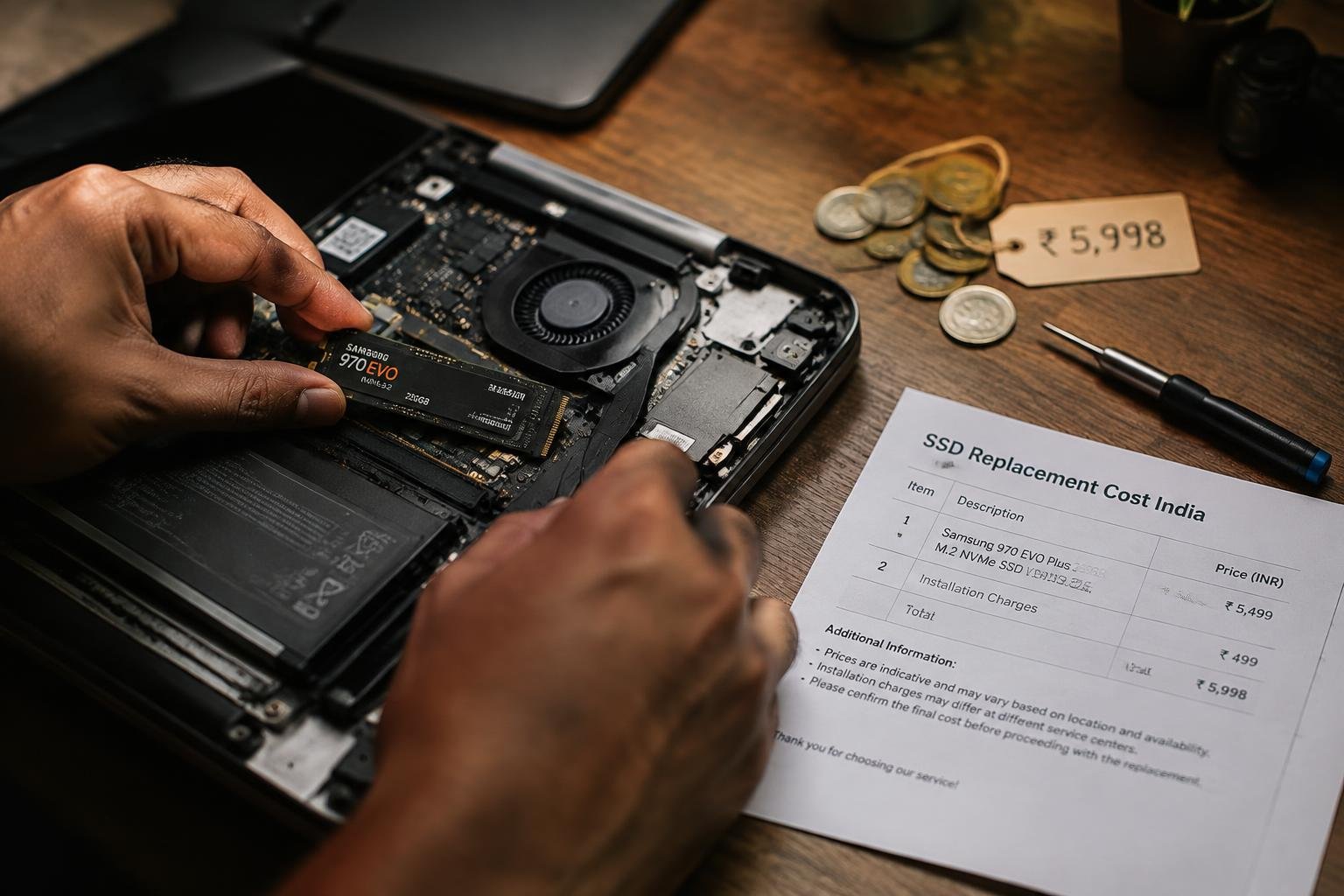
You want a faster, more responsive laptop, and upgrading to an SSD is one of the most effective ways to achieve that. In India, the cost of replacing your laptop’s storage varies based on several factors, from drive type to labor charges. This guide breaks down exactly what you’ll pay, what influences pricing, and how to make a smart, budget-friendly upgrade without compromising performance or reliability.
Key Takeaways:
- A basic 2.5-inch SATA SSD replacement for a standard laptop in India typically costs between ₹2,500 and ₹6,000, depending on brand, capacity, and retailer.
- Prices for NVMe M.2 SSDs are slightly higher, starting around ₹3,500 for 512GB models, with premium variants exceeding ₹8,000 due to faster read/write speeds and better endurance.
- Labor charges for SSD installation are usually low, ranging from ₹200 to ₹500, with many service centers offering free installation if the SSD is purchased from them.
- Older laptops may require additional checks for compatibility, especially regarding BIOS support and physical drive slots, which can affect both cost and upgrade feasibility.
- DIY upgrades save money and are manageable for most users with basic technical skills, but warranty concerns or complex designs in premium ultrabooks may justify professional help.
Understanding SSD Types and Compatibility
Choosing the right SSD for your laptop hinges on understanding the two primary types: SATA and NVMe. These differ fundamentally in speed, interface, and physical design. While SATA drives use a legacy interface with lower bandwidth, NVMe models leverage the PCIe bus for significantly faster data transfer. Compatibility isn’t interchangeable-your laptop supports one or the other, sometimes both, depending on the M.2 slot configuration. Identifying which your system accepts ensures a successful upgrade.
| Interface Type | SATA III or NVMe (PCIe) |
| Speed Range | SATA: Up to 600 MB/s | NVMe: 1,500-3,500 MB/s |
| Form Factor | 2.5-inch or M.2 (SATA or NVMe) |
| Protocol Support | SATA uses AHCI | NVMe uses NVM Express |
| Backward Compatibility | M.2 slots may support only SATA, only NVMe, or both |
- SATA SSDs are widely used and cost-effective but limited by older interface speeds
- NVMe SSDs deliver superior performance, ideal for heavy workloads and fast boot times
- M.2 2280 is the most common physical size for both SATA and NVMe variants
- Physically identical M.2 drives may not work interchangeably due to keying differences
- Your laptop’s manual or manufacturer specs will confirm supported type
SATA vs. NVMe M.2 Form Factors
SATA and NVMe both use the M.2 form factor, but they are not functionally interchangeable. A SATA M.2 drive connects through the SATA bus, capping speeds at around 550 MB/s, while an NVMe M.2 drive uses PCIe lanes for speeds exceeding 2,000 MB/s. Despite looking nearly identical, their key notches differ-one for SATA (B+M key) and another for NVMe (M key)-preventing incorrect installation. Your laptop may accept only one type, so verifying the slot’s capability is essential before purchase.
- M.2 2280 is the standard length used in most laptops
- SATA M.2 drives use B+M keying and rely on older AHCI protocol
- NVMe M.2 drives use M keying and support PCIe 3.0 or 4.0
- Some motherboards support only one M.2 type, limiting upgrade options
- Physical compatibility does not guarantee functional compatibility
Identifying Your Laptop’s Interface Support
Your laptop’s ability to support SATA or NVMe depends on its internal interface and BIOS capabilities. Start by checking the service manual or specifications sheet from the manufacturer, which often lists the supported SSD type. You can also use system information tools like HWiNFO or CPU-Z to detect existing storage interface details. Some models list M.2 slots as “SATA only” or “PCIe only,” while others support either. Never assume compatibility based on slot shape alone-verify through documentation or diagnostic software.
- Check your laptop’s official specifications on the manufacturer’s website
- Use CPU-Z or HWiNFO to identify current drive interface and protocol
- Look for terms like “M.2 2280 SATA” or “M.2 NVMe PCIe” in specs
- Some BIOS versions block NVMe detection if not originally included
- Older laptops may only support 2.5-inch SATA, not M.2 at all
Key Factors Influencing Replacement Costs in India
Brand reputation and storage capacity directly shape how much you’ll pay when upgrading your laptop’s SSD in India. Premium brands like Samsung and Western Digital often command higher prices due to proven reliability and faster read/write speeds. A 1TB drive from a well-known manufacturer can cost significantly more than a 500GB model from a budget-friendly label. While larger capacities offer more space, they also increase the total bill, especially when paired with high-endurance NAND flash memory. Choosing between value and performance becomes essential.
- Samsung, WD, and Crucial drives typically cost more than generic brands
- 1TB SSDs are nearly double the price of 500GB variants
- High-speed NVMe drives from top brands add a noticeable premium
- Entry-level laptops often use SATA SSDs, which are more affordable
- Import duties and availability affect pricing across Indian retailers
Storage Capacity and Brand Premium Pricing
You’ll notice a clear jump in price as storage capacity increases, especially when opting for trusted brands. A 2TB Samsung SSD, for instance, can cost over ₹15,000, while a 512GB generic drive may stay under ₹5,000. Capacity isn’t the only factor-brand reputation plays a major role. Established names invest in better controllers and longer warranties, which justify higher costs. If you rely on large files or run resource-heavy applications, paying extra for both space and reliability makes sense.
Service Center Labor Fees vs. Local Repair Shop Rates
Your choice of service provider significantly impacts the final expense, even if the SSD model remains the same. Authorized service centers often charge between ₹800 and ₹1,500 for labor, citing trained technicians and proper tools. In contrast, independent repair shops in local markets like Lajpat Rai in Delhi or SP Road in Bengaluru may complete the same task for ₹300 to ₹600. While official centers offer peace of mind, neighborhood technicians provide faster, more affordable alternatives-if you trust their expertise.
Pros and Cons of Upgrading Your Storage
Switching to an SSD transforms how your laptop performs, delivering faster boot times, quicker file access, and smoother multitasking. While the upgrade requires a higher upfront investment compared to traditional hard drives, the long-term gains in responsiveness and system stability often justify the cost. You’ll experience fewer freezes and reduced loading delays across applications. However, storage capacity per rupee is lower than with HDDs, meaning you may need to balance speed against available space depending on your usage needs.
| Pros | Cons |
| Significantly faster read/write speeds | Higher cost per gigabyte than HDDs |
| Improved overall system responsiveness | Limited high-capacity options at affordable prices |
| No moving parts, reducing failure risk | Older laptops may not support NVMe SSDs |
| Near-instant boot times | Potential data loss if cloned improperly |
| Lower power consumption, extending battery life | Requires backup planning during migration |
| Quieter operation due to no mechanical components | Additional software setup may be needed |
| Better durability under movement or shocks | Some models require specific form factors |
| Supports modern operating systems efficiently | Not all OEM tools are compatible post-upgrade |
| Enhances user experience in daily tasks | Initial learning curve for DIY installation |
| Increases resale value of older laptops | Fewer budget-friendly options above 1TB |
Speed Enhancements and System Reliability
Your laptop feels more responsive the moment you install an SSD. Applications launch in seconds, files transfer faster, and the operating system runs without lag, even under heavy workloads. This improvement stems from the SSD’s lack of moving parts and its ability to access data almost instantly. You’re far less likely to encounter crashes caused by disk errors, which makes your system not only quicker but also more dependable over time, especially when running multiple programs simultaneously or using resource-heavy software.
Price-per-Gigabyte Comparison with Traditional HDDs
You’ll notice SSDs cost more per gigabyte than traditional HDDs, especially when comparing capacities above 500GB. A 1TB HDD typically costs significantly less than a 1TB SSD, making it tempting if raw storage space is your priority. However, the price gap has narrowed in recent years, with entry-level SATA SSDs becoming increasingly accessible. For most users, the trade-off means accepting slightly less storage in exchange for dramatically better performance and reliability.
| Storage Type | Average Price per Gigabyte (INR) |
| SATA SSD (2.5-inch) | ₹6 – ₹10 |
| NVMe M.2 SSD | ₹5 – ₹9 |
| Traditional HDD (2.5-inch) | ₹1.5 – ₹2.5 |
| Entry-level QLC SSD | ₹4 – ₹7 |
| High-end PCIe Gen4 SSD | ₹8 – ₹15 |
Step-by-Step Guide to SSD Installation
Replacing your laptop’s storage drive demands precision and a clear plan. Once you’ve selected the right SSD for your system, the next phase involves careful handling of internal components. Follow a systematic sequence to ensure the upgrade proceeds without damaging sensitive hardware. The table below outlines the core actions and tools needed for a successful installation.
| Action | Required Tools/Materials |
| Power off laptop and disconnect power sources | None |
| Open laptop back panel | Small Phillips screwdriver |
| Remove existing drive | Anti-static wrist strap (recommended) |
| Install new SSD | SSD mounting bracket (if needed) |
| Reassemble laptop and power on | None |
Data Backup and Tool Preparation
Begin by securing all important files to an external drive or cloud service before touching any hardware. Losing data during the swap is a common risk, so verify the backup with a quick file check. Gather a Phillips-head screwdriver, an anti-static wrist strap to prevent electrostatic damage, and a clean workspace. Keep your laptop’s model manual handy for reference during disassembly. Having everything ready streamlines the entire process.
Physical Drive Swapping and OS Migration
Power down your laptop completely and unplug the charger. Flip it over and locate the screws securing the back panel-some may be hidden under rubber feet or labels. Carefully remove the panel to expose the internal drive bay. Gently disconnect the old drive and replace it with the new SSD, ensuring it clicks into place. Reassemble the unit, then boot from a bootable USB to install or restore your operating system directly onto the new drive.
Essential Tips for a Cost-Effective Upgrade
Choosing the right path for your laptop’s SSD replacement can significantly impact both cost and reliability. You have two primary options: professional service centers or a self-repair approach. Authorized centers offer expertise and proper tools but come at a premium. If you’re confident with hardware, self-replacement saves labor charges and gives you full control. Consider your laptop’s complexity, your technical comfort, and warranty status before deciding.
- Opt for branded service centers only if under warranty
- Use YouTube tutorials or manufacturer guides for self-installation
- Compare labor charges across local repair shops in your city
- Factor in data backup and OS reinstallation time
- Always power off and disconnect the battery before opening the chassis
Verifying Warranty Clauses Before Disassembly
Your laptop’s warranty may be voided if you open the chassis yourself, even for an SSD upgrade. Check the manufacturer’s policy on user-accessible components-some brands like Dell and Lenovo allow upgrades without penalty. Look for warranty seals or screws marked with warnings. If your device is still under coverage, contact customer support to confirm whether self-repair is permitted. When in doubt, pay for a technician’s visit to avoid costly consequences later.
Sourcing Genuine Components in the Indian Market
You can find SSDs across online and offline stores in India, but authenticity matters. Stick to official retailers on platforms like Amazon, Flipkart, or brand-authorized sellers such as Sabrent or Kingston India. Avoid unusually low prices on social media marketplaces, as counterfeit drives are common. Always request a proper invoice and check for serial numbers on the packaging. A genuine drive ensures longevity, consistent performance, and access to valid warranty support.
Final Words
You now have a clear understanding of what drives laptop SSD replacement costs across India and how to make informed decisions based on your budget and performance needs. From identifying compatible SSD types to weighing professional installation against a DIY approach, each step impacts the final expense. By prioritizing reliability and value over the lowest price, you ensure your laptop delivers faster boot times, improved responsiveness, and a longer usable life. This upgrade remains one of the most effective ways to refresh an aging system.
FAQ
How much does it cost to replace a laptop SSD in India?
SSD replacement in India typically costs between ₹3,000 and ₹10,000, including the drive and labor. The final price depends on storage capacity, brand choice, and whether you use an authorized service center or local technician.
Is it worth upgrading to an SSD from an HDD?
Yes, upgrading to an SSD improves boot times, application responsiveness, and overall system reliability. While SSDs have a higher price-per-gigabyte than HDDs, the performance gains usually justify the cost for most users.
Can I install an SSD myself without losing data?
You can install an SSD yourself using cloning software to retain your data, but proper backup is essential before starting. Incorrect handling during installation may lead to data loss or hardware damage, especially on thin or older laptops.
What are common mistakes when replacing a laptop SSD?
Common mistakes include buying an incompatible SSD type, mishandling internal connectors, and skipping data backup. Using the wrong screwdriver or applying too much force can also damage the laptop chassis or motherboard.
Are there alternatives to replacing the internal SSD?
Yes, external SSDs via USB-C offer a plug-and-play alternative for extra speed and storage without opening the laptop. However, they don’t improve boot times or OS performance like an internal SSD replacement does.
 Previous Post