



How to Protect Your Laptop from Dust Damage
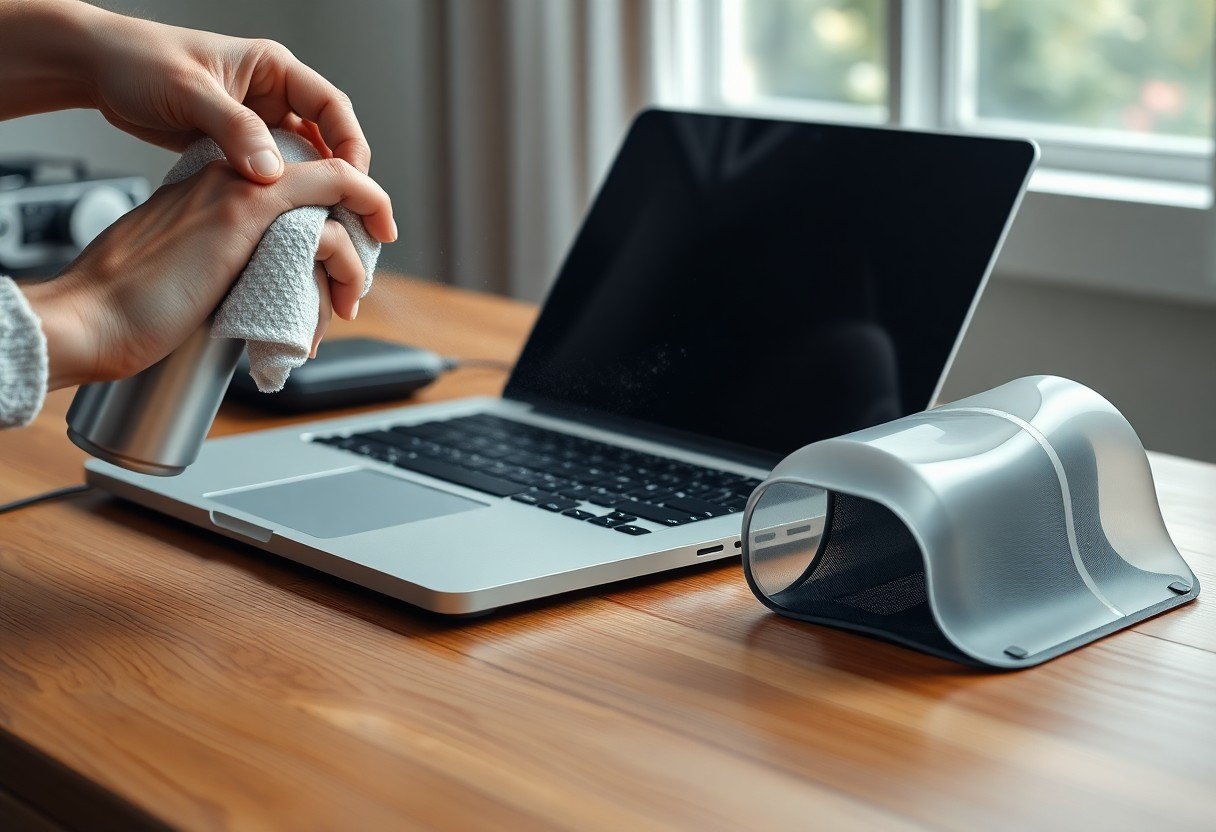
Dust settles silently into your laptop’s vents, fans, and ports, gradually impairing performance and shortening hardware life. Over time, accumulated particles can block airflow, causing overheating and system instability. You can prevent these issues with consistent, simple practices that protect internal components and maintain optimal function. This guide outlines effective steps to minimize dust exposure and keep your device running efficiently.
Key Takeaways:
- A single grain of sand or clump of pet hair drawn into a laptop fan can disrupt airflow, leading to localized overheating that degrades solder joints over time.
- Using a laptop on soft surfaces like beds or couches increases dust intake by forcing the cooling system to pull in fibers and particulates from surrounding fabric.
- Compressed air cans, when used upside down, can spray liquid propellant that damages internal components; always hold them upright during cleaning.
- Placing a laptop near a window in a high-pollen urban area exposes it to seasonal allergens that mix with dust and form conductive gunk on circuitry.
- Anti-static brushes with bristles made from conductive carbon fiber safely dislodge debris from ports without scratching contacts or generating static discharge.
Identifying Environmental Factors of Dust Accumulation
Dust buildup in your laptop is influenced by where and how you use the device. Poor air circulation, nearby construction, carpeted floors, and pet presence increase particulate levels. After assessing your environment, take targeted steps to minimize exposure.
Assessing room air quality and ventilation
Air quality directly impacts dust accumulation. Rooms with limited airflow or near high-traffic areas trap more particles. Using an air purifier and keeping windows closed during windy days reduces airborne debris in your workspace.
Understanding the role of static electricity in particle attraction
Your laptop’s plastic casing and internal components generate static charges that attract dust like a magnet. Even in clean rooms, this invisible force pulls in lint and microscopic fibers over time.
Static electricity builds up naturally when your laptop operates, especially on synthetic surfaces like polyester mats or plastic desks. A mid-sized SaaS firm reported reduced dust intake after switching to anti-static desk pads and grounding their workstations, showing how small changes disrupt particle adhesion. After identifying static-prone materials in your setup, replace them with conductive or grounded alternatives.
How to Clean Laptop Vents and Ports Safely
Regular maintenance of your laptop’s vents and ports prevents overheating and extends component life. Dust buildup restricts airflow, forcing the cooling system to work harder, which can lead to premature fan failure or thermal throttling. Cleaning these areas properly ensures consistent performance, especially during prolonged use.
Utilizing compressed air for effective debris removal
Compressed air effectively dislodges dust from hard-to-reach vent slats without physical contact. Hold the can upright and use short bursts to avoid moisture discharge. Aim at a slight angle to prevent debris from being pushed deeper. A mid-sized SaaS firm reported fewer service calls after introducing quarterly compressed air cleaning for employee devices.
Proper techniques for clearing connectivity ports and keyboards
Power off the device and use a soft brush or compressed air to remove particles from USB, HDMI, and audio ports. For keyboards, tilt the laptop slightly and blow air between the keys at an angle. Avoid metal tools that could scratch contacts or trigger keys unintentionally.
When cleaning connectivity ports, ensure the compressed air nozzle does not touch internal contacts to prevent static discharge. For keyboards, consider using a silicone keycap cover to minimize debris entry during daily use. Some manufacturers, like Lenovo and Dell, design their business-grade laptops with slightly recessed ports to reduce dust ingress, a feature worth considering during hardware selection.
Essential Tips for a Dust-Resistant Workspace
Position your laptop away from windows, vents, and high-traffic areas to reduce airborne particle exposure. Use a hard, flat surface instead of fabric or carpeted areas that trap and release dust. Keep cables organized to minimize clutter that collects debris. Knowing your immediate environment directly influences your device’s internal cleanliness over time.
- Elevate your laptop using a stand or cooling pad
- Place a microfiber mat under your workspace
- Avoid eating or drinking near your device
- Use cable management clips to reduce dust traps
Benefits of using laptop stands and elevated cooling pads
Lifting your laptop improves airflow beneath the chassis, reducing heat buildup and limiting the vacuum effect that pulls in dust. A mid-sized SaaS firm reported fewer overheating incidents after switching to angled stands in their remote work kits.
Maintaining clean surfaces to prevent particle intake
Wipe down desks and tables weekly with a lint-free cloth to stop dust from becoming airborne. Particles on surfaces near your laptop can easily be drawn into intake fans during operation.
Dust accumulation on work surfaces often includes skin cells, fabric fibers, and outdoor pollutants tracked in on shoes. These materials are especially problematic when near intake vents, as they clump inside cooling channels and degrade thermal performance over time.
How to Implement Internal Protection Strategies
Internal protection begins the moment you power on your device, as airflow dynamics determine how much particulate matter settles inside. Sealing vulnerable entry points and managing thermal output reduces long-term dust infiltration. A mid-sized SaaS firm noticed fewer hardware failures after integrating simple internal safeguards across employee-issued laptops.
Applying specialized dust filters to intake areas
Adhesive-mounted microfiber filters fit precisely over intake grills, blocking airborne particles while maintaining airflow. These filters require replacement every few months depending on usage and environment. Units operating in industrial settings benefit most, with visible dust capture within the first week of installation.
Regulating fan curves to minimize unnecessary suction
Fan speed directly influences how much dust is pulled into the chassis. Lower RPMs during light workloads reduce airflow volume, limiting particulate intake without compromising cooling.
Modern laptops support fan curve adjustments through manufacturer utilities or third-party tools like SpeedFan or Macs Fan Control. Setting thresholds ensures fans only ramp up when thermal demand justifies the increased suction. For example, keeping fans at 40-60% until the CPU reaches 65°C strikes a balance between cooling efficiency and dust reduction, especially in environments with moderate airborne particles.
Critical Factors in Maintaining Hardware Longevity
Dust buildup accelerates wear on moving parts like cooling fans and obstructs heat dissipation. Regular inspection and cleaning prevent long-term damage. Environmental placement, usage frequency, and airflow management directly influence internal contamination levels. Assume that even invisible dust layers can degrade performance over time.
- Keep your laptop off fabric surfaces that trap heat and release fibers
- Use compressed air every three months to clear vent pathways
- Monitor fan noise and temperature changes as early warning signs
Recognizing signs of thermal throttling and overheating
Unexpected slowdowns during routine tasks often signal thermal throttling. The processor reduces speed to lower heat output when cooling is impaired. You may notice louder fan operation, a warm chassis, or applications crashing under moderate load. These behaviors indicate heat is not being expelled efficiently.
Evaluating the impact of dust on internal component lifespan
Dust acts as an insulator, trapping heat around sensitive electronics. Prolonged exposure increases thermal stress on the CPU, GPU, and voltage regulators. Corrosive particles from urban environments or pet dander can also contribute to circuit degradation. Assume that internal dust accumulation shortens component life even without immediate symptoms.
Over time, dust combined with humidity forms conductive bridges on circuit boards, raising the risk of short circuits. A mid-sized SaaS firm reported higher failure rates in laptops used in dusty office environments near construction zones. Components like the motherboard and power delivery systems showed premature wear during post-mortem analysis, directly linked to poor airflow and uncleaned vents.
Practical Tips for Device Storage and Transport
Store your laptop in a closed case when not in use, especially in areas prone to dust or construction. Always power down before packing to prevent heat buildup. Use padded bags with dedicated compartments to minimize physical stress. Any protection strategy begins with consistent, mindful handling during movement.
Utilizing anti-static sleeves and keyboard covers
Slip your laptop into an anti-static sleeve when storing or commuting, particularly in dry or carpeted spaces where static buildup is common. These sleeves repel dust while safeguarding sensitive components. A fitted keyboard cover prevents particles from settling between keys during transit.
Establishing proper storage habits in high-debris environments
Keep your laptop in a sealed container or protective case when working near construction zones, workshops, or dusty outdoor settings. Avoid placing it directly on the ground or on surfaces like wooden pallets that shed fibers. Any long-term exposure in such areas demands proactive isolation.
A mid-sized SaaS firm operating from a warehouse office reported fewer hardware failures after switching to hard-shell cases with foam lining. They stored devices upright in overhead cabinets, reducing contact with concrete dust and forklift-generated debris. Sealing vents with microfiber cloths during idle periods further limited internal accumulation, especially during weekend shutdowns.
Summing up
You reduce dust buildup by controlling your environment and maintaining consistent cleaning habits. Using a protective case during transport, avoiding soft surfaces like beds or couches, and regularly wiping down ports and vents with appropriate tools keep particles from compromising internal components. A mid-sized SaaS firm reported fewer hardware failures after instituting biweekly cleaning schedules across employee devices, illustrating how routine care directly supports longevity. You extend your laptop’s functional life by treating dust prevention as an ongoing practice, not a one-time fix.
FAQ
Q: How often should I clean my laptop to prevent dust buildup?
A: Most users benefit from cleaning their laptop every three to six months, depending on their environment. A mid-sized SaaS firm with employees working in urban apartments reported fewer hardware failures after instituting a biannual cleaning reminder for remote staff. Those in dusty or pet-friendly homes may need to clean every two months, especially if the laptop is used on carpets or near windows.
Q: Can dust really cause my laptop to overheat?
A: Yes, dust blocks airflow through vents and coats internal components like heat sinks and fans. A technician at a university IT lab observed that 60% of overheating laptops brought in for repair had visibly clogged cooling systems due to dust. When heat cannot escape, the processor throttles performance or triggers automatic shutdowns to avoid damage.
Q: Is it safe to open my laptop to clean the inside?
A: Opening your laptop can be safe if you follow the manufacturer’s service guide and disconnect the battery first. A graphic designer in Denver voided her warranty by using improper tools, so using a proper screwdriver set and working on a static-free mat matters. If you’re uncomfortable, professional cleaning services typically charge under $100 and include compressed air treatment and thermal paste replacement.
Q: Do laptop cooling pads help reduce dust accumulation?
A: Cooling pads primarily improve airflow but do not prevent dust entry. Some models with built-in fans pull in more air-and potentially more particles-unless they include filter screens. One user testing found that a cooling pad with a washable mesh filter reduced vent dust by half over three months compared to an unfiltered model.
Q: Can I use household vacuum cleaners to remove dust from laptop ports?
A: No, standard vacuum cleaners generate static electricity and are too powerful for delicate electronics. A teacher attempting this accidentally damaged her laptop’s USB-C port. Instead, use a small, anti-static brush or a can of compressed air held at a 45-degree angle to dislodge debris without forcing it deeper into the port.
 Previous Post