



Laptop Storage Upgrade Cost in India – Complete Price Guide
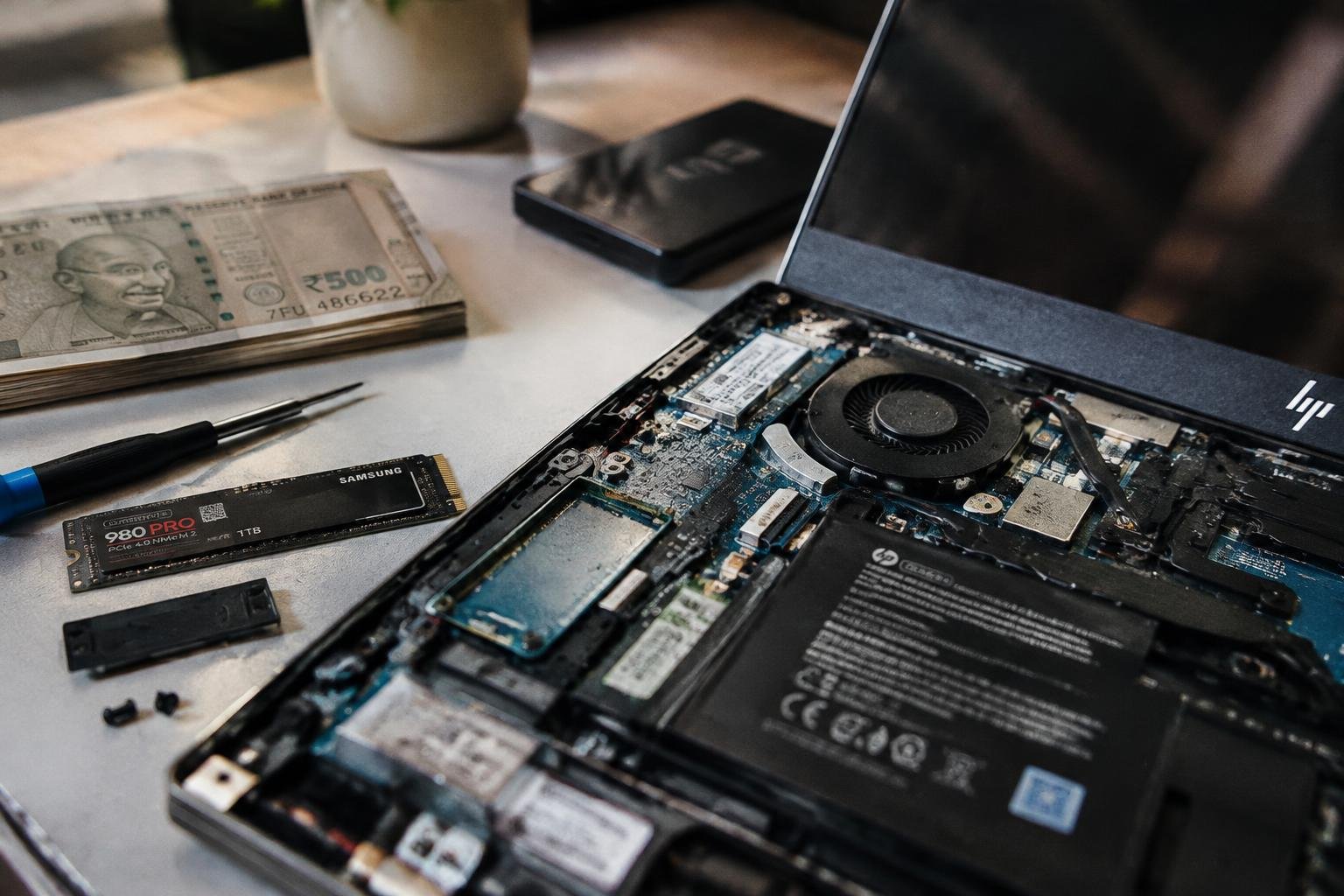
A slow laptop or a nearly full drive often points to a storage upgrade, but the cost depends on more than the drive itself. Your laptop’s compatibility, SSD capacity, storage type, and technician’s labour charge all affect the final bill in India. A SATA SSD and an M.2 NVMe SSD, for instance, use different interfaces and are not interchangeable in every laptop.
Key Takeaways:
- A laptop storage upgrade in India typically costs less with a SATA SSD than with a higher-speed NVMe SSD; the drive’s capacity, interface, and brand determine much of the parts bill.
- Budget for more than the storage device. A technician’s labour, data cloning, Windows reinstallation, and any required adapter or enclosure can add to the final service cost.
- Before buying an M.2 SSD, confirm that the laptop has an M.2 slot and supports the drive’s interface and physical size; some models accept only SATA or only NVMe.
- Replacing a hard drive with an SSD usually improves boot times and application loading, while adding a second drive depends on an available bay, connector, and mounting hardware.
- Check whether the laptop’s existing drive contains files or a recovery partition you need. Cloning transfers data to the new drive, while a clean operating-system installation requires a separate backup and setup.
Types of Laptop Storage and Upgrade Costs in India
Indian retail prices vary by interface, capacity, brand, and whether the drive is sold with installation. HDDs generally cost less per gigabyte, while SSDs command higher prices for faster data access and shorter boot times. Your laptop’s supported connection also affects which listed drive is relevant, so prices below describe common retail ranges for the drive alone, not a full service charge.
HDD, SATA SSD, and NVMe SSD options
For a laptop with a 2.5-inch bay, a mechanical HDD is typically the lowest-cost option, while a 2.5-inch SATA SSD costs more and uses the same general connection. M.2 NVMe SSDs usually sit at a higher price point than SATA models of comparable capacity, though brand and performance tier affect the gap. Retail listings in India commonly show all three types, with NVMe drives using the PCIe interface.
Typical drive prices by capacity
Across Indian online and computer-store listings, a 1TB laptop HDD often costs roughly ₹3,000 to ₹5,000, while a 500GB SATA SSD is commonly around ₹2,000 to ₹4,000. A 1TB SATA SSD typically falls near ₹4,000 to ₹7,000, and a 1TB NVMe SSD often ranges from ₹4,500 to ₹9,000. These indicative prices exclude cloning, fitting, and other service charges.
| Drive type | Typical capacity | Indicative price in India |
|---|---|---|
| 2.5-inch HDD | 1TB | ₹3,000-₹5,000 |
| 2.5-inch SATA SSD | 500GB | ₹2,000-₹4,000 |
| 2.5-inch SATA SSD | 1TB | ₹4,000-₹7,000 |
| M.2 NVMe SSD | 1TB | ₹4,500-₹9,000 |
Factors That Affect the Total Upgrade Cost
Your final bill reflects more than the price printed on the storage drive. The laptop’s supported interface, the capacity you choose, and any fees for fitting the hardware or handling your files each affect the total. A compatible drive at a higher capacity generally costs more, while service charges vary by provider and the work included. The cost breakdown below separates these factors, including warranty terms that can affect what you pay for the replacement part.
Laptop compatibility and storage capacity
Start with your laptop’s model number and service manual, because they identify supported drive formats, interfaces, and capacity limits. An M.2 slot does not by itself confirm NVMe support, and some models accept only SATA drives or have storage soldered to the motherboard. Once you confirm compatibility, capacity becomes the main price variable: a larger SSD generally costs more than a lower-capacity model in the same product line. A 2.5-inch SATA bay and an M.2 NVMe slot also require different drives.
Installation, data transfer, and warranty charges
Authorised service centres and independent repair shops set their own labour fees, which can depend on whether the laptop needs substantial disassembly. Data migration is often billed separately when a technician clones your existing drive, reinstalls the operating system, or transfers personal files. Ask whether the quoted amount includes GST, drive fitting, and post-installation testing. Warranty coverage also affects the bill: a longer manufacturer warranty or a service-centre replacement may cost more than a basic retail drive with limited coverage.
| Cost factor | What affects the bill | Specific detail to confirm |
|---|---|---|
| Compatibility | Drive interface, form factor, and capacity limits | Model-specific SATA or NVMe support |
| Capacity | Higher-capacity drives generally cost more | SSD capacity and product line |
| Service | Fitting, migration, and testing fees | Whether cloning or OS installation is included |
| Warranty | Coverage and replacement terms | Manufacturer or service-centre warranty |
Step-by-Step Guide to Upgrading Laptop Storage
Follow the drive from the laptop’s specifications through installation and testing, recording each result as you go. You will need the correct replacement drive, a precision screwdriver, and, for some models, a plastic opening tool. Keep screws grouped by location and consult the manufacturer’s service manual before removing the base cover, since their positions and cable connections differ between laptop models.
Check compatibility and back up your data
Start with your laptop’s service manual or manufacturer support page to identify the supported drive type, interface, physical size, and capacity limits. An M.2 slot, for example, does not by itself confirm whether the laptop accepts SATA, NVMe, or both. Check the installed drive’s details in your operating system, then back up personal files to an external drive or cloud storage. If you plan to clone the system, confirm the replacement drive has enough usable capacity for the data being transferred.
Install the drive and confirm it works
Shut down the laptop, disconnect its charger, and follow the service manual’s instructions for opening the base and disconnecting the battery. Remove the existing drive, fit the replacement into its connector, and secure it with the original retaining screw or bracket. After reassembly, start the laptop and confirm that the BIOS or UEFI and operating system detect the drive. Check its reported capacity, then initialize or format it if needed; for a cloned system drive, verify that the laptop boots from the new drive.
| Stage | What to verify | Useful tool or record |
|---|---|---|
| Compatibility | Interface, form factor, and capacity support | Service manual or manufacturer specifications |
| Backup | Files are accessible from a separate location | External drive or cloud backup |
| Installation | Drive is fully seated and secured | Precision screwdriver and service manual |
| Verification | Drive is detected and reports its capacity | BIOS or UEFI and operating system storage settings |
Tips for Saving Money on a Storage Upgrade
Small checks before you buy can prevent avoidable costs, such as paying for a drive your laptop cannot use or a service you do not need. Confirm the exact laptop model and supported storage type using its service manual, then note whether the drive is a 2.5-inch SATA model or an M.2 SSD. Keep your existing drive and packaging until the new storage is installed and tested.
Compare drive prices and installation quotes
Compare the same capacity, interface, and warranty across reputable Indian retailers, since a lower listing price can exclude GST, delivery, or a reliable return policy. Ask local repair shops for an itemised installation quote that separates labour from cloning or operating-system setup. Check the seller’s return window and the drive manufacturer’s warranty terms before ordering, then compare the complete payable amount rather than the advertised price alone.
Decide whether to install it yourself or use a technician
Choose a DIY installation only if your laptop’s service manual permits user access and you have the right screwdriver, an antistatic work surface, and time to back up your files. A technician is a practical choice when the laptop has a sealed case, delicate ribbon cables, or warranty restrictions. Ask whether the quoted labour includes drive detection and a basic boot test, and request your original drive back after the upgrade.
- Use the laptop’s service manual to confirm the correct screw locations.
- Back up important files to an external drive before opening the laptop.
- Keep screws grouped by location to avoid mixing different lengths.
- Ask for a written receipt that records the drive model and serial number.
Pros and Cons of Different Storage Upgrade Options
Each storage type brings a different balance of purchase cost, responsiveness, capacity, and installation constraints. An HDD offers generous space at a lower cost but uses moving parts; SATA SSDs improve everyday responsiveness without requiring an NVMe interface; NVMe SSDs deliver faster data transfer through PCIe. Your laptop’s drive bay, connector, and workload determine which trade-offs matter most, while the practical differences show up in boot times, file transfers, and physical fit.
Cost, speed, and capacity trade-offs
For a given budget, an HDD generally provides more capacity, but its spinning platters make file access and system startup slower than either SSD option. A SATA SSD has no moving parts and substantially reduces loading delays, though its interface limits transfer speed compared with NVMe. NVMe SSDs suit large project files and frequent data transfers, but higher performance often comes at a higher cost per unit of capacity than an HDD.
Compatibility, reliability, and future needs
Before choosing an SSD, verify whether your laptop accepts a 2.5-inch SATA drive, an M.2 SATA module, or an M.2 NVMe module; the same M.2 shape does not guarantee protocol compatibility. HDDs are more vulnerable to shocks because they contain moving parts, while SSDs tolerate routine movement better. Check the laptop’s service manual for supported drive lengths and capacity limits, and note whether installing a replacement drive affects the warranty.
- Some laptops have soldered storage that cannot be replaced.
- A 2.5-inch drive may need a mounting bracket or ribbon cable.
- M.2 modules use different lengths, commonly identified by numbers such as 2280.
- Cloning software can transfer your existing operating system to a replacement drive.
How to Choose the Right Upgrade for Your Laptop
Start with your laptop’s service manual or manufacturer specifications to identify the supported drive interface, physical size, and maximum capacity. A 2.5-inch SATA bay and an M.2 slot are not interchangeable, and M.2 drives can use SATA or NVMe protocols. Match the replacement to the installed connection, then choose capacity around your files and applications. Keep the total within budget by accounting for the drive, installation labour, and any adapter or cloning tool required.
Recommendations by budget and usage
For everyday browsing, office documents, and a limited budget, a SATA SSD is a practical replacement for a mechanical hard drive, provided your laptop has a compatible bay. If your laptop supports NVMe, choose that type for large project files or frequent application launches, with capacity sized to your working library. Video editors and users with sizeable game collections should prioritise usable space over peak speed. Leave room in your budget for a USB enclosure if you need to transfer data from the old drive.
Questions to ask before buying
Before placing an order, ask whether your laptop accepts a 2.5-inch drive or an M.2 module, and confirm the supported protocol, keying, and maximum thickness. Check whether the manufacturer permits user upgrades without affecting warranty coverage, and whether a second storage slot is available. Ask the seller about the return policy for compatibility issues and whether the drive includes a heatsink, which may not fit under a laptop’s cover. Confirm that your operating system licence and recovery files are accessible before replacing the original drive.
- Is the M.2 slot PCIe 3.0, PCIe 4.0, or SATA-only?
- Does the laptop require a single-sided M.2 module?
- Are the storage screws and mounting bracket already present?
- Will the existing drive remain available for rollback?
Conclusion
Your laptop storage upgrade cost in India depends on the drive type, capacity, interface, and installation needs. A compatible SATA SSD or NVMe SSD generally offers faster performance than an HDD, while a professional installation adds labour to the bill. Before purchasing, verify your laptop’s supported form factor and interface, and include any required data migration in your budget. Matching the drive to your device and workload gives you a clear estimate, whether you need a basic capacity increase or a larger SSD for applications and files.
FAQ
How much does a laptop storage upgrade cost in India?
A laptop storage upgrade in India can cost from a few thousand rupees to considerably more, depending on the drive type, capacity, and installation charges. An HDD is usually the lower-cost option, while SSD prices vary by capacity and whether the laptop supports SATA or NVMe.
How long does it take to upgrade a laptop SSD?
A straightforward SSD installation usually takes about 30 minutes to a few hours, including setup and data transfer. The time depends on laptop access, whether the operating system must be reinstalled, and how much data needs to be copied.
Can upgrading laptop storage damage my laptop or erase my files?
A storage upgrade can cause damage or data loss if the drive is handled incorrectly or files are not backed up. Check compatibility, disconnect power before opening the laptop, and keep a separate backup; professional installation may be safer for sealed or difficult-to-open models.
What mistakes should I avoid when buying a laptop SSD?
The most common mistake is buying a drive that does not match the laptop’s supported form factor or interface. Check the manufacturer’s specifications before purchasing, and confirm whether the laptop has an available slot or requires replacing its existing drive.
Can I add external storage instead of upgrading my laptop’s internal drive?
Yes, an external hard drive or SSD can add storage without opening the laptop. It is a practical alternative for backups and large files, but it remains separate from the computer and may be less convenient for applications or files you need constantly.
Is a laptop storage upgrade worth the cost?
A storage upgrade is often worthwhile if a full drive is limiting your work or a compatible SSD can improve responsiveness. It may be less appealing for an older laptop with other failing components, so compare the upgrade cost with the laptop’s condition and replacement needs.
Should I install a new laptop drive myself or pay a technician?
Self-installation can save labor costs if the laptop is easy to open and you are comfortable handling computer parts. A technician is a better choice when access is difficult, compatibility is unclear, or you need help transferring data and reinstalling the operating system.
 Previous Post