



Laptop Not Detecting External Hard Drive Fix
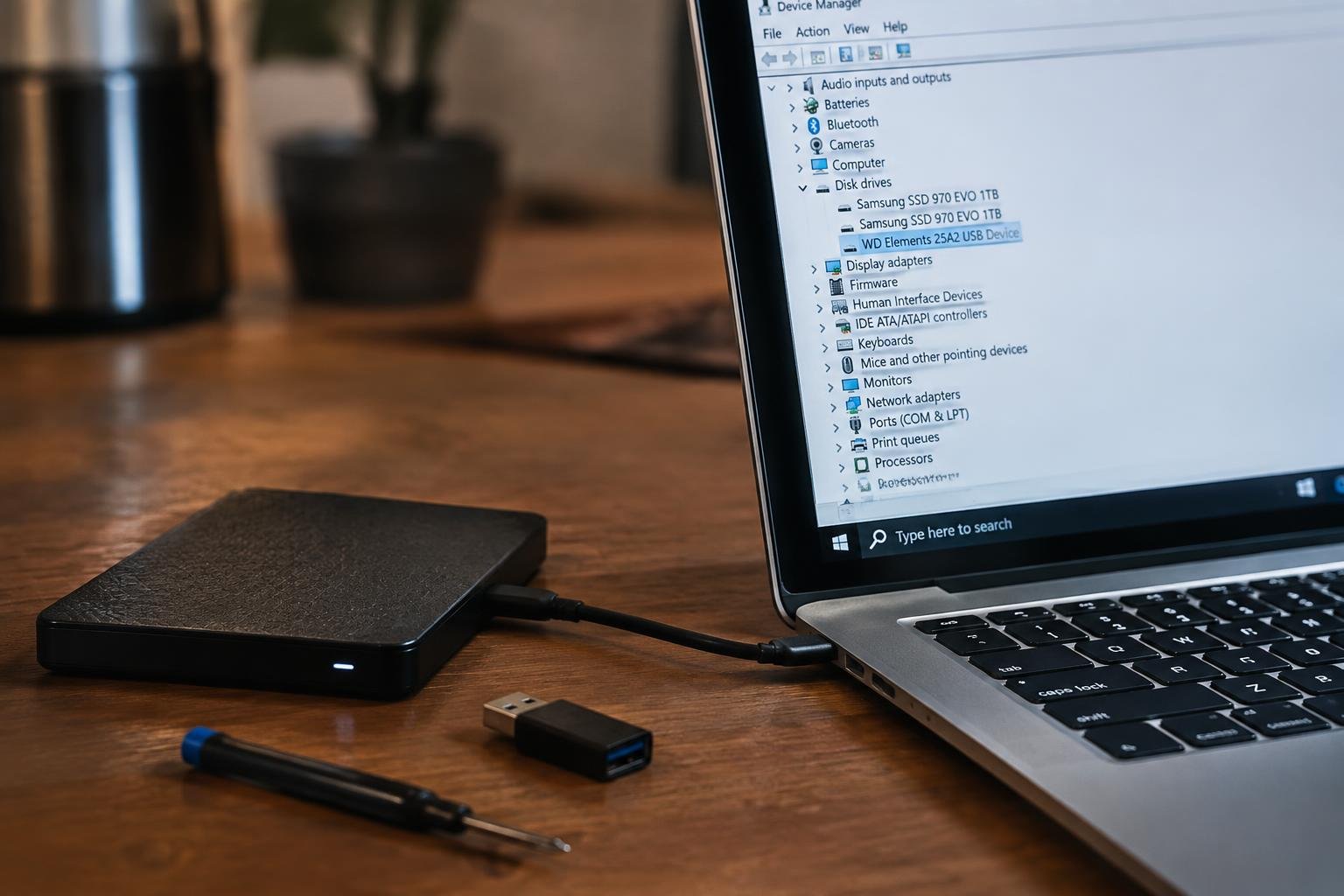
You plug in your external hard drive and expect your laptop to recognize it instantly, but nothing happens. No notification, no drive letter, no access to your files. This issue is more common than you think and often has simple explanations. You can resolve it quickly with the right steps, whether the cause is physical, software-related, or configuration-based.
Key Takeaways:
- Check the physical connection first-try a different USB cable or port, as a faulty wire or damaged port often causes the external hard drive not to be detected.
- Test the drive on another computer to determine if the issue lies with the laptop or the drive itself.
- Update or reinstall USB controllers and disk drivers through Device Manager to resolve compatibility or recognition problems.
- Assign a drive letter through Disk Management if the hard drive is present but not showing up in File Explorer.
- Power surges or insufficient power delivery can prevent detection-use a powered USB hub or external power source for larger drives.
The Wire and the Port
Physical connections often stand between your laptop and an undetected external hard drive. A damaged cable or faulty port can silently break communication, even when everything appears to be plugged in correctly. You’ve likely already checked that the drive is powered on and properly connected, but the issue may lie in the quality or integrity of the cable itself or the condition of the USB port on your laptop. These components endure wear over time, and microscopic damage can prevent a stable link without obvious visual signs.
The Cable Swap
A different cable can instantly reveal whether the original one was the problem. Use a known working USB cable, preferably one that’s been used successfully with other devices, to rule out signal loss or internal breaks. Connect it securely from the external hard drive directly to your laptop, avoiding hubs or extensions. If the drive appears after the swap, the initial cable was likely degraded or defective. This simple change often restores functionality without further troubleshooting.
The Port Test
Your laptop’s USB port might be the source of the detection failure. Plug the external hard drive into another USB port on the same machine to see if it responds. If the drive works in one port but not another, the non-responsive port could have internal damage or a power delivery issue. Try connecting a different peripheral to the suspect port to confirm its functionality. Consistent failure across multiple devices indicates the port itself needs inspection or repair.
The Hidden Map
Behind every accessible drive lies a system of identifiers that Windows uses to organize storage, often invisible until something goes wrong. When your laptop fails to detect an external hard drive, the issue might not be hardware failure but rather a missing assignment in this internal map. Your operating system relies on drive letters and proper disk initialization to recognize and communicate with external devices. A drive without a letter or proper initialization remains present but inaccessible, like a house without an address.
Assigning a Letter
You may find your external hard drive already initialized but still undetected in File Explorer because it lacks a drive letter. Open Disk Management and locate the drive in the list of volumes; if it shows without a letter, right-click the partition and choose “Change Drive Letter and Paths.” Select “Add” and pick an available letter from the dropdown. Once assigned, Windows will recognize the drive, and it should appear in File Explorer, allowing immediate access to your data without further intervention.
Initializing the Disk
Your external hard drive might be completely unrecognized because it hasn’t been initialized, a necessary first step for any new or reformatted disk. In Disk Management, check the lower panel for your drive’s name or size listed as “Unknown” or “Not Initialized.” Right-click the drive and select “Initialize Disk,” then choose between MBR or GPT partition style. After initialization, you can create partitions and assign a drive letter, making the storage fully accessible to your system.
The Software Bridge
Your laptop relies on software signals to recognize external hardware, and outdated or corrupted drivers often disrupt this communication. When your external hard drive isn’t detected, the issue may stem from a malfunctioning USB or disk controller driver. These small programs act as interpreters between your operating system and hardware components. Updating them ensures compatibility, especially after system upgrades or when using newer drives with older machines.
Updating the Controller
Your system’s USB or disk controller manages data flow between the laptop and connected devices. If it runs on outdated firmware or drivers, it may fail to initialize the external drive properly. Open your Device Manager, locate the Universal Serial Bus controllers or Disk drives section, and check for any warning icons. Right-click the relevant entry and select “Update driver.” Choose the option to search automatically for updated driver software. Installing the latest version often restores proper detection and functionality without further intervention.
Reinstalling the Device
When updating doesn’t resolve the issue, the driver files themselves might be corrupted. Removing and reinstalling the external hard drive in Device Manager forces Windows to rebuild the connection from scratch. Locate your drive under Disk drives or under Other devices if unrecognized, right-click it, and select “Uninstall device.” After restarting your laptop, plug the drive back in. The system will detect it as new hardware and install fresh drivers, which frequently corrects silent software faults blocking recognition.
The Clean Wipe
When your laptop fails to detect an external hard drive, a complete wipe and reconfiguration can resolve underlying partition or file system errors. This process removes all data and structures, giving you a blank slate to rebuild the drive’s logical layout. Only proceed if you’ve recovered important files, as this step erases everything. Internal mechanical issues won’t be fixed here-those require professional repair. Focus on restoring the drive’s software foundation so your system can recognize and mount it correctly.
Creating a New Volume
You start by opening Disk Management and locating your undetected drive, now visible in raw format. Right-click the unallocated space and choose “New Simple Volume” to launch the wizard. Follow the prompts to assign a drive letter and set the volume size-usually the full capacity. The system will prepare the disk for use, mapping out space where data can later be stored. This structured layout is necessary for Windows to acknowledge and interact with the device.
Selecting the File System
Your drive needs a file system to organize and manage data effectively. In the formatting step, choose NTFS for full compatibility with Windows, especially if the drive will store files larger than 4GB. Use exFAT if you plan to share the drive between Windows and macOS systems regularly. FAT32 works for smaller drives or legacy devices but lacks support for modern file sizes. Formatting applies the file system and finalizes the drive’s readiness for use.
Final Words
You now have a clear path to resolve the issue when your laptop fails to detect an external hard drive. By systematically checking connections, reviewing device settings, and ensuring your system is up to date, most detection problems can be resolved without outside help. You’ve seen how simple steps like trying a different cable or port, inspecting Device Manager, or initializing a new drive can make a significant difference. If the drive still isn’t recognized, a clean wipe using Disk Management may be necessary. You’re equipped with the knowledge to handle this confidently.
FAQ
how much does it cost to fix a laptop that doesn’t detect an external hard drive?
Most fixes using built-in tools cost nothing and can be done at home. If hardware repair or replacement is needed, costs typically range from $50 to $200 depending on the service provider and location.
how long does it take to get an external hard drive working on a laptop again?
Basic troubleshooting steps like reconnecting cables or assigning drive letters usually take under 15 minutes. More complex issues involving driver updates or disk formatting may require up to an hour.
can I lose data when fixing a laptop not detecting external hard drive?
Yes, reformatting or initializing the drive will erase all data. Always attempt data recovery first if the drive contains important files, even if it is not showing up in File Explorer.
what should i do if none of the software fixes work?
Try the drive on another computer to confirm whether the issue is with the laptop or the drive. If the drive still isn’t detected elsewhere, it may need professional data recovery services.
is it worth fixing a laptop that doesn’t see my external hard drive?
Yes, most connection issues stem from simple software or cable problems that are easy to fix. If the drive itself is damaged, consider the value of the data when deciding whether to proceed.
 Previous Post