



Laptop Battery Backup Suddenly Reduced Fix
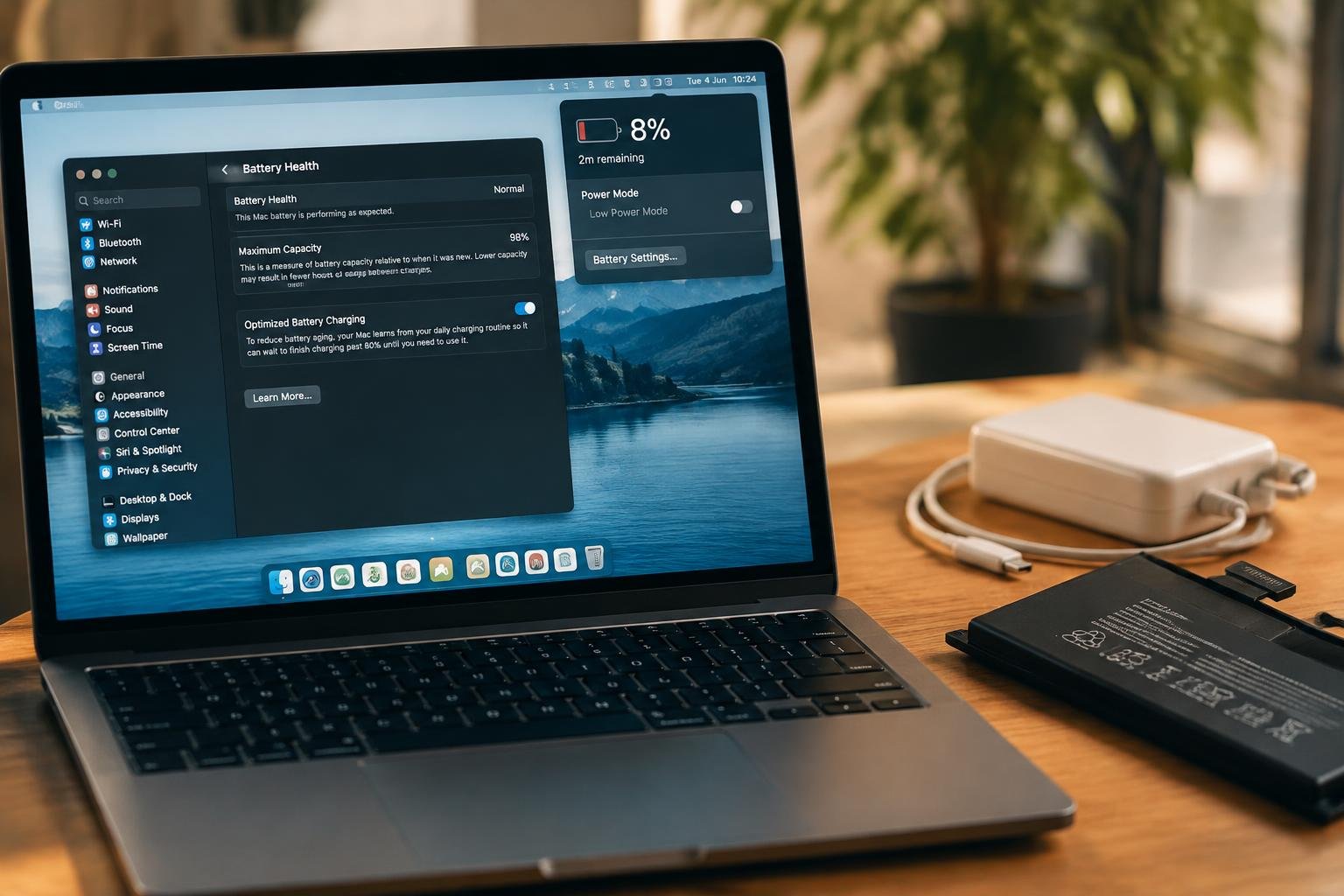
A laptop that once lasted through a work session but now shuts down after a short stretch often has a specific cause, from reduced battery capacity to a background process drawing excess power. Your operating system’s battery report can reveal whether the pack’s full-charge capacity has fallen below its original design capacity.
Key Takeaways:
- Check battery condition in Windows with
powercfg /batteryreportor in macOS under System Settings, Battery, Battery Health. A large gap between design capacity and full charge capacity points to battery wear. - Rule out power settings and charging problems by selecting a balanced or lower-power mode, disconnecting unnecessary peripherals, and testing with the laptop’s original charger and cable.
- Use Task Manager on Windows or Activity Monitor on macOS to identify apps and processes with sustained high CPU or GPU use, then close or update the specific power-hungry software.
- Excess heat can shorten runtime and trigger performance changes. Clear blocked vents, place the laptop on a hard surface, and install firmware updates from the manufacturer’s support site.
- If runtime remains poor after software and charging checks, battery wear or a hardware fault may be responsible. Replace a swollen battery promptly through the manufacturer or a qualified repair service.
Check Battery Health and Capacity
Battery wear reduces the energy your laptop can store, so runtime can shrink even when your usage has not changed. A lithium-ion battery loses capacity as it ages and accumulates charge cycles; heavy use and high operating temperatures can accelerate that decline. Health data distinguishes this gradual loss from a sudden change in reported runtime. Look for a documented drop in available capacity or a system warning that the battery needs service.
Review the operating system’s battery health report
Start with the diagnostic built into your operating system, which reports battery condition and charge history. In Windows, run powercfg /batteryreport in Command Prompt, then open the generated HTML file and review its battery capacity history. On macOS, open System Settings, select Battery, then Battery Health to see the reported condition. A service recommendation or a marked decline across successive entries points to wear rather than a temporary runtime fluctuation.
Compare full-charge capacity with the battery’s original design capacity
Find the design capacity and current full-charge capacity in the Windows battery report, or use a manufacturer diagnostic that exposes both values. Full-charge capacity reflects the energy the battery can presently store, while design capacity is its rated amount when new. A widening gap indicates capacity loss, and the percentage of original capacity remaining is calculated by dividing full-charge capacity by design capacity. For instance, a battery rated at 50 Wh that now holds 35 Wh retains 70 percent of its original capacity.
- Record the report date alongside each capacity reading.
- Use the laptop maker’s diagnostic when the operating system omits capacity fields.
- Check whether the battery is listed as replaceable or serviceable in the product manual.
Rule Out Charger and Power Settings
Charging equipment and operating-system profiles affect how quickly your laptop replenishes its battery and how much power it draws while unplugged. A low-wattage adapter, damaged cable, or performance-focused profile can make runtime seem shorter even when the laptop is working as configured. Start by matching the power adapter to the manufacturer’s specifications, then review the settings that govern energy use and charging behavior. The connector, adapter label, and selected Windows or macOS power mode provide useful clues.
| Item | What to verify | Typical sign of a mismatch |
|---|---|---|
| Power adapter | Wattage and supported charging standard | Slow charging or power warnings |
| USB-C cable | Power rating and secure fit | Charging starts and stops |
| Power profile | Energy-saving or performance mode | Higher power use during routine work |
| Charging limit | Manufacturer utility or firmware setting | Charging pauses below full capacity |
Confirm the charger and cable meet the laptop’s requirements
Start with the adapter label and your laptop’s specifications, which state the required wattage and supported charging method. A smaller USB-C charger can power the device while it is idle but fall short under load, leaving the battery to supply the difference. Inspect the cable for fraying, loose connectors, or a rating below the adapter’s output. If you use a dock, connect the original manufacturer-approved adapter directly to the laptop and note whether the charging indicator stays steady.
Check battery saver, power mode, and charging limits
Open Windows Settings under System, then Power & battery, or review Battery settings on macOS. Select a balanced or energy-saving mode for routine tasks, since a performance profile can keep the processor running at higher power. Battery Saver on Windows and Low Power Mode on macOS reduce selected background activity and performance. Also inspect the laptop maker’s control utility for a charge threshold, such as a setting that stops charging before 100 percent to limit time spent at full charge.
Find Apps and Processes Draining Power
Software activity can shorten runtime even when you are doing little on the laptop. A stalled sync client, video call utility, or browser tab running scripts can keep the processor active and prevent efficient idle operation. Use your operating system’s built-in power tools to identify processes with sustained energy use, then relate the readings to what you were doing. Look for repeated spikes or unexpectedly high use while the laptop is idle.
Inspect per-app battery usage
Open Windows Settings and select System, then Power & battery, to review Battery usage by app; on macOS, use Activity Monitor’s Energy tab. Sort by energy impact or usage over the available period, and note apps that stay near the top when you are not actively using them. Close the identified app, pause its sync, or update it, then observe whether its energy reading falls during the same kind of work session.
Reduce startup apps, background tasks, and unnecessary screen brightness
Disable nonessential launch-at-login entries in Windows Task Manager’s Startup apps or macOS System Settings’ Login Items, especially auto-updaters and chat clients you rarely use. Pause cloud uploads, indexing, or scheduled scans when they are actively consuming resources during mobile work. Lower the display using the brightness keys, since a bright panel draws power continuously. Keep messaging, backup, and sync tools running only when their background activity serves a current task.
- Close duplicate browser windows and unused tabs.
- Quit game launchers after starting a game.
- Turn off animated desktop backgrounds.
- Pause automatic downloads on battery power.
Check for Heat, Firmware, and Hardware Problems
Excess heat, outdated firmware, and failing power components can shorten runtime even when battery capacity appears normal. Use your laptop’s built-in diagnostics and manufacturer support tools to distinguish temperature-related throttling from a charging or battery fault. Record the model number and any diagnostic error codes before changing firmware settings; those details help identify the correct update and prevent installing a package intended for a different laptop revision.
Check vents, fans, and operating temperatures
Blocked vents and a struggling fan can keep the processor hot, increasing power use and sometimes triggering protective performance limits. Place the laptop on a hard, flat surface, then inspect the intake and exhaust grilles for dust or fabric obstruction. Listen for irregular fan noise and use the manufacturer’s temperature utility or BIOS diagnostics to review sensor readings under ordinary use. Persistent high temperatures at idle, or a fan that never spins, point to a cooling-system fault.
Update firmware and inspect for battery or charging faults
Use the laptop maker’s support page to find BIOS or UEFI updates matched to your exact model and hardware revision. Keep the adapter connected and follow the vendor’s installation instructions, since an interrupted firmware update can prevent startup. Then run the built-in battery diagnostic and inspect the charging port and adapter connector for looseness, discoloration, or heat damage. A battery warning or charging error code provides a concrete reason to contact the manufacturer or a qualified repair technician.
| Finding | Likely area | Next diagnostic step |
|---|---|---|
| High temperature at idle | Cooling system | Inspect vents and fan operation |
| Fan absent or noisy | Fan or internal connection | Run manufacturer hardware diagnostics |
| Battery diagnostic warning | Battery pack | Record the reported error code |
| Loose or heat-marked connector | Charging port or adapter | Stop using damaged hardware and arrange service |
Apply Safe Fixes and Retest Runtime
After identifying a likely drain, change one setting or software condition at a time, then observe the effect before making another adjustment. This isolates whether a result comes from reduced screen brightness, a revised sleep timeout, or a background app no longer running. Keep a brief log of the change, battery percentage, and elapsed time; a record such as “brightness reduced, 80% to 60% over two hours” makes the outcome easier to interpret.
Restart, update, and recalibrate only when recommended by the manufacturer
Restart the laptop after installing a pending operating-system or driver update, since some power-management changes do not take effect until startup. Use Windows Update, macOS Software Update, or the laptop maker’s support utility for approved packages, and avoid third-party driver tools. Battery recalibration is not routine maintenance: follow the manufacturer’s exact procedure only when its support guidance recommends it, including any specified charge and discharge steps.
Test runtime under consistent conditions
Run a repeatable workload on battery, such as playing the same local video at a fixed brightness with Wi-Fi enabled and the same power mode selected. Start each trial at a similar charge level, close unrelated applications, and note the time until the laptop reaches the same low-battery threshold. Room temperature and connected USB devices also affect consumption, so keep them consistent; record the test duration and battery percentage at set intervals.
- Disconnect external monitors.
- Keep keyboard backlighting at one setting.
- Use the same browser tabs in each trial.
Decide Whether to Replace the Battery
Replacement makes sense when the battery no longer provides enough runtime for your normal workload, its reported capacity has declined substantially, or the laptop displays a service warning. Before ordering a part, confirm that the battery is user-replaceable and identify the exact model number printed on the laptop or listed in its support documentation. A swollen battery, damaged casing, or unusual odor calls for immediate service rather than continued use, since pressure can damage the trackpad or palm rest.
Check warranty status and battery safety warnings
Check your laptop’s warranty page using its serial number, then review the terms for battery coverage, which may differ from coverage for the rest of the computer. Keep the purchase record and note any diagnostic message or service code shown by the manufacturer’s utility. Stop using and charging the laptop if the case bulges, the trackpad lifts, or you notice heat, smoke, or a chemical smell; do not press, puncture, or remove a swollen pack yourself.
Choose manufacturer-authorized replacement or service
Use the manufacturer’s parts catalog or an authorized service center to match the battery by laptop model and part number, since similar-looking packs can have different connectors or firmware requirements. Ask the service provider whether the replacement is genuine, whether labor is covered, and how the removed lithium-ion battery will be recycled. For a sealed laptop or a battery bonded inside the chassis, choose professional installation rather than prying near the cells with a metal tool.
| Situation | Recommended action | Specific detail |
|---|---|---|
| Warranty may still apply | Contact manufacturer support | Provide the serial number and diagnostic message |
| Battery is swollen or damaged | Stop using and charging the laptop | Do not press or puncture the pack |
| Battery needs replacement | Use an authorized part or service center | Match the part number to the laptop model |
To wrap up
Restoring laptop battery runtime starts with identifying whether the cause is battery wear, power settings, a demanding process, excess heat, or a charging fault. Use your operating system’s battery report and task monitor to pinpoint the issue, then apply the relevant fix and retest runtime under similar conditions. If the battery’s full-charge capacity remains substantially below its design capacity or the laptop shuts down unexpectedly, arrange a compatible replacement through the manufacturer or a qualified repair technician.
FAQ
Why has my laptop battery backup suddenly reduced?
A sudden drop in laptop battery backup can result from increased power use, battery wear, overheating, or a charging or firmware problem. Compare recent battery usage and battery health reports, since the right fix depends on whether the change is caused by software, hardware, or lost battery capacity.
How much does it cost to replace a laptop battery?
The cost depends on the laptop model, battery availability, and whether service is included. Check the manufacturer or an authorized repair provider for a quote, especially for laptops with batteries that are difficult to replace or require professional service.
How long does it take to find out what is draining my laptop battery?
A basic check of battery usage, power settings, and battery health can take a few minutes, while diagnosing a hardware or firmware fault may take longer. Runtime testing is more reliable when you use the laptop under consistent conditions and allow enough time to observe battery use.
Can a laptop battery lose capacity suddenly?
Battery capacity usually declines with use, but a reported sudden drop can also reflect a change in power consumption or an inaccurate charge estimate. If the battery report shows a sharp capacity change, or the laptop displays a safety warning, contact the manufacturer or an authorized service provider.
What mistakes make laptop battery life worse?
Leaving demanding apps running, using unnecessary background tasks, and keeping screen brightness higher than needed can increase battery drain. Avoid installing unverified battery utilities or attempting repairs on a built-in battery, because these steps may create software or safety problems.
Can I improve battery life without replacing the battery?
Reducing background activity, adjusting power settings, lowering screen brightness, and addressing overheating can improve runtime if the battery still has usable capacity. These changes will not restore capacity lost through battery wear, so check the battery health report before deciding whether replacement is worthwhile.
When should I replace a laptop battery instead of troubleshooting it?
Consider replacement when a battery health report shows substantial capacity loss, runtime remains poor after basic checks, or the laptop reports a battery fault. Stop using a battery that is swollen or shows other signs of damage, and arrange service through the manufacturer or an authorized provider.
 Previous Post