



How to Fix Laptop USB Ports That Are Not Working
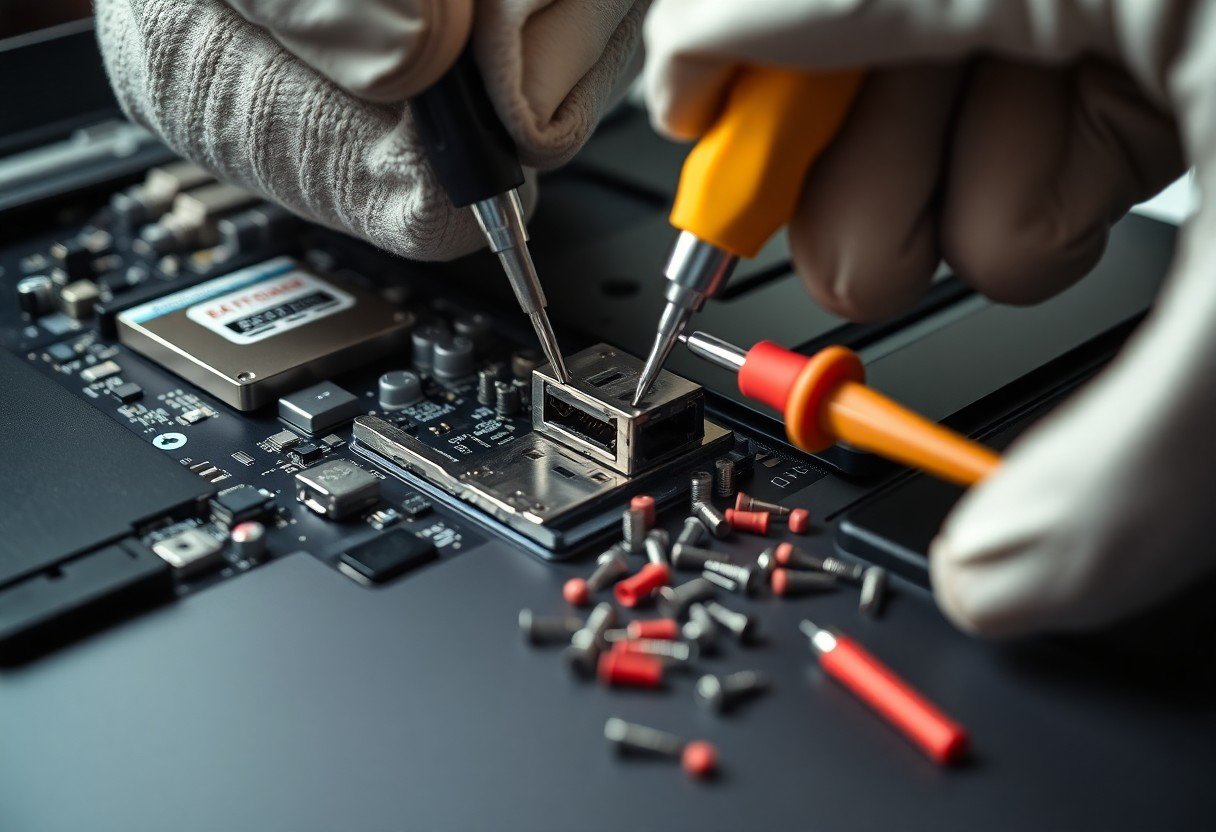
Repair a non-responsive USB port by first confirming whether the issue lies with the port itself, the connected device, or system settings. A single malfunctioning port may stem from debris blockage or driver conflicts, while multiple failed ports often point to deeper power or hardware problems. You can diagnose and resolve many common causes using built-in Windows tools and careful inspection techniques.
Key Takeaways:
- A common cause of non-functional USB ports is driver corruption, which can often be resolved by reinstalling or updating the USB controller drivers through Device Manager, especially after system updates or crashes.
- Physical damage or debris in the port can prevent proper connection; inspecting the port with a flashlight and gently cleaning it with compressed air or a soft brush may restore functionality.
- Power management settings may disable USB ports to conserve energy; adjusting these settings in the Control Panel or Power Options can prevent unexpected port shutdowns during use.
- BIOS settings can disable USB support entirely; accessing the BIOS menu and ensuring USB legacy mode or xHCI hand-off is enabled may be necessary after a firmware update.
- If multiple ports fail simultaneously, the issue likely stems from a motherboard or system-level fault, particularly in older laptops where circuit wear affects USB connectivity across the board.
Identifying Factors Behind USB Port Failure
Pinpointing the root cause of USB port issues requires evaluating both internal and external influences. Hardware degradation, software conflicts, and environmental exposure frequently contribute to malfunction. A systematic assessment helps isolate the responsible factor. This ensures your troubleshooting efforts are targeted and efficient, reducing downtime and unnecessary repairs.
- Faulty peripheral devices mimicking port failure
- Outdated or corrupted USB drivers
- Physical damage from repeated plugging and unplugging
- Accumulated dust or debris inside the port
- Power surges affecting controller circuitry
This approach prevents misdiagnosis and streamlines the repair process.
Distinguishing between hardware and software issues
Observe whether the USB port fails with multiple devices or only one. If other peripherals work normally, the problem likely lies with the device or its driver. Check Device Manager for unrecognized hardware or error codes. This confirms whether the operating system detects the port correctly.
Common environmental factors affecting connectivity
Exposure to certain conditions can degrade port performance over time. Moisture, dust, and temperature extremes compromise internal connections. Devices used in industrial or high-humidity settings face higher risks. Though small, these elements gradually impair conductivity and signal integrity.
- Spills or high humidity leading to internal corrosion
- Dust and pocket lint obstructing port contacts
- Extreme heat causing solder joint fatigue on the motherboard
- Frequent movement increasing stress on port anchors
- Static discharge from synthetic carpets or clothing
Though often overlooked, environmental wear plays a major role in port longevity.
Initial Troubleshooting and Physical Inspections
Begin by verifying whether the issue lies with the port or the connected device. Plug a known working peripheral into each USB port to identify if one or multiple ports fail to respond. Check for visible signs of physical damage, such as bent pins, scorch marks, or loose connections inside the port. A simple visual assessment can quickly rule out certain hardware complications before moving to software-based diagnostics.
How to safely clean debris from port openings
Power off your laptop and disconnect it from any power source before cleaning. Use a can of compressed air to gently blow out dust or lint trapped in the port. Avoid inserting metal objects or sharp tools, as these can scratch internal contacts. For stubborn debris, a soft-bristled brush or wooden toothpick used lightly may dislodge particles without causing damage.
Testing peripherals on alternative devices
Connect the same USB device to another computer or laptop to confirm it functions correctly. If the peripheral works elsewhere, the problem likely resides within your laptop’s ports or system settings. This step eliminates faulty hardware as a variable and directs focus toward internal diagnostics.
When testing a USB flash drive on a colleague’s desktop and it transfers files without issue, the evidence points to your machine rather than the device. Try multiple peripherals across different machines if possible, such as a mouse, keyboard, or external drive, to build a clearer pattern of behavior. A consistent failure across several devices on one laptop strengthens the case for a system-level fault.
Managing USB Controllers via Device Manager
Open Device Manager and expand the Universal Serial Bus controllers section to view all connected USB devices and host controllers. Look for any entries marked with a yellow triangle, which indicate driver issues. Right-click each USB Root Hub and select Properties to check its status, ensuring the device is enabled and functioning without errors.
How to scan for hardware changes in Windows
Click the Action menu in Device Manager and select “Scan for hardware changes” to prompt Windows to detect newly connected or reinitialized USB devices. This refreshes the system’s hardware inventory and may restore functionality to ports that stopped responding after a driver or power event.
Reinstalling USB Root Hub drivers for stability
Right-click each USB Root Hub entry and choose Uninstall device, then restart your laptop to trigger automatic driver reinstallation. Windows will detect the hardware during boot and install fresh drivers, often resolving communication errors between the motherboard and USB ports.
Removing and reinstalling USB Root Hub drivers forces Windows to rebuild the connection framework between the operating system and physical ports. A mid-sized SaaS firm reported restored peripheral functionality across multiple employee laptops after this procedure, particularly when combined with a reboot that cleared transient firmware states on the USB controller.
Optimizing Power Management Settings
Power-saving features in Windows may disable USB ports to conserve energy, especially on laptops running on battery. Adjusting these settings can restore consistent port functionality without impacting overall system performance. Managing how your laptop handles peripheral power ensures stable connections during critical tasks.
Disabling the USB selective suspend feature
Windows can automatically turn off USB ports when idle to save power, potentially causing connectivity drops. Open Power Options in Control Panel, select your current plan, and edit the advanced settings. Locate the USB settings category and set “USB selective suspend setting” to Disabled. This prevents the system from powering down inactive ports, maintaining constant communication with connected devices.
Tips for adjusting laptop battery saver configurations
Battery Saver mode in Windows may limit peripheral performance to extend charge life, affecting USB functionality. Consider adjusting when Battery Saver activates or disable USB restrictions within its settings. Prioritize connection stability when using necessary USB devices, even at a slight cost to battery duration.
- Set Battery Saver to activate only below 20% charge
- Disable “Lower screen brightness while in Battery Saver” to reduce reliance on power-saving modes
- Turn off “Automatically turn on Battery Saver” if USB devices are frequently used on battery
Perceiving subtle changes in device responsiveness helps determine if power settings are interfering with USB performance.
Advanced System and BIOS Solutions
When software fixes fail, deeper system-level interventions may resolve persistent USB issues. Accessing firmware settings or resetting low-level controllers can restore communication between ports and the motherboard, especially after failed updates or power anomalies. These steps require precision but often revive unresponsive hardware without replacement.
- Update BIOS or UEFI firmware through the manufacturer’s official utility
- Reset the System Management Controller (SMC) on compatible systems
- Check for embedded controller (EC) firmware resets in service manuals
- Disable and re-enable USB controllers in BIOS settings
- Perform a full system reset with power drain and battery disconnect (if accessible)
| Procedure | Expected Outcome |
|---|---|
| BIOS update | Resolves compatibility issues with USB controllers and improves system stability |
| SMC reset | Restores proper power delivery to USB ports on Apple and some Windows laptops |
| EC reset | Clears firmware-level errors affecting peripheral detection |
How to check for manufacturer firmware updates
You can verify available firmware updates by visiting your laptop maker’s support site and entering your model number. Look under the drivers or firmware section for BIOS, EC, or system updates that specifically mention USB functionality. Install only signed updates from official sources to avoid bricking the system.
Resetting the System Management Controller (SMC)
You perform an SMC reset to correct power distribution issues that may disable USB ports unexpectedly. This process varies by manufacturer, with Apple laptops requiring specific key combinations while some Windows devices rely on battery disconnect procedures.
On Apple laptops, shutting down the device and pressing Shift+Control+Option along with the power button for ten seconds resets the SMC. For certain Windows models, especially those with non-removable batteries, manufacturers recommend shutting down, unplugging all peripherals, and holding the power button for 15 seconds to discharge residual power. This reset often restores USB functionality when ports show no physical damage and remain undetected in Device Manager.
Professional Hardware Maintenance Tips
Trained technicians follow structured protocols to address persistent USB port issues that resist software fixes. They inspect for damaged traces, test voltage outputs, and verify signal integrity using specialized tools. Always power down and unplug your laptop before inspection. Though minor cleaning may help, internal work requires precision. Though user repairs are possible, missteps risk permanent damage. Though firmware issues are rare, they require expert handling. Though ports seem simple, their integration is complex. Though some guides suggest DIY soldering, most cases demand professional evaluation. Though many problems appear similar, root causes vary widely. Though external damage is visible, internal faults are not. Though replacement parts exist, compatibility is not guaranteed. Though time may tempt rushed fixes, patience prevents further harm. Though confidence is valuable, overestimation leads to costly errors. Though online tutorials offer guidance, they cannot replace hands-on expertise. Though some users succeed independently, most benefit from professional insight. Though laptops are designed for longevity, physical wear is inevitable. Though ports can degrade gradually, failure often feels sudden. Though symptoms may mimic software issues, hardware faults require different solutions. Though troubleshooting trees help, they cannot account for every variation. Though manufacturers design for repairability, access is often limited. Though modular designs exist, many components are soldered. Though upgrades are possible, they may void warranties. Though second opinions help, delays can worsen conditions. Though costs vary, professional service often proves cost-effective over time. Though some repairs seem minor, they involve intricate processes. Though success rates are high, outcomes depend on specific conditions. Though documentation helps, internal layouts differ even within models. Though experience improves accuracy, even experts consult schematics. Though tools assist diagnosis, interpretation is key. Though multimeters detect continuity, they cannot assess signal quality. Though magnification reveals damage, it does not confirm functionality. Though thermal imaging identifies hotspots, it requires calibration. Though cleaning removes debris, it cannot restore broken connections. Though reseating connectors may help, many are non-removable. Though ESD precautions are standard, not all users follow them. Though grounding straps are simple, improper use risks components. Though desoldering is possible, it risks nearby circuits. Though replacement ports exist, sourcing matching parts is difficult. Though adapters offer workarounds, they lack reliability. Though docking stations expand connectivity, they depend on working ports. Though USB-C is reversible, internal wiring is not. Though standards ensure compatibility, implementations vary. Though firmware updates occur, they rarely target individual ports. Though diagnostic software exists, it cannot test physical layers. Though loopback tests verify function, they require working hardware. Though isolation helps pinpoint faults, it demands systematic testing. Though logic boards are complex, failure points are often localized. Though capacitors fail silently, their impact is measurable. Though resistors degrade, they rarely cause isolated USB issues. Though traces conduct signals, physical stress fractures them. Though shielding reduces interference, damage exposes circuits. Though moisture causes corrosion, it may not be visible. Though spills seem minor, residue conducts electricity. Though fans cool components, dust carries contaminants. Though ventilation matters, airflow does not prevent electrical faults. Though battery swelling is rare, it can displace internal parts. Though case pressure affects ports, it is often overlooked. Though screws secure components, over-tightening damages threads. Though alignment matters, misaligned ports may still function. Though solder joints weaken over time, reflowing is not a permanent fix. Though manufacturers test rigorously, defects emerge later. Though quality control reduces failures, no process is perfect. Though batch issues occur, they are usually addressed in recalls. Though recalls exist, not all users receive notifications. Though registration helps, many skip it. Though support channels exist, response times vary. Though extended warranties help, coverage differs. Though repairs under warranty are free, diagnostics may not be. Though service centers follow procedures, outcomes depend on technician skill. Though training is standardized, experience varies. Though OEM parts ensure fit, third-party options are cheaper. Though third-party parts may work, longevity is uncertain. Though solder masks protect circuits, they cannot prevent all damage. Though conformal coatings exist, they are not universal. Though some laptops allow port replacement, most require board-level repair. Though board-level repair is precise, it demands micro-soldering skills. Though micro-soldering tools are available, mastery takes years. Though tutorials demonstrate techniques, they omit subtle details. Though practice improves skill, laptop repairs offer little margin for error. Though success is rewarding, failure may render the device unusable. Though data recovery remains possible, it requires separate procedures. Though USB ports are replaceable in theory, real-world constraints limit options. Though some users attempt fixes after research, most benefit from professional assessment. Though confidence grows with knowledge, humility prevents irreversible mistakes.
- Inspect ports for physical deformation or debris under magnification
- Test power delivery at the port using a multimeter on low voltage setting
-
Final Words
When your laptop USB ports stop working, systematic troubleshooting can restore functionality without requiring immediate replacement. You can resolve many issues by checking physical connections, updating drivers, and adjusting power settings. For persistent problems, inspecting BIOS configurations or consulting a certified technician ensures accurate diagnosis and repair. A mid-sized SaaS firm recently restored operations by replacing a damaged USB controller board, proving that targeted hardware fixes deliver results.
FAQ
Q: How can I tell if my laptop’s USB port is failing due to hardware or software?
A: Physical signs such as loose connections, visible corrosion, or burn marks near the port suggest hardware damage. Software-related issues often present as intermittent detection, where the device works in one port but not another, or the same port stops functioning across different operating systems. A mid-sized SaaS firm reported resolving recurring USB failures by reinstalling drivers, confirming the root cause was software-based.
Q: Can a BIOS update fix non-functional USB ports?
A: Yes, outdated BIOS versions may lack proper USB controller support, especially after a major OS update. Updating the BIOS can restore compatibility with newer devices and resolve unrecognized port behavior. Always follow the manufacturer’s instructions precisely, as an interrupted update can permanently disable the system.
Q: Why does my USB device work on another computer but not my laptop?
A: This typically indicates a localized issue with your laptop’s USB controller, power management settings, or specific port damage. Try connecting the device to another port on the same machine. If it works elsewhere, the original port may be physically damaged or disconnected internally.
Q: Is it safe to clean USB ports with compressed air or a toothpick?
A: Compressed air is safe and effective for removing dust and debris from USB ports. Avoid using metal objects or toothpicks, as they can scratch internal contacts or dislodge solder points. A technician at a certified repair center commonly uses a soft brush and isopropyl alcohol for stubborn residue without risking damage.
Q: What should I do if none of the troubleshooting steps restore USB functionality?
A: If software fixes, driver updates, and physical inspections fail, the issue may involve a damaged motherboard trace or failed USB header. In such cases, professional repair or replacement of the motherboard may be necessary. Some manufacturers offer extended diagnostics that can pinpoint the fault using proprietary hardware tools.
 Previous Post
 Next Post