



How to Fix a Laptop Screen That Goes Black After Booting
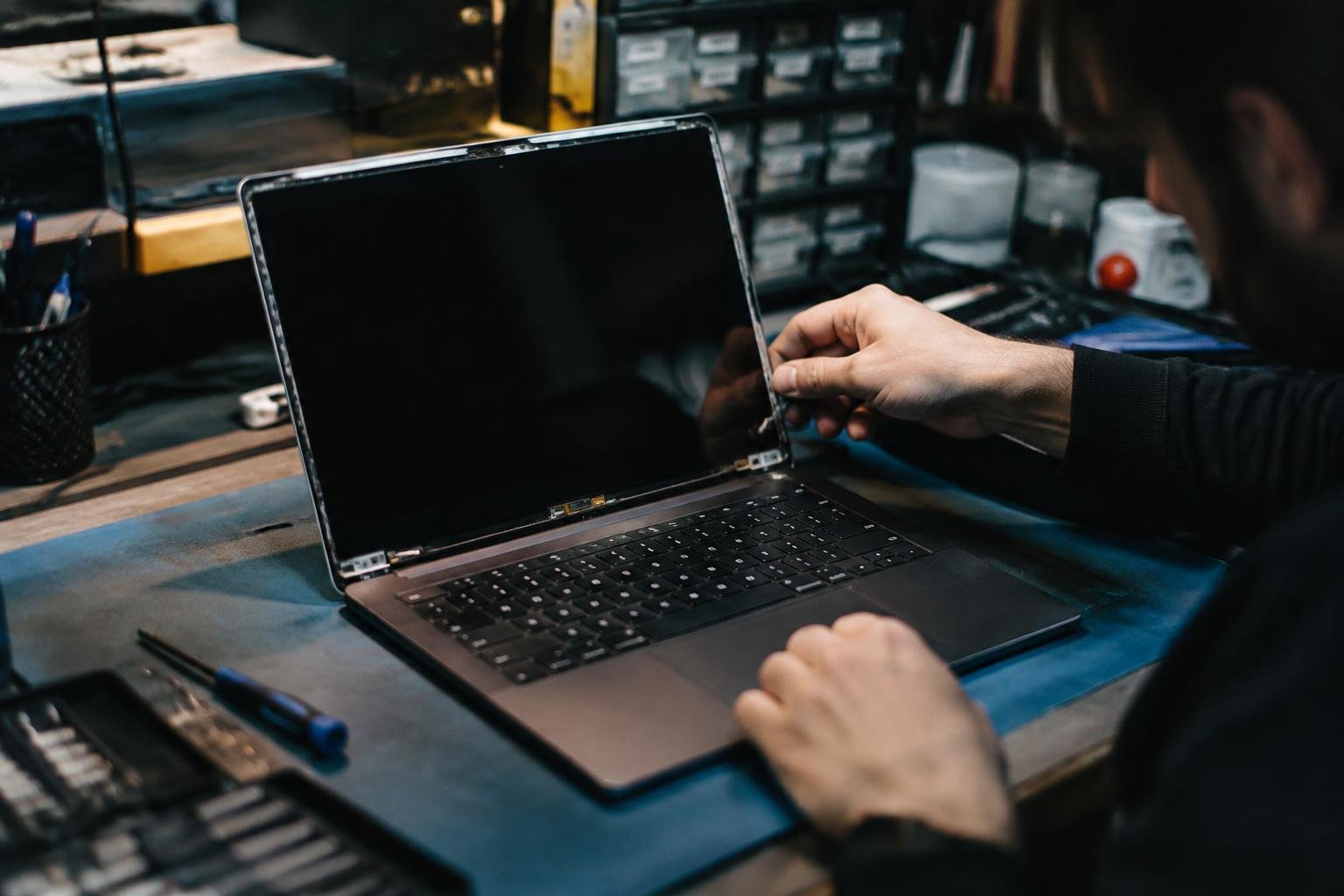
A laptop that displays its startup logo, then turns black as Windows loads, often points to a display setting, graphics driver, or hardware fault. Note whether the screen stays faintly lit, whether an external monitor shows an image, and whether you can still hear startup sounds. Those details help distinguish a failed display from a computer that stops booting.
Key Takeaways:
- Check the laptop’s brightness, power state, and display connection first. A loose charging cable or brightness set to its minimum can make a working screen appear black.
- Connect an external monitor to distinguish a display problem from a startup problem. If the external screen works, the built-in panel, backlight, or display cable may be at fault.
- Use Windows Safe Mode or macOS recovery options to troubleshoot graphics drivers and startup software. A black screen that appears after signing in often points to a driver or application issue.
- Look for hardware symptoms such as flickering, a faint image visible under a flashlight, or a screen that changes when the lid moves. These signs can indicate a failing backlight, panel, or hinge-area cable.
- Shut the laptop down and let it cool if it becomes unusually hot or its fans run loudly before the display goes black. Persistent overheating or a failed internal display component calls for professional repair.
Check the Display and Power Basics
Start with the laptop’s physical display controls and power connections before changing system settings. A screen that appears black can still be receiving an image, while a loose charger or display cable can interrupt power or video. Look closely for a faint desktop image and note whether the screen changes when you adjust its brightness or reconnect the power adapter. These simple checks distinguish a dim panel from a loss of power or display signal.
Adjust brightness and display settings
Press the keyboard’s brightness-up key several times, using the Fn key if your laptop requires it. Check the manufacturer’s keyboard symbols for the correct control, since function-key layouts differ. If the display remains dark, use the screen-projection shortcut to cycle back to the built-in display, which may have been switched to an external-only mode. On Windows, Win + P opens projection options; select the PC screen option using the keyboard.
Check power, cables, and external monitors
Connect the laptop’s original power adapter directly to a working wall outlet, then confirm that its charging indicator is lit. Disconnect docks, USB-C hubs, and external displays, since a dock can route video away from the laptop panel. Inspect any accessible video cable for a loose connection, and test an external monitor through HDMI or USB-C. If the external screen shows the desktop while the laptop panel stays black, the built-in display path is the likely point of failure.
| Check | Action | What the result indicates |
|---|---|---|
| Brightness | Press the brightness-up key | A faint image becoming visible points to low brightness |
| Projection mode | Choose the built-in screen | A restored laptop image indicates an external-only display setting |
| Power adapter | Connect directly to a working outlet | A charging light confirms power reaches the laptop |
| External monitor | Connect through HDMI or USB-C | A picture on the external screen points to the laptop display path |
Troubleshoot Startup and Display Drivers
Windows startup settings and graphics drivers can interrupt video output even after the laptop has loaded the operating system. A blank screen that appears after the manufacturer logo often points to a problem that begins as Windows starts or switches to its normal display configuration. Note whether you can still hear startup sounds or use the keyboard, since those details help distinguish a Windows display problem from a stalled boot. Safe Mode and driver controls provide targeted tests.
Start in Safe Mode
Safe Mode loads Windows with a limited set of drivers, which helps you determine whether a startup program or graphics driver is causing the blank screen. From the sign-in screen, hold Shift while selecting Power, then Restart, and choose Troubleshoot, Advanced options, Startup Settings, and Restart. Select Safe Mode from the menu. If the display works there, remove recently installed display software or disable a recent startup app before restarting normally.
Update or roll back graphics drivers
Open Device Manager in Safe Mode, expand Display adapters, and open your graphics device’s Properties. Under Driver, choose Roll Back Driver if the black screen began after an update; select Update Driver if the installed version is outdated or corrupted. For a fresh installation, download the correct driver for your laptop model from its manufacturer’s support page, then restart Windows. Avoid installing drivers intended for a different graphics chip or laptop configuration.
- Note whether the manufacturer logo appears before the screen goes black.
- Record the graphics adapter name shown in Device Manager.
- Keep the laptop connected to power during a driver installation.
Check for Hardware and Overheating Factors
Hardware faults can interrupt the image even after the laptop finishes loading. Examine the display for physical damage, then consider whether heat or a poorly seated memory module is affecting operation. Keep the laptop on a hard, level surface while inspecting it, and note whether the screen goes dark as the machine warms up. These clues distinguish a panel or backlight problem from instability associated with internal components or restricted airflow.
| Area | What to inspect | Possible indication |
|---|---|---|
| Screen panel | Cracks, pressure marks, or flickering | Physical display damage |
| Backlight | Faint image visible under a flashlight | Backlight or its power circuit fault |
| Memory | Loose or poorly seated RAM module | Unstable startup or display output |
| Ventilation | Blocked vents, dust, or excessive heat | Thermal instability |
Look for screen or backlight damage
Inspect the panel under good lighting for cracks, dark blotches, colored lines, or damage around the hinges. Shine a flashlight at an angle across the screen while the laptop is on; a faint desktop image suggests the LCD is producing an image but its backlight may not be working. If the display changes as you gently adjust the lid, a damaged hinge cable or connector is also possible. Avoid pressing on the panel, which can spread a crack.
Check memory and ventilation
Listen for the fan and feel for unusually hot air near the exhaust, then make sure vents are not blocked by fabric or dust. Excessive heat can cause instability, especially if the screen goes black after the laptop has been running for a while. A loose RAM module can also interfere with startup; if you are comfortable opening the case, shut down, unplug the charger, and reseat accessible memory according to the laptop’s service instructions.
How to Fix a Black Screen After Booting
Once you have narrowed the failure to startup software or an internal connection, match the repair to the symptom rather than changing several parts at once. A recovery screen that appears before Windows loads points toward damaged startup files, while a laptop that stays dark after a recent repair may have a loose display cable or memory module. Disconnect external devices before opening the case, and use the model’s service manual to locate components safely.
Run startup repair or system recovery
Use Windows Recovery Environment when the laptop reaches the manufacturer logo but fails before the sign-in screen. Interrupt startup two or three times to trigger Automatic Repair, then select Troubleshoot, Advanced options, and Startup Repair. If that tool reports no repair, try System Restore to return Windows to a restore point created before the black screen began. Choose recovery options that preserve personal files, and keep the laptop connected to its charger during the operation.
Reconnect or replace faulty components
Power off the laptop, unplug the charger, and disconnect the battery if the design allows it before opening the service panel. Reseat removable RAM by releasing its clips, lifting the module, and pressing it firmly back into the slot; test one module at a time if the screen remains black. A damaged display ribbon cable requires careful inspection at both the motherboard and panel connectors. Replace a visibly torn cable or failed RAM with a compatible part listed for your exact model.
- Use a grounded work surface and an antistatic wrist strap.
- Photograph screw locations before removing the bottom cover.
- Never force a ZIF connector latch or cable.
Tips to Prevent the Problem from Returning
Routine care reduces the strain that can trigger display trouble during startup. Keep your laptop’s software current, give its cooling system room to move air, and use the operating system’s shutdown controls rather than cutting power. These habits also make changes easier to trace: note when you install a graphics driver or update, and watch for unusual fan noise or heat during everyday tasks.
Keep drivers and the operating system updated
Install operating system updates and graphics drivers through Windows Update, macOS Software Update, or the laptop maker’s support page. Use the driver listed for your exact model, since graphics hardware and firmware combinations differ between configurations. Before a major update, save your work and connect the charger; afterward, restart normally so the system can finish setup. Avoid third-party driver utilities that offer packages without identifying the laptop manufacturer and model.
Avoid blocked vents and unsafe shutdowns
Place your laptop on a hard, flat surface so fabric, bedding, or dust cannot obstruct its intake and exhaust vents. Clean exterior vent openings with the laptop powered off, following the manufacturer’s guidance, and keep the fan area clear during demanding tasks. Close applications and choose Shut down or Restart from the operating system menu; holding the power button should be reserved for an unresponsive system, not routine shutdowns.
| Preventive step | What to do | Specific detail |
|---|---|---|
| Software updates | Use official update channels | Match graphics drivers to your laptop model |
| Ventilation | Keep intake and exhaust openings clear | Use a hard, flat surface |
| Shutdown | Use the operating system menu | Reserve the power button for unresponsive systems |
Conclusion
Fixing a laptop screen that goes black after booting starts with separating a display fault from a startup or hardware problem. Check brightness, power, and an external monitor, then use Windows Recovery or Safe Mode to address startup settings and graphics drivers. If the screen stays dark on an external display or the laptop shuts down as it warms, arrange a hardware inspection rather than repeatedly forcing restarts. A technician can test the display cable, panel, memory, and cooling system.
FAQ
How much does it cost to fix a laptop screen that goes black after booting?
The cost can range from nothing for a settings or software fix to a substantial repair bill for a damaged screen or motherboard. The price depends on the failed part, the laptop model, and local labor rates, so get a diagnosis and estimate before authorizing hardware replacement.
How long does it take to fix a laptop that starts up with a black screen?
A simple brightness adjustment or software change may take only a few minutes, while diagnosis and hardware repair can take hours or longer. The time depends on the cause and whether replacement parts are available; back up important files before any recovery or repair that could affect data.
Can I fix a black laptop screen myself without losing my files?
You can try low-risk checks, such as adjusting brightness, connecting an external display, or starting in Safe Mode, without intentionally deleting files. Avoid resetting or reinstalling the operating system unless you have a backup, because those recovery options can remove data depending on the method you choose.
What is the most common mistake when troubleshooting a laptop black screen?
A common mistake is assuming the screen is broken before checking brightness, power, and external display connections. If basic checks do not help, avoid repeatedly forcing shutdowns or changing several settings at once, since that can interrupt updates or make it harder to identify the cause.
Can an external monitor help diagnose a laptop with a black screen?
Yes, an external monitor can show whether the laptop is producing a display image even when its built-in screen stays black. If the external display works, the built-in panel, backlight, or display connection may be at fault, but this test alone cannot identify the exact failed component.
Is it worth repairing a laptop that goes black after booting?
Repair is often worth considering if the laptop is otherwise useful and the problem has a straightforward software or replaceable-part fix. Compare the repair estimate with the cost of a suitable replacement, and consider the laptop’s age, condition, and the importance of recovering its data.
Why does my laptop screen go black after I sign in?
A screen that goes black after sign-in can result from a graphics driver issue, a startup program, or a display setting, though hardware faults are also possible. If the computer works in Safe Mode or on an external monitor, that can help narrow the cause, but neither test confirms a specific diagnosis.
 Previous Post