



How to Fix Ghosting Problems on a Laptop Screen Display
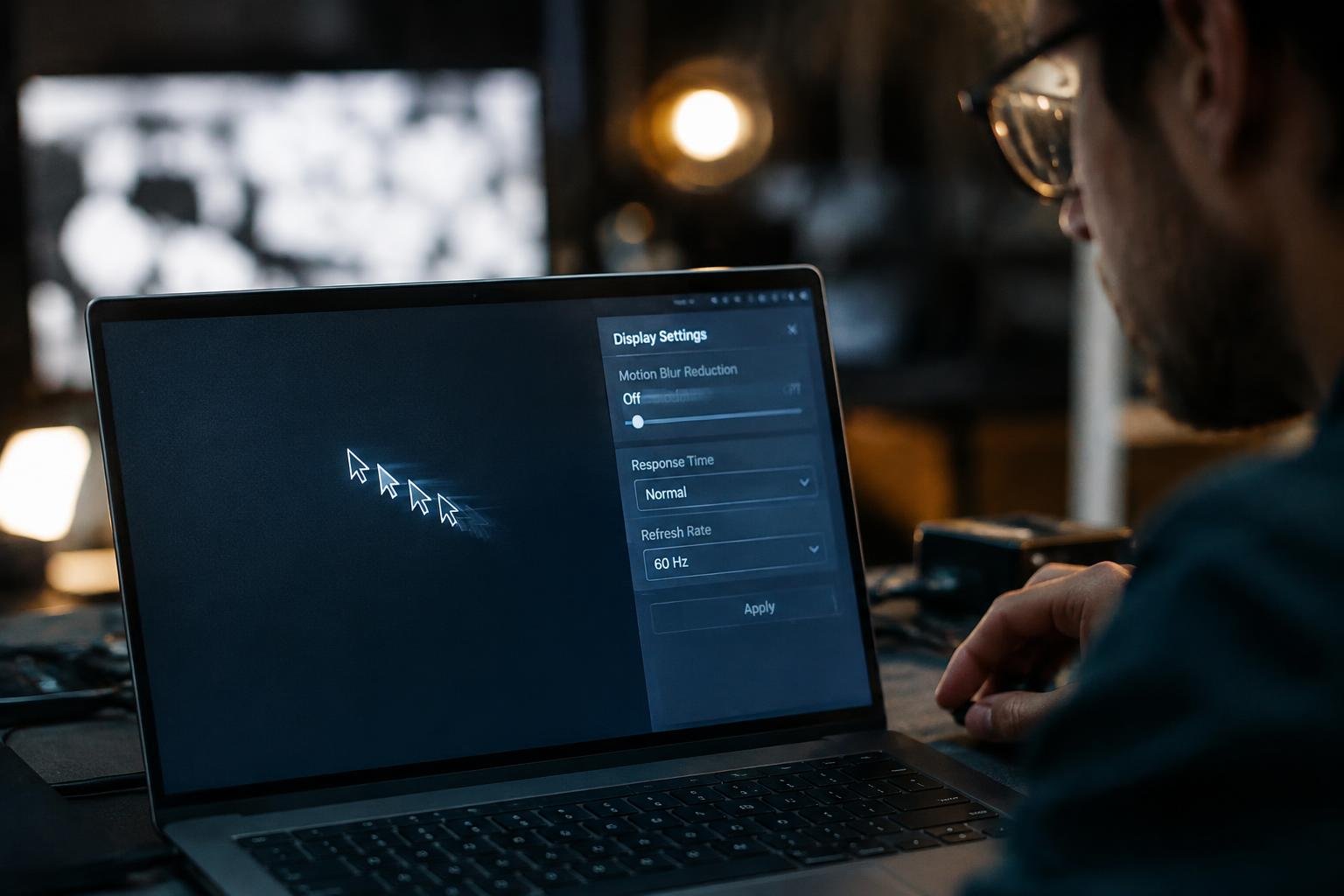
Motion that leaves a faint trail across your laptop screen can blur text, cursor movement, and fast-paced video. Ghosting often relates to the display panel’s pixel response time, but graphics settings, drivers, or hardware faults can also contribute. You can narrow down the cause by noting whether the trail appears during scrolling, gaming, or other movement.
Key Takeaways:
- Ghosting appears as a faint trail behind moving objects, often during fast gameplay or scrolling. Confirm that the trail is visible on the laptop’s built-in display, not just in a screen recording.
- Start with display settings: select the panel’s native resolution and supported refresh rate, then disable motion blur or similar effects in the affected app.
- Update the graphics driver through Windows Update or the laptop manufacturer’s support page. A driver rollback is appropriate if the problem began immediately after an update.
- Connect an external monitor to separate a laptop-panel fault from a graphics or software issue. If the external display looks clean while the built-in screen ghosts, the panel or its display cable needs inspection.
- Persistent trails across apps and settings can indicate slow pixel response or panel damage. A technician can inspect the screen assembly and eDP cable before recommending a panel replacement.
Identifying the Ghosting Problem
Start by observing how the image behaves during ordinary use, such as scrolling a document or moving a window across the desktop. Ghosting describes a faint, lingering copy of an object that remains visible after it moves, rather than any general loss of sharpness. Note whether the trail appears in one area or across the display, and whether it follows moving content consistently. That distinction gives you a clear description of the symptom.
Signs of screen ghosting
Look for a duplicate outline that briefly follows moving text, a cursor, or a high-contrast object. The trail typically sits behind the moving element and fades after it stops, while static icons and text remain clear. A soft image that stays uniformly blurred is not the same pattern, and brightness that pulses or the whole screen that flashes points to flicker instead. On a dark background, a bright cursor often makes a faint trailing copy easier to see.
Simple tests to confirm ghosting
Open a scrolling page with dark text on a light background, then move the wheel at a steady pace and watch the letter edges. Next, drag a window across the desktop and pause it; a trail should follow the moving edge and disappear when motion ends. Repeat the test with a high-contrast cursor on a plain background. A phone video played back frame by frame can reveal whether the apparent trail persists after the object has stopped.
- Record whether the trail appears in both light and dark interfaces.
- Check if the effect changes between the laptop’s built-in screen and an external monitor.
- Note whether fast motion produces a longer trail than slow motion.
Factors That Cause Ghosting
Ghosting occurs when a moving image leaves a faint trail because the displayed pixels do not transition cleanly between colors or positions. You can often trace the effect to a mismatch among the panel’s response characteristics, the selected display mode, and the graphics signal reaching the screen. Laptop designs also differ: an LCD panel, its timing controller, and its connection to the motherboard each influence how motion appears.
Refresh rate and response time
Refresh rate determines how often your display updates its image, while pixel response time describes how quickly its pixels change state. A high refresh rate does not guarantee sharp motion if the panel responds slowly, so a fast-moving cursor can leave a visible trail even at the screen’s native rate. Display modes and variable-refresh operation also affect timing; the panel’s response behavior, rather than refresh rate alone, shapes the ghosting you see.
Graphics drivers and display hardware
Graphics drivers control how your operating system and GPU send frames to the laptop panel, and driver faults can produce inconsistent timing, flicker, or visual artifacts that resemble ghosting. The display hardware sets the underlying limits: LCD pixel transitions, the timing controller, and the panel’s internal circuitry all affect motion clarity. A damaged panel or aging components can leave persistent trails, while a driver-related artifact often changes with the software or graphics mode in use.
Heat, power, and connection issues
High temperatures can alter LCD response behavior, particularly during sustained gaming or other demanding workloads that warm the chassis. Power-saving modes may also constrain GPU performance or change refresh behavior, making motion appear less consistent while the laptop runs on battery. A loose internal display cable is a separate hardware concern: its signal interruptions more commonly cause flicker, colored lines, or brief image loss than a stable motion trail.
| Factor | How it contributes | Common visual clue |
|---|---|---|
| Refresh rate and pixel response | Panel transitions lag behind moving frames | Trails behind fast-moving objects |
| Graphics driver | Frame delivery or display timing becomes inconsistent | Artifacts that vary by graphics mode |
| Display panel or circuitry | Hardware limits or deterioration affect pixel transitions | Persistent trails across applications |
| Heat or power state | Operating conditions affect performance or timing | Motion changes under load or on battery |
| Internal display connection | Signal interruption disrupts the image | Flicker, lines, or brief image loss |
How to Fix Ghosting with Display Settings
Start with changes you can make in Windows or your graphics control panel, then test the same moving image after each adjustment. Keep track of the original values so you can restore them if motion looks worse or text becomes difficult to read. A short video clip with clear moving edges, such as a scrolling page or game scene, gives you a consistent way to judge the display.
Set the correct refresh rate
Open Windows Settings, select System, then Display and Advanced display, and choose the highest refresh rate supported by your laptop’s built-in panel. A setting below the panel’s rated rate can make motion appear less smooth, while selecting an unsupported rate is not possible through the standard menu. On some systems, the refresh-rate option appears in Intel Graphics Command Center or the manufacturer’s display utility; confirm the active value beside the panel name.
Adjust response-time and motion settings
Look in your graphics utility or game’s display menu for response-time, overdrive, or motion-blur controls. If an overdrive setting is available, test its standard or normal level first; aggressive modes can create bright or dark trails around moving objects, known as inverse ghosting. Disable software motion blur while testing so it does not obscure the panel’s response. Change one control at a time, then replay the same fast-moving scene.
Test resolution and scaling options
Set the display to its native resolution, shown as the recommended option in Windows Display settings, before judging motion. A non-native resolution can make edges look soft, while scaling changes the size of interface elements rather than the panel’s refresh rate. If ghosting seems tied to a particular app, test it at native resolution and with the app’s own scaling set to 100 percent, then note whether moving edges remain distinct.
- Turn off battery-saving display modes during the test.
- Close screen-recording overlays that add visual effects.
- Keep the same brightness level for each comparison.
How to Check Cables and Screen Hardware
Physical faults can leave moving images smeared even when the display settings are correct. Start with connections you can reach without opening the laptop, then assess the built-in panel and its internal cable. Power the laptop off before disconnecting a video cable or inspecting an accessible connection. Note whether ghosting changes when you move the lid or reconnect a cable, since that detail can help distinguish a loose connection from a panel defect.
Inspect external display cables and ports
For a laptop connected to a monitor, shut down both devices and reseat the HDMI, DisplayPort, USB-C, or other video cable at each end. Inspect the plugs and ports for bent contacts, debris, or a loose fit, and try a known-good cable with the same supported connection type. A damaged adapter or dock can also interrupt the signal. If the image clears after replacing the cable, the original cable is the likely fault.
Check laptop screen connections
Ghosting that changes as you gently adjust the lid can point to a loose or damaged display cable near the hinge. Avoid pressing on the panel or repeatedly flexing the lid, since either action can worsen damage. Internal eDP or LVDS connections require opening the laptop, and the location of the connector varies by model. If you are not trained to service the device, have a technician inspect the hinge-area cable and panel connector.
Compare with an external monitor
Connect an external monitor directly to the laptop, bypassing docks and adapters where possible, and display the same moving image on both screens. If ghosting appears only on the laptop panel, the built-in screen or its cable is the stronger suspect. If both displays show the same artifact, inspect the shared video connection and laptop hardware. A clean external image beside a smeared laptop display narrows the fault to the internal display path.
| Observation | Likely hardware area | Useful check |
|---|---|---|
| External image clears with a replacement cable | Video cable or adapter | Test a known-good cable directly |
| Ghosting changes with lid angle | Internal display cable or hinge area | Request an internal connection inspection |
| Only the laptop screen shows ghosting | Built-in panel or its cable | Compare with an external monitor |
| Both screens show the same artifact | Shared connection or laptop hardware | Bypass docks and adapters |
How to Update Drivers and Troubleshoot Software
Software checks can reveal whether ghosting comes from the way your laptop processes or displays images rather than from a physical fault. Record when the trailing effect appears, such as after waking from sleep or only while a particular program is open. Then make one change at a time and repeat the same motion or video test, so you can identify which software adjustment changes the visible trail.
Update or reinstall graphics drivers
Start with your laptop manufacturer’s support page or the graphics vendor’s official utility, and match the driver to your exact model and Windows version. Install the available graphics update, restart the computer, then test moving text or a scrolling window. If ghosting began after a driver change, use Device Manager to roll back the display adapter driver. For a clean reinstall, uninstall the adapter, restart, and install the downloaded package.
Check for operating-system and firmware updates
Open Windows Update and install pending quality updates, including optional graphics updates only when they match your hardware. Laptop makers also publish BIOS or UEFI firmware through their support applications; review the release notes for display or graphics fixes before installing. Keep the charger connected during a firmware update, and do not interrupt the restart. After installation, verify the display refresh rate in Advanced display settings, since updates can reset it.
Test in safe mode or with another application
Safe Mode loads a limited set of drivers and services, which makes it useful for spotting conflicts with third-party software. Compare the same scrolling content in Safe Mode and normal startup; a difference points toward a background utility, overlay, or driver component. You can also open the content in a different browser or media player. If only one application shows trails, disable its hardware acceleration and repeat the test.
- Close screen-recording and streaming overlays.
- Disable recently added display-enhancement utilities.
- Disconnect external monitors before repeating a test.
Tips for Preventing Ghosting and Choosing Repair
Once the display is working normally, habits that protect its settings and panel can reduce repeat problems. Track whether ghosting returns after a specific change, such as a driver update or a drop in performance during gaming. That record gives you useful details when troubleshooting stops being straightforward. Use the guidance below to distinguish routine upkeep from signs that a technician should inspect the laptop’s screen or internal display connection.
Keep drivers and display settings current
Use Windows Update or your laptop maker’s support page to install graphics drivers intended for your exact model; avoid third-party driver utilities that may select incompatible software. After an update, confirm the panel’s native resolution and supported refresh rate in the operating system’s display settings. If ghosting appears only in a particular game, review its motion blur and frame-rate settings before changing global options. Record the driver version and refresh rate when the image looks clear.
Avoid excessive heat and physical pressure
Keep the laptop on a hard, flat surface so its vents can release heat, and clear dust from external openings with the device powered off. Avoid carrying it by the screen or placing heavy objects on the closed lid, since pressure can stress the LCD layers and hinge wiring. A padded sleeve reduces bumps in transit, while a clear workspace prevents books or chargers from pressing against the display during storage.
Decide when to seek professional repair
Persistent trails that remain after a restart, driver update, and settings review warrant a hardware assessment, especially if they accompany flickering, colored lines, or a cracked panel. Note whether the image changes as you adjust the lid, but do not repeatedly flex the hinge to reproduce the fault. A repair technician can inspect the LCD panel, eDP cable, and hinge routing; share your laptop model and the symptoms’ timing when booking service.
| Observed condition | Useful next step | Service indication |
|---|---|---|
| Ghosting begins after a driver change | Install a model-specific graphics driver | Symptoms persist with the correct driver |
| Ghosting appears in one game | Review motion blur and frame-rate settings | Trails also appear outside the game |
| Image changes with lid position | Stop flexing the hinge | Have the display cable and hinge inspected |
| Cracks, colored lines, or persistent flicker | Power down if the display is worsening | Arrange a panel assessment |
To wrap up
Fixing laptop screen ghosting starts with matching the remedy to the cause. Adjust the refresh rate and response-time settings, update the graphics driver, and test the display with another application or external monitor. If trails remain across different software, inspect the screen cable and panel for damage, then arrange professional service when internal hardware is involved. A clean comparison between the built-in display and an external monitor can reveal whether the fault lies with the laptop panel or graphics system.
FAQ
How much does it cost to fix ghosting on a laptop screen?
The cost depends on whether the cause is a setting, a cable, or a failed display panel. Changing settings or updating a driver is usually free, while hardware repair costs vary by laptop model, parts, and labor; get a quote before approving a screen replacement.
How long does it take to fix laptop screen ghosting?
A settings change or driver update can take a few minutes, while diagnosing a hardware problem may take longer. If the panel or an internal connection needs repair, the time depends on parts availability and the repair provider.
Can ghosting damage my laptop screen or eyes?
Ghosting usually does not mean the screen is being damaged, and it is not known to cause eye damage. It can make viewing uncomfortable, so reduce prolonged use if it causes strain, and seek repair if the problem persists or worsens.
What is the most common mistake when fixing screen ghosting?
Replacing the screen before checking display settings, drivers, and connections is a common mistake. Confirm the issue across more than one app or display first, because blur from software or a cable problem can resemble a faulty panel.
Can I fix ghosting on a laptop screen without replacing it?
Yes, ghosting caused by an incorrect refresh rate, motion setting, driver, or loose connection may be fixable without replacing the screen. If the trails remain across apps and settings, especially on the laptop display but not an external monitor, the panel may need professional diagnosis.
Is it worth repairing a laptop screen with persistent ghosting?
Repair may be worthwhile if the laptop is otherwise in good condition and the repair quote is reasonable for its age and value. If the problem is limited to a replaceable panel, compare the repair cost with the price of a suitable replacement laptop before deciding.
Why does my laptop screen still show trails after I update the graphics driver?
Persistent trails after a driver update can point to display settings, a connection issue, or a screen hardware fault rather than a software problem. Check the refresh rate and motion settings, then compare the laptop screen with an external monitor to help narrow down the cause.
 Previous Post