



Laptop Hard Disk Bad Sectors – Meaning, Causes and Fixes
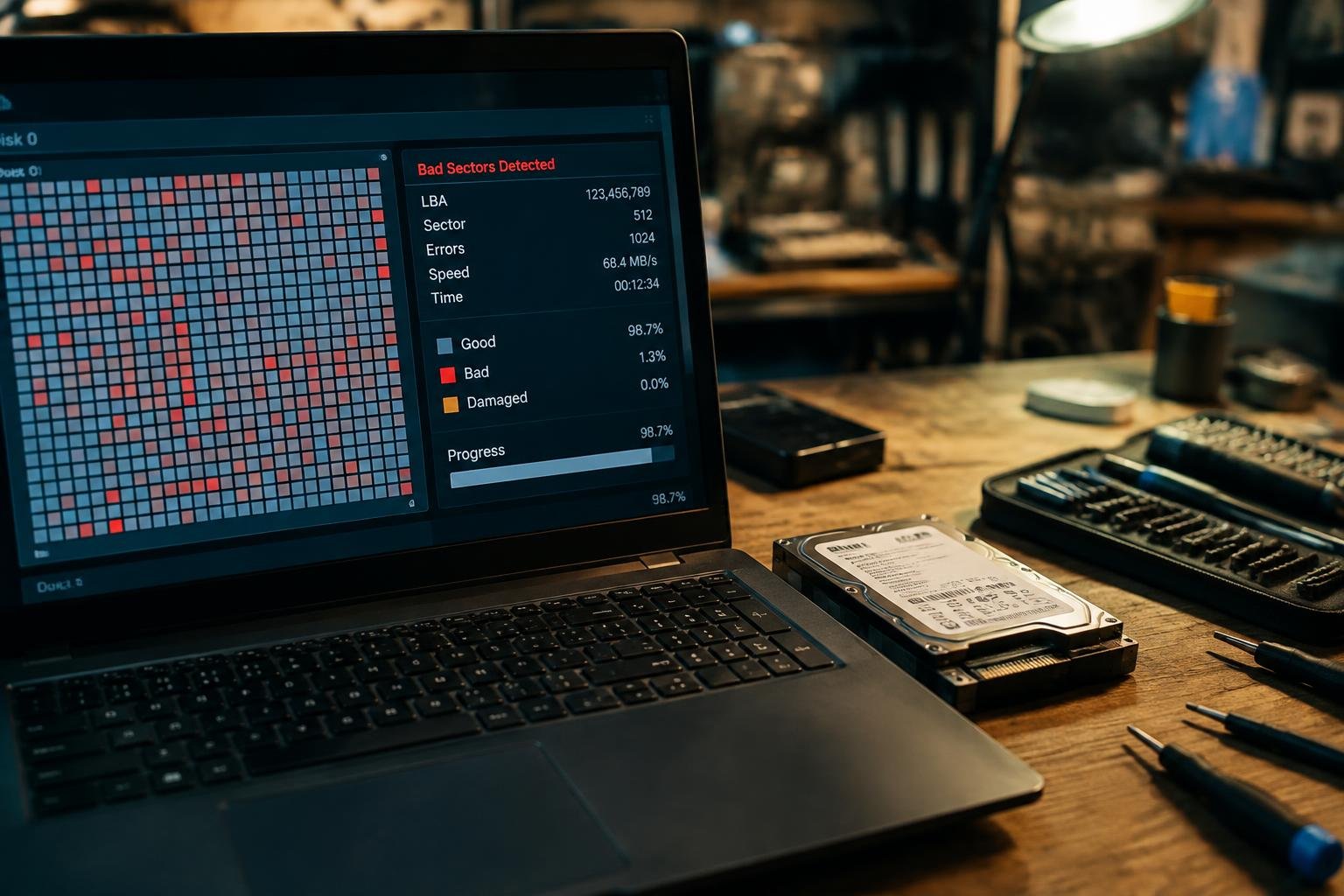
A bad sector is a section of a hard disk that can no longer reliably store or return data, putting files and system operations at risk. You might first notice a problem when a document becomes unreadable or Windows reports a disk error. On a mechanical hard drive, damage can affect the magnetic surface or the drive’s ability to read it.
Key Takeaways:
- A bad sector is a disk area that cannot reliably store or return data. Hard disk drives can develop physical bad sectors, while file-system errors can make otherwise usable sectors appear faulty.
- Common warning signs include read errors, corrupted files, slow file access, and repeated system freezes. These symptoms can also result from other hardware or software problems.
- Wear, impact, overheating, and sudden power loss can contribute to disk problems. Mechanical hard disk drives are especially vulnerable to physical shock while operating.
- Windows tools such as CHKDSK and the drive manufacturer’s diagnostic utility can identify file-system errors and assess drive health. A scan cannot restore physically damaged disk surfaces.
- Back up important files before running intensive scans or repair commands. If errors recur or the drive reports a failing health status, replacing it is safer than relying on sector repair.
What Bad Sectors Are and How They Affect a Laptop
Each sector is a small addressable area on a drive where your laptop stores data. When damage prevents reliable reading or writing, information mapped to that area becomes unavailable or incomplete. The operating system and applications depend on these locations for files and startup data, so a damaged sector can affect more than a single document. The extent of the impact depends on which data occupies the unreadable area.
Physical vs. logical bad sectors
Physical bad sectors result from defects in the disk’s magnetic surface or, on an SSD, damaged flash memory cells; software cannot restore the affected storage location. Logical bad sectors arise when data or its sector records become inconsistent, often after a write is interrupted or the laptop loses power. Disk utilities can sometimes mark logical errors as unusable or repair file-system records, while physical damage remains tied to the drive hardware.
Effects on files, performance, and booting
Unreadable sectors can leave a file partially accessible, corrupt its contents, or prevent a save from completing. If the operating system repeatedly retries a failing read, opening files and launching applications can take longer. Booting is affected when a damaged area contains startup files or other data required by the operating system; the laptop may stall during startup or fail to load Windows. The result depends on the location of the affected sectors.
- A sector is a unit the drive uses to store and retrieve data.
- Sector-level errors can affect file contents as well as file access.
- Physical damage affects the storage medium itself.
- Logical errors involve inconsistent data or sector records.
Common Signs of Bad Sectors
Recurring read errors and unexplained slowdowns can indicate that your laptop is struggling to access data on the drive. A single delayed file opening is not enough to identify a problem, but repeated trouble with different files or during routine tasks deserves attention. Notice whether the same folders trigger long pauses, whether applications stop responding while loading data, and whether the behavior persists after a restart.
| Observed sign | Where you notice it | What to record |
|---|---|---|
| Read errors | Opening or copying files | File names and error wording |
| Extended pauses | Loading folders or applications | Task and approximate duration |
| Startup delays | Booting into the operating system | Where startup stalls |
| Failed disk checks | Built-in drive scans | Tool name and reported result |
Error messages, freezes, and corrupted files
Repeated messages such as “file is unreadable” or “a device that does not exist was specified” can appear when your system cannot retrieve data reliably. A file may open partially, display damaged content, or fail to copy, while File Explorer or another application appears frozen as it retries the read. Note which files and folders are affected; recurring errors involving different items are more informative than one isolated failure.
Slow startup and failed disk checks
During startup, your laptop may pause for an unusually long time while loading Windows or macOS, especially if the delay recurs at the same stage. Built-in tools such as Windows Check Disk or macOS Disk Utility may also report read or verification errors, or stop before completing a scan. Record the exact message and where the process stalls, such as during Windows boot or a Disk Utility First Aid run.
Causes of Laptop Hard Disk Bad Sectors
Several kinds of stress can affect the magnetic surface or the data structures used to locate files on your laptop’s hard disk. Physical damage can make a sector unreadable, while interrupted writes or file-system errors can leave stored information inconsistent. The distinction matters: a sector may be physically defective, or the operating system may simply have trouble interpreting its contents. The underlying cause depends on the drive’s condition and the events surrounding the first read or write errors.
Age, mechanical wear, and overheating
As your hard disk’s spindle motor, bearings, and read/write heads accumulate operating time, mechanical wear can reduce the drive’s ability to access data reliably. Heat adds stress: a laptop used on a soft surface may have restricted airflow, raising internal temperatures during sustained workloads. On a magnetic disk, a head that cannot read a weakened area may trigger sector errors or cause the drive to reassign that location. Repeated clicking or slow file access can accompany this deterioration.
Drops, vibration, and sudden power loss
A sharp drop can jolt a laptop’s hard disk while its platters are spinning, allowing the read/write head to contact the magnetic surface and damage stored data. Heavy vibration during operation creates a related risk, especially if the laptop is carried while active. Sudden power loss does not usually damage a platter directly, but it can interrupt a write before the drive records data consistently. A forced shutdown during a file transfer is one common source of incomplete writes.
File-system corruption and malware
File-system corruption disrupts the records your operating system uses to locate files and track available disk space. An interrupted update, unsafe removal of an external drive, or software crash can leave directory entries or allocation data inconsistent, even when the magnetic surface remains readable. Malware can also alter, encrypt, or overwrite files, which may resemble disk damage without creating physical bad sectors. A corrupted file-system structure and a defective sector are different problems, though they can occur on the same drive.
- Keep laptop vents clear during intensive work.
- Shut down fully before transporting a laptop with a spinning hard disk.
- Use a stable power source during operating-system updates.
How to Check a Hard Disk for Bad Sectors
Start with the operating system’s built-in error checker, then use the drive’s SMART information or the manufacturer’s diagnostic utility to assess its condition. These tools examine file-system errors and report hardware indicators, but they do not all test the disk in the same way. A quick status check is different from a surface scan, which reads sectors across the drive. Knowing which test you ran makes its findings easier to interpret.
Windows error-checking tools
In Windows, open File Explorer, right-click the drive, select Properties, choose Tools, then select Check under Error checking. Windows may report that no scan is needed or prompt you to scan the volume. For a command-line check, run chkdsk in Command Prompt; adding /r requests a scan for unreadable sectors and recovery of readable data. The scan can take a long time, especially on a large hard disk.
SMART status and manufacturer diagnostics
SMART data records drive-health attributes, including error counts and sectors the disk has flagged for attention. Windows may show a basic status, while a SMART utility can display individual attributes; interpret them alongside the drive model’s documentation, since labels and thresholds vary. For a deeper test, download the diagnostic utility provided by the disk manufacturer and select its short or extended test. An extended test reads more of the drive and typically takes longer.
Reading scan results and warnings
Scan results distinguish file-system repairs from physical disk warnings. A message about corrected file-system errors does not, by itself, confirm bad sectors; an unreadable-sector report or a SMART warning about pending or reallocated sectors points to a possible hardware problem. Record the exact message and note whether it returns after another scan. Repeated read errors, a failed manufacturer test, or a worsening SMART attribute warrants treating the drive as unreliable.
| Tool | What it checks | Typical result |
|---|---|---|
| Windows Error checking | Volume and file-system errors | Scan status or repair prompt |
chkdsk /r |
Unreadable sectors and readable data | Scan report after completion |
| SMART utility | Drive-reported health attributes | Status and attribute values |
| Manufacturer diagnostics | Drive-specific short or extended tests | Pass, warning, or failure |
Data Backup and Recovery Priorities
Protecting your files takes priority when a hard disk reports bad sectors, because continued use can make damaged data harder to retrieve. Identify irreplaceable material first, such as work documents, family photos, and records stored only on the laptop. Keep recovery copies on a separate device or trusted cloud account, not another partition on the affected disk. Your immediate goal is to preserve access to essential files before attempting further work on the drive.
Backing up files before troubleshooting
Copy accessible files to an external drive or cloud storage before running disk checks or other troubleshooting tools. Start with folders that contain personal documents, photos, and project files, then verify that copied files open from the backup location. Avoid saving the backup to a different partition on the same physical disk, since sector damage can affect both partitions. If copying triggers repeated read errors, stop rather than repeatedly retrying a file that the drive cannot read.
When to seek professional data recovery
Contact a data recovery specialist when the drive contains irreplaceable files and produces clicking, grinding, or repeated read errors, or when files disappear during copying. Powering a mechanically failing hard disk on and off can worsen damage, so disconnect it and describe the symptoms and steps already taken. A specialist can assess the device in a controlled environment; do not open the drive casing, since dust contamination can damage its internal platters.
- Keep a written list of the folders you need recovered.
- Record any error messages shown during file copying.
- Store the disconnected drive in an antistatic bag.
Fixes, Repair Options, and When to Replace the Drive
Choose a repair based on whether the damage is logical or physical. File-system errors and unreadable sector records sometimes respond to operating-system tools, but software cannot restore a damaged disk surface or failing read head. Before running repairs, secure accessible files and avoid repeated scans if the drive is making unusual noises or dropping offline. Those symptoms can worsen during prolonged reads, while a stable drive with isolated file-system errors is a better candidate for a repair attempt.
Repairing file-system errors and marking unusable sectors
On Windows, run CHKDSK with the appropriate repair and bad-sector scan options after backing up your files; macOS users can use Disk Utility’s First Aid on a supported volume. These tools can correct directory and allocation errors, and the operating system can exclude sectors it cannot reliably read from future use. Such marking does not repair physical media. If the bad-sector count continues to rise or errors return after a scan, treat the disk as unreliable.
Replacing a failing hard disk or upgrading to an SSD
Replace the hard disk when diagnostics report growing unreadable areas, repairs fail repeatedly, or the laptop freezes during disk access. A SATA SSD can often replace a 2.5-inch SATA hard drive, while an M.2 slot requires a compatible drive type and length. Check the laptop’s service manual before buying, then reinstall the operating system or clone the old disk only if it remains stable enough to read. Recycle the removed drive through an electronics collection program.
Verifying the drive after repairs
After a file-system repair, restart the laptop and rerun the manufacturer’s diagnostic utility or a SMART status check. Review the reported pending and reallocated sector counts, then copy and open files from different folders to confirm ordinary reads work. A clean scan does not prove that damaged hardware is dependable, so watch for recurring errors, slow access, or disconnects during routine use. Save the diagnostic result and record any sector-count changes for comparison.
| Option | Best suited to | Key limitation |
|---|---|---|
| File-system repair | Logical errors on a stable drive | Does not fix physical damage |
| Marking bad sectors | Preventing use of unreadable sectors | Does not stop sector deterioration |
| Drive replacement | Recurring errors or worsening diagnostics | Requires compatible hardware and system setup |
| Post-repair verification | Checking scan results and ordinary file access | A clean result cannot guarantee future reliability |
Summing up
Bad sectors indicate that parts of your laptop’s hard disk cannot reliably store or retrieve data, often because of physical wear or file system errors. Use a disk diagnostic tool to assess the drive, then back up important files before attempting repairs such as a file system scan. Software cannot restore a physically failing disk, so persistent read errors, worsening performance, or unusual noises point to replacement. If the files are irreplaceable, stop using the drive and seek professional recovery.
FAQ
Can bad sectors on a laptop hard disk be repaired?
Logical errors may be repairable with disk-checking tools, but physical damage cannot be reliably fixed with software. If errors return or the drive reports worsening health, back up important files and replace the drive rather than relying on a repair.
How long does it take to scan a laptop hard disk for bad sectors?
A scan can take from minutes to several hours, depending on drive capacity, condition, connection speed, and scan type. A failing or very slow drive may take longer, so back up essential files before running an extensive scan.
Can bad sectors cause permanent data loss?
Yes, bad sectors can make stored data unreadable, and physical damage can lead to permanent loss. Copy accessible files to another drive promptly, and avoid repeated scans or repairs if the disk is making unusual noises or becoming less responsive.
How much does it cost to recover files from a damaged laptop drive?
Recovery costs depend on the type of damage, the recovery method, and the amount of work required. Logical problems may be less complex than mechanical failure, while a physically damaged drive may need specialist service; get a diagnosis and quote before approving work.
Is replacing a laptop hard disk with bad sectors worth it?
Replacement is usually the more dependable choice when physical damage persists or bad sectors keep appearing. A software repair may be worth trying for a logical file-system error, but it does not restore a physically failing drive to reliable condition.
What should I avoid doing when my laptop disk has read errors?
Avoid saving new files to the drive or repeatedly running intensive scans before backing up accessible data. If the drive clicks, disappears, or rapidly worsens, shut it down and consider professional recovery, since continued use can reduce the chance of retrieving files.
Can I use my laptop with bad sectors if it still starts?
You may be able to use it temporarily, but recurring read errors mean the drive cannot be trusted with the only copy of important files. Back up what you need, then check the drive’s health; replace it if errors persist or its condition is flagged as poor.
 Previous Post
 Next Post