



How to Fix Laptop Screen Flickering After a Recent Update
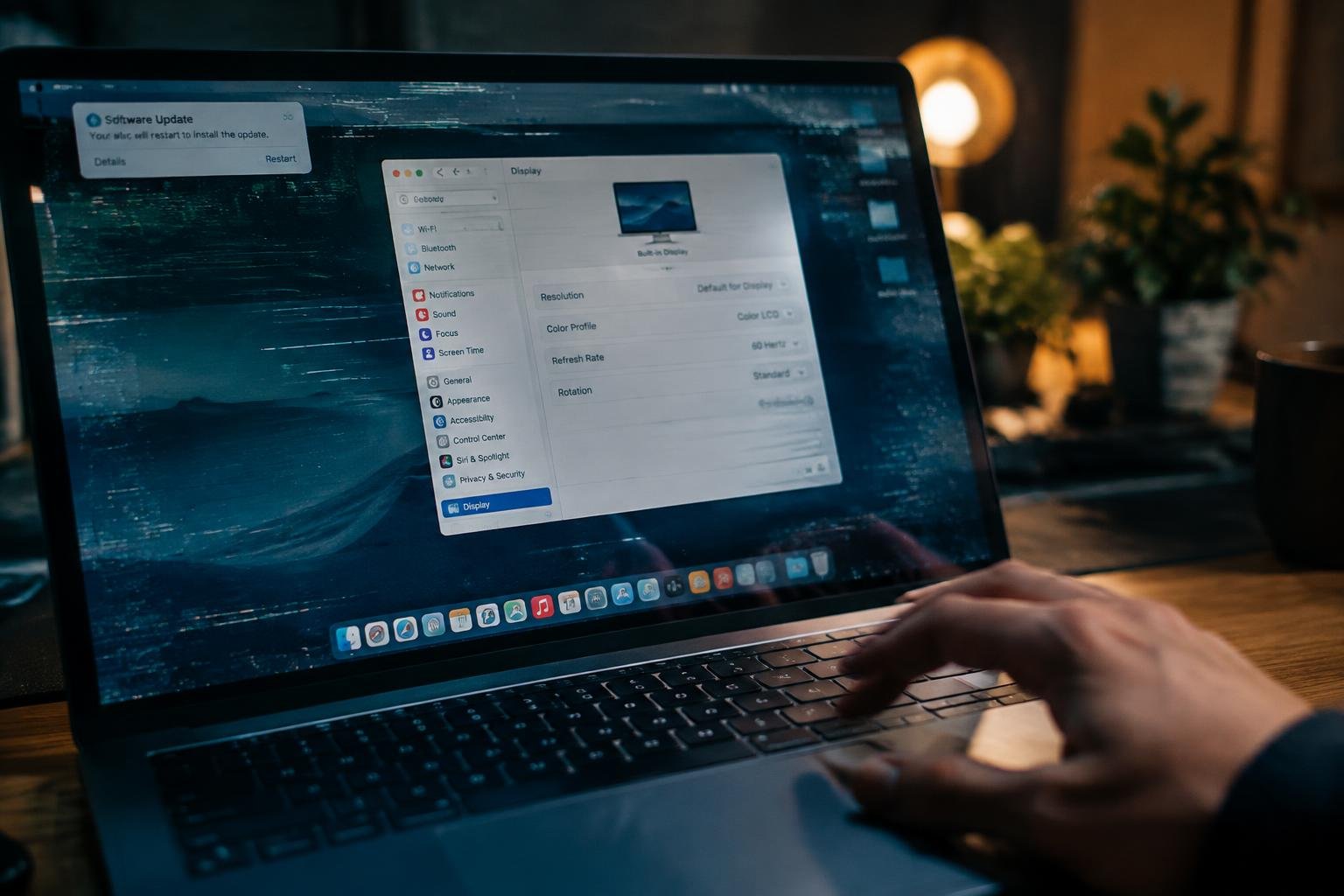
A laptop screen that starts flickering after an update often points to a graphics driver or display setting that changed during installation. You can narrow down the cause by noting whether the flicker appears across the desktop, only in one app, or even before Windows loads. That pattern distinguishes a software issue from a possible display hardware fault.
Key Takeaways:
- Identify the recent Windows or macOS update and note when the flickering began to narrow down whether a display driver or system change is involved.
- Test the screen with an external monitor: flickering on both displays points toward software or graphics processing, while flickering only on the laptop panel can indicate a display cable or panel fault.
- Use Device Manager in Windows to update or roll back the graphics driver; on a Mac, install available macOS updates or use the built-in recovery options.
- Change the refresh rate in display settings and disable hardware acceleration in affected apps to rule out configuration conflicts.
- If software fixes fail, back up important files before using System Restore, uninstalling the recent update, or arranging hardware service.
Check What Changed in the Recent Update
Start by establishing a timeline rather than changing settings immediately. Flickering that begins after an update points to a possible connection, but timing alone does not identify the cause. Separate system updates, graphics driver updates, and display setting changes in your notes, then record what you observe. That gives you a clearer basis for identifying whether the issue is tied to a recent change or appears independently of the update history.
Note the update date and type
Open Windows Update history or your device’s update log and note the installation date of recent system and driver updates. Record the update name or version, including any graphics driver entry, then compare those details with when the flickering first appeared. Also note whether you changed refresh rate, scaling, or another display option around the same time. A short timeline with entries such as “flicker began after Tuesday’s driver update” is more useful than a general recollection.
Check whether flickering happens in all apps
Observe the screen while using different applications, such as a browser, a document editor, and the desktop. Note whether flickering appears across the taskbar and multiple windows or only inside one program. If it is limited to a particular app, record its name and whether the problem occurs in menus, video playback, or ordinary text. A pattern across unrelated apps points to a broader display change, while a single-app pattern narrows the timeline to that program’s activity.
- Write down whether the flicker is continuous or intermittent.
- Record whether the whole screen flashes or only one area.
- Note whether the flicker appears on the laptop screen, an external monitor, or both.
Adjust Display Settings
Display controls give you a quick way to test whether flicker comes from how the screen is being driven rather than from an app’s content. Use Windows Settings or your operating system’s display panel to change one setting at a time, then watch the screen during ordinary tasks. Keep track of the original values so you can restore them. A steady desktop after a setting changes points to that specific display option as a likely cause.
Set the recommended refresh rate
Open Settings, select System, then Display and Advanced display in Windows to view the refresh rates supported by your laptop’s panel. Choose the rate marked recommended, or the panel’s native rate if no recommendation appears. An unsupported or unusually low rate can produce visible pulsing or uneven motion. If flicker changes after you select a different supported rate, return to the recommended setting and note whether the desktop remains stable.
Turn off adaptive brightness and variable refresh rate as a test
Disable automatic brightness in the display or power settings, then observe the screen at a fixed brightness level. On laptops with variable refresh rate, temporarily switch that feature off in Windows graphics settings or the manufacturer’s display utility. These controls adjust brightness or screen timing dynamically, so changes can resemble flicker during shifts in lighting or on-screen activity. If the display steadies, re-enable each option separately to identify which setting triggers the effect.
| Setting | Where to look | Test value |
|---|---|---|
| Refresh rate | Advanced display | Recommended supported rate |
| Adaptive brightness | Display or power settings | Off, brightness fixed |
| Variable refresh rate | Graphics or display settings | Off temporarily |
Update or Roll Back the Graphics Driver
Windows updates can replace a graphics driver with a version that does not work well with your laptop’s display hardware. Correcting the driver often resolves flickering that starts immediately after an update. Use your laptop maker’s support page to identify the graphics software intended for your exact model, or use Device Manager to return to a previously installed version. Before changing drivers, note the current version and save any open work, since installation can briefly blank the screen.
Install a compatible driver from the laptop maker
Visit the support page for your laptop’s manufacturer and search by its full model number, then select the graphics driver for your Windows version. Prefer the maker’s package over a generic driver from Intel, AMD, or NVIDIA, because laptop-specific releases account for the display configuration and power controls. In Device Manager, expand Display adapters, right-click the graphics device, and choose Update driver to install the downloaded package. Restart Windows after setup finishes.
Roll back the driver if flickering began after an update
Open Device Manager, expand Display adapters, and open the graphics device’s Properties. On the Driver tab, select Roll Back Driver if the option is available, then choose a reason and confirm. Windows restores the previous driver version, which often resolves flickering that began directly after a driver update. Restart the laptop and test the display. If Roll Back Driver is unavailable, install an earlier compatible release from the laptop maker’s support page.
- Keep the laptop connected to power during driver installation.
- Download the driver before removing or replacing the current one.
- Use the laptop’s exact model number, not just its product family.
- Record the driver version shown on Device Manager’s Driver tab.
Check for App Conflicts and Hardware Factors
Software and hardware clues often point in different directions. Flickering limited to one program suggests an app conflict, while changes tied to screen movement or appearing across multiple displays point toward a physical connection or panel issue. Note whether the problem affects the whole screen, only a window, or an external display, and whether it began after a particular app updated. These details narrow the cause without assuming the recent system update is responsible.
Test in Safe Mode and close recently updated apps
Start Windows in Safe Mode, which loads a limited set of drivers and services. If the flicker stops there, a background utility or recently updated application is a stronger suspect than the laptop panel. Restart normally, then close apps you installed or updated shortly before the problem began, including screen recorders, overlay tools, and video-call software. Reopen them one at a time; note whether flickering returns when a specific app displays video or uses hardware acceleration.
Check for flickering when changing the screen angle or using an external monitor
Move the lid slowly through its normal range while watching for brief flickers, lines, or changes in brightness. A symptom that follows the hinge angle can indicate a loose or damaged display cable. Connect an external monitor and observe both screens: if the external image stays steady while the laptop display flickers, the built-in panel or its cable is more likely involved. If both displays flicker at once, software or graphics output is a more plausible cause.
- Record whether the flicker affects the whole display or one app window.
- Note any horizontal lines, color shifts, or brief blackouts.
- Check whether the issue changes on battery power versus the charger.
Use System Recovery Options
Windows recovery tools can return your display to a working state when flickering began immediately after an update. Choose the least disruptive option that matches the timing of the problem, and keep your laptop connected to power while recovery runs. Before changing system files or removing an update, save open work and note any recovery prompts. Windows Update history and the System Restore interface identify the recent changes and restore points available on your laptop.
Uninstall the latest update
Open Settings, select Windows Update, then Update history and Uninstall updates to view removable packages. Choose the newest quality update that coincides with the flickering, then follow the on-screen prompts and restart your laptop. If the display stabilizes, the removed package was likely involved. Some updates cannot be uninstalled through Settings, and feature updates use a separate recovery option under System, Recovery, so follow the option Windows presents for that update.
Use System Restore if available
System Restore can revert system files, drivers, and settings to a saved restore point without removing personal documents. Search for “Create a restore point,” open System Properties, and select System Restore to review available dates. Choose a point created before the flickering began, then confirm the listed affected programs before proceeding. Your laptop restarts during restoration; if no suitable point appears, Windows has no saved state for this recovery method.
| Recovery option | What it changes | Where to find it |
|---|---|---|
| Uninstall a quality update | Removes a selected recent Windows update | Settings, Windows Update, Update history |
| Feature update recovery | Returns Windows to a previous feature version when available | Settings, System, Recovery |
| System Restore | Reverts system files, drivers, and settings to a restore point | System Properties, System Restore |
Tips to Prevent Flickering After Future Updates
Careful update habits reduce the chance that a routine Windows change will disrupt your display. Before installing a major release, note your current graphics adapter and driver version, then keep the manufacturer’s driver page or support utility available. Install updates when you have time to restart and test the laptop, rather than during a deadline. A brief record of the update date and driver version gives you a clear reference if flickering returns.
Create a restore point before major updates
Before a feature update or graphics-driver change, create a restore point in Windows System Protection. Search for “Create a restore point,” select the system drive, and choose “Create” if protection is enabled. Give the point a clear label, such as “Before graphics update,” so you can identify it in System Restore. Restore points do not replace personal-file backups, but they preserve system settings and driver state that can help you return to a known configuration.
Install recommended drivers and updates in stages
Install Windows updates and graphics drivers separately rather than applying several display-related changes at once. Restart after each installation, then use the laptop’s normal brightness controls and refresh rate while checking for visible flicker. Prefer drivers offered through Windows Update or your laptop manufacturer’s support page, since those packages are selected for the device model. Keep the installer for the current stable driver and note its version before updating, so you can identify which change preceded a problem.
| Preventive step | When to do it | Record to keep |
|---|---|---|
| Create a restore point | Before a major update or driver change | Restore point label and date |
| Install updates in stages | Before adding the next display-related update | Update name and installation date |
| Save current driver details | Before replacing the graphics driver | Adapter name and driver version |
To wrap up
Start with the change that followed the update, then work through display settings, the graphics driver, and app conflicts before using System Restore or another recovery option. If flickering continues on the laptop’s built-in display, connect an external monitor: a stable external image points toward the panel or its cable, while flickering on both displays points more strongly to software or graphics hardware. Record the driver version and update history so you can identify the change that preceded the problem.
FAQ
How long does it take to fix laptop screen flickering after a recent update?
A basic check of display settings or a graphics driver often takes a few minutes, while testing Safe Mode or using System Restore can take longer. The time depends on whether you need to download a compatible driver, restart several times, or restore the system.
Can I fix laptop screen flickering after a recent update without paying for repairs?
Many update-related flickering problems can be addressed with built-in settings, driver tools, or recovery options at no cost. If the screen flickers in firmware menus, changes when you move the lid, or persists with an external display test, hardware diagnosis may be needed and costs depend on the fault.
Can rolling back a graphics driver cause problems?
Rolling back a graphics driver can restore a stable version, but it may remove fixes or features from the newer driver. Use a driver intended for your laptop, and avoid uninstalling display components or installing drivers from unfamiliar sources.
Why does my laptop screen flicker only in one app?
Flickering limited to one app often points to an app setting, compatibility issue, or conflict rather than a failing laptop screen. Update or close the app and test in Safe Mode; if flickering also appears elsewhere, check the display settings and graphics driver.
Can I use an external monitor to find out why my laptop screen flickers?
Yes, an external monitor can help distinguish a laptop screen or cable problem from a system-wide graphics issue. If only the built-in screen flickers, the panel or its connection may be involved; if both displays flicker, software or graphics hardware is more likely.
Is System Restore a good way to stop flickering after an update?
System Restore can help if a suitable restore point exists from before the flickering began, because it reverts system changes without normally removing personal files. It may not undo every update, and installed apps or drivers added after that restore point can be removed.
How can I avoid screen flickering after future updates?
Create a restore point before a major update when System Protection is available, and use drivers recommended for your laptop model. Installing updates in stages can make it easier to identify a change that causes trouble, but it cannot prevent every driver or hardware issue.
 Previous Post