



Laptop Battery Calibration Steps Explained
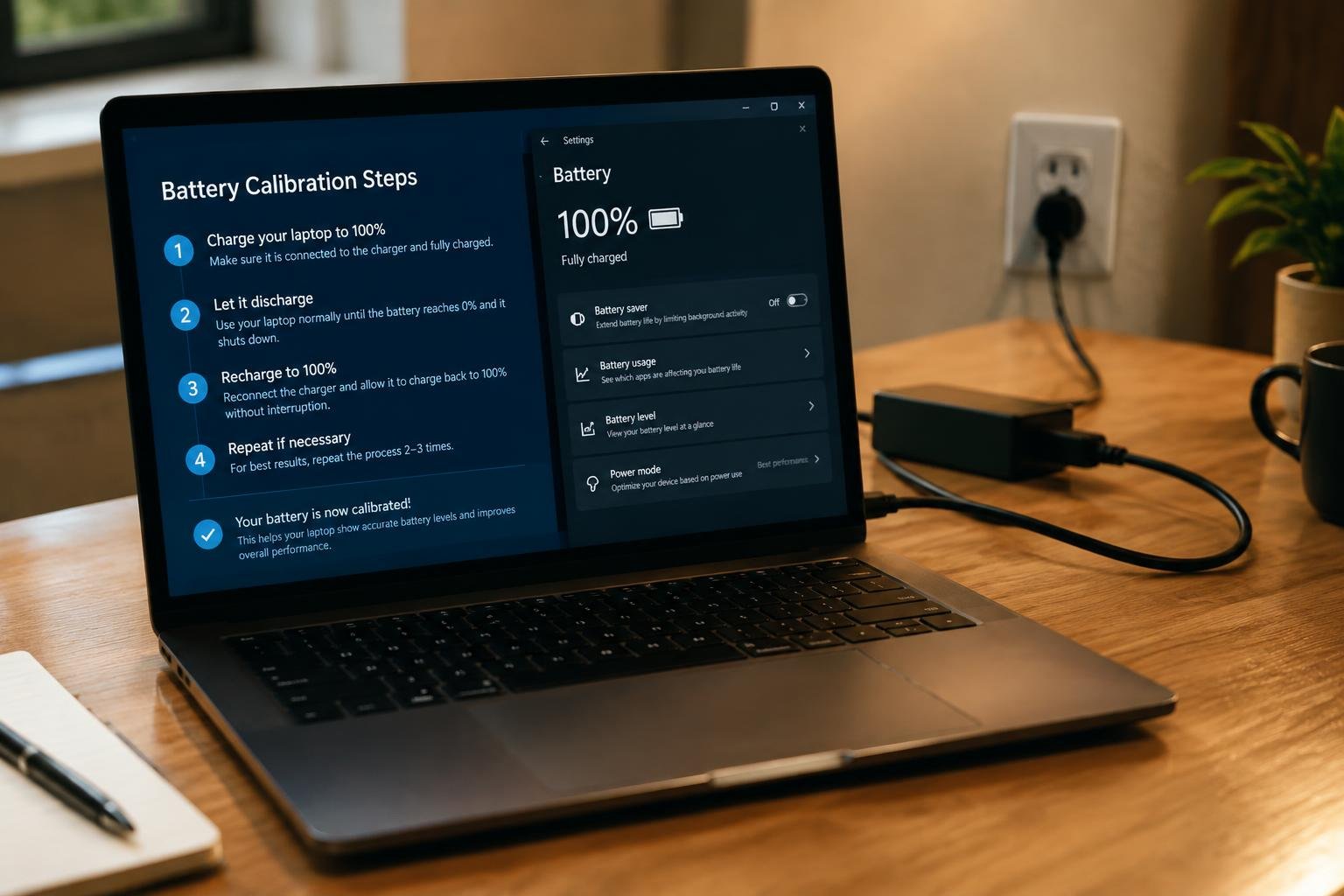
Your laptop’s battery percentage is an estimate, not a direct measure of stored energy. Calibration aligns that estimate with the battery’s charge limits, which can make reported capacity more consistent when the percentage jumps or the computer shuts down unexpectedly. It does not restore worn cells; it helps the operating system interpret the battery’s charge readings.
Key Takeaways:
- Battery calibration synchronizes the laptop’s reported charge level with the battery’s actual discharge range; it does not restore lost battery capacity.
- Before starting, save your work, connect the original or manufacturer-approved charger, and check the laptop maker’s instructions for any model-specific calibration utility.
- A typical manual cycle fully charges the battery, leaves it connected briefly, then uses the laptop until it reaches its low-battery shutdown point before charging it back to full.
- Calibration is mainly useful when the charge percentage jumps unexpectedly or the laptop shuts down while the operating system still reports charge remaining.
- Calibration cycles are not routine battery maintenance: lithium-ion batteries generally do not need frequent full discharges, and repeated deep discharges add wear.
What Laptop Battery Calibration Does
Calibration aligns the charge estimate reported by your laptop with the battery’s measured operating range. The battery-management system tracks voltage and charging activity, then uses that information to display a percentage and estimate remaining runtime. A calibration cycle gives the system clearer reference points near full charge and low charge, which can reduce misleading jumps in the meter. It updates the estimate, not the battery itself.
Battery meter readings versus actual battery capacity
Your battery meter displays an estimate, while actual capacity describes how much energy the cells can store and deliver. Those values can diverge: a laptop might show 30 percent, then shut down sooner than expected because its charge model is out of alignment. Calibration helps the controller map its readings to the battery’s usable range. It cannot make a worn battery store more energy, so a calibrated 30 percent reading still reflects the capacity the cells can provide.
Calibration limits and realistic results
Calibration can make the displayed percentage and runtime estimate more consistent, especially when the meter jumps or the laptop powers off while showing charge remaining. Results vary with the battery controller and operating system, and one cycle does not guarantee a perfect reading. A battery with reduced capacity will still have shorter runtime after calibration; the main change is that the reported charge better reflects its current usable range, such as a smaller full-charge capacity than when new.
- Calibration changes the charge estimate, not the battery’s physical capacity.
- Runtime estimates remain approximate because workload affects power use.
- Battery-management software may display full-charge capacity separately from design capacity.
Before You Calibrate
Preparation reduces the chance of an unexpected shutdown and confirms that calibration is appropriate for your laptop. Battery calibration addresses a mismatch between the charge estimate and the battery’s reported capacity; it does not repair worn cells or resolve charging faults. Check the device’s guidance and current battery condition first, then arrange a stable power source and protect any unsaved work before changing how the laptop is powered.
Check manufacturer guidance and battery condition
Start with the laptop maker’s support instructions, since some models use built-in diagnostics or advise against manual calibration. In Windows, a battery report can show design capacity and recent full-charge capacity; macOS users can review Battery Health in System Settings. Treat swelling, unusual heat, damage, or sudden shutdowns as signs to stop and seek service, not as calibration problems. A visibly swollen battery should not remain in use.
Save work and prepare a safe power setup
Save open files and close tasks that could be interrupted, such as operating-system updates or large transfers. Place the laptop on a hard, ventilated surface and use its correct AC adapter, connected to a reliable outlet. Keep the charging cable clear of walkways and avoid calibration during storms or in locations where power is easily disconnected. A stable desk and an intact adapter reduce the chance of an accidental interruption.
| Preparation check | What to verify |
|---|---|
| Manufacturer guidance | Model-specific calibration instructions or restrictions |
| Battery condition | No swelling, damage, unusual heat, or charging fault |
| Work and power | Files saved, correct adapter connected, stable outlet available |
Laptop Battery Calibration Steps
A calibration cycle gives the battery gauge a known full-charge point and a lower reference point, allowing it to update its estimate of remaining capacity. Follow the sequence without changing the laptop’s power source or interrupting the specified charge and discharge stages. Keep your work saved before beginning, since the discharge stage can leave you with limited warning before the laptop shuts down.
Charge the battery fully
Connect the laptop to its approved power adapter and charge until the operating system or battery indicator reports 100 percent. Leave the adapter connected briefly after the full-charge signal if the manufacturer’s instructions specify a settling period. Avoid running demanding applications during this stage, since heavy processor or graphics use can affect charging behavior. Once the battery reaches full charge, keep the laptop powered and ready to begin the prescribed discharge.
Discharge the battery as directed
Disconnect the adapter and use the laptop on battery power until it reaches the shutdown level specified for calibration. Some procedures direct you to use the device normally, while others call for leaving it idle; follow the procedure provided for your laptop. Save open files and close applications before the battery becomes low. Do not force a shutdown by repeatedly restarting the laptop after its low-battery protection turns it off.
Recharge fully without interruption
After the laptop shuts down or reaches the procedure’s stated low-battery point, connect the adapter and recharge to full capacity in one uninterrupted session. Leave the laptop off or in light use during charging so the system does not draw substantial power while the gauge updates. Avoid unplugging the adapter or moving between power sources before the indicator reaches 100 percent. The completed cycle gives the battery gauge both reference points.
- Use the laptop’s original or manufacturer-approved adapter.
- Keep the battery vents clear during charging.
- Save work before starting the discharge stage.
Manufacturer and Operating-System Differences
Calibration instructions depend on the laptop’s battery controller, firmware, and installed power-management software, so a procedure that applies to one model may not suit another. Windows and macOS also present battery information differently, while manufacturers often add model-specific utilities or diagnostic tools. Use the guidance for your exact laptop and operating-system version; the available controls may differ even between models from the same product line.
Follow laptop maker recommendations
Start with the support page or user guide for your exact model, since manufacturers specify whether calibration is supported and which steps to follow. Lenovo, Dell, HP, and other makers may provide different instructions, including a BIOS-level battery test or a prescribed charge-and-discharge sequence. Match the model number and battery type before using a procedure, and follow any stated AC-adapter requirements. A generic full-discharge routine is not a substitute for model-specific guidance.
Use built-in diagnostics and battery utilities
Open the manufacturer’s battery utility or system diagnostics before starting a manual cycle. Lenovo Vantage, Dell Power Manager, and HP Support Assistant offer model-dependent battery information or tests; macOS provides battery condition details in System Settings, while Windows includes battery reporting through system tools. These utilities can identify whether calibration is supported and show battery status, but their features vary by device and software version. Record the reported condition and diagnostic result shown for your laptop.
| Source | What to check | Variation to expect |
|---|---|---|
| Manufacturer guide | Model-specific calibration steps | Instructions differ by model and battery |
| BIOS or firmware diagnostics | Battery status or built-in test | Availability depends on laptop firmware |
| Manufacturer utility | Battery information and supported procedures | Features depend on installed software |
| Operating-system settings | Battery condition or power information | Controls differ between Windows and macOS |
Battery Care After Calibration
After calibration, everyday charging habits matter more than repeating the procedure. Use your laptop on AC power when convenient, but avoid leaving it hot under sustained heavy workloads, since heat accelerates battery wear. Keep the ventilation openings clear, and use the manufacturer’s battery conservation setting if your laptop offers one. These settings typically limit the maximum charge during long periods at a desk, while preserving full capacity for days when you need to work away from an outlet.
Avoid repeated deep discharges
Letting your laptop shut down from an empty battery on a regular basis adds avoidable stress. Connect the charger when the operating system shows a low-battery warning, rather than waiting until the device powers off. For routine use, partial charge and discharge cycles are generally less demanding than repeatedly draining the pack to zero. If you travel, charge before leaving and use the system’s battery saver mode to reduce power consumption during periods away from an outlet.
Monitor battery health and charging behavior
Review your operating system’s battery report or the laptop maker’s diagnostic utility periodically, and note changes in full-charge capacity, cycle count, or runtime. A sudden drop in reported capacity, unexpected shutdowns while charge remains, or a battery that stops charging well below its configured limit can indicate that calibration did not resolve the problem. Record the displayed charge level and the conditions when the issue occurs, such as whether the laptop is idle or under load.
- Use the original charger or a compatible adapter with the required wattage.
- Keep the laptop away from direct sunlight and hot vehicle interiors.
- Store an unused laptop partly charged in a cool, dry place.
Troubleshooting Calibration Problems
Calibration results are useful only when they match the laptop’s behavior during ordinary use. A reading that remains far from the actual runtime, or a computer that shuts down while the battery indicator still shows charge, can point to a failing cell, a battery-management fault, or a problem with the charging circuitry. Repeated calibration attempts will not repair damaged hardware, so note the reported percentage and the conditions surrounding any unexpected shutdown.
Calibration will not complete or readings remain erratic
Check that the laptop stays connected to its charger during the required charging stage and that sleep settings do not interrupt the process. If the battery percentage stalls, jumps sharply, or changes after a restart, inspect the operating system’s battery report and the manufacturer’s diagnostic utility for health warnings. A calibration cycle that repeatedly stops at the same point, despite stable power and correct settings, suggests the battery’s charge controller is not tracking capacity consistently.
When to seek service or replace the battery
Stop calibration and arrange service if the laptop powers off repeatedly at a high displayed charge, the battery swells, or the case or trackpad becomes distorted. A battery health warning, unusually short runtime, or failure to charge after testing with a known-good adapter also warrants diagnosis. A technician can distinguish worn cells from a faulty charging port or system board; replace a swollen battery promptly and avoid pressing or puncturing it.
| Symptom | Possible cause | Appropriate response |
|---|---|---|
| Calibration stops repeatedly | Interrupted power or battery-management fault | Verify charger connection and diagnostic results |
| Percentage jumps or stalls | Inconsistent capacity tracking | Review the battery report and manufacturer diagnostics |
| Shutdown at high displayed charge | Worn cells or hardware fault | Seek service for battery and charging-system diagnosis |
| Swelling or case distortion | Damaged battery | Stop use and arrange prompt replacement |
Summing up
Battery calibration resets the relationship between your laptop’s reported charge level and the battery’s actual capacity; it does not restore lost battery health. Follow the manufacturer’s procedure, charge fully, then allow the battery to discharge and recharge as directed, keeping the laptop’s power settings from interrupting the cycle. Calibrate when the charge reading becomes unreliable, rather than on a frequent schedule. If runtime remains short or the percentage still jumps, review the battery’s health report or arrange a battery assessment.
FAQ
How long does laptop battery calibration take?
Laptop battery calibration can take several hours because it usually involves a full charge, a controlled discharge, and another full charge. The exact time depends on battery capacity, laptop use, and the manufacturer’s procedure, so check the device guidance and allow enough time to recharge without interruption.
Does laptop battery calibration cost anything?
Calibration is usually free when you use the laptop’s built-in battery utility or follow the manufacturer’s instructions. If the battery or charging hardware needs professional diagnosis or replacement, costs depend on the device, parts, and service provider.
Can calibrating a laptop battery damage it?
A calibration performed according to the laptop maker’s instructions is generally a routine way to improve charge estimates. Repeated deep discharges can add battery stress, so do not calibrate frequently or continue a discharge beyond the recommended procedure.
What mistakes should I avoid when calibrating a battery?
Avoid interrupting the full recharge, using an improvised discharge procedure, or leaving important work unsaved. Follow the laptop maker’s instructions instead, since the safe procedure and available battery tools vary by model and battery-management software.
What can I try instead of battery calibration?
Check the manufacturer’s battery diagnostics and operating-system power settings, and install recommended firmware or system updates if applicable. If the laptop still shuts down unexpectedly or reports erratic charge levels, diagnostics or service may be more useful than repeating calibration.
Is it worth calibrating a laptop battery?
Calibration can be worth trying when the charge percentage seems inaccurate but the battery otherwise operates normally. It updates the meter’s estimate, not the battery’s physical capacity, so it will not restore a worn battery or fix a hardware fault.
How can I tell if my laptop battery needs replacing after calibration?
A battery may need service or replacement if the laptop continues to shut down unexpectedly, shows persistent charge errors, or has noticeably reduced runtime after calibration. Battery health diagnostics can help distinguish normal wear from a charging or hardware problem.
 Previous Post