



Laptop Charger Heating Problem Explained
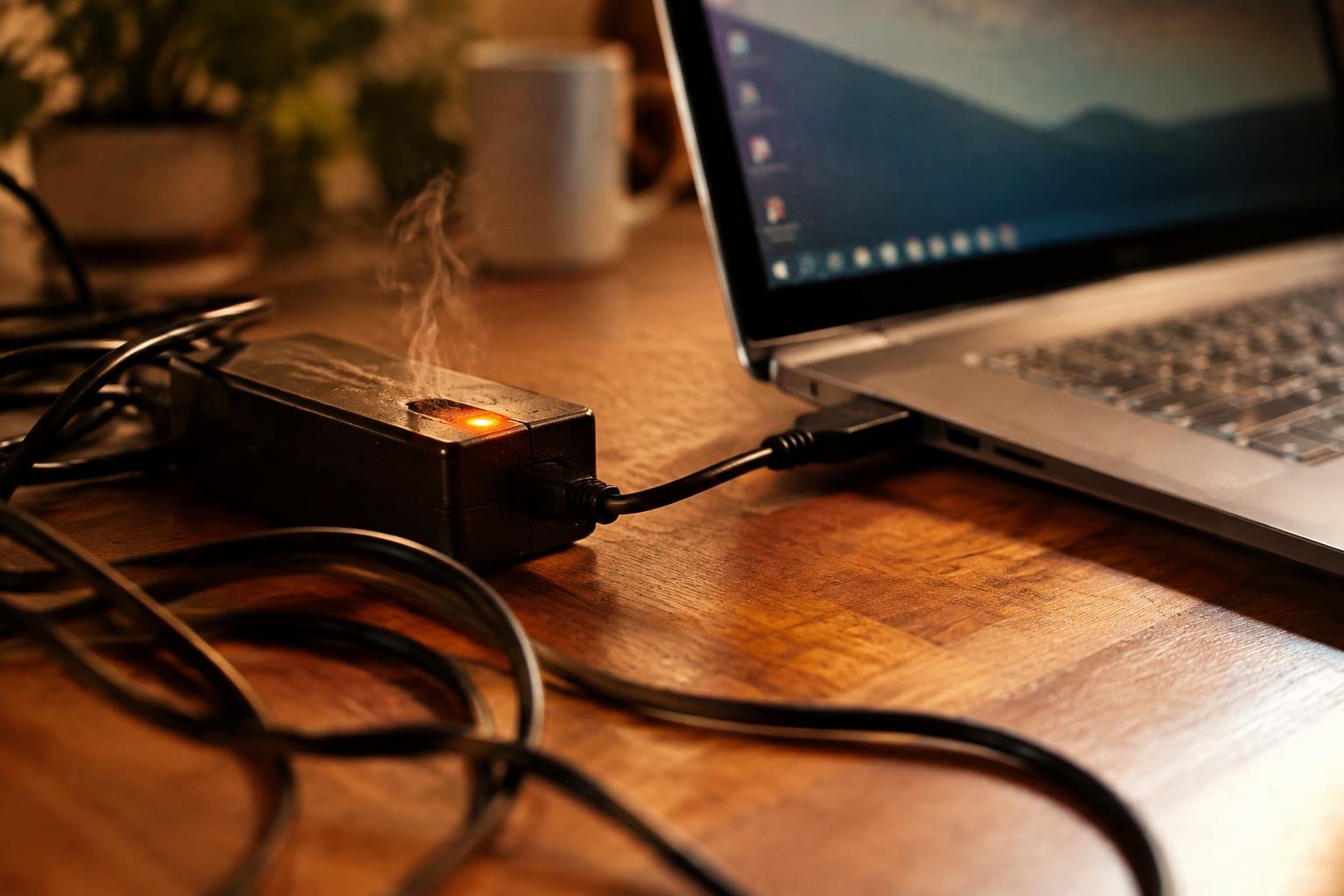
A warm laptop charger is common during use, but excessive heat can point to restricted airflow, a damaged cable, or an incompatible power adapter. Your charger converts wall power into the lower-voltage current your laptop needs, and that conversion produces heat. A casing that becomes too hot to hold or develops a burning smell calls for immediate attention.
Key Takeaways:
- A laptop power adapter normally warms during use as it converts AC power to the lower-voltage DC output required by the computer.
- Excessive heat, a burning smell, buzzing, melted plastic, or a damaged cable signals a possible electrical fault; unplug the adapter and stop using it.
- Blocked ventilation, a high-power workload, a loose connection, or an adapter with the wrong specifications can increase charger temperature.
- Place the power brick on a hard, open surface, keep its vents clear, and avoid covering it with bedding, clothing, or papers.
- Replace a faulty charger with one that matches the laptop’s required voltage, connector, and power rating, using a manufacturer-approved or reputable compatible model.
Why Laptop Chargers Get Hot
Warmth during charging is usually a byproduct of energy conversion, not evidence of a fault. Your adapter works continuously while supplying power to the laptop and, in many models, charging its battery at the same time. Its temperature changes with the computer’s workload, the battery’s charge level, and the adapter’s design. A charger often feels warmer during intensive use than when the laptop is idle, while excessive heat has distinct warning signs.
How a Charger Converts Power
Inside the adapter, switching circuitry changes household alternating current into the lower-voltage direct current your laptop requires. Components such as transistors and transformers switch rapidly to regulate that output as the computer draws power. This conversion is efficient, but not perfect: a portion of the incoming electrical energy becomes heat in the adapter’s internal components. The casing releases that heat into the surrounding air while the charger supplies the laptop through its cable.
Heat from Normal Electrical Resistance
Every conductor resists the flow of electrical current to some degree, and that resistance produces heat. In your charger, current-carrying components, circuit connections, and the cable’s copper wires all contribute small losses during operation. A compact adapter has limited surface area for releasing heat, so its case can feel noticeably warm under steady load. That ordinary warmth reflects power moving through the charger, rather than a sudden change in its operation.
Effects of High Power Demand
High power demand increases the current your adapter must deliver, raising heat production in its circuitry and cable. Your laptop draws more power during processor-intensive tasks, graphics work, or battery charging while running demanding software. A charger rated for the laptop’s requirements is designed to handle its specified output, but temperature varies with workload, airflow, and charging state. For instance, gaming while the battery is low places a heavier sustained load on the adapter than light web browsing.
- Charging a depleted battery draws power for both the laptop and battery.
- Soft bedding can block airflow around an adapter resting on a bed.
- A tightly coiled cable traps heat near its bundled conductors.
Signs of a Charger Heating Problem
Changes in temperature, charging behavior, and the adapter’s physical condition can distinguish ordinary warmth from signs of a developing fault. A charger often feels warm during demanding tasks, but heat that becomes uncomfortable to touch, persists when the laptop is idle, or appears alongside damage deserves attention. Note where the heat is concentrated, whether it occurs at the power brick, cable, or plug, and whether the laptop’s charging indicator changes at the same time.
Excessive Heat, Burning Smell, or Discoloration
Heat that makes the adapter uncomfortable to hold, especially during light laptop use, is more concerning than mild warmth. A sharp, acrid odor near the power brick or outlet can indicate overheated insulation or internal components. Look for brown marks, melted plastic, or darkened areas around the charger’s casing and plug. If you notice smoke, a burning smell, or visible melting, disconnect power at the outlet if safe and stop using the charger.
Intermittent Charging or Unexpected Shutdowns
Repeated changes between charging and battery power can signal a charger or connection problem, particularly if the battery icon flickers while the plug remains seated. Your laptop may also shut down unexpectedly when the battery is low, or fail to charge during tasks that draw more power. Observe whether the indicator changes when the cable is gently repositioned, but do not bend or twist a hot connector. A charger that cuts out under load is not operating reliably.
Frayed Cables, Loose Connectors, or Bulging Casing
Inspect the full cable length for split insulation, exposed wire, kinks, or areas that feel unusually soft after use. A connector that wobbles in the laptop’s charging port or has a bent tip may lose contact and heat at the joint. Check the power brick for cracks, seams that have opened, or casing that appears swollen. These visible changes are warning signs, not cosmetic defects; avoid plugging in a charger with exposed conductors or a bulging enclosure.
| Sign | What to observe | Indication |
|---|---|---|
| Excessive heat | Adapter becomes uncomfortable to hold | Abnormal temperature rise |
| Odor or discoloration | Acrid smell, dark marks, or melted plastic | Possible heat damage |
| Charging interruptions | Charging indicator flickers or power cuts out | Unstable power delivery |
| Physical damage | Frayed insulation, loose tip, or bulging casing | Unsafe or unreliable charger |
Common Causes of Excessive Heat
Heat builds when electrical resistance, restricted airflow, or sustained power demand prevents a charger from shedding energy efficiently. Cable condition, outlet contact, and the laptop’s active tasks all affect how much work the adapter must handle. A warm casing during charging is common, but concentrated heat near a plug, damaged insulation, or a persistent hot-electronics smell points to a more serious source. Each factor has distinct physical clues, from a loose connector to a fan running heavily under load.
Damaged or Poor-Quality Chargers
Frayed insulation, bent connector tips, and cracked adapter housings can expose conductors or increase resistance, concentrating heat at the damaged point. A poorly built or counterfeit charger may also lack suitable components for regulating voltage and current. Match the adapter’s output voltage and connector specification to your laptop, and use a model from the laptop maker or a reputable manufacturer. Heat localized where a cable enters the brick often indicates strain or internal damage.
Blocked Ventilation and Soft Surfaces
Adapter bricks release heat through their casing, so placing one beneath clothing, bedding, or a thick rug traps warm air around it. A charger wedged between cushions or pressed against a wall also has less exposed surface for cooling. Keep the brick on a firm, open surface such as a desk, with its ventilation openings unobstructed. Dust packed around the casing can further slow heat release, especially when the adapter sits on the floor.
High Device Workload or Incompatible Power Ratings
Gaming, video rendering, and large software updates increase a laptop’s power demand, making its adapter work harder for longer periods. An underpowered charger may run near its limit while the battery charges and the processor or graphics hardware remains active. A charger with an unsuitable output rating can also cause unstable charging or excess heat. Check the laptop’s required wattage and the adapter’s output label, particularly when a USB-C charger is shared between devices.
Faulty Outlets and Loose Connections
Worn wall receptacles and loose plugs create poor electrical contact, which can generate heat at the connection rather than across the adapter casing. A plug that rocks in the outlet, sparks, or leaves scorch marks signals a potentially hazardous fault. Extension cords and overloaded power strips add connection points that can also become warm. Pay attention to heat or discoloration around the wall socket and the charger’s AC inlet, where contact problems are easiest to spot.
- Keep liquids away from charging equipment.
- Avoid bending cables sharply at their connector ends.
- Do not cover an adapter with papers or accessories.
Safe Troubleshooting and Immediate Actions
Handle a hot charger cautiously, since its casing and connector can retain heat after you disconnect power. Work through simple checks with dry hands and keep the adapter away from water, fabric, and other combustible materials. Avoid opening the power brick or probing electrical contacts; internal components can hold a charge even after unplugging. Use your senses to identify obvious damage, unusual odors, or unstable connections, and stop testing if any warning sign appears.
Unplugging and Cooling the Charger
Disconnect the charger from the wall outlet first, then remove its laptop connector without pulling on the cable. Place the adapter on a hard, nonflammable surface, such as a bare desk or tile floor, and let it cool naturally. Do not cover it, put it in a refrigerator, or cool it with water, since rapid temperature changes and moisture can damage electrical parts. Wait until the casing feels close to room temperature before handling it again.
Checking the Cable, Adapter, and Outlet
Inspect the full cable length, connector ends, and adapter casing for cuts, crushed sections, melted spots, or a burnt smell. Check that the plug sits firmly in a wall outlet and that the outlet face is not discolored or unusually warm. Test a different, known-good outlet if the first one feels loose, but avoid extension cords or overloaded power strips during troubleshooting. Keep your hands dry, and do not bend a damaged cable to test its connection.
Improving Airflow and Reducing Device Workload
Set the adapter on a firm, open surface with space around its vents and casing, rather than on bedding, carpet, or inside a bag. Move it away from direct sunlight, heaters, and other heat-producing electronics. Closing demanding applications, pausing intensive downloads, or shutting down the laptop reduces power demand while charging. Keep the laptop’s air intakes clear as well, since blocked ventilation can raise heat around the charging area.
When to Stop Using the Charger
Stop using the charger immediately if you notice smoke, sparks, a sharp burning odor, melted insulation, exposed wire, or a crackling sound. Do not touch a sparking plug or damaged connector; switch off power at the circuit breaker if you can do so safely. A charger that repeatedly becomes too hot to handle or causes the outlet to buzz also needs to be disconnected. Keep it away from people and combustible materials while it remains unplugged.
| Observation | Immediate action | Safe check |
|---|---|---|
| Hot adapter casing | Unplug and cool on a hard surface | Wait until near room temperature |
| Loose or warm outlet | Disconnect without touching damaged areas | Try a known-good wall outlet |
| Blocked airflow | Move adapter to an open surface | Clear nearby fabric and heat sources |
| Smoke, sparks, or exposed wire | Stop using and isolate the charger | Cut circuit power only if safe |
Choosing a Safe Replacement Charger
Choose a replacement by confirming that it suits your laptop’s power requirements and comes from a traceable, reputable source. The correct label and connector are only part of the decision: construction quality, electrical protections, and clear manufacturer information also matter. Before purchasing, identify your laptop’s exact model and review its charging specifications in the manufacturer’s documentation. Keep these checks focused on the adapter itself, including its output ratings, connector design, and safety markings.
Matching Voltage, Wattage, and Connector Type
Match the charger’s output voltage to the laptop’s specified input voltage; voltage is not a rating to approximate. Its wattage should meet or exceed the laptop’s requirement, while a higher-wattage compatible adapter generally supplies only the power the device draws. Confirm the connector’s shape and dimensions, or USB-C Power Delivery support and required profile, rather than relying on appearance alone. A barrel plug with the wrong polarity or pin arrangement can prevent charging or damage the laptop.
Using Manufacturer-Approved or Certified Chargers
Manufacturer-approved adapters provide a dependable match for the laptop’s electrical and connector requirements. If you select a third-party model, verify that its maker identifies your laptop model as compatible and provides a complete specification label. For USB-C charging, look for stated Power Delivery support and output profiles that meet the laptop’s requirements. Recognized safety certification marks should correspond to a verifiable testing organization, and the adapter should include clear manufacturer and model identification.
Avoiding Counterfeit and Damaged Products
Buy from the laptop maker or an established retailer with a clear returns process, since marketplace listings can mix genuine and counterfeit stock. Compare product photographs and packaging with the manufacturer’s official information, and avoid adapters with misspelled labels, missing ratings, or implausibly low prices. Reject any unit with a cracked case, bent connector, frayed cable, or loose plug. A charger that arrives with an unfamiliar brand name or no model number lacks basic traceability.
- Keep the product listing and receipt.
- Confirm the adapter’s model number against the maker’s catalog.
- Inspect the cable strain relief for separation from the plug or case.
Preventing Future Charger Overheating
Consistent charging habits reduce avoidable strain on your laptop’s power adapter. Use the charger in a dry, stable location, and disconnect it by gripping the plug rather than pulling the cable. Match your routine to the equipment: a high-wattage laptop needs its specified adapter, while a loose connection or crowded charging spot deserves attention before regular use. Small choices, such as keeping the power brick off a blanket, limit heat-trapping conditions during long charging sessions.
Keeping the Adapter and Vents Uncovered
Place the adapter on a hard, open surface such as a desk or shelf, with space around its casing for air to circulate. Bedding, rugs, and clothing trap heat against the power brick, so avoid charging beneath blankets or inside a laptop bag. Keep the laptop’s own intake and exhaust vents clear as well, especially when it rests on a soft surface. During extended use, position the adapter away from direct sunlight and room heaters.
Inspecting Cables and Connectors Regularly
Before plugging in, look along the cable for fraying, flattened sections, cuts, or exposed wire, and check that the adapter casing has no cracks. Examine the connector for bent parts, dark marks, or looseness at the laptop’s charging port. A damaged lead can create resistance and localized heat, so stop using a charger with visible damage rather than wrapping it in tape. Coil the cable loosely for storage, keeping tight bends away from both connector ends.
Using Suitable Outlets and Power Strips
Plug the charger into a properly fitted wall outlet or a reputable, undamaged power strip rated for the connected devices. Avoid loose sockets, overloaded strips, and extension cords routed beneath rugs, where poor contact or trapped heat can increase risk. Keep the adapter’s plug fully seated, and disconnect it before moving furniture or cleaning around the outlet. If a socket feels hot, sparks, or produces a burning odor, stop using it and contact a qualified electrician.
| Charging habit | What to do | Heat-related benefit |
|---|---|---|
| Adapter placement | Set it on a hard, open surface | Allows air to circulate around the casing |
| Cable inspection | Look for cuts, fraying, and bent connectors | Flags damage that can cause localized heating |
| Outlet choice | Use a sound outlet or rated power strip | Reduces problems from loose or overloaded connections |
Final Words
A warm laptop charger is often normal during use, but excessive heat, a burning smell, damaged insulation, or intermittent charging signals a fault. Unplug the adapter if you notice these symptoms, and let it cool on a hard, open surface away from fabric. Replace a faulty unit with a charger that matches your laptop’s voltage, connector, and power requirements. Keeping the adapter ventilated and its cable free of bends reduces strain on the components and connection points.
FAQ
Is it normal for a laptop charger to get warm while charging?
Yes, a charger can feel warm during normal use because converting electricity produces some heat. It should not become painfully hot, smell burnt, change color, or have a swollen casing; unplug it and stop using it if any of those signs appear.
How hot is too hot for a laptop charger to touch?
A charger that feels painfully hot or too hot to hold comfortably should be unplugged and allowed to cool. Warmth alone is usually not a fault, but there is no single touch-based temperature limit that applies to every charger, so watch for burning smells, damage, or charging interruptions too.
Can I use my laptop if the charger is overheating?
Do not keep using a charger that is excessively hot, damaged, or giving off a burning smell. Unplug it from the wall if safe, let it cool on a clear, hard surface, and replace it if the problem returns or there is visible damage.
How long should I wait for an overheated charger to cool?
Wait until the charger has returned to room temperature before inspecting or using it again. Cooling time depends on how hot it became and the surrounding conditions; if it stays hot while unplugged, smells burnt, or looks damaged, do not reconnect it.
Can a laptop charger heating problem damage my laptop?
A faulty charger or unstable connection can interrupt charging and may pose a risk to the laptop or nearby surfaces. A warm charger is not by itself evidence of damage, but stop using it if it overheats, sparks, smells burnt, or causes repeated charging interruptions.
Do I need to replace a laptop charger that gets hot?
Replace a charger if it becomes painfully hot, has damaged wiring or casing, smells burnt, or repeatedly interrupts charging. If it is only warm and otherwise works normally, first make sure it is compatible, undamaged, and uncovered; persistent overheating warrants replacement.
Can I use a lower-wattage charger as a temporary alternative?
A lower-wattage charger may charge slowly, fail to charge, or struggle to power the laptop while it is in use. Use one only if its voltage, connector, and charging standard are compatible with the laptop, and follow the manufacturer’s power requirements.
 Previous Post