



Laptop Battery Draining During Shutdown Fix
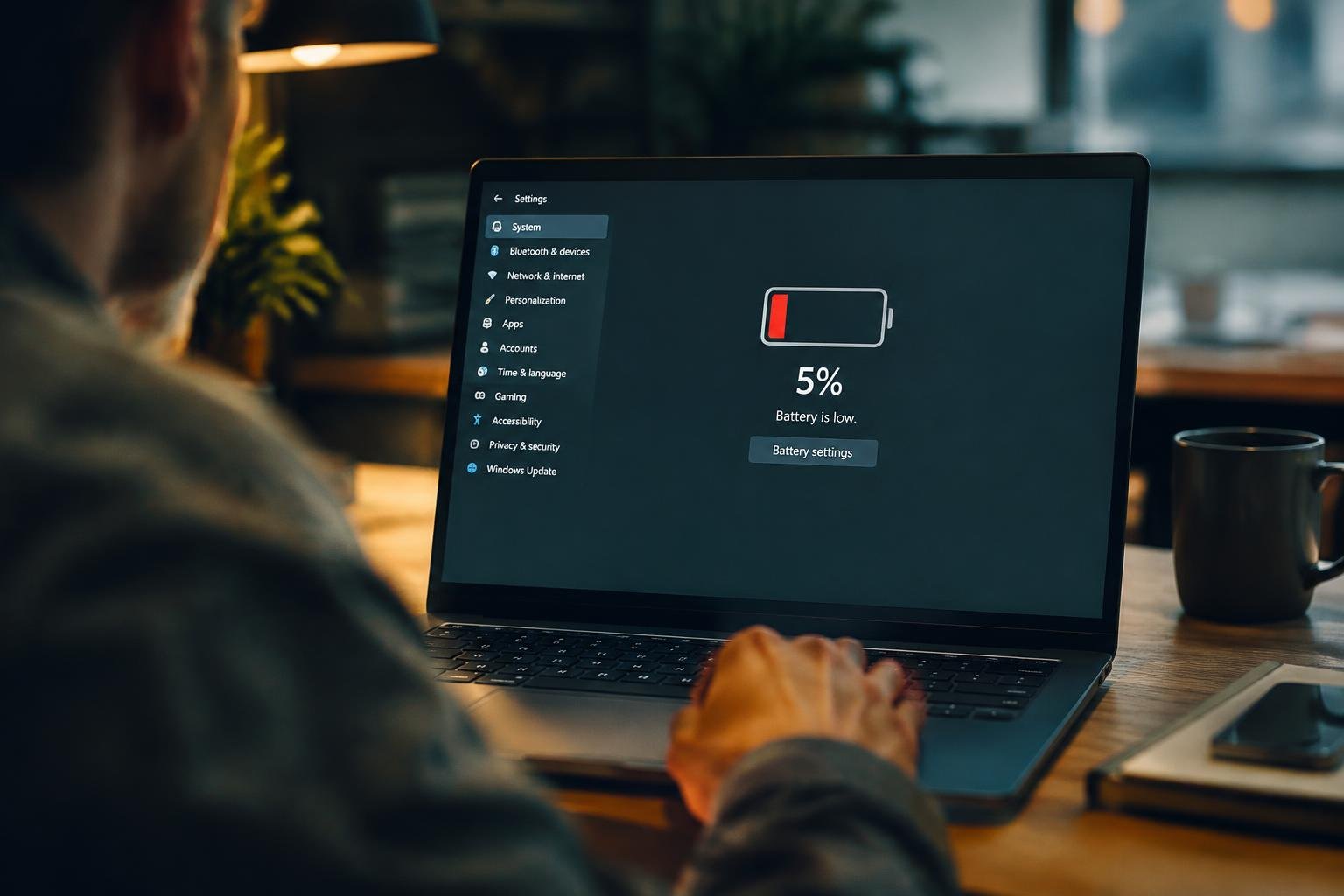
A laptop that loses charge while powered off is not completing a true shutdown or is receiving power through a connected device. You can narrow the cause by distinguishing shutdown from sleep, then checking firmware, power settings, and battery health. Even a small overnight drop deserves attention if the laptop is fully shut down and unplugged.
Key Takeaways:
- Measure battery level before and after a full shutdown, then repeat the test with the charger and all peripherals disconnected to confirm whether the loss occurs while the laptop is powered off.
- Disable Fast Startup on Windows if the laptop uses a hybrid shutdown, which saves system state rather than performing a fully clean shutdown.
- Disconnect USB devices, docks, and other accessories; USB charging or wake features can keep ports active after shutdown on some models.
- Install BIOS or UEFI updates from the laptop manufacturer, since firmware controls power states and shutdown behavior.
- If the battery continues losing charge while fully shut down and disconnected, check its health with the manufacturer’s diagnostic utility or have the battery inspected for wear.
Confirming Battery Drain During Shutdown
Separate Shutdown from Sleep
To confirm shutdown drain, distinguish a full power-off from sleep or hibernation. In sleep, your laptop keeps memory active and uses a small amount of battery; hibernation writes the session to storage and uses less power, but it is not the same as shutdown. A closed lid does not prove the computer is off, since its lid action may be set to sleep.
Record the Change
Start with a known charge level, shut the laptop down through the operating system, and leave it unplugged for a consistent interval. Note the battery percentage before and after, and make sure the power indicator and screen are off. A small displayed change can reflect battery-meter rounding rather than actual loss, so look for a repeatable drop across separate shutdown periods.
- Disconnect the charger after shutdown.
- Keep the laptop at a stable room temperature.
- Record the start and end battery percentages.
- Note whether the power indicator remains lit.
Diagnosing the Source of the Drain
Battery reports show whether the pack’s full-charge capacity has fallen and whether its charge level changes across shutdown periods. In Windows, run powercfg /batteryreport from an elevated Command Prompt, then review the recent usage and battery-capacity history. Record the charge before shutdown and again after a consistent period powered off; repeat the test with the same peripherals and starting charge.
| Test | What to record | Diagnostic clue |
|---|---|---|
| Battery report | Full-charge capacity and recent history | Reduced capacity points to battery wear |
| Shutdown baseline | Charge before and after a fixed interval | Repeated loss confirms a consistent drain |
| Peripheral isolation | Repeat with USB devices disconnected | A change implicates an attached device |
Checking Shutdown and Power Settings
Fast Startup can leave Windows in a hybrid shutdown state rather than fully powering off. Open Control Panel, select Power Options, choose “What the power buttons do,” then disable “Turn on fast startup” and test whether the battery still loses charge while the laptop is off.
- Run
powercfg /ain Command Prompt to list available sleep states. - Use
powercfg /lastwaketo identify the most recent wake source. - Turn off wake timers in the active power plan’s advanced settings.
Wake-on-LAN and scheduled maintenance can also bring a sleeping or hybrid-shutdown system back to life. In Device Manager, open the network adapter’s properties and clear “Allow this device to wake the computer” when that option is available; use a full shutdown to distinguish those wake settings from ordinary sleep behavior.
Inspecting Connected Devices and Hardware
Isolate Peripherals and Ports
Disconnect USB drives, docks, external displays, and phone cables before shutting down; a powered accessory or active USB port can keep part of the laptop’s circuitry awake. Test the shutdown with all peripherals removed, then reconnect devices one at a time to identify whether a particular dock or port coincides with the drain.
| Hardware point | What to inspect | Possible clue |
|---|---|---|
| USB devices | Remove drives, hubs, and phone cables | Drain stops with one device detached |
| Dock or display | Disconnect the dock and external monitor | Drain changes when the dock is absent |
| Charging port | Look for looseness, debris, or heat | Intermittent charging or unusual warmth |
| Battery | Inspect for swelling or case separation | Raised trackpad or uneven bottom panel |
Look for Physical Battery Faults
Inspect the charging port and battery area for damage, residue, excess heat, or a case that no longer sits flat. A swollen battery can press against the trackpad or lift the bottom panel; stop using the laptop and arrange professional service if you see either sign.
Updating Firmware, Drivers, and System Software
Install BIOS or UEFI firmware updates from your laptop manufacturer’s support page, following its model-specific instructions and keeping the charger connected throughout. Firmware updates can correct shutdown behavior involving embedded controllers and power states. In Windows, use Device Manager or the manufacturer’s support utility to update chipset and power-management drivers; on macOS, install available system updates through System Settings.
- Confirm the laptop’s exact model before downloading firmware.
- Save open work before starting an update.
- Keep the laptop connected to AC power during installation.
- Restart after updates, then perform a full shutdown.
Repairing or Replacing a Failing Battery
Battery service is warranted when a shutdown drain persists and diagnostics show poor battery health, swelling, or an inability to hold charge. Check the manufacturer’s battery report or built-in diagnostics, then compare its condition with the device’s stated service limits. Stop using a laptop with a swollen battery and arrange professional service, since pressure can damage the trackpad or case. For a healthy battery with an isolated fault, a repair technician can test the charging circuit before recommending replacement.
| Finding | Likely action | Service detail |
|---|---|---|
| Battery health below manufacturer limit | Replace battery | Use a compatible, manufacturer-approved part |
| Swelling or case deformation | Stop using and seek service | Do not puncture or compress the battery |
| Battery tests healthy, drain continues | Diagnose charging circuitry | Have a technician test the power board |
Preventing Battery Drain After Shutdown
Set a Consistent Shutdown Routine
Before closing your laptop, disconnect USB accessories, docks, and external drives, then use the operating system’s full shutdown command rather than closing the lid. Store the computer on a hard surface with its vents clear, and avoid leaving it in a hot car, since heat accelerates battery wear. For extended storage, shut it down with the battery partly charged, rather than leaving it full or nearly empty.
- Disable wake-on-LAN in firmware settings.
- Turn off USB charging while powered off.
- Remove wireless receivers and memory cards.
Final Words
Resolving battery drain during shutdown starts with confirming that your laptop is fully powered off, then isolating settings, connected devices, firmware, and battery condition as possible causes. Disable features such as Wake-on-LAN when they are not needed, disconnect USB accessories, and install the manufacturer’s recommended BIOS and driver updates. If the battery still loses charge after a full shutdown, use the system’s battery diagnostic tool and arrange service when it reports a fault or the battery shows swelling.
FAQ
Why is my laptop battery draining during shutdown?
A laptop battery can drain while shut down because of connected devices, power-management settings, firmware, or a failing battery. The likely cause depends on whether the drain continues with peripherals disconnected and after the laptop is fully powered off rather than asleep or hibernating.
How long should it take to find what is draining my laptop battery?
Basic checks, such as fully shutting down the laptop and disconnecting peripherals, can take a few minutes, while comparing battery levels over time may take several hours. The time depends on how quickly the battery loses charge and whether the cause is intermittent.
Can fixing shutdown battery drain delete my files or damage my laptop?
Changing power settings or disconnecting accessories should not delete personal files, but firmware updates carry some risk if interrupted or performed incorrectly. Follow the laptop maker’s instructions, keep the device connected to reliable power during an update, and avoid opening the laptop unless you are qualified to do so.
What is the most common mistake when troubleshooting battery drain?
The most common mistake is treating sleep or hibernation battery use as shutdown drain. Confirm that the laptop is fully powered off, then compare charge levels under consistent conditions, since battery readings and normal background activity can make small changes difficult to interpret.
Can a USB device drain a laptop battery while it is off?
Yes, some laptops continue supplying power to USB ports while shut down, which can let connected devices draw power. Disconnect peripherals and check the manufacturer’s power settings; available options vary by model, and disabling port power may also prevent charging devices from that port.
Is it worth replacing a laptop battery that drains while shut down?
Battery replacement is worth considering when testing points to a worn or faulty battery and power settings, peripherals, and software are not the cause. Cost depends on the laptop model, battery availability, and whether service is needed, so compare a repair estimate with the value of the device.
How can I keep my laptop charged when it is turned off?
Fully shut down the laptop, disconnect accessories that may draw power, and disable any optional setting that keeps ports powered while the device is off. If charge still drops noticeably, the cause may be a battery fault or power-management issue that needs further diagnosis.
 Previous Post
 Next Post