



Laptop Charger Voltage Problems Explained
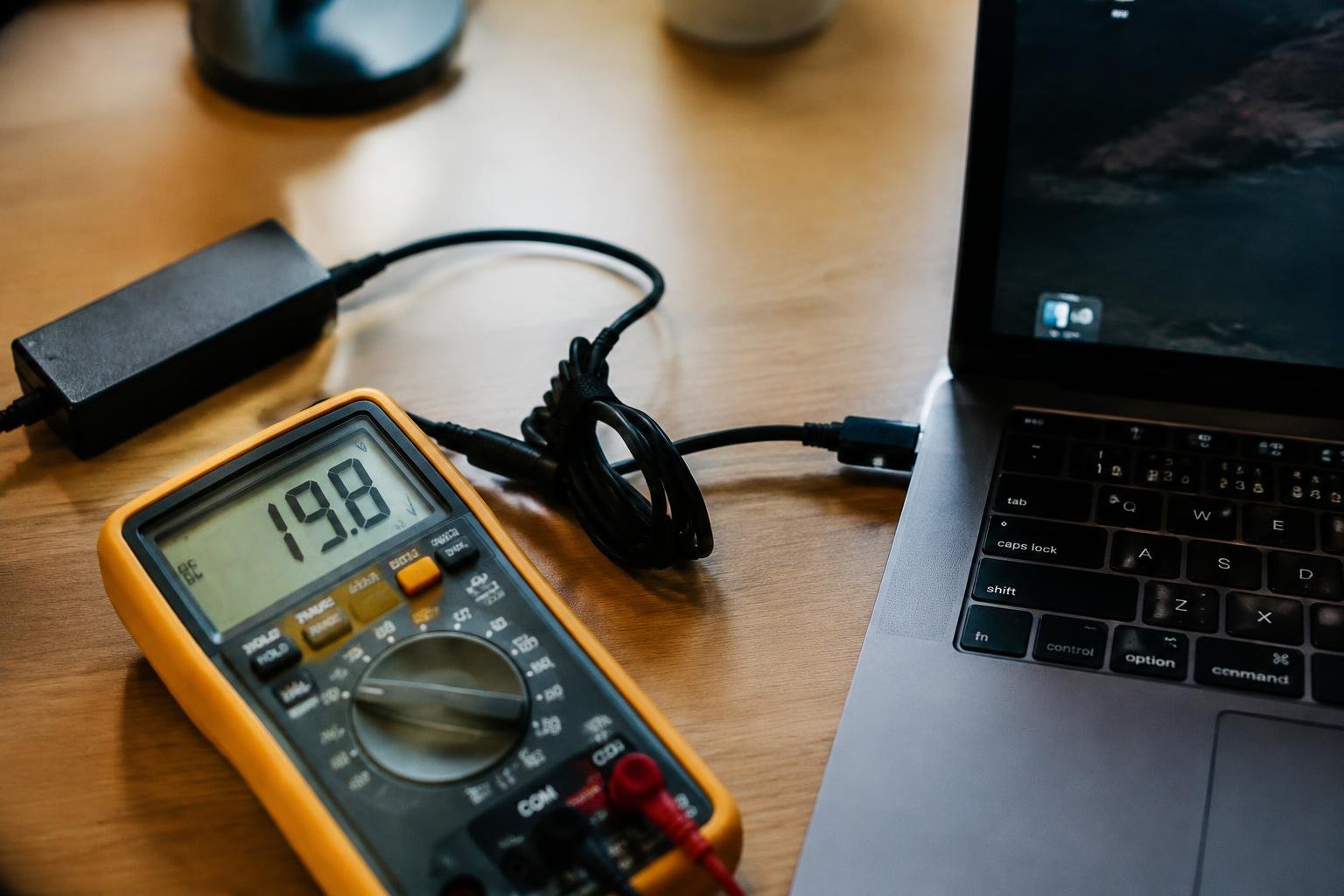
A charger with the wrong output voltage can leave your laptop unpowered or put its charging circuitry at risk. You can find the required voltage on the laptop’s label or in its manufacturer specifications, then compare it with the charger’s output rating. A matching connector alone does not confirm compatibility: the voltage printed on the adapter matters.
Key Takeaways:
- A laptop charger’s output voltage must match the voltage specified by the laptop maker; a higher or lower output can prevent charging or damage the computer.
- Voltage is only one compatibility requirement: the charger also needs the correct connector or USB-C Power Delivery support, and sufficient wattage for the laptop.
- A multimeter set to DC voltage can test a charger’s output at its connector, but USB-C chargers require a compatible tester because their output depends on negotiated power profiles.
- Damaged cables, loose connectors, and failing power adapters can cause unstable charging; frayed insulation, unusual heat, or a burning smell are reasons to stop using the charger.
- Use a manufacturer-approved replacement with the specified voltage and an equal or higher wattage rating, while keeping the original connector or USB-C charging standard.
How Laptop Charger Voltage Works
Your laptop receives power through a regulated DC output, with the charger maintaining its rated voltage as the computer draws energy. That voltage supplies the motherboard and internal power circuits, which then distribute electricity to components such as the processor, display, and battery. A stable output supports normal operation, while a significant departure from the laptop’s specified input can disrupt those circuits. The voltage rating describes the charger’s intended electrical output, not the amount of power it delivers at every moment.
Voltage, current, and wattage
Voltage is the electrical potential delivered by the adapter, measured in volts (V); current, measured in amperes (A), is the flow available to the laptop. Wattage expresses power and is calculated by multiplying volts by amps. A 19.5 V adapter rated at 3.34 A, for example, supplies about 65 W at its rated output. Your laptop draws the current it needs, while the adapter’s voltage rating defines the level its power circuits are designed to receive.
Charger labels and laptop power requirements
Read the adapter label for the line marked “Output,” which lists direct-current voltage and maximum current, often beside a DC symbol. Your laptop’s underside label or manufacturer specifications state its required input, commonly as a voltage and current range or a wattage rating. Those figures describe the electrical supply the computer is built to accept. A label showing 20 V DC identifies the adapter’s nominal output, while a separate 3.25 A figure indicates its available current capacity.
| Label detail | Unit | What it describes |
|---|---|---|
| Output voltage | Volts (V) | Electrical potential supplied by the adapter |
| Output current | Amperes (A) | Maximum current capacity |
| Power rating | Watts (W) | Power, calculated as volts multiplied by amps |
Causes of Charger Voltage Problems
Incorrect or unstable output usually traces to a mismatch, a break in the power path, or inconsistent input from the electrical supply. The source matters because each fault affects a different part of the charging circuit: the adapter regulates voltage, the cable carries it, and the outlet supplies the adapter. A laptop’s USB-C charging system also depends on a compatible power profile, while a barrel connector relies on the adapter’s specified voltage and polarity.
Wrong or incompatible charger
Using an adapter with the wrong output rating can deliver voltage outside the laptop maker’s specification. Check the label for output voltage, current, and polarity, then match those details to the laptop’s requirements; a higher current rating is generally acceptable when voltage and connector specifications match. USB-C models also need a charger that supports the laptop’s required USB Power Delivery profile. A phone charger that supplies only a lower-power profile may not meet a laptop’s input needs.
Damaged cables, connectors, or power adapters
Frayed insulation, bent connector pins, and loose USB-C plugs can interrupt the path between the adapter and the laptop. Inside the adapter, failed components or heat damage can disrupt voltage regulation even when the casing appears intact. Repeated bending near the cable strain relief is a common cause of conductor breaks, while dust or corrosion on a connector can increase resistance. A damaged barrel jack may also prevent firm contact with the adapter plug.
Outlet and power-supply issues
Voltage problems can begin before power reaches the charger. A loose wall outlet, overloaded power strip, or damaged extension cord can create intermittent input, while a failing building circuit can cause supply fluctuations. Travel adapters that do not match local mains voltage or plug standards add another possible source of trouble. If other devices also lose power on the same circuit, the outlet, strip, or circuit wiring deserves attention rather than the laptop adapter alone.
- USB-C cable lacks an e-marker for higher-power delivery.
- Power strip switch or breaker has a worn contact.
- Adapter ventilation is blocked by fabric or dust.
Symptoms and Risks
Voltage faults show up in the laptop’s behavior because the charger must supply power within the range its circuitry expects. A mismatch can disrupt charging, trigger protective controls, or place extra strain on components that regulate incoming power. The same warning sign can have more than one cause, so assess it alongside the laptop’s temperature, battery response, and stability under load. Persistent symptoms point to a power-delivery problem that can affect the charging port, battery, or motherboard.
Charging interruptions and power warnings
Repeated switches between charging and battery power often indicate an unstable supply, especially if the battery icon changes while the connector remains seated. A laptop may also display an adapter warning, limit processor performance, or refuse to charge when it detects voltage outside the expected range. These alerts are not proof of a voltage fault, since a loose DC jack or damaged cable can produce similar behavior. Note whether the interruption occurs during startup, under heavy workload, or when the cable moves.
Overheating, shutdowns, and battery concerns
Excess heat near the adapter, charging port, or laptop underside can accompany a power fault, though a warm charger alone does not confirm one. Unstable input can cause protective shutdowns or make the battery charge unusually slowly, stop charging, or lose capacity over time. A swollen battery, burning smell, or unusually hot connector signals a more serious hazard. Stop using the charger if you notice any of these signs, and keep the laptop away from bedding and other heat-trapping surfaces.
Risks of continued use
Continuing to use an out-of-spec charger can expose the laptop’s input circuitry to electrical stress, potentially damaging components such as the charging controller or motherboard. A faulty adapter or connector also presents a risk of excessive heat, short circuits, and battery damage. The severity depends on the fault and the laptop’s protective design, but recurring warnings, unexpected shutdowns, or visible cable damage warrant disconnecting the charger. Do not keep a charger with a cracked housing or exposed conductors in service.
| Observed sign | Possible concern | Immediate response |
|---|---|---|
| Charging repeatedly stops | Unstable input or connector fault | Disconnect if interruptions persist |
| Adapter warning appears | Unrecognized or out-of-range power | Avoid relying on the charger |
| Port or adapter becomes unusually hot | Excess resistance or electrical fault | Unplug and let it cool |
| Battery swells or smells unusual | Potential battery hazard | Stop charging and using the laptop |
| Laptop shuts down unexpectedly | Power instability or protective cutoff | Disconnect a suspect adapter |
How to Check Charger Voltage
Use the label, a suitable meter, and the laptop’s own power specifications to assess whether the adapter supplies the expected voltage. Keep the charger disconnected from the laptop while measuring its output, and work on a dry, uncluttered surface. Connector design matters: barrel plugs expose contacts differently from USB-C cables, so use the method suited to your charger. Record the adapter’s output rating and the laptop’s required input before taking a reading.
Reading the charger specifications
Start with the label on the adapter brick, where “Output” lists the rated voltage and current, often alongside a polarity diagram. Match the voltage figure, shown in volts (V), to the laptop’s input requirement; current, shown in amperes (A), describes available capacity rather than voltage. For USB-C Power Delivery chargers, the label may list several voltage profiles instead of one fixed output, such as 5 V, 9 V, or 20 V.
Using a multimeter safely
Set a digital multimeter to DC voltage, selecting a range above the charger’s rated output if the meter is not autoranging. With the adapter plugged into a wall outlet but disconnected from the laptop, place the black probe on the barrel connector’s outer sleeve and the red probe on its inner contact. Keep the probe tips from touching each other, and do not probe USB-C contacts directly; those outputs require a compatible USB-C power meter.
Comparing results with laptop requirements
Find the laptop’s input rating on its underside label or in the manufacturer’s specifications, then compare its voltage with the adapter’s stated output. A barrel-charger reading close to the listed voltage is generally expected, though an unloaded reading alone does not confirm performance under load. For USB-C, verify that the charger supports a Power Delivery profile accepted by the laptop, and check that the cable is rated for the required power.
- Inspect the plug and cable for bent contacts or damaged insulation.
- Keep metal jewelry away from exposed connector contacts.
- Stop measuring if the adapter casing is cracked or unusually hot.
Fixing and Preventing Voltage Problems
Prevent repeat voltage faults by replacing damaged or electrically incompatible equipment rather than compensating with a higher-rated adapter. Keep the laptop, charger, and cable matched to the manufacturer’s specifications, and stop using any unit that overheats, produces a burnt smell, or has exposed wiring. Routine visual checks catch wear before it interrupts charging, while a technician can test uncertain faults with a multimeter and inspect the laptop’s power-input circuitry.
Choosing a compatible replacement charger
Match the replacement charger’s output voltage to the laptop’s required input voltage, and choose a connector that fits securely without force. Its current rating should meet or exceed the laptop’s specified requirement, while its wattage must be sufficient for the model, particularly during demanding use. Check the laptop manufacturer’s documentation or the label near its power port, and use a reputable, safety-certified adapter. A USB-C charger must also support the laptop’s required USB Power Delivery profile.
Inspecting and maintaining cables and connectors
Inspect the cable insulation, strain reliefs, and connector tip for cuts, kinks, looseness, discoloration, or bent contacts. Unplug the charger before cleaning, and remove dust from the laptop’s power port with a dry, nonconductive tool; never insert metal or apply liquid. Store the cable loosely coiled rather than tightly wrapped around the adapter, and pull the plug by its housing instead of the cord. Replace a cable that exposes internal conductors or causes charging to stop when moved.
When to seek professional repair
Contact a qualified repair technician if a known-compatible charger still produces unstable charging, the laptop’s power port feels loose, or the adapter becomes unusually hot. Stop using equipment that sparks, emits a burning odor, or has a swollen casing, and disconnect it from the outlet when safe. A technician can test the adapter’s output under load and examine the DC-in jack, charging circuit, and battery without risking accidental short circuits inside the laptop.
| Condition | Recommended action | Specific check |
|---|---|---|
| Charger voltage or wattage does not match specifications | Replace the charger | Compare its output label with the laptop requirements |
| Cable is cut or conductors are exposed | Stop using and replace the cable or charger | Inspect insulation and strain reliefs |
| Charging changes when the plug moves | Arrange professional diagnosis | Have the connector and DC-in jack examined |
| Adapter sparks or smells burnt | Disconnect it when safe and stop using it | Replace or have the unit assessed by a qualified technician |
To wrap up
Matching your laptop’s required voltage to the charger’s output protects the charging circuit and battery from avoidable stress. Read the voltage and polarity on the laptop label or manufacturer specifications, then compare them with the adapter label; also confirm that the connector and power-delivery standard are compatible. If the adapter’s output is unstable, the cable is damaged, or the laptop reports a charging fault, stop using that charger and replace it with a correctly rated model.
FAQ
How much does it cost to replace a laptop charger with voltage problems?
A replacement charger can range from a relatively inexpensive third-party option to a more costly original or certified model. The price depends on the laptop brand, required wattage, connector, and charger type; match the laptop’s specifications and choose a reputable seller rather than relying on price alone.
How long does it take to check whether a laptop charger is faulty?
A basic check of the label, cable, connector, and laptop charging behavior usually takes only a few minutes. A multimeter test takes longer if you need to set up the meter safely, and an intermittent fault may require professional diagnosis because it can be difficult to reproduce.
Can the wrong charger voltage damage my laptop?
Yes, an incompatible charger can cause charging problems and may damage the laptop or battery. Use a charger with the voltage and connector requirements specified for the laptop, and confirm that its power delivery is compatible; stop using a charger that overheats, smells unusual, or has damaged wiring.
What is the most common mistake when choosing a replacement laptop charger?
Choosing a charger based only on the connector fitting is a common mistake. The output voltage, power rating, and charging standard must also be compatible with the laptop, so check its documentation or original adapter label before buying.
Can I charge my laptop another way if the charger is faulty?
If the laptop supports USB-C charging, a compatible USB-C power adapter may be an alternative. The laptop and adapter must support the required charging standard and power level; otherwise, use a known-compatible charger or have the faulty equipment checked.
Is it worth repairing a laptop charger with voltage problems?
Replacing a faulty charger is usually the safer choice than attempting a repair. A professional may be able to identify a damaged cable or connector, but repairs to the adapter’s internal electronics can be hazardous and may not be economical compared with a compatible replacement.
How can I prevent laptop charger voltage problems from coming back?
Use a compatible charger, handle the cable gently, and keep connectors clean and undamaged. Avoid pulling the cable from the cord or sharply bending it near the plug; if charging becomes intermittent or the adapter gets unusually hot, stop using it and seek advice.
 Previous Post
 Next Post