



Laptop Freezes Randomly While Working Fix Guide
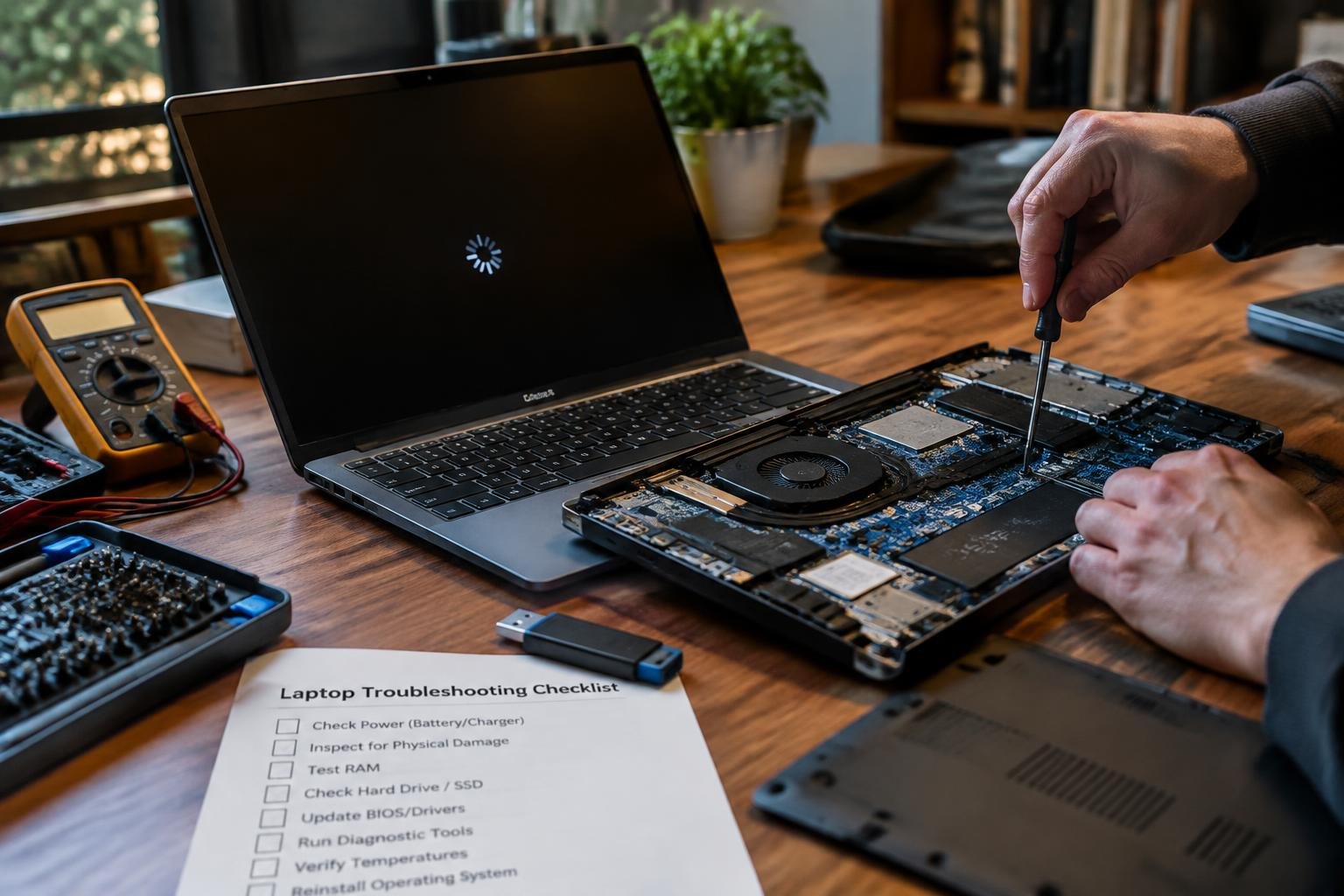
You’re in the middle of an important task when your laptop suddenly locks up. No warning, no error message-just a frozen screen. This guide walks you through proven methods to diagnose and resolve random freezes, from software conflicts to overheating components, so you can restore stability and get back to work quickly.
Key Takeaways:
- Laptop freezes during work sessions often stem from overheating, insufficient RAM, or background processes consuming excessive resources-identifying the root cause is the first step toward resolution.
- Outdated or corrupted drivers, especially graphics and chipset drivers, can trigger system instability; keeping them updated through the manufacturer’s support site improves reliability.
- Running too many applications at once overwhelms system memory, particularly on machines with 8GB of RAM or less; closing unused programs and browser tabs helps maintain smooth operation.
- Clean installation of the operating system can resolve persistent freezing issues caused by software corruption, but backing up data beforehand is essential to avoid loss.
- Regular hardware maintenance, such as removing dust from cooling fans and replacing aging thermal paste, prevents heat buildup that leads to unexpected freezes.
Identifying Common Types of System Freezes
Distinguishing between types of system freezes sharpens your troubleshooting precision. Some freezes lock the entire machine, while others affect only a single program, creating confusion if not properly categorized. You benefit from recognizing these patterns early, as they point to distinct underlying causes. A complete system halt often signals deeper hardware or kernel-level problems, whereas isolated app failures may stem from software bugs or memory leaks.
- Total system unresponsiveness with no input response
- Single application freezing while others function normally
- Screen artifacts or frozen display elements
- Audio looping or cutting out during freeze events
- Recovery requiring forced shutdown or reset
| Type of Freeze | Indicative Cause |
| Hard Lockup | Kernel panic, driver failure, overheating CPU/GPU |
| Application Hang | Memory leak, unresponsive process thread |
| Intermittent Stutter | Thermal throttling, background process overload |
| Partial UI Freeze | Graphics driver issue, desktop compositor crash |
Hard Lockups and Total System Unresponsiveness
A hard lockup leaves your laptop completely frozen-no mouse movement, unresponsive keyboard, and no reaction to shortcut commands. You can’t switch windows, open Task Manager, or even force a graceful shutdown through normal means. This total loss of control typically originates at the system level, often tied to critical driver failures, firmware bugs, or severe resource exhaustion. When the operating system can no longer manage processes or hardware communication breaks down, a full freeze becomes inevitable.
Intermittent Stuttering During High-Performance Tasks
Stuttering that occurs under load-like editing video or running demanding applications-suggests your system struggles to maintain performance stability. You may notice brief screen freezes, delayed input response, or audio hiccups that resolve themselves after a few seconds. These micro-freezes often stem from thermal throttling, insufficient RAM, or GPU driver inefficiencies when handling peak workloads. While not a full crash, this behavior warns of underlying limitations or instability in how components handle sustained stress.
Critical Factors Influencing Laptop Stability
Your laptop’s ability to perform consistently hinges on two core elements: the physical condition of its hardware and how well it manages internal stress during operation. As components age, their efficiency declines, especially when subjected to sustained workloads. Thermal limits and outdated hardware can silently degrade performance long before a complete failure occurs. Understanding these influences helps pinpoint whether instability stems from aging parts or environmental strain.
- Older processors lose efficiency under modern workloads
- Dust-clogged cooling systems accelerate heat buildup
- Worn-out capacitors may cause unexplained shutdowns
- Diminishing battery health impacts power delivery stability
Thermal Throttling and Internal Heat Accumulation
Heat builds up inside your laptop during extended use, especially if airflow is restricted by dust or worn thermal paste. When internal temperatures exceed safe thresholds, the processor automatically slows down to prevent damage-a behavior known as thermal throttling. You might notice sudden lag or unresponsiveness during video calls or file processing, even if the system appears idle. Persistent overheating can shorten component lifespan and trigger random freezes without warning.
Insufficient RAM and Storage Bottlenecks
Your laptop struggles to keep up when too many programs compete for limited memory. If you routinely work with large files or multiple browser tabs, inadequate RAM forces the system to rely heavily on slower storage-based virtual memory. This creates delays that cascade into system freezes, particularly when the drive is nearly full or uses older mechanical technology. Upgrading memory or switching to an SSD can dramatically reduce these bottlenecks and improve real-time responsiveness.
Step-by-Step Troubleshooting for Software Glitches
Software-related conflicts often trigger unexpected system freezes, especially when drivers and system firmware are out of sync. Resolving these issues requires a structured approach that targets known instability points without risking further complications. The following table outlines key actions and their intended outcomes to guide you through the process efficiently.
| Action | Expected Outcome |
| Update graphics drivers | Improved compatibility and reduced GPU-related crashes |
| Run System File Checker (SFC) | Detection and repair of corrupted system files |
| Update system BIOS | Enhanced system stability and hardware communication |
Updating Graphics Drivers and System BIOS
Your laptop’s graphics driver plays a major role in system responsiveness, especially during graphically intensive tasks. Outdated or incompatible versions can cause sudden freezes due to rendering conflicts. Visit your manufacturer’s support site to download the latest certified driver for your specific model. Equally important is updating the system BIOS, which improves low-level communication between components and can resolve subtle instabilities that trigger lockups.
Utilizing System File Checker to Repair Corrupt Data
Corrupted system files can silently disrupt normal operations and lead to random freezes. Windows includes a built-in tool called System File Checker (SFC) that scans for and replaces damaged or missing files. Open Command Prompt as an administrator and run sfc /scannow to initiate the scan. The tool will automatically attempt repairs, often restoring stability without requiring a full system reset or reinstallation.
Hardware Maintenance and Heat Management Tips
Overheating remains a leading cause of random laptop freezes, often stemming from blocked airflow or degraded thermal paste. You can maintain consistent performance by ensuring heat dissipates efficiently from critical components. Dust buildup restricts airflow, forcing fans to work harder while delivering less cooling. Reapplying thermal paste every couple of years helps transfer heat from the CPU and GPU to the heatsink. While this requires partial disassembly, the improvement in temperature management can extend your laptop’s lifespan and prevent sudden shutdowns or lag spikes during
Pros and Cons of Professional Repair vs. DIY
Deciding whether to fix your freezing laptop yourself or seek professional help depends on your technical confidence and the complexity of the issue. While DIY repairs can save money and offer immediate action, they carry risks like misdiagnosis or physical damage to sensitive components. Professional services provide expertise and precision but often come at a higher cost. You must weigh these factors carefully based on your situation, especially when dealing with internal hardware or persistent system behavior.
| Aspect | Professional Repair | DIY Repair |
| Expertise Level | High – trained technicians with experience | Varies – depends on your technical skill |
| Cost | Higher – labor and service fees apply | Lower – only component costs if any |
| Time Investment | Less – handled by experts quickly | More – research and trial-and-error needed |
| Component Safety | High – proper tools and handling | Risk of damage from improper handling |
| Warranty Coverage | Often preserved or extended | May be voided by self-service |
| Diagnostic Accuracy | Precise – using specialized equipment | Limited – relies on available tools and knowledge |
| Convenience | Drop-off and pickup or mail-in service | Immediate access but requires effort |
| Long-Term Reliability | Generally higher due to professional standards | Depends on repair quality and parts used |
| Learning Opportunity | Minimal – you’re not involved | High – hands-on experience gained |
| Tool Requirements | Handled by the service center | You must acquire or borrow specialized tools |
Cost Efficiency and Risk of Component Damage
Fixing your laptop yourself often seems more cost-efficient since you avoid labor charges and can source parts independently. You only pay for replacement components, which may be cheaper than a full service bill. However, without proper experience, you might accidentally damage connectors, misalign parts, or apply too much force during disassembly. These mistakes can lead to costlier repairs later, turning a simple fix into an expensive recovery job.
Warranty Protection and Specialized Diagnostic Tools
Trusting a professional repair service helps preserve your laptop’s warranty, especially if it’s still under manufacturer coverage. Unauthorized tampering can void protections, leaving you responsible for future failures. Technicians also use advanced diagnostic tools that identify underlying issues beyond basic troubleshooting. These systems detect hardware faults, firmware errors, and power inconsistencies that consumer-grade software can’t recognize, ensuring a more accurate and complete resolution.
Preventive Tips for Sustained Performance
Maintaining your laptop’s long-term reliability hinges on consistent digital hygiene practices that reduce strain on system resources. Over time, cluttered storage, outdated software, and unchecked background activity accumulate, increasing the likelihood of unexpected freezes. You can avoid these disruptions by adopting simple but effective routines that keep your system lean and responsive. Regular oversight of key performance factors ensures smoother operation and extends your device’s functional life without constant troubleshooting.
Managing Background Processes and Startup Applications
Your laptop’s responsiveness suffers when too many programs run behind the scenes without your awareness. Excessive startup applications delay boot times and consume memory needed for active tasks. Open your system’s task manager regularly to identify which processes use the most CPU or RAM, then disable non-essential apps from launching at startup. Limiting background activity not only prevents slowdowns but also reduces the risk of resource exhaustion that leads to freezing during critical work sessions.
- Review running processes weekly using Task Manager or Activity Monitor
- Disable unnecessary startup programs through system settings
- Uninstall applications you no longer use to free up memory
- Set performance preferences to prioritize active applications
- Monitor CPU and RAM usage during peak workloads
Scheduling Regular Malware Scans and Disk Defragmentation
Hidden malware can silently degrade system performance, triggering unexplained freezes even on well-maintained machines. Running a full antivirus scan every week helps catch threats before they disrupt operations. For laptops with traditional hard drives, defragmenting the disk monthly organizes scattered data and improves read/write speeds. Solid-state drives don’t require defragmentation but benefit from regular health checks and firmware updates to maintain optimal efficiency over time.
To wrap up
You now have a clear path to resolve random laptop freezes during work sessions. By systematically addressing software conflicts, updating drivers, managing heat buildup, and evaluating hardware health, you maintain control over your device’s reliability. Ignoring early warning signs can lead to longer downtimes, so act promptly when symptoms appear. Applying consistent maintenance and using built-in diagnostic tools ensures your laptop remains efficient and responsive, reducing disruptions to your workflow. Your proactive approach today prevents more complex issues tomorrow.
FAQ
how much does it cost to fix a laptop that freezes randomly while working?
Basic software fixes and cleaning can cost nothing if done yourself, while professional repair typically ranges from $50 to $150 depending on labor and diagnostics. High-end models or motherboard issues may push costs higher, especially if parts need replacement.
how long does it take to stop a laptop from freezing randomly?
Simple troubleshooting like driver updates or rebooting takes under an hour, but deeper fixes like thermal paste replacement or hardware cleaning may require 2-3 hours. Time also depends on your experience level and whether parts need to be ordered.
what are the risks of trying to fix a freezing laptop myself?
Opening your laptop risks static damage, misaligned components, or voiding the warranty if seals are broken. The biggest danger is improper reassembly, which can worsen overheating or cause electrical shorts.
what common mistakes make laptop freezing worse?
Overloading startup programs and ignoring background updates often increase freezing by exhausting RAM and CPU. Skipping driver updates or using compressed air too aggressively can also lead to recurring instability.
are there alternatives to repairing a freezing laptop?
Yes, reinstalling the operating system or switching to a lightweight Linux distribution can restore performance on older machines. This avoids hardware costs but requires backing up data first and reconfiguring software.
 Previous Post