



Laptop Power Button Not Working Fix Guide
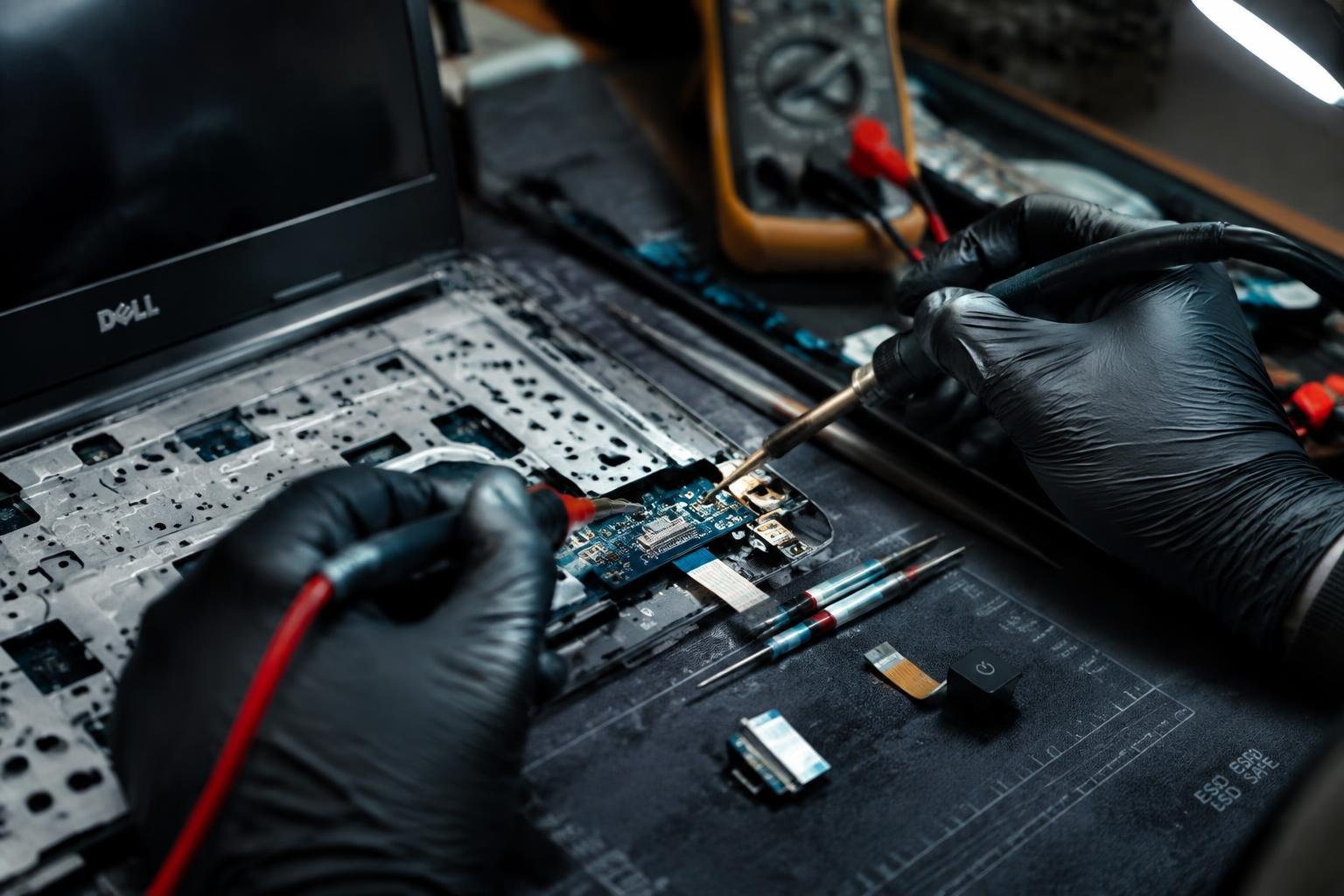
You’ve pressed the power button and nothing happens-no response, no startup, just silence. A non-functional power button can stem from hardware faults, debris buildup, or software glitches. This guide walks you through proven methods to diagnose and fix the issue, whether your laptop shows signs of life or remains completely unresponsive.
Key Takeaways:
- A non-responsive laptop power button may stem from software glitches, debris buildup, or hardware damage-diagnosing the root cause is the first step toward an effective fix.
- Simple troubleshooting like performing a hard reset, checking the battery charge, and testing with an external power source can resolve issues without opening the device.
- Some laptops allow startup via alternative methods such as connecting a charger, using keyboard shortcuts, or enabling wake-on-LAN through BIOS settings.
- Physical inspection for stuck keys, swollen batteries, or damaged hinges might reveal hidden problems affecting power delivery or motherboard communication.
- If internal repairs are needed-like replacing the power button flex cable or motherboard component-professional service is often safer than attempting complex disassembly at home.
Common Types of Power Button Failures
Different power button issues stem from distinct underlying causes, and identifying whether the failure is mechanical or electrical is essential for accurate diagnosis. A mechanical problem typically involves physical resistance, sticking, or complete collapse of the button when pressed. Electrical failures, on the other hand, may allow the button to feel normal but fail to send a signal to the motherboard. Understanding this distinction helps determine the nature of the fault without jumping into unnecessary repairs.
- Button does not depress or feels stuck
- Click sound is absent when pressing
- Laptop shows no response despite firm press
- Power light flickers but system doesn’t start
- Intermittent startup after multiple attempts
| Mechanical Failure Indicators | Electrical Failure Indicators |
| Button physically damaged or loose | Button feels normal but no response |
| Cracked housing around the button | No visible damage to exterior |
| Requires excessive force to activate | System occasionally powers on randomly |
| Debris trapped under the button | Ribbon cable connection issue suspected |
Mechanical Wear and Physical Damage
You might notice the power button becomes harder to press over time, or it sinks in unevenly when activated. This usually points to internal wear of the switch mechanism or visible cracks in the surrounding casing. Dust, spills, or accidental drops can compromise the button’s structure, preventing proper contact. If the key wobbles or produces a muffled click instead of a sharp one, mechanical degradation is likely the root cause.
Internal Connection and Ribbon Cable Issues
Your laptop may appear to ignore every press even if the button moves correctly. This often stems from a disrupted connection between the button and the motherboard, commonly through a damaged ribbon cable or corroded contact points. These internal links degrade due to repeated opening and closing of the lid or moisture exposure. When the circuit fails to close electronically, no power signal reaches the system despite flawless external operation.
Step-by-Step Troubleshooting for Immediate Fixes
Start with simple, non-invasive methods to determine if the issue lies with power delivery or the button mechanism. Most power-related problems can be resolved by resetting internal systems or verifying that power sources are functioning correctly. The following steps focus on immediate actions you can take without opening the device or using technical tools.
| Action | Expected Outcome |
| Perform a hard power reset | Clears residual power; may restore normal startup behavior |
| Inspect power adapter and cable | Ensures consistent power supply to the laptop |
| Check battery charge status (if removable) | Confirms whether battery is contributing to power failure |
Performing a Hard Power Reset
Begin by disconnecting the charger and removing the battery if your laptop allows it. Press and hold the power button for 30 seconds to drain any remaining electrical charge from the system. Reconnect the battery and charger, then attempt to power on the device. This reset often resolves glitches caused by power surges or system hangs, restoring responsiveness to the power button without requiring further intervention.
Testing the Power Adapter and Battery Status
Plug your laptop into a known working power outlet and observe the charging indicator, if present. A missing or flickering light may signal a faulty adapter or cable. Swap in a compatible charger to verify performance. If the laptop powers on with the replacement but not the original, the issue lies with the adapter. For models with removable batteries, test the device running solely on AC power to determine if the battery is preventing proper startup.
Critical Factors Influencing Repair Decisions
Before attempting any hardware intervention, you need to evaluate your laptop’s warranty status and overall age. Manufacturers often void warranties if users open the device or perform unauthorized repairs. A newer model may still be under full coverage, making professional service the only logical choice. Older laptops might not qualify for support, and replacement parts could be scarce or costly. Weighing these realities helps avoid wasted effort or unnecessary expenses.
- Check your laptop’s warranty terms directly with the manufacturer
- Verify if physical repairs are covered or excluded
- Consider the device’s age and expected lifespan
- Review potential costs versus the value of the machine
Warranty Coverage and Manufacturer Support
You should confirm whether your laptop is still under warranty before touching internal components. Most manufacturers restrict repairs to authorized technicians and may deny claims if tampering is detected. If your device is within the coverage period, contact customer support for guidance rather than risking further damage. Some brands offer extended service plans that include accidental damage, while others provide limited-time hardware protection. This information directly impacts whether you proceed on your own or seek official assistance.
Component Availability and Replacement Costs
Your laptop’s age affects how easily you can source replacement parts. Newer models may have readily available components, but older or discontinued systems often face part shortages. You might spend more on a single repair than the device is worth, especially if the power button is integrated into the keyboard or top case assembly. Third-party suppliers vary in reliability, so factor in both price and quality when making a decision. Replacing a single button isn’t always cost-effective in the long run.
Advanced Tips for Bypassing a Broken Button
When your laptop’s power button fails, alternative boot methods can restore access to your system without immediate hardware repair. These approaches rely on built-in firmware settings or peripheral devices to trigger startup sequences. While not all laptops support every method, exploring these options gives you flexibility in maintaining productivity. Below is an overview of the most effective techniques and their basic requirements.
- Access BIOS to enable power-on via AC connection
- Set up Wake-on-LAN through network settings
- Use an external keyboard with power-key functionality
| Method | Requirements & Notes |
|---|---|
| Power on AC Attachment | BIOS support required; works when charger is plugged in |
| Wake-on-LAN | Network card compatibility; needs prior configuration and active network |
| External Keyboard Power Trigger | USB or Bluetooth keyboard with supported OS and enabled BIOS setting |
Enabling Power on AC Attachment in BIOS
Your laptop may start automatically when you plug in the charger if this BIOS feature is activated. To set it up, power on your device and enter the BIOS setup using the designated key before Windows loads. Navigate to the Power Management section and locate the option labeled “Power on by AC Adapter” or similar. Enable it, save changes, and exit. From then on, connecting the charger triggers a boot sequence, effectively replacing the need for a working power button.
Utilizing Wake-on-LAN and External Keyboards
You can turn on your laptop remotely using Wake-on-LAN if your motherboard and network adapter support it. Configure the setting in BIOS and ensure your operating system allows magic packets to wake the device. Alternatively, connect a USB or Bluetooth keyboard and use a key combination like Ctrl+Power (if supported) to initiate startup. These tools provide reliable workarounds when physical access to the power button isn’t possible.
Pros and Cons of DIY vs. Professional Repair
Deciding whether to fix a faulty laptop power button yourself or seek professional help depends on your technical confidence and the complexity of the issue. While DIY repairs can save money and offer immediate solutions, they carry risks such as misdiagnosis or hardware damage. Professional servicing ensures accurate diagnostics and reliable fixes but often comes with higher costs and longer wait times. Consider your skill level, warranty status, and the specific nature of the failure before choosing your path.
| Aspect | DIY Repair |
|---|---|
| Cost | Low – mainly parts and tools if already owned |
| Time Investment | Unpredictable – may take hours due to trial and error |
| Skill Required | Moderate to high – disassembly and component handling |
| Accuracy | Varies – risk of misdiagnosing the root cause |
| Tools Needed | Specialized – screwdrivers, spudgers, anti-static gear |
| Warranty Impact | High risk – opening the device may void coverage |
| Safety Risk | Moderate – potential for electric shock or short circuits |
| Longevity of Fix | Inconsistent – temporary patches common without proper tools |
| Component Availability | Limited – sourcing exact replacements can be difficult |
| Professional Oversight | None – no expert validation of repair quality |
Benefits of Self-Correction and Cost Savings
You maintain full control over the repair timeline when you address the power button issue yourself. Many common causes, like software glitches or debris under the button, require simple fixes that don’t demand advanced skills. By using household tools and online guides, you avoid service fees and third-party markups on parts. This approach works well for older laptops no longer under warranty, where cost efficiency outweighs risk. Immediate access to your device during troubleshooting adds further convenience.
Risks of Accidental Damage and Warranty Voiding
Opening your laptop without proper guidance can lead to broken connectors, scratched logic boards, or damaged ribbon cables. Even minor missteps during disassembly may render the machine unbootable. Manufacturers often embed tamper-evident seals or use proprietary screws that signal unauthorized access. If your device is still under warranty, any sign of self-repair could disqualify you from free service. A single misaligned component might cause overheating or short circuits, creating more expensive problems than the original button failure.
Maintenance for Long-Term Reliability
Proper Cleaning and Dust Prevention
Dust buildup around the power button and internal components can lead to overheating and electrical interference over time. You should power down your laptop weekly and use a soft, lint-free cloth to wipe the exterior, paying close attention to the keyboard area. Compressed air helps remove particles from tight spaces without damaging sensitive parts. Keeping your device in a clean, low-humidity environment reduces grime accumulation and protects circuitry, ensuring smoother operation and fewer hardware hiccups down the line.
Safe Handling and Impact Avoidance
Physical shocks from drops or rough handling often damage internal connections linked to the power button. You need to carry your laptop in a padded bag and avoid placing heavy objects on top of it. Always close the lid gently and never twist the chassis when opening or closing. Using a stable surface instead of your lap or bed minimizes accidental knocks. These small precautions significantly reduce mechanical stress, preserving both the button mechanism and overall system integrity for years of reliable use.
To wrap up
You now have a clear path to diagnosing and resolving a laptop power button that won’t respond. Whether the issue stems from software glitches, loose internal connections, or physical damage, the solutions range from simple reboots to careful hardware inspection. You can often restore functionality without replacing the entire system. Acting methodically increases your chances of a successful fix while avoiding unnecessary costs. Your attention to detail during each step directly influences the outcome, making patience and precision key throughout the process.
FAQ
how much does it cost to fix a laptop power button?
Repair costs typically range from $50 to $150, depending on labor rates and whether internal components need replacement. Prices vary by brand and model, and opting for unauthorized repair shops may reduce costs but could void warranty coverage if the device is still under protection.
can I turn on my laptop without the power button?
Yes, you can turn on a laptop without the power button by enabling features like wake-on-AC or using an external keyboard with wake functionality. This requires prior BIOS configuration or connected peripherals, so these options only work if set up before the button failed.
how long does it take to repair a broken power button?
Most repairs take 1 to 3 business days, depending on part availability and service workload. Delays may occur if the manufacturer needs to ship rare components, especially for older or discontinued laptop models.
what are the risks of fixing the power button myself?
DIY repairs risk causing further damage to internal connectors or voiding the warranty if seals are broken during disassembly. Without proper tools or experience, you might also misalign ribbon cables, leading to additional malfunctions beyond the original issue.
is it worth repairing a laptop power button?
It’s usually worth repairing if the laptop is relatively new and otherwise functional, especially under warranty. For older devices, the repair cost may approach the value of the machine, making replacement a more practical option in some cases.
 Previous Post