



How to Fix Laptop Fan Speed Control Problems and Errors
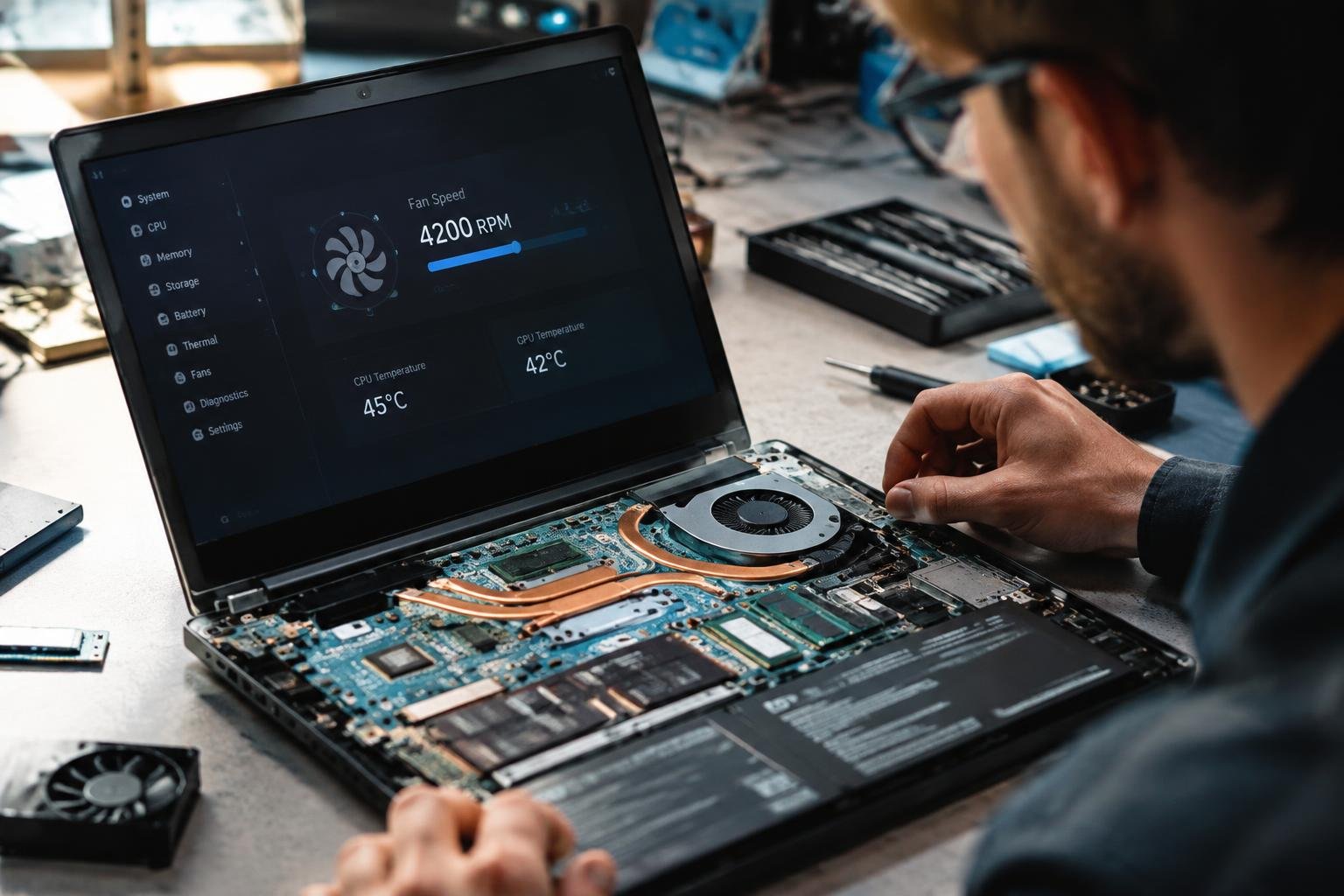
A laptop fan that stays loud at idle or fails to respond to rising temperatures can signal a control error, blocked airflow, or a sensor problem. You can often narrow down the cause by checking fan behavior alongside CPU temperature and firmware settings. Knowing how these systems interact helps you distinguish a software fault from a failing fan bearing.
Key Takeaways:
- Check the laptop maker’s BIOS or UEFI fan settings and install the correct manufacturer-approved firmware before trying third-party fan-control software.
- Use temperature-monitoring software to distinguish normal fan behavior from a fault: high CPU or GPU temperatures, blocked vents, and heavy background tasks can all raise fan speed.
- Clean dust from the intake vents and exhaust with the laptop powered off; persistent overheating or grinding noises can indicate a damaged fan or heatsink that needs service.
- Restore default power and thermal settings after a fan-control error, since incompatible utilities or conflicting profiles can override the system’s built-in controls.
- Replace a fan only after identifying the correct part for the laptop model, and seek professional repair if the fan remains stopped or temperatures rise rapidly.
Checking Fan Speed Symptoms and Causes
Fan behavior reflects how your laptop responds to heat, workload, and control signals. A brief increase in speed during a demanding task is normal, while persistent noise or inadequate airflow can indicate a fault. The pattern matters: note whether the fan runs constantly, starts and stops repeatedly, or stays quiet as the case warms. These distinctions narrow the likely cause, such as an incorrect control setting, outdated firmware, blocked cooling, or a failing fan.
Signs of abnormal fan behavior
Listen for rattling, grinding, or pulsing sounds, which often point to worn bearings, debris, or an obstructed fan blade. A fan that runs at full speed while the laptop is idle can signal excessive heat or a control command that is not responding correctly. Conversely, a silent fan under sustained load, accompanied by rising temperatures or thermal throttling, suggests insufficient cooling. Repeated speed surges during light use are another sign of unstable fan control.
Common software, firmware, and hardware causes
Background processes can raise CPU or GPU temperatures and keep the fan running, while conflicting manufacturer utilities may issue competing speed settings. An outdated or corrupted BIOS or embedded-controller firmware can misread temperature sensors or apply an unsuitable fan curve. Dust packed into the intake, a blocked exhaust vent, dried thermal paste, or a loose fan connector can also disrupt cooling. Bearing wear and damaged blades typically cause persistent noise, vibration, or inconsistent airflow.
| Observed symptom | Likely source | Common clue |
|---|---|---|
| Constant high fan speed | Heavy background workload or heat buildup | Noise continues during light use |
| Fan stays quiet under load | Fan-control fault, sensor issue, or disconnected fan | Case warms and performance slows |
| Grinding or rattling | Worn bearing or debris near the blades | Noise changes as the fan spins |
| Repeated speed surges | Conflicting control software or unstable temperature readings | RPM rises and falls during light tasks |
Diagnosing Laptop Fan Control Problems
Use temperature readings, fan telemetry, process activity, and firmware settings to distinguish a control fault from normal cooling behavior. A fan that speeds up during a processor-intensive task is responding to heat, while a persistent high speed at idle points to a different pattern. Record the laptop model, operating system, temperature trend, and any displayed fan speed so you can identify which readings are available and whether the behavior changes with workload.
Check temperatures, fan readings, and background processes
Open a hardware monitor such as HWiNFO or the laptop maker’s diagnostic utility, then inspect CPU and GPU temperatures alongside fan RPM readings, if the system exposes them. In Task Manager on Windows, sort processes by CPU usage and look for sustained activity from updates, indexing, or demanding applications. A rising temperature paired with high utilization indicates a workload pattern; low utilization with unusually high fan speed is a distinct symptom to document.
Review BIOS/UEFI and manufacturer fan-control settings
Enter BIOS/UEFI setup or the manufacturer’s control app and locate thermal, cooling, or performance profiles. Record the selected mode, such as Quiet, Balanced, or Performance, and note whether fan control is automatic or user-adjustable. Some laptops expose no fan curve or RPM control, so the absence of those options is not itself evidence of a fault. Also note any firmware warning or missing thermal profile displayed on the settings screen.
- Record the laptop’s exact model and BIOS/UEFI version.
- Note whether the fan noise changes on battery power.
- Check whether the issue began after an operating system or firmware update.
How to Fix Fan Speed Control Errors
Start with the control path that matches the failure: software errors often trace to outdated firmware or competing utilities, while a fan that does not respond at all can point to a loose connection or obstructed airflow. Apply one change at a time, then check fan response under the same workload and power mode. This makes it easier to distinguish a corrected control fault from a persistent hardware problem, such as a fan that remains stationary after startup.
| Observed issue | First fix | What to verify |
|---|---|---|
| Control app cannot detect the fan | Update the laptop’s system drivers and firmware | The fan appears in the supported control utility |
| Fan settings revert or conflict | Reset profiles and disable duplicate utilities | One utility controls the fan profile |
| Fan remains unresponsive | Inspect vents and the fan connector | The fan spins freely and its cable is seated |
Update drivers, firmware, and fan-control software
Check your laptop maker’s support page for the exact model before installing system drivers, BIOS or UEFI updates, and thermal-control software. Fan behavior is often managed through embedded-controller firmware, so a generic utility cannot always override the manufacturer’s controls. Read the update instructions, connect the AC adapter, and avoid interrupting a firmware installation. After restarting, open the supported control app and confirm that its fan-speed or thermal profile settings are available.
Reset settings and resolve conflicting utilities
Restore the default thermal profile in your laptop’s BIOS or UEFI setup, then reset any fan curves in the manufacturer’s control utility. Two programs issuing different commands can cause profiles to switch unexpectedly, so remove or disable third-party fan tools while testing. Restart Windows and apply one profile at a time, such as Balanced or Performance. If the controls still fail, note the utility name and error message before reinstalling the manufacturer’s software.
Clean vents and check fan connections
Power off the laptop, unplug it, and clear dust from the intake and exhaust vents with short bursts of compressed air. If the fan remains silent or makes a scraping sound, inspect its cable and connector only if you can safely open the case and follow the service manual. A loose fan plug can prevent speed control from working, while a damaged cable or blade requires repair. Never force a connector into its socket.
Tips for Stable Fan Performance
Consistent cooling depends on keeping heat sources manageable and leaving the laptop’s automatic controls within their intended operating range. Dust buildup, blocked vents, and sustained processor or graphics loads can push temperatures up and trigger abrupt fan changes. Keep the system on a firm surface, use manufacturer-supported power and thermal settings, and avoid running multiple utilities that issue competing fan commands. These habits reduce unnecessary temperature swings during everyday work.
Improve airflow and manage demanding workloads
Place your laptop on a hard, level surface so its intake vents remain open, and keep it clear of bedding, cushions, and loose papers. Use compressed air in short bursts at the external vents to dislodge accessible dust, following the manufacturer’s cleaning guidance. During demanding tasks, close unused applications and reduce unnecessary browser tabs; video encoding, games, and large software builds can keep the CPU or GPU under sustained load.
Use safe fan curves and monitor temperatures
Choose the laptop maker’s performance profile or a fan curve documented for your exact model, rather than copying settings from a different system. Set gradual fan increases across temperature ranges and avoid forcing a low fixed speed under load. Monitor CPU and GPU temperatures with a reputable utility, such as the manufacturer’s own software, while running a familiar workload. Keep only one fan-control application active, since competing commands can cause cycling or erratic speed changes.
- Keep fabric and dust away from the laptop’s intake openings.
- Use the original power adapter for demanding workloads.
- Apply BIOS and thermal-control updates from the laptop manufacturer.
Factors That May Require Fan Replacement or Professional Repair
Persistent fan-control faults can point to physical damage or an electrical failure that software settings cannot correct. A fan that stops despite a sustained heat load, produces scraping sounds, or triggers repeated firmware warnings needs closer assessment before continued use. The cause may lie in the fan assembly, its cable, or the motherboard’s fan-control circuit, and those parts require different repairs. Distinguishing a worn bearing from a failed control signal is especially important on compact laptops with integrated cooling assemblies.
| Observed fault | Likely area | Typical response |
|---|---|---|
| Grinding or rattling during rotation | Fan bearing or damaged blades | Replace the fan assembly |
| No rotation under sustained heat | Fan, connector, or power circuit | Test fan and connection |
| Repeated fan error after replacement | Connector, firmware, or motherboard circuit | Professional diagnosis |
Identify worn, noisy, or unresponsive fans
Listen for grinding, clicking, or a rough start-up, which often indicates a worn bearing or a blade contacting the housing. A fan that remains motionless while the laptop heats up, or starts and stops erratically, may have a damaged motor or loose connector. Inspecting the assembly requires removing the bottom cover and disconnecting the battery first; stop if a blade is cracked or the fan wobbles on its spindle, since continued operation can damage the heatsink area.
Know when to seek professional service
Choose professional service when a known-good replacement fan still produces an error, the connector is damaged, or the laptop’s motherboard shows signs of heat or electrical damage. Diagnosis may require a multimeter, board-level inspection, or a model-specific service manual, particularly when the fan shares a cable with other components. If your laptop is under warranty, opening the chassis or replacing parts yourself could affect coverage; provide the technician with the exact error message and the circumstances in which it appears.
To wrap up
Reliable fan control depends on matching the fix to the cause, whether that means restoring a BIOS setting, installing the correct chipset utility, or clearing dust from the cooling path. Use the manufacturer’s diagnostics and fan-control software before changing firmware or applying third-party tools. If the fan remains noisy, stalls, or fails to respond after software and cleaning checks, a technician can test the fan and its connector. Persistent grinding or overheating points to hardware service, not another speed setting.
FAQ
How much does it cost to fix laptop fan speed control problems?
The cost ranges from nothing for a settings change to the price of a replacement fan and labor for a hardware repair. The total depends on the laptop model, the failed part, and whether you do the work yourself or use a repair service.
How long does it take to fix a laptop fan that will not change speed?
A software or settings fix can take a few minutes, while diagnosing and replacing a fan may take longer. The time depends on how easily the cause can be isolated and whether the laptop needs to be opened or serviced.
Can changing laptop fan speed damage the computer?
Yes, setting the fan too low can allow the laptop to overheat, which may cause throttling or shutdowns. Use manufacturer settings when available, and avoid disabling automatic cooling unless you can monitor temperatures and restore the default settings.
What mistakes should I avoid when fixing laptop fan speed?
Avoid installing multiple fan-control utilities, using settings meant for another laptop model, or opening the computer while it is powered on. If a fan is grinding, not spinning, or still overheating after basic checks, stop adjusting settings and seek qualified repair.
Can I fix laptop fan speed control problems without replacing the fan?
Often, yes, if the cause is an incorrect setting, outdated software, or blocked airflow. Replacement may be needed when the fan is physically damaged, unusually noisy, disconnected, or unresponsive after compatible software and firmware checks.
Is it worth repairing a laptop fan that runs constantly?
It is usually worth checking settings, background workload, and airflow before paying for a repair. If cleaning and software checks do not help, compare the repair cost with the laptop’s age, condition, and value before deciding.
Why does my laptop fan speed keep changing even when I am not using demanding apps?
Fan speed can change as the processor temperature rises and falls, even during light use, and background tasks or blocked vents can add heat. If the changes are accompanied by excessive heat, grinding noises, or shutdowns, check for a persistent fault rather than treating the behavior as normal.
 Previous Post