



How to Fix Laptop Disk Usage at 100 Percent in Windows
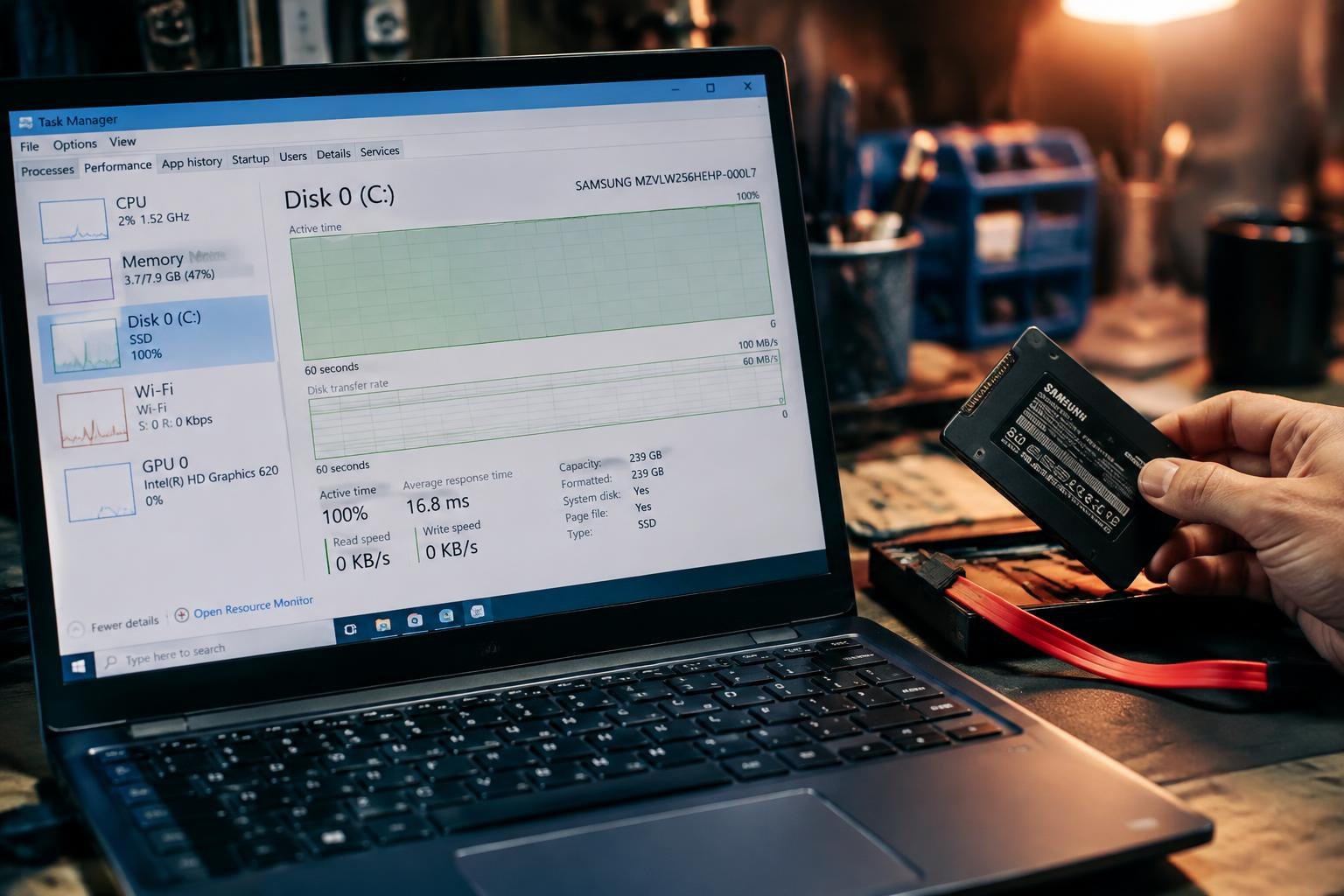
A laptop that reports 100 percent disk usage can freeze during startup, delay app launches, and make simple tasks feel unresponsive. In Windows, the figure measures active drive time, not how much storage space is full. You can use Task Manager to identify what is keeping the drive busy, such as a background update or an overloaded process.
Key Takeaways:
- Use Task Manager’s Processes tab and Resource Monitor’s Disk view to identify which app or Windows process is driving disk activity.
- Common causes include Windows Search indexing, SysMain activity, background updates, startup apps, and an antivirus scan; address the process responsible rather than disabling services indiscriminately.
- Check drive health and file-system errors with Windows tools such as CHKDSK, especially if disk usage stays at 100 percent alongside slow file access or error messages.
- Install Windows and storage-driver updates, reduce unnecessary startup programs, and keep adequate free space on the system drive to limit avoidable disk activity.
- If high usage persists on a mechanical hard drive, an SSD upgrade can reduce storage-related delays; persistent errors or unusual noises warrant a drive backup and hardware diagnosis.
Check Disk Usage and Identify the Cause
Trace Activity in Windows Tools
Open Task Manager with Ctrl+Shift+Esc and select the Processes tab, then sort by the Disk column to see which apps are producing the most activity. For a more detailed view, search Windows for Resource Monitor, open it, and select the Disk tab. The Processes with Disk Activity list shows each process’s read and write rates, while Disk Activity identifies the files being accessed.
| Tool | Where to look | What it shows |
|---|---|---|
| Task Manager | Processes tab, Disk column | Per-process disk activity |
| Resource Monitor | Disk tab, Processes with Disk Activity | Process-level read and write rates |
| Resource Monitor | Disk Activity | Files currently being accessed |
Fix Common Causes of 100% Disk Usage
Review Search and Startup Activity
Windows Search can keep the drive busy while it indexes files, especially after you add or move many documents. Open Settings > Privacy & security > Searching Windows and limit indexing to folders you use regularly. Next, open Task Manager > Startup apps and disable nonessential programs that launch automatically, such as game launchers or meeting apps you do not need at sign-in.
Adjust Background Services and Tasks
SysMain, formerly called Superfetch, preloads frequently used apps, but its activity can strain some systems. To test its effect, open the Services app, select SysMain, and choose Stop; if disk activity improves, set its startup type to Manual. Also review Task Manager’s Processes tab for cloud sync, updates, or scheduled scans consuming disk access.
- Pause OneDrive syncing during large file transfers.
- Schedule antivirus scans for times when you are not working.
- Close apps that repeatedly write logs or cache files.
Check and Repair the Disk
Run Windows Disk Checks
Open Terminal or Command Prompt as an administrator and run chkdsk C: /scan to scan the Windows drive for file-system errors without taking it offline. If Windows reports problems that need repair, run chkdsk C: /f; the system will schedule the repair for the next restart when the drive is in use. Replace C: with the correct drive letter if Windows is installed elsewhere.
| Windows tool | Command or location | Purpose |
|---|---|---|
| CHKDSK scan | chkdsk C: /scan |
Checks the file system online |
| CHKDSK repair | chkdsk C: /f |
Repairs detected file-system errors |
| Drive health status | Settings, System, Storage, Advanced storage settings, Disks & volumes | Displays available drive-health information |
Review Drive Health
Windows’ Disks & volumes page shows health details for supported drives, including warnings when available. Read any reported status alongside the CHKDSK results: file-system repairs address logical errors, while a health warning points to possible drive trouble. If Windows cannot read health data, that alone does not confirm a fault; the drive or its controller may not expose the relevant status.
Improve Performance with Practical Tips
Reduce Unnecessary Disk Activity
Close disk-intensive applications you are not using, such as multiple browser windows or large file transfers, and pause downloads while running demanding programs. In Task Manager, sort the Processes list by Disk to identify which app is generating activity, then exit it normally if it is safe to do so. Keep enough free space for Windows temporary files and virtual memory, especially on the system drive.
Match Hardware to Your Workload
On a mechanical hard drive, replacing the drive with a SATA or NVMe SSD usually improves Windows responsiveness because storage reads and writes complete faster. If your laptop slows while several applications are open, additional RAM can reduce reliance on the page file, which uses disk space as temporary memory. Check your laptop’s supported memory type, maximum capacity, and available drive interface before buying components.
- Move a large media library to an external drive.
- Store active project files on the internal SSD.
- Use Task Manager’s Startup apps tab to review launch impact.
Prevent Disk Usage from Reaching 100%
Keep Windows and Storage Maintenance Current
Schedule Windows updates so security fixes, storage drivers, and reliability improvements do not accumulate while you are working. Open Settings, select Windows Update, and install available updates, then restart when prompted. For routine maintenance, use Optimize Drives to let Windows manage the correct task for your drive: traditional hard drives are defragmented, while SSDs receive optimization. A brief monthly review of update status and drive health can reveal recurring warnings before disk activity becomes disruptive.
| Maintenance task | Windows tool | What to review |
|---|---|---|
| Install system updates | Windows Update | Pending updates and restart requests |
| Maintain drive optimization | Optimize Drives | Drive status and scheduled optimization |
| Track recurring warnings | Windows notifications and Reliability Monitor | Repeated storage or system errors |
To wrap up
Persistent 100 percent disk usage usually points to a specific workload or storage problem, not a setting you need to change blindly. Use Task Manager to identify the process, then address common causes such as startup apps, Windows services, outdated drivers, or insufficient free space. If usage remains high, run Windows’ disk checks and review the drive’s health. Once disk activity settles, keep Windows and storage drivers current and leave enough free space for updates and temporary files.
FAQ
How long does it take to fix laptop disk usage at 100 percent in Windows?
A basic diagnosis and software fix can take a few minutes to about an hour. The time depends on what is causing the activity, and a full disk check or Windows update may take longer, especially on a mechanical hard drive.
Can fixing 100 percent disk usage delete my files?
Common troubleshooting steps, such as disabling a startup app or adjusting a Windows service, should not delete personal files. Disk repair tools can modify file-system data, so back up important files first, particularly if the drive shows signs of failure.
Should I replace my laptop hard drive with an SSD if it keeps running slowly?
An SSD can improve responsiveness when a mechanical hard drive is the main performance bottleneck. First check drive health and available memory, because an SSD will not fix failing hardware elsewhere or every cause of slow performance.
What should I try before paying for a laptop repair?
Check Task Manager to identify which process is using the disk, then try relevant Windows settings and built-in disk checks. If the drive reports errors, makes unusual noises, or the problem persists, back up your data and seek professional help before attempting more repairs.
Can too many startup apps cause high disk usage?
Yes, several apps starting together can create heavy disk activity, particularly while Windows is loading. Disable only apps you recognize and do not need at startup, since security software and hardware utilities may provide useful protection or functions.
Will adding more RAM fix a laptop that is slow because of disk activity?
More RAM may help if Windows is using the drive to move data because memory is limited. It will not resolve high disk usage caused by a service, software issue, or failing drive, so identify the cause before buying an upgrade.
How can I stop disk usage from reaching 100 percent again?
Keep Windows and essential software updated, remove unnecessary startup apps, and check drive health if high activity returns. Avoid disabling services at random, because some support search, security, or system functions and may not be the source of the problem.
 Previous Post
 Next Post