



Laptop Adapter Not Recognized Fix Guide
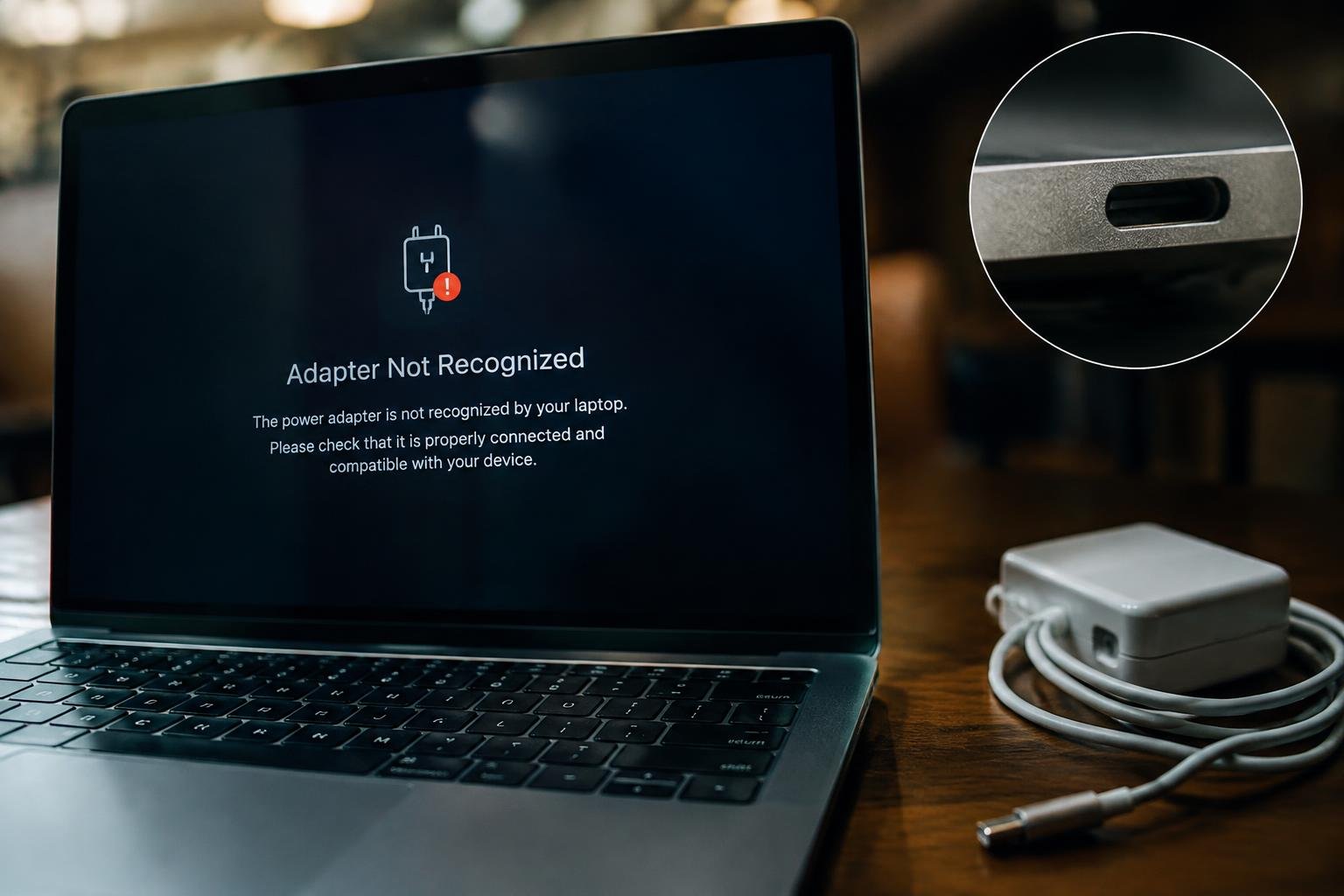
A laptop that reports “adapter not recognized” can stop charging or limit performance, even when the power brick is connected. The cause often lies in the adapter’s wattage, a damaged cable, a loose charging port, or a failed identification pin used by some manufacturers. You can narrow down the fault by noting the exact warning and whether the battery icon shows charging.
Key Takeaways:
- Confirm the adapter’s voltage, wattage, connector, and charging standard match the laptop’s requirements; a plug that fits physically does not guarantee compatibility.
- Inspect the adapter cable, connector, and laptop charging port for fraying, bent pins, debris, or looseness, and test the adapter with a compatible outlet.
- Disconnect the charger, shut down the laptop, and perform a power reset using the manufacturer’s instructions before reconnecting the adapter.
- Install the laptop maker’s current BIOS, chipset, and power-management updates when the adapter is not detected despite a sound connection.
- If the laptop reports an unknown or underpowered adapter, test with a known-compatible charger; persistent detection problems can point to a damaged port, battery, or motherboard charging circuit.
Adapter Types and Compatibility
Connector design, output voltage, and wattage form the main compatibility requirements for a laptop power adapter. Matching only the plug is insufficient, since two adapters with the same connector can deliver different electrical output. Check the laptop’s input specifications and the adapter’s output label before connecting a replacement. A suitable unit must fit the power port and meet the manufacturer’s voltage and power requirements, such as a USB-C adapter rated for the laptop’s specified input.
Original, replacement, and universal adapters
An original adapter is supplied or approved by the laptop manufacturer, so its connector and electrical output are designed for the specified model. A replacement adapter from a reputable supplier is suitable when its listed compatibility includes your exact laptop model and its output matches the required specifications. Universal adapters use interchangeable tips or adjustable settings, but the selected tip must fit securely and the output must be set correctly. A matching brand name alone does not establish compatibility.
Checking connector, voltage, and wattage
Read the laptop’s input label or manufacturer specifications, then compare them with the adapter’s output label. Confirm the connector type and dimensions, including whether a USB-C port supports charging, and match the required voltage. The adapter’s wattage should meet or exceed the laptop’s stated requirement, provided voltage and connector specifications also match. For example, a 65-watt adapter is not an appropriate substitute for a lower-wattage unit if its voltage or plug differs.
| Compatibility point | What to match | Where to verify |
|---|---|---|
| Connector | Plug type and fit | Laptop port and adapter tip |
| Voltage | Specified output voltage | Laptop input label and adapter label |
| Wattage | Required power capacity | Manufacturer specifications and adapter label |
| Adapter type | Model compatibility and correct tip or setting | Adapter documentation |
Factors That Prevent Adapter Recognition
Your laptop identifies an adapter through electrical signals as well as physical contact, so recognition depends on more than whether the plug fits. A break in the power path, an output that falls outside the laptop’s requirements, or a firmware setting that misreads adapter data can interrupt charging or trigger an unrecognized-accessory warning. These causes differ across barrel connectors and USB-C power delivery, where a compatible cable and the correct negotiated voltage both matter.
Damaged cables, connectors, or charging ports
Fraying near the adapter brick, a bent barrel plug, or a loose USB-C connector can interrupt power or data signals before they reach the laptop. Inside the charging port, worn contacts, compacted debris, or a damaged solder joint can prevent a stable connection even when the adapter’s indicator light is on. Movement often exposes intermittent faults: charging may stop when the cable shifts near the plug or where it enters the laptop’s chassis.
Incorrect power ratings and firmware settings
Adapters with insufficient wattage may power a laptop slowly, fail to charge its battery, or trigger a warning that the source is unsupported. Barrel-plug models may also require the correct voltage and polarity, while USB-C laptops rely on power delivery negotiation between the charger, cable, and device. Firmware can affect how the system reads adapter identification data or applies battery charging limits; an outdated BIOS or a disabled charging setting can therefore alter recognition.
- USB-C cables differ in supported power capacity.
- Some adapters use a center-pin identification signal.
- Battery conservation modes can impose a charge ceiling.
Step-by-Step Troubleshooting
Follow a controlled sequence, changing one condition at a time so you can tell whether the fault lies with the power source, adapter, connection, or laptop settings. Start with visible checks, then test the electrical supply and reset the laptop before changing firmware or drivers. Note any charging light, startup message, or battery status after each step; those details help distinguish a loose connection from an adapter the system cannot identify.
Inspect the adapter, cable, and laptop port
Begin with the adapter unplugged from the wall and laptop. Look for split insulation, bent connector pins, scorch marks, or a loose joint where the cable enters the power brick; stop using it if you find damage. Examine the laptop’s charging port for debris or a bent center pin, and remove loose dust with a dry, nonmetallic brush. Reconnect the plug straight, without forcing it, and watch for a charging light or a change in the battery icon.
Test the outlet and perform a power reset
Connect the adapter directly to a working wall outlet, bypassing any power strip, and test the outlet with a lamp or another known-good device. If power is available but the adapter remains unrecognized, shut down the laptop and disconnect the adapter and any removable battery. Hold the power button for about 15 seconds, then reconnect the battery if applicable and plug in the adapter. Start the laptop and check whether its charging indicator appears.
Check BIOS or firmware and update drivers
Enter the BIOS or UEFI setup using the key shown during startup, often F2, F10, or Delete, and inspect the power or battery information for an adapter status. If firmware reports an unknown adapter, install BIOS or firmware updates only from the laptop maker’s support page, using stable power and the instructions for your exact model. In Windows, open Device Manager and update the battery-related device drivers; restart, then check the adapter status again.
| Step | Action | What to observe |
|---|---|---|
| Inspect hardware | Examine cable, connector, and port | Damage, debris, or charging light |
| Test power | Use a verified wall outlet | Adapter response and battery icon |
| Reset laptop | Disconnect power, then hold power button | Charging indicator after restart |
| Check software | Review firmware status and update drivers | Adapter identification in system settings |
Tips for Choosing and Maintaining an Adapter
Reliable operation depends on both a correct match and sound physical condition. Make compatibility checks part of purchasing, then keep the adapter’s cable and connectors free from strain during everyday use. A loose plug, damaged insulation, or incorrect electrical rating can interrupt charging or prevent a laptop from recognizing its power source. Small habits, such as unplugging by the connector body rather than pulling the cord, reduce avoidable wear.
Verify manufacturer specifications before buying
Check your laptop maker’s documentation or the label on the original adapter for the required output voltage, wattage, connector type, and polarity where applicable. For USB-C models, confirm that the replacement supports the laptop’s required USB Power Delivery profile, not merely the same plug shape. Match the adapter to the exact laptop model, since similar models can have different power requirements. A specification label listing the correct output and supported charging standard provides a concrete compatibility check.
Protect cables and connectors from wear
Route the cable so it does not cross a walkway, bend sharply at the adapter casing, or bear the laptop’s weight. Grip the plug housing when disconnecting it, and avoid winding the cord tightly around the power brick, which can stress the insulation near the ends. Keep connectors clear of dust and liquid, and store the adapter in a dry compartment without heavy items pressing on it. Replace a cable with exposed conductors or a loose connector.
- Keep the adapter’s ventilation openings uncovered.
- Let the power brick cool before packing it away.
- Keep metal objects away from exposed connector tips.
Adapter Options: Pros and Cons
Choosing a replacement means balancing verified compatibility against price and convenience. Match the adapter’s output voltage, connector type, and wattage to your laptop’s requirements; USB-C models must also support the charging profile your device accepts. A plug that fits physically is not proof that the adapter will be recognized. The distinctions between manufacturer-branded, third-party, and universal models affect how reliably your laptop identifies the power source.
| Option | Compatibility | Cost and convenience |
|---|---|---|
| Original manufacturer | Typically designed for the laptop’s charging and identification requirements | Often costs more; model-specific selection |
| Third-party | Depends on exact specifications and recognition support | More choice across brands and price points |
| Universal | Depends on the selected tip, voltage, and power rating | Adaptable, but requires careful setup |
Original manufacturer adapters
Manufacturer-branded adapters are designed for the laptop’s specified voltage, wattage, connector, and, on some models, identification circuitry. That combination makes them a dependable choice when a replacement must be recognized, particularly for barrel connectors with a center pin or USB-C charging systems with defined power requirements. You still need to match the adapter to the exact laptop model, since similar-looking units can have different output ratings. Check the label for the model number and output specifications.
Third-party and universal adapters
Third-party adapters often offer a lower-cost alternative, but recognition depends on more than a matching plug: the voltage, wattage, polarity, and any required identification signal must also meet the laptop’s specifications. Universal models add convenience through interchangeable tips or selectable outputs, yet an incorrect tip or setting can prevent charging or damage hardware. Before use, verify the laptop maker’s requirements against the adapter label and included compatibility list, especially for USB-C power delivery and proprietary barrel connectors.
Summing up
When your laptop does not recognize its adapter, start with the outlet, cable, connector, and charging port, then confirm that the adapter’s voltage, wattage, and connector match the laptop’s requirements. Restarting the computer and checking battery or power-management settings can resolve software-related detection issues. If the adapter still is not identified, test with a known-compatible unit or have the charging port and power circuitry inspected. Stop using any adapter with damaged insulation, excessive heat, or a loose connector.
FAQ
Why is my laptop adapter not recognized even though it charges?
A laptop may receive power without identifying the adapter if its identification pin, communication chip, or cable is damaged. Charging can still work, but the laptop may limit performance or battery charging; check the adapter and port for damage, then test with a compatible known-good adapter.
How much does it cost to fix a laptop that does not recognize its adapter?
The cost depends on whether the problem is the adapter, charging port, or internal power circuitry. Replacing a compatible adapter is usually less involved than repairing the laptop, while port or board repair requires a technician’s diagnosis and a model-specific quote.
How long does it take to troubleshoot an adapter recognition problem?
Basic checks, such as testing another outlet, inspecting the cable, and performing a power reset, usually take a few minutes. A firmware check or testing with another compatible adapter may take longer, and a repair can take substantially more time if the laptop needs service.
Can using an unrecognized laptop charger damage my laptop?
A charger with the wrong voltage, connector, or power-delivery specifications can damage equipment or create a safety risk. Stop using it if it becomes unusually hot, smells burnt, sparks, or has damaged wiring, and use only an adapter that meets the laptop manufacturer’s requirements.
What is the most common mistake when a laptop charger is not detected?
A common mistake is assuming that a plug fits means the adapter is compatible. Confirm the required voltage, connector, and wattage, and check any manufacturer-specific identification requirements; a universal adapter may need the correct tip and settings to work safely.
What can I try if I do not have another charger to test?
You can inspect the adapter and port, try a different wall outlet, and perform the laptop maker’s recommended power reset. These checks cannot confirm whether the adapter itself has failed, so avoid opening the adapter and arrange a test with a compatible charger or a qualified repair service.
Is it worth replacing a laptop adapter that is not recognized?
Replacing the adapter is often a reasonable first step if it is damaged or fails testing and the laptop otherwise works normally. Choose a compatible, reputable model; if a known-good adapter is also not recognized, the laptop’s port or internal power hardware may need diagnosis before you buy another charger.
 Previous Post