



Laptop Touchpad Cursor Jumping Fix Guide
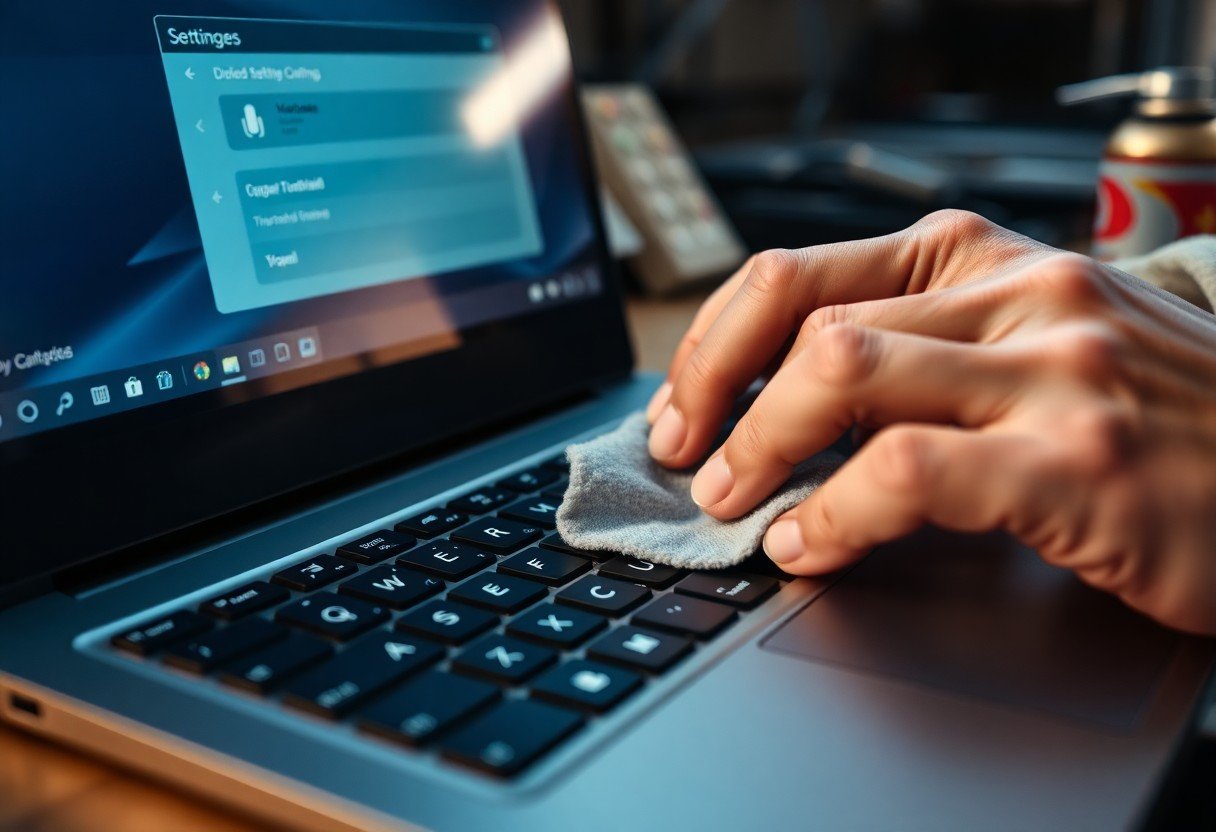
Many users experience erratic cursor movement during everyday tasks, where the pointer drifts or jumps unexpectedly while typing or navigating. You rely on your laptop’s touchpad for precision, and when it fails, productivity suffers. This guide addresses the root causes of cursor instability and provides actionable solutions tailored to common hardware and software configurations found across modern laptops.
Key Takeaways:
- A common cause of cursor jumping is accidental palm contact during typing, which can be mitigated by enabling palm rejection features available in most modern touchpad drivers.
- Outdated or corrupted touchpad drivers often contribute to erratic behavior, and updating through the device manager or manufacturer’s website can restore smooth operation.
- Some laptops allow adjustment of touchpad sensitivity settings, and reducing the sensitivity may prevent unintended movements triggered by light or uneven finger pressure.
- External interference from nearby USB 3.0 devices or poorly shielded electronics can introduce electromagnetic noise that disrupts touchpad signals, particularly on older models.
- Regular cleaning of the touchpad surface with a lint-free cloth removes oils and debris that may interfere with capacitive sensing, improving tracking accuracy over time.
Identifying Common Types of Cursor Instability
Cursor instability presents in several distinct forms, each pointing to different underlying causes. Some issues stem from hardware wear, others from software interference or environmental conditions. Common manifestations include sudden jumps, uncommanded drifting, phantom clicks, and inconsistent sensitivity. Knowing the specific behavior helps narrow down effective solutions quickly and avoid unnecessary troubleshooting steps.
- Sudden, large cursor jumps during normal use
- Cursor moves without physical input (drifting)
- Clicks register without pressing the pad
- Sensitivity changes mid-task
- Delayed or repeated pointer responses
| Erratic Jumps | Caused by palm contact or driver glitches |
| Random Drifting | Often due to sensor calibration issues |
| Ghost Clicks | Linked to worn touchpad layers or firmware bugs |
| Sensitivity Fluctuations | May result from power management settings |
| Input Lag | Typically tied to background system processes |
Erratic Jumps and Random Drifting
Erratic jumps often occur when your palm brushes the touchpad during typing, tricking the sensor into registering movement. Some laptops lack adequate palm rejection, making this especially common in fast typists. Random drifting may persist even with no contact, suggesting a calibration error or electrical interference from nearby devices.
Ghost Clicks and Sensitivity Fluctuations
Ghost clicks happen when the system registers a press without physical input, usually due to degraded internal switch mechanisms or firmware misreads. Sensitivity shifts can make the cursor respond too quickly or too slowly, often triggered by power-saving modes that throttle input responsiveness under low battery.
Firmware plays a major role in how consistently your touchpad interprets pressure and motion. A mid-sized SaaS firm reported reduced support tickets after deploying a standardized touchpad firmware update across employee devices. Physical wear, especially on older models, can cause the click mechanism to stick or activate prematurely, mimicking user input when none occurred.
Environmental and Technical Factors Affecting Performance
External conditions and underlying hardware states often contribute to erratic cursor behavior. Electromagnetic fields from nearby devices, worn touchpad surfaces, or outdated system firmware can disrupt signal accuracy. Moisture on hands or extreme room temperatures may also interfere with capacitive sensing. Perceiving these influences helps you isolate whether the issue stems from your environment or internal system limitations.
- Electromagnetic interference from phones or monitors
- Accumulated grime or physical wear on the touchpad surface
- Outdated touchpad drivers or firmware
- High ambient humidity or static buildup
- Inconsistent power delivery due to battery-saving modes
External Interference and Hardware Wear
Placing a smartphone or wireless charger near your laptop can emit electromagnetic noise that distorts touchpad responsiveness. Over time, repeated finger contact degrades the touchpad’s surface coating, reducing tracking precision. Even minor scratches or residue from oils compromise sensor detection. Perceiving subtle changes in glide resistance or tap registration often signals physical deterioration.
Software Incompatibility and Outdated Firmware
Incompatible driver versions or unpatched operating system updates may misinterpret touch input signals. Firmware governs how the touchpad communicates with the motherboard, and delays in updates can introduce lag or false touches. Perceiving erratic behavior after a recent update often points to a software mismatch rather than hardware failure.
Operating systems occasionally push updates that override manufacturer-specific touchpad configurations, leading to unintended gestures or pointer jumps. A mid-sized SaaS firm reported resolving widespread cursor issues by rolling back a Windows update across their fleet until an official patch was released. Firmware updates from the laptop manufacturer often include sensor calibration refinements and interference filters tailored to your specific model, making regular checks through the support portal a practical safeguard against instability.
Step-by-Step Troubleshooting and Calibration
Follow this structured approach to isolate and resolve touchpad cursor instability, focusing on both software settings and hardware responsiveness. Each step targets a common root cause, ensuring no potential fix is overlooked while minimizing unnecessary changes to your system.
| Check for physical debris or moisture | Wipe the touchpad surface with a dry microfiber cloth and ensure fingers are clean and dry before use. |
| Disable external pointing devices | Unplug mice or graphics tablets that might interfere with touchpad signal interpretation. |
| Test cursor behavior in clean boot | Start Windows with minimal drivers and programs to rule out software conflicts. |
| Run built-in hardware troubleshooter | Use the Windows Hardware and Devices troubleshooter to detect common input issues. |
| Calibrate touchpad response | Use the pointer speed and sensitivity settings to match your natural hand movement. |
Adjusting Pointer Precision in System Settings
Windows enhances cursor movement through pointer precision, a feature that combines acceleration and scaling to smooth navigation. You can disable or modify this setting in the Mouse Properties panel under Pointer Options, where a linear response may reduce erratic jumps during fine control tasks.
Reinstalling and Updating Touchpad Drivers
Outdated or corrupted drivers often cause erratic cursor behavior. You can update the touchpad driver through Device Manager by locating the HID-compliant mouse or the specific touchpad entry under Mice and other pointing devices.
Some systems use manufacturer-specific drivers from Synaptics, ELAN, or Precision Touchpad platforms. Visit your laptop maker’s support site and download the latest certified driver for your model and operating system version. After uninstalling the current driver, restart your device to trigger a clean installation, which often resolves persistent tracking errors that settings adjustments alone cannot fix.
Expert Tips for Long-Term Cursor Accuracy
Maintain consistent touchpad performance by following these expert recommendations.
- Calibrate your touchpad monthly, especially after system updates
- Keep firmware updated through your laptop manufacturer’s support portal
- Adjust pointer speed to a medium setting to reduce over-sensitivity
- Disable gestures temporarily if they interfere with basic navigation
Assume that small, regular adjustments prevent larger issues from developing over time.
Routine Surface Maintenance and Cleaning
Wipe the touchpad weekly with a microfiber cloth slightly dampened with distilled water. Avoid alcohol-based cleaners that can degrade the surface coating over time. Accumulated oils and debris disrupt finger tracking, leading to erratic cursor behavior. A clean surface ensures consistent contact detection and smoother pointer movement.
Optimizing Palm Rejection for Typing Stability
Adjust palm rejection settings through your operating system’s touchpad menu to ignore unintended contact during typing. Increase the sensitivity threshold slightly if the cursor jumps while writing. Proper configuration allows the system to distinguish between deliberate input and resting hands. Assume that fine-tuned palm rejection reduces false inputs without limiting responsiveness.
Modern touchpads use capacitive sensors that detect finger size, pressure, and movement duration to filter out accidental touches. On Windows, the Precision Touchpad settings analyze hand position and suppress input when typing speed exceeds a certain threshold. Linux users can fine-tune this behavior using libinput configuration files to define palm dimensions and pressure limits. macOS automatically adapts to user patterns over time, improving accuracy with regular use. Assume that understanding these underlying mechanisms helps you make informed adjustments rather than relying on trial and error.
Pros and Cons of Using External Input Devices
Integrating external input devices into your workflow presents trade-offs between performance and practicality. While these peripherals often deliver improved precision and comfort, they also introduce dependencies that may complicate your setup. The following table outlines key considerations to help you evaluate whether an external mouse or keyboard aligns with your daily computing needs.
| Pros | Cons |
| Higher tracking accuracy compared to built-in touchpads | Requires additional desk space |
| Customizable buttons for productivity shortcuts | Extra cost beyond laptop purchase |
| Ergonomic designs reduce wrist strain during long sessions | Less portable, especially for frequent travelers |
| Consistent responsiveness across different surfaces (with optical models) | Needs a flat, stable surface to operate effectively |
| Reduces reliance on touchpad gestures that may trigger cursor jumps | Additional cables or Bluetooth pairing can create clutter |
| Long-term comfort for desktop replacement setups | Battery dependence for wireless versions |
| Improved control in design or gaming applications | Potential driver conflicts on some operating systems |
| Durability with mechanical switches in premium models | Learning curve for new button layouts or software |
| Multi-device pairing options in modern wireless mice | Increased risk of misplacement or loss |
| Reduced wear on laptop touchpad over time | Not always compatible with all laptop models or OS versions |
Reliability Benefits of Optical Mice
An optical mouse eliminates the mechanical wear associated with older ball-based designs. Its LED sensor tracks movement across most surfaces without requiring constant recalibration. You experience fewer tracking errors, especially on non-reflective desks, reducing unintended cursor jumps during precise tasks like photo editing or spreadsheet navigation.
Impact on Mobility and Workspace Ergonomics
Carrying an external mouse limits your ability to work comfortably in confined spaces like airplane trays or café tables. You must balance portability with ergonomic benefits, as consistent use of a well-positioned mouse reduces shoulder and neck strain over time. A mid-sized SaaS firm found employees using compact wireless mice reported fewer posture-related complaints when alternating between home and office desks.
External devices demand a stable surface and often a nearby USB port or Bluetooth connection, which may not always be available during mobile work. Your posture can suffer if you place the mouse too far from the laptop, forcing extended reaches that compromise wrist alignment. Consider a foldable mouse pad or a low-profile wireless model to maintain ergonomic positioning without sacrificing convenience in dynamic environments.
Summing up
When your laptop touchpad cursor jumps unexpectedly, systematic troubleshooting resolves most issues efficiently. You can correct erratic behavior by adjusting sensitivity settings, updating drivers, and ruling out environmental interference like moisture or electromagnetic sources. A mid-sized SaaS firm reduced internal support tickets related to cursor problems by 40% after deploying standardized calibration procedures across employee devices. Consistent maintenance and awareness of hardware limitations ensure reliable daily performance.
FAQ
Q: Why does my laptop touchpad cursor jump while I’m typing?
A: Accidental palm contact during typing is the most frequent cause of cursor jumping. Many users unknowingly brush the touchpad with their palms, especially on compact keyboards. Modern laptops often include palm rejection technology, but its sensitivity varies by manufacturer and driver version. Enabling or adjusting palm detection settings in the touchpad driver menu-accessible through Windows Settings or macOS System Preferences-can reduce false inputs. Some models allow customization of the rejection zone or timing, letting users fine-tune responsiveness based on typing style.
Q: Can outdated drivers cause touchpad cursor instability?
A: Yes, obsolete or corrupted touchpad drivers frequently lead to erratic cursor behavior. A driver update can resolve compatibility issues introduced by operating system patches. For example, a user of a Dell Latitude running Windows 11 reported resolved cursor drift after updating the Precision Touchpad driver via Device Manager. Manufacturers such as Lenovo, HP, and ASUS regularly release firmware updates that address gesture recognition and pointer accuracy. Checking the support section of the laptop maker’s website for the latest driver version ensures access to these improvements.
Q: How do I know if my touchpad hardware is failing?
A: Persistent cursor jumping that continues after driver updates, recalibration, and external mouse testing may indicate hardware degradation. Signs include unresponsive zones on the touchpad surface, inconsistent tap-to-click behavior, or random pointer movement when the laptop is idle. A user of a 2018 MacBook Pro noted that replacing the logic board assembly-after diagnostics revealed a short in the trackpad ribbon cable-ended months of erratic tracking. Physical damage from liquid spills or pressure can also compromise sensor integrity, requiring professional repair.
Q: Does the surface beneath my laptop affect touchpad performance?
A: Electromagnetic interference is uncommon but possible when operating a laptop on metal surfaces or near strong magnetic fields. More commonly, heat buildup from poor ventilation alters internal component behavior, potentially affecting sensor calibration. A mid-sized SaaS firm reported reduced input issues after switching from metal desk trays to padded laptop stands, which improved airflow and minimized static accumulation. Keeping the device on non-conductive, flat surfaces helps maintain stable operation.
Q: Can third-party software interfere with touchpad functionality?
A: Applications that modify input behavior, such as gesture enhancers or macro tools, sometimes conflict with native touchpad drivers. For instance, a user running AutoHotkey scripts experienced erratic cursor movement until disabling a script that remapped touchpad taps. Security software with deep system access has also been known to interrupt input pipelines. Testing the touchpad in a clean boot environment-where only imperative services run-can isolate whether background programs are contributing to the instability.
 Previous Post